
Used pricing and stock
Offer used equipment alongside new, and count the stock you hold.
Plenty of racking jobs mix new and second-hand steel. Baylogik lets you price any item used as well as new, keep a count of the stock in your yards and vans, and quote from it.
There are two halves: a used price on the price list decides whether an item can be quoted used at all, and inventory decides how many you can quote before the rest is supplied new. Inventory can count new stock too; see New stock and lead times.
Price items used
Step 1: Tick Used on the price list
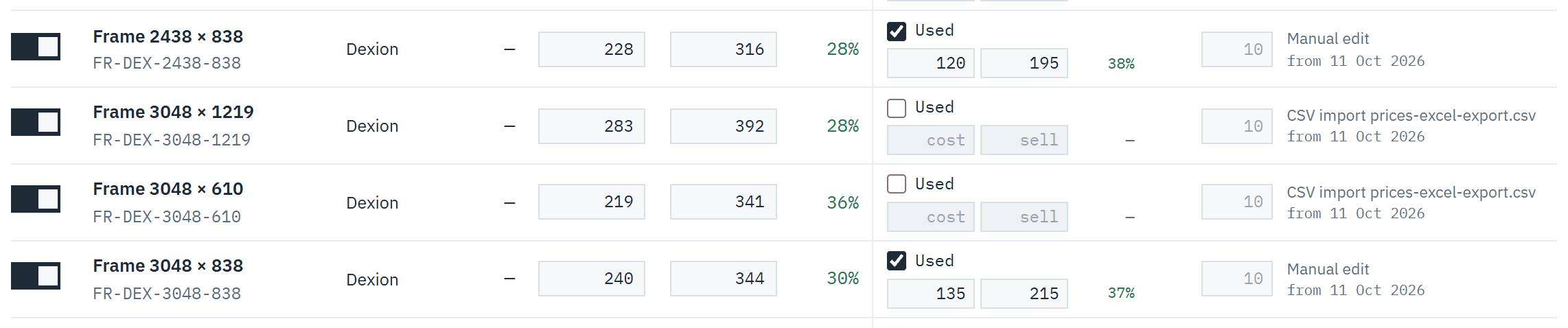
Open Price list and tick Used on the item. The used price cells unlock and the cursor jumps to sell.
 (opens full size in a new tab)
Tick Used available and enter a used cost and sell; quotes can then offer that item used. Step 2: Enter a used sell price
A used sell price is required. If your role can see costs, enter a used cost too for the used margin. Choose Save. The item can now be quoted used. See Price your racking.
Track stock
Step 3: Open inventory
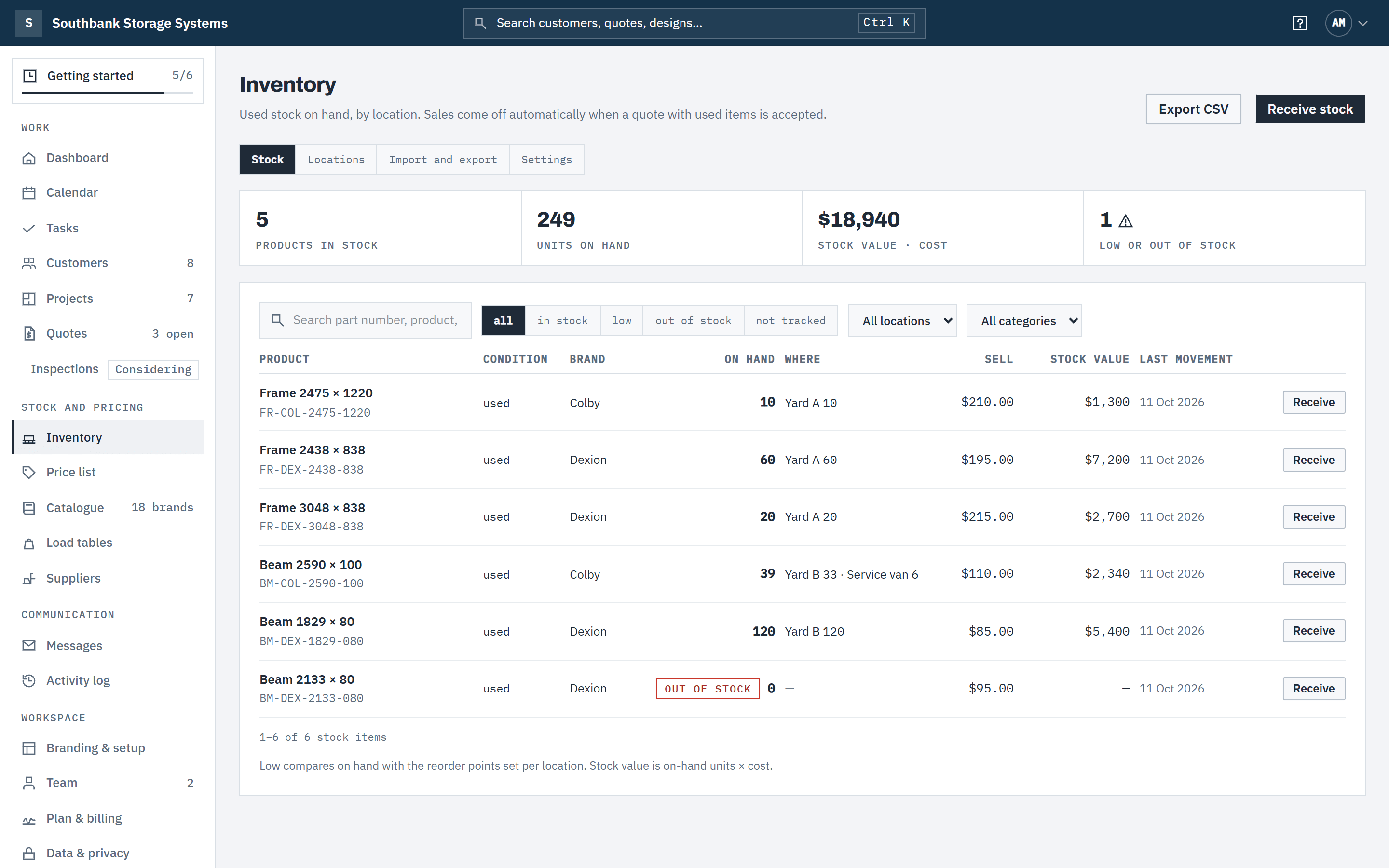
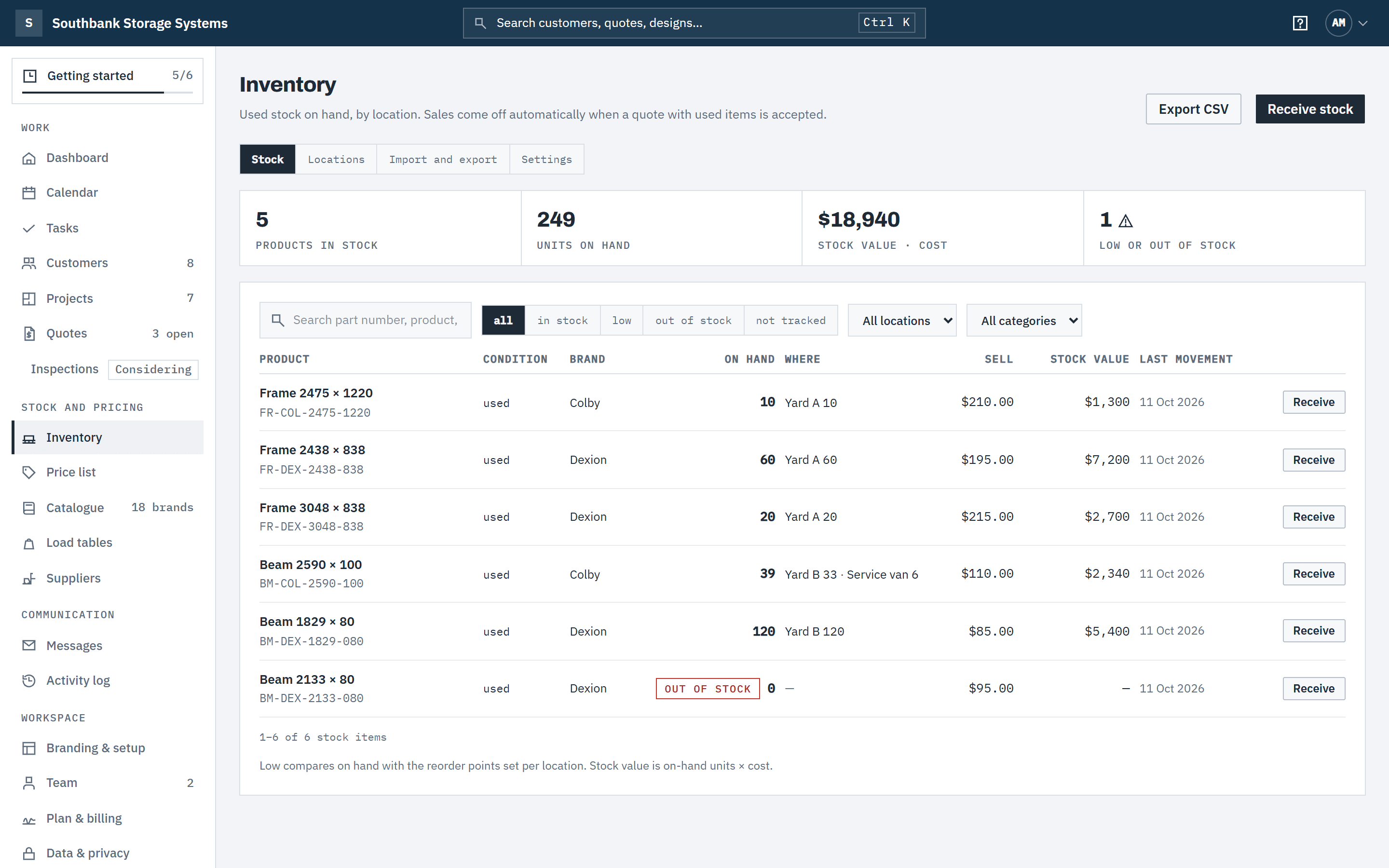
In the navigation, under Stock and pricing, choose Inventory. The Stock tab lists each product and condition with On hand, Where (each location holding it, and how many), Sell, Stock value and Last movement. Search by part number, product, brand or location; filter to in stock, low, out of stock or not tracked; and narrow by location or category.
 (opens full size in a new tab)
Inventory lists the stock you hold and where it is — sales draw it down when a quote is accepted. Step 4: Receive stock as it comes in
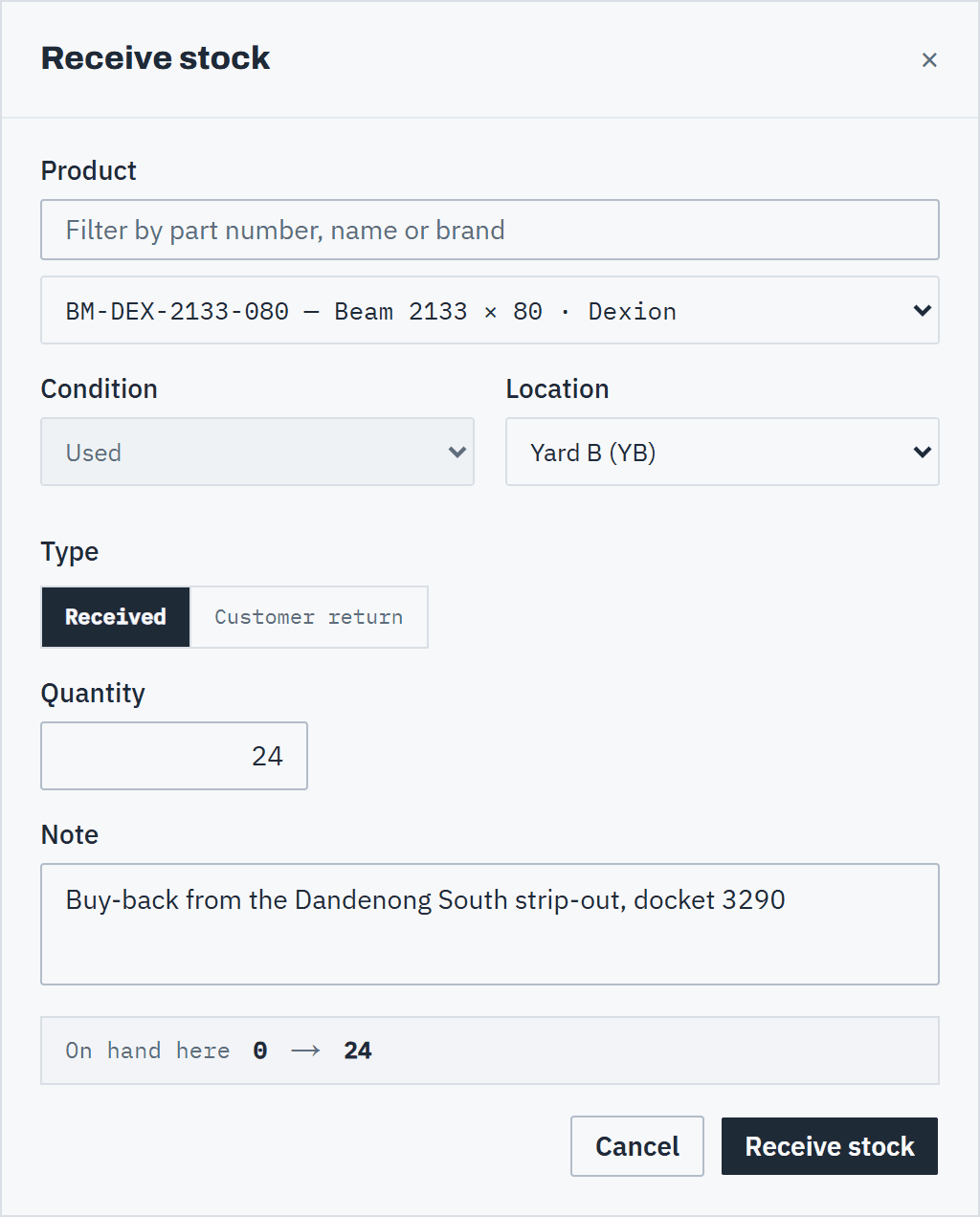
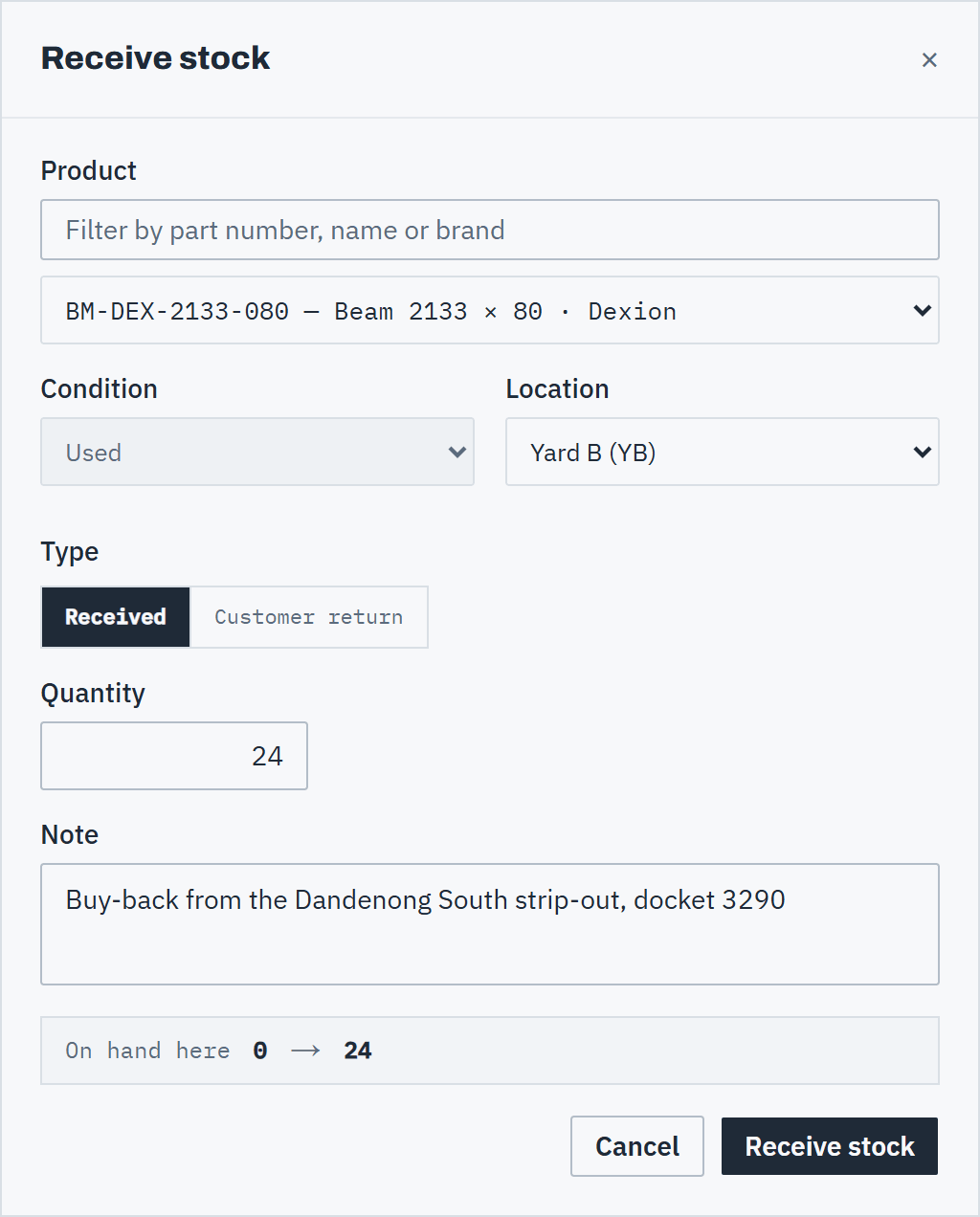
Choose Receive stock. Pick the Product, the Condition and the Location (the default location is picked for you), and choose Received or Customer return. Enter the Quantity and a Note, such as the buy-back job and docket number. The dialog previews the count at that location, for example On hand here 0 → 24. Receiving an item starts tracking it.
 (opens full size in a new tab)
Receive used stock as it comes in, at the location it went to; the note stays on the ledger. Step 5: Check an item's ledger
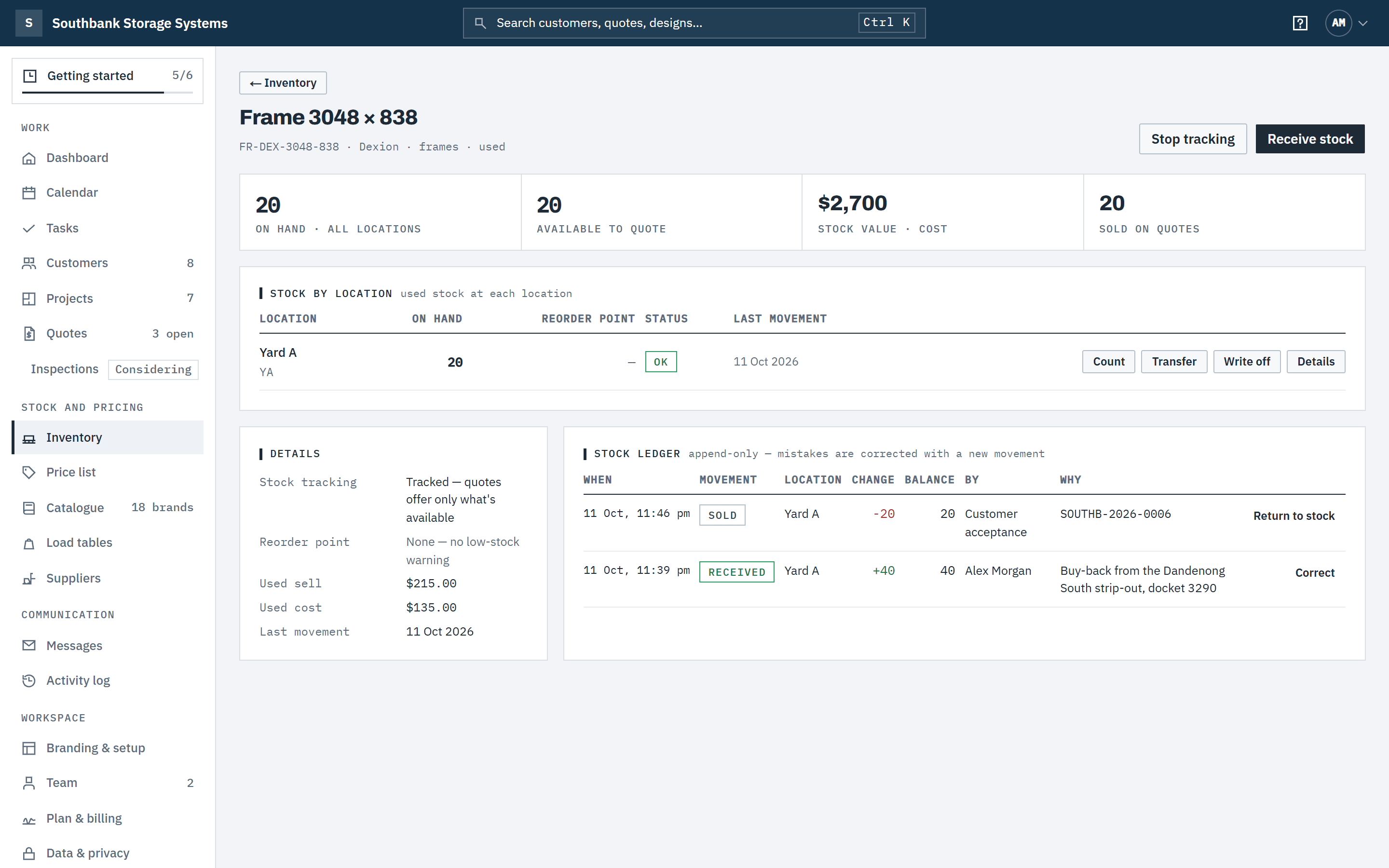
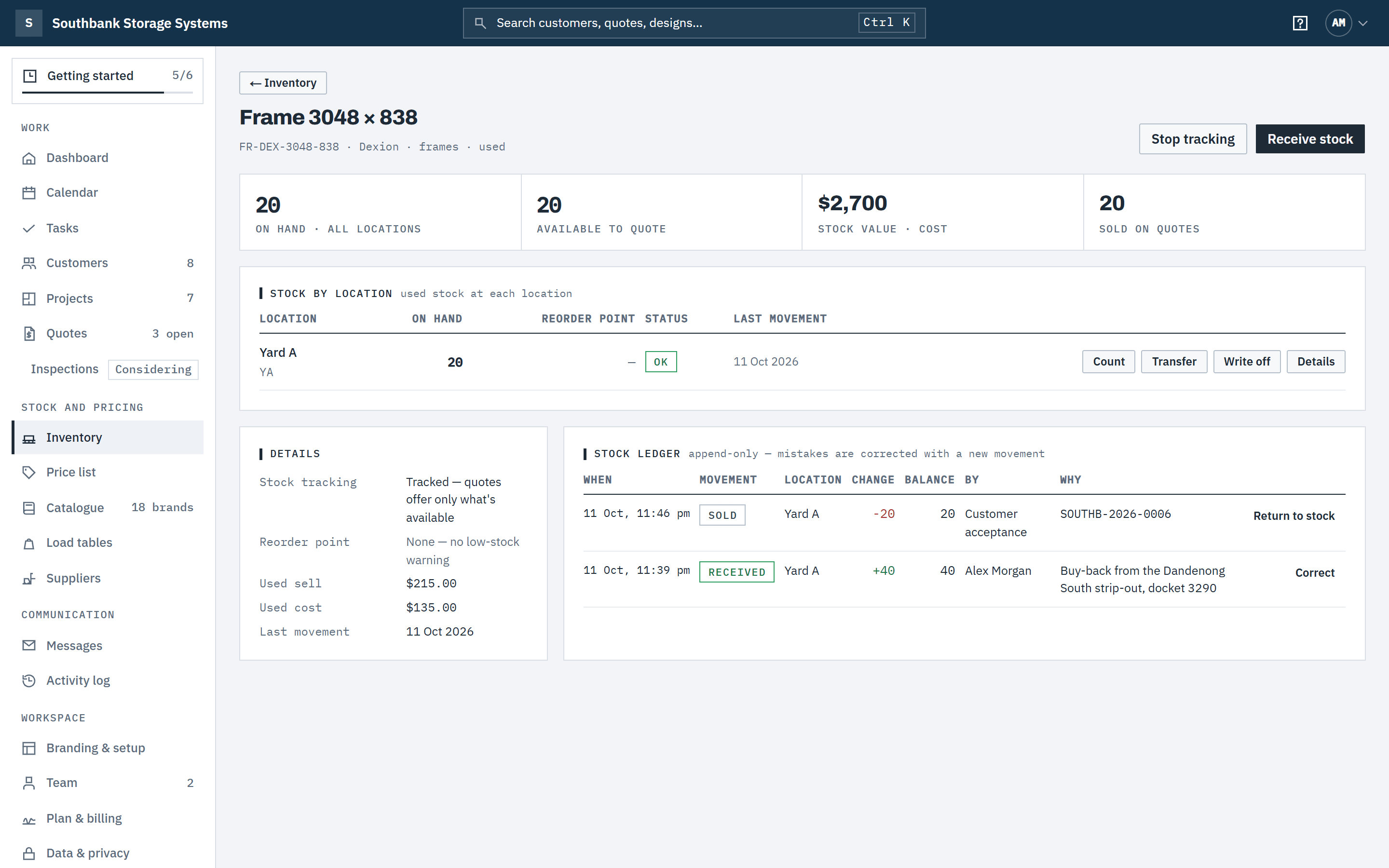
Open an item to see Stock by location and its Stock ledger: every Received, Returned, Adjustment, Write-off, Sold, transfer, Imported and Correction movement, with the location, running balance, who made it and why. Sales link to the quote that used the stock. The ledger is never edited: mistakes are put right with a correction. See Correct a stock movement.
 (opens full size in a new tab)
Each item's ledger records every receipt, transfer, sale and correction, linked to the quote that used it. Step 6: Count, write off or set a reorder point
Each location row on the item has Count, Transfer, Write off and Details. Count takes what is physically there and records the difference. Write off removes damaged stock, with a reason. Details sets that location's Reorder point and notes: at or below it, the item shows as low. See Stock locations, transfers and counts.
Good to know
- Tracked items are offered used only up to what's available — on hand at locations offered on quotes. The shortfall is supplied new and the quote line reads, for example, 40 used + 10 new. With none available the line is supplied New (no used stock).
- Untracked items (used-priced but never received) are quoted used with no stock limit and are never deducted. Use this for stock you source to order.
- Nothing is reserved when a quote is sent. Stock comes off only when the quote is accepted, online or marked accepted: from the default location first, then the others in order. Lost, declined and expired quotes don't touch inventory.
- Stock never goes below zero. If an accepted quote needs more than you hold, the shortfall is recorded on the quote so you can supply new or source more.
- Owners, admins and warehouse members receive, count, write off and transfer stock, and start or stop tracking on an item's page. Everyone else sees inventory read-only, and roles that can't see costs see stock value at sell. Quantities are whole numbers up to 100 000.
- Further reading: the SafeWork NSW pallet racking fact sheet, and WorkSafe Victoria's pallet racking operation and maintenance guidance. They're written for the businesses that run racking, and are worth passing on to your customers.
Related articles
- Stock locations, transfers and countsHold stock in yards, stores and vans, move it between them and count it.
- Correct a stock movementPut right a receipt, count or write-off recorded wrongly, or return sold stock.
- Quote new, used or bothLet the customer choose new or used line by line.
- Price your rackingCost, sell and margin, lead times, and editing prices in Excel.