
Brand your workspace
Logo, colours and the proposal your customers see.
Your customers buy from you, not from Baylogik. Everything they see — the proposal, the PDF, the online quote and the emails — carries your logo, your colours and your business details. Baylogik appears once, as a small powered-by line in the footer, which Enterprise workspaces can remove.
You set it all once, under Branding & setup. Quotes you send afterwards pick it up automatically.
Step 1: Open Branding & setup
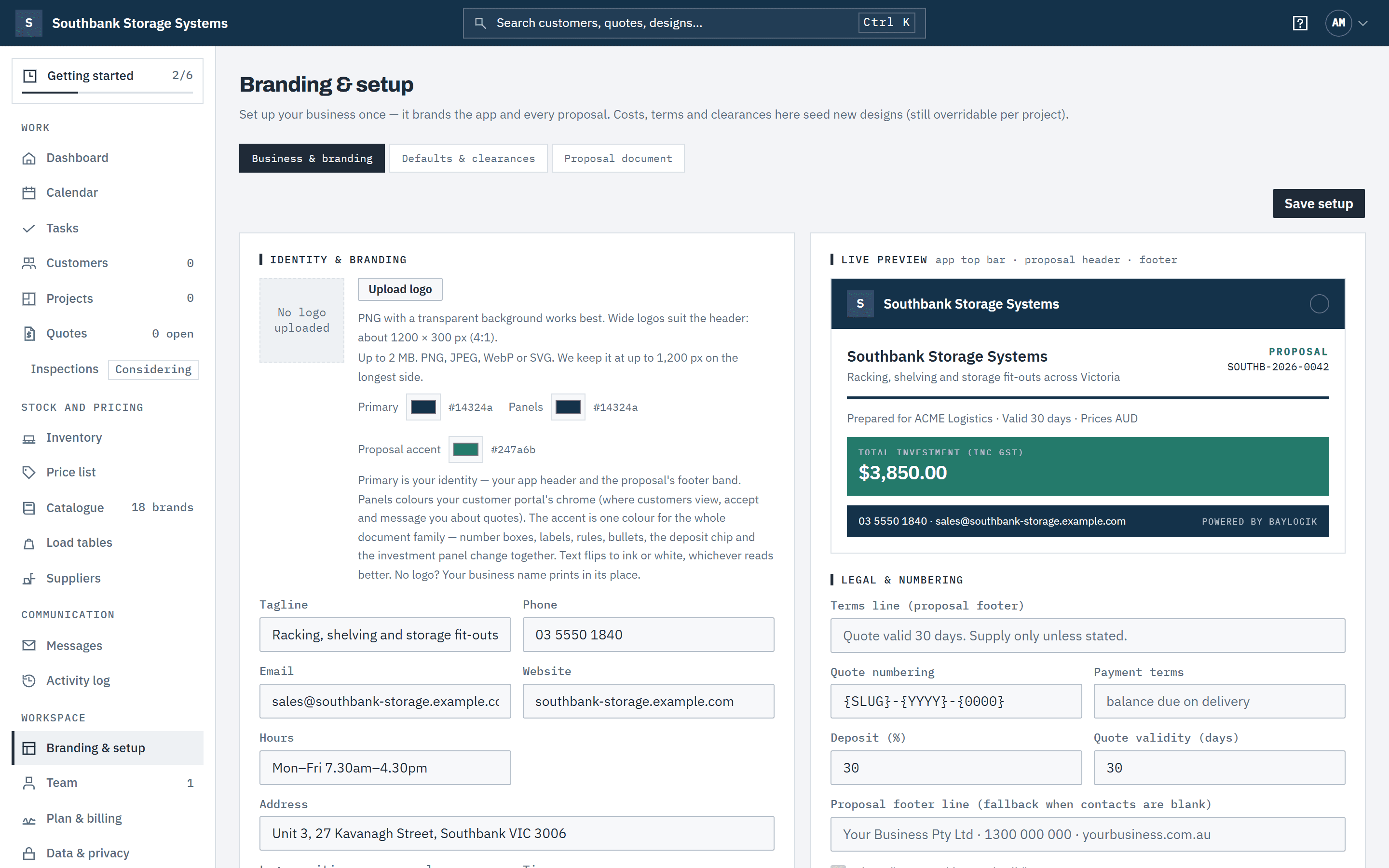
In the navigation, under Workspace, choose Branding & setup. The page has three tabs: Business & branding, Defaults & clearances and Proposal document. The Live preview shows your app top bar, proposal header and footer as you change things.
 (opens full size in a new tab)
Set your colours and business details once; every proposal, portal page and email picks them up. Step 2: Upload your logo
Choose Upload logo and pick a PNG, JPEG, WebP or SVG file up to 2 MB. A wide PNG on a transparent background works best: about 1200 × 300 px (4:1). Baylogik keeps it at up to 1,200 px on the longest side. Under Logo position on proposals, choose left or right. With no logo, your business name prints in its place.
After uploading, you see the logo on the proposal's light header and on your customer's dark page header, at their real sizes. If it has a solid background, Baylogik tells you: it shows as a box on the dark header, and a transparent PNG looks cleaner. Quotes you've already sent keep the logo they were sent with; the quote page notes this, and revising sends a new version with your current logo.
Step 3: Set your three colours
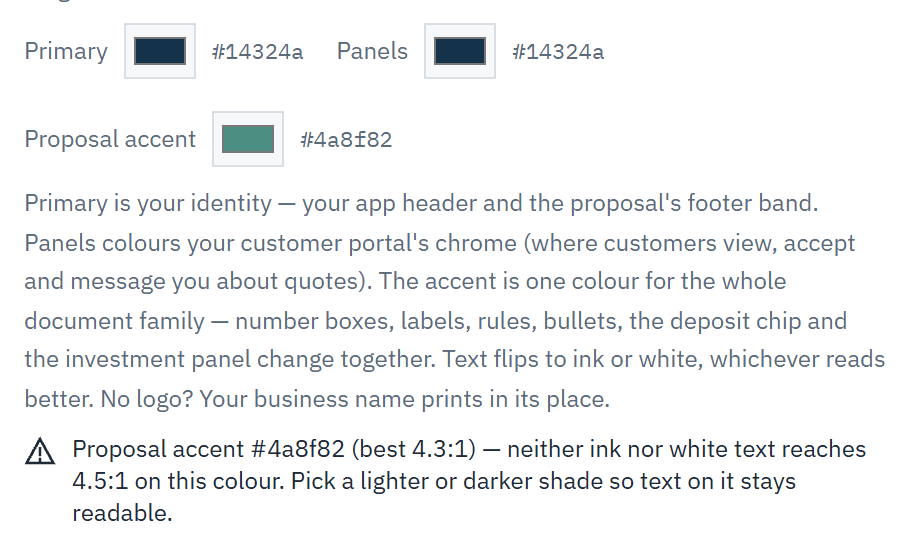
Primary colours your app header and the proposal's footer band. Panels colours the customer's online quote. Proposal accent picks out numbers, labels, rules, the deposit chip and the investment panel.
If neither dark nor white text would be readable on a colour (a contrast of 4.5:1), Baylogik warns you. You can still save, but pick a lighter or darker shade if you can.
 (opens full size in a new tab)
If a colour is too mid-toned for readable text, Baylogik warns you before you save. Step 4: Fill in your business details
Enter your Tagline, Phone, Email, Website, Hours, your business number (an ABN in Australia), Address and Timezone. The email here is also where customer replies and accepted-quote notifications go, so use a monitored sales inbox.
Step 5: Check your business number
Your business number prints on every proposal, so Baylogik checks it before saving. Which number it asks for follows your country (see Tax and currency): an 11-digit ABN must pass the ATO's check, and a 13-digit NZBN its check digit; spaces are fine. A mistyped number is refused with a message saying which, and the rest of the form keeps what you entered. An ABN is saved spaced, as 51 824 753 556. A number you saved before is kept as it is when you save other changes. Leave the field blank if you'd rather not show one.
Step 6: Set numbering, deposit and terms
Under Legal & numbering, set the Quote numbering pattern (default {SLUG}-{YYYY}-{0000}, which must include {0000}), your Payment terms, Deposit (%) (default 30) and Quote validity (days) (default 30), plus the terms line printed in the proposal footer.
Step 7: Save
Choose Save setup. New quotes use the new branding straight away. Use the Proposal document tab to edit the proposal's headings, terms text and your recommendation — it's off until you write one, because only you know what you recommend for a site.
Good to know
- Show "Powered by Baylogik" controls the small line at the foot of your proposals and of the workspace sidebar. Only Enterprise workspaces can turn it off; on Starter, Team and the trial it always shows. See Plans, trial and billing.
- Your country sets the currency and the tax on every quote — GST for Australia and New Zealand. See Tax and currency.
- Only owners and admins can change branding and commercial settings. Other roles don't see Branding & setup in the navigation.
- Quotes already sent keep the branding and proposal text they were sent with. Changes apply to quotes you send from now on.
- Proposal text limits: headings 80 characters, box text 400, the recommendation 500 and each term 600.
- Deposit and validity defaults can be anything from 0–100% and 1–365 days. Installation, delivery and payment-terms defaults prefill the generate-quote form and can be changed per quote.
Related articles
- Tax and currencyPick your country for GST or VAT and your currency, or set your own rate.
- What your customer seesThe online proposal, chat, and accepting with a confirmation code.
- Create and send a quoteGenerate, review and send a priced, branded proposal.
- Getting startedThe steps from a new workspace to your first sent quote.