
Take the interactive tour
The guided tour of your workspace, the top bar, and a click-through of Baylogik from room to signed quote.
Baylogik has two ways to get your bearings. The guided tour runs inside your own workspace: seven stops, about a minute, pointing at where things live. The demo is a click-through of real screens from a demo business, from an empty room to an accepted quote, and needs no sign-in.
Start with the tour if you have just signed up. Send the demo to anyone who wants to see the whole job end to end before they touch anything.
The guided tour
Step 1: Choose how to start
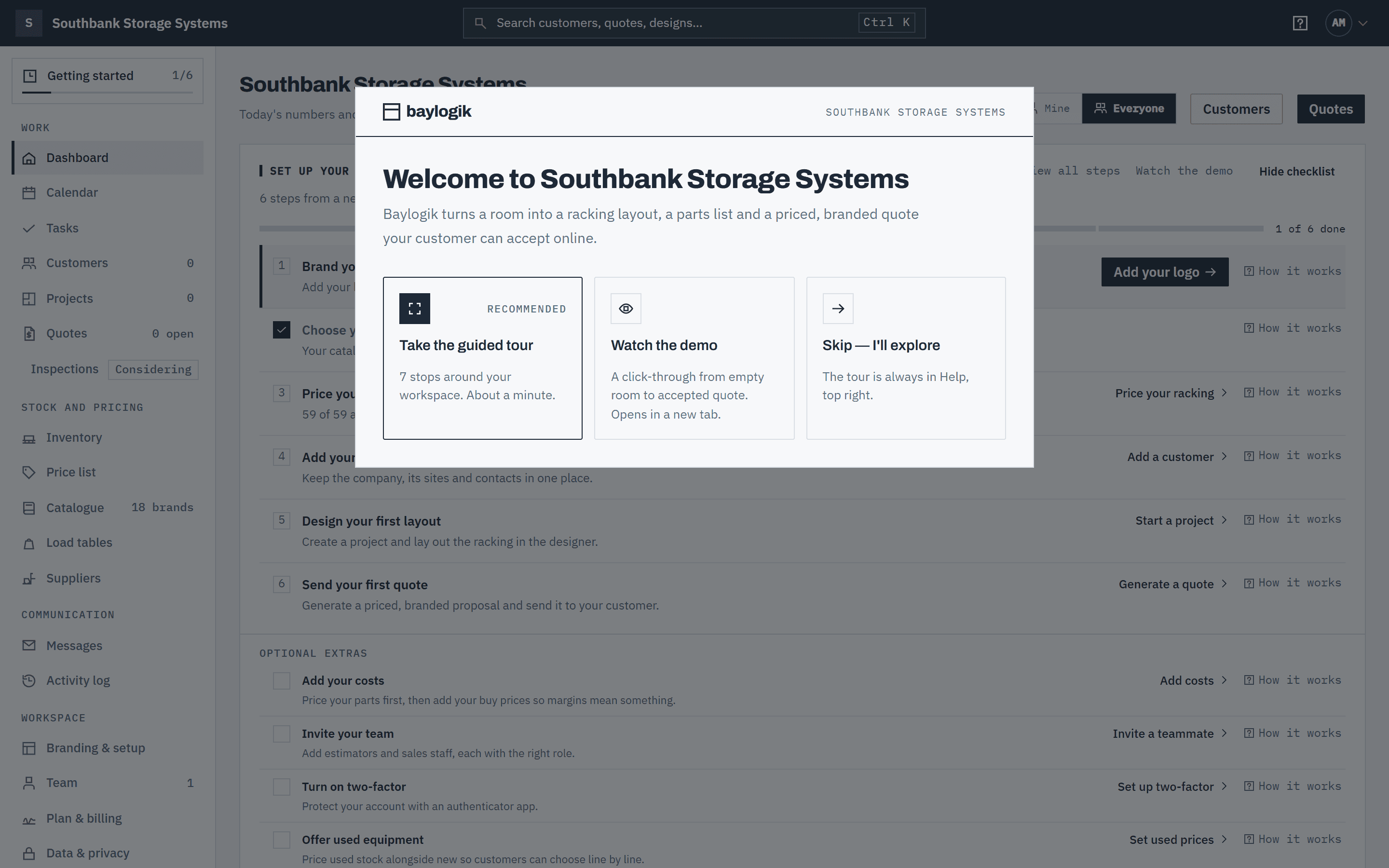
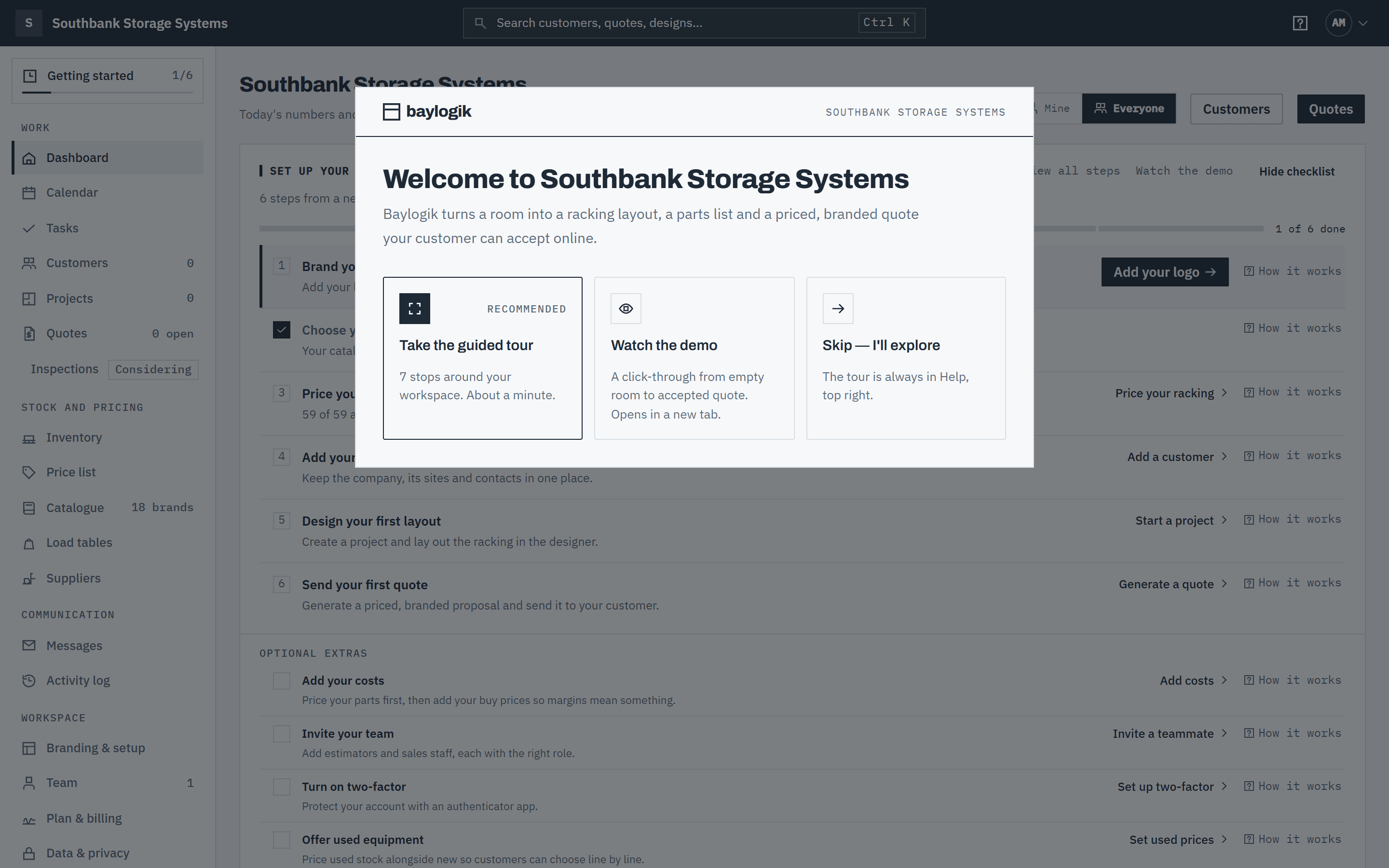
The first time you open a workspace, the Welcome dialog offers three choices: Take the guided tour, Watch the demo (opens in a new tab) or Skip — I'll explore. It shows once per person; any choice, including Esc, dismisses it for good.
 (opens full size in a new tab)
The first time you open your workspace, Baylogik offers a short guided tour. Step 2: Follow the stops
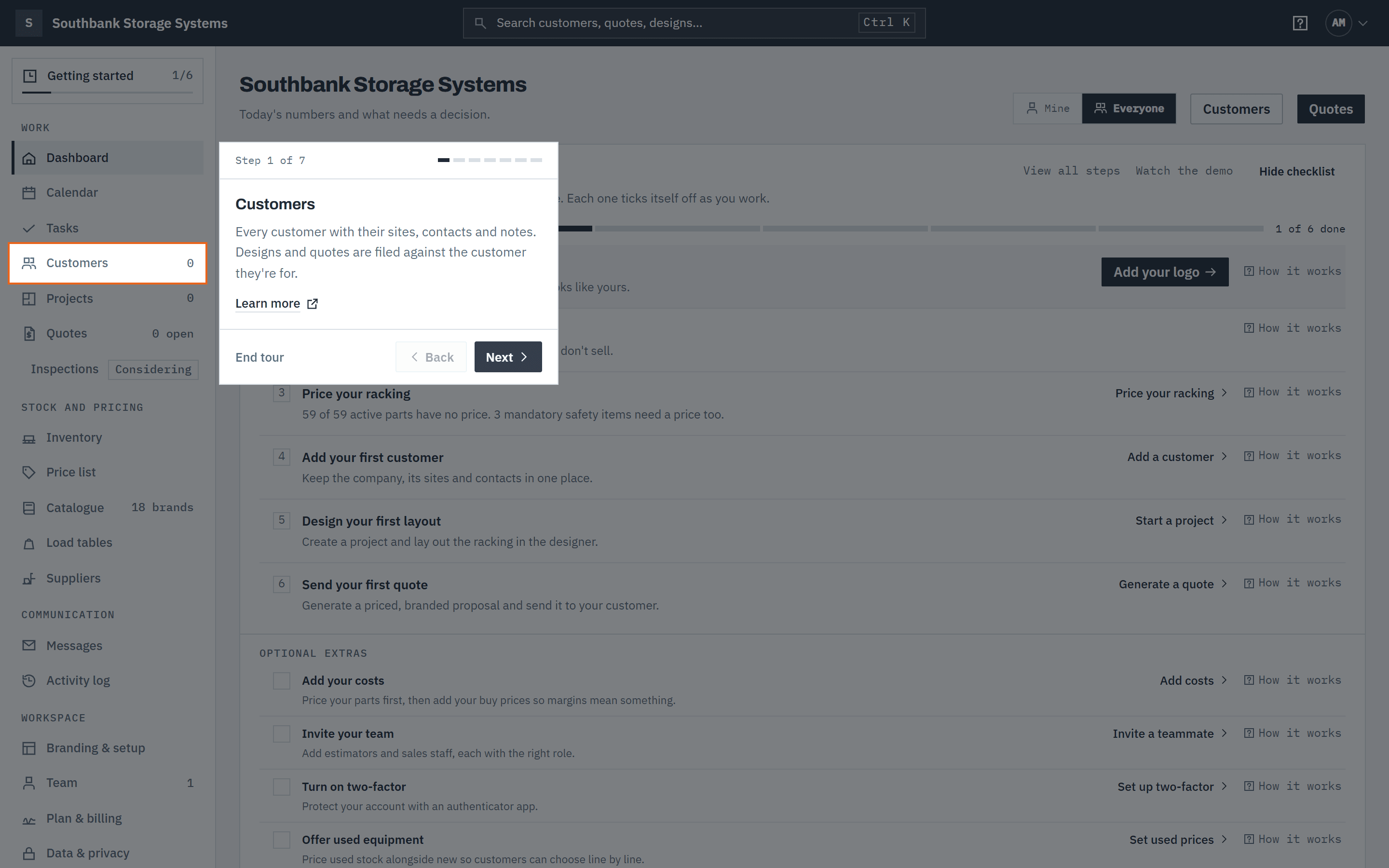
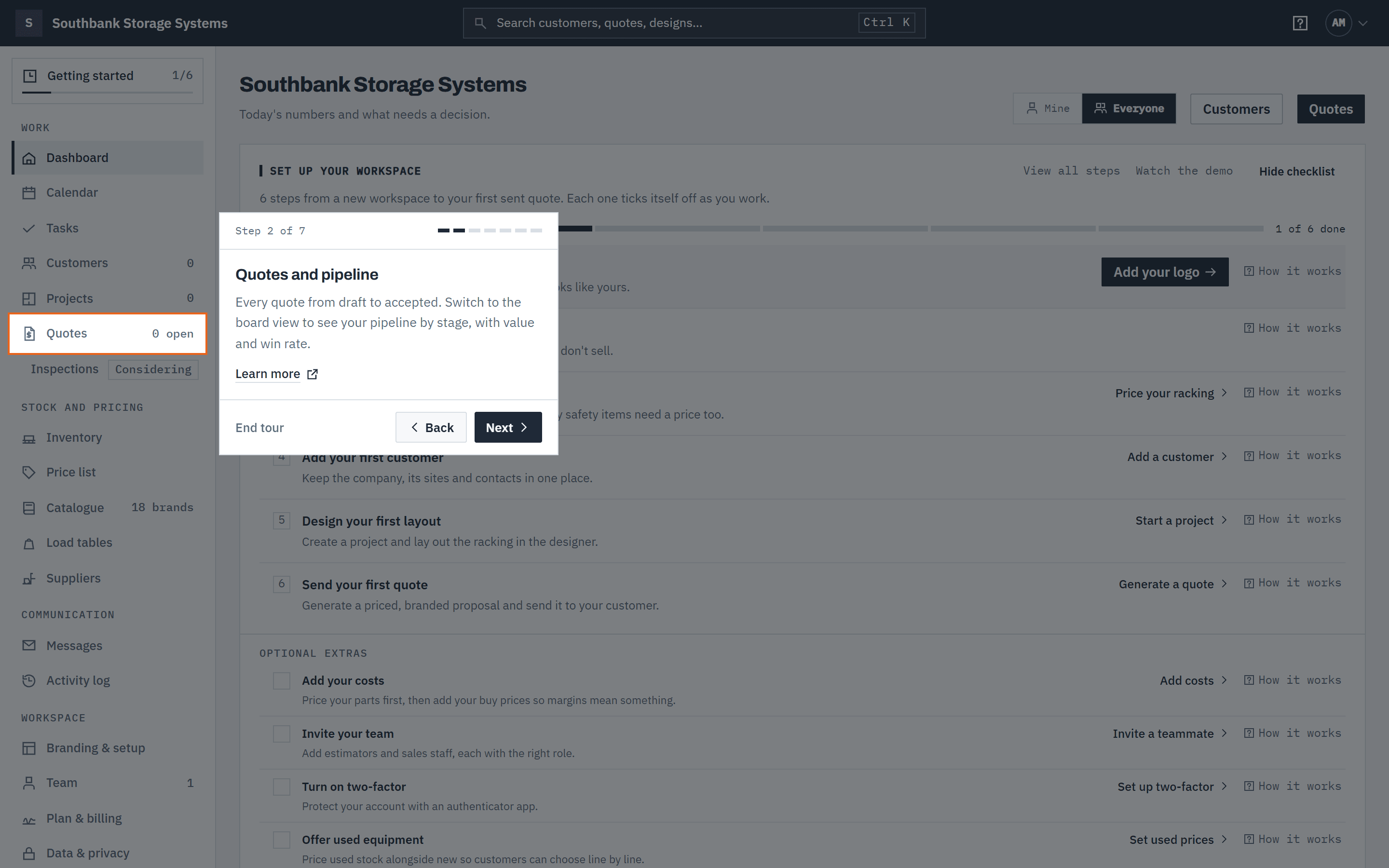
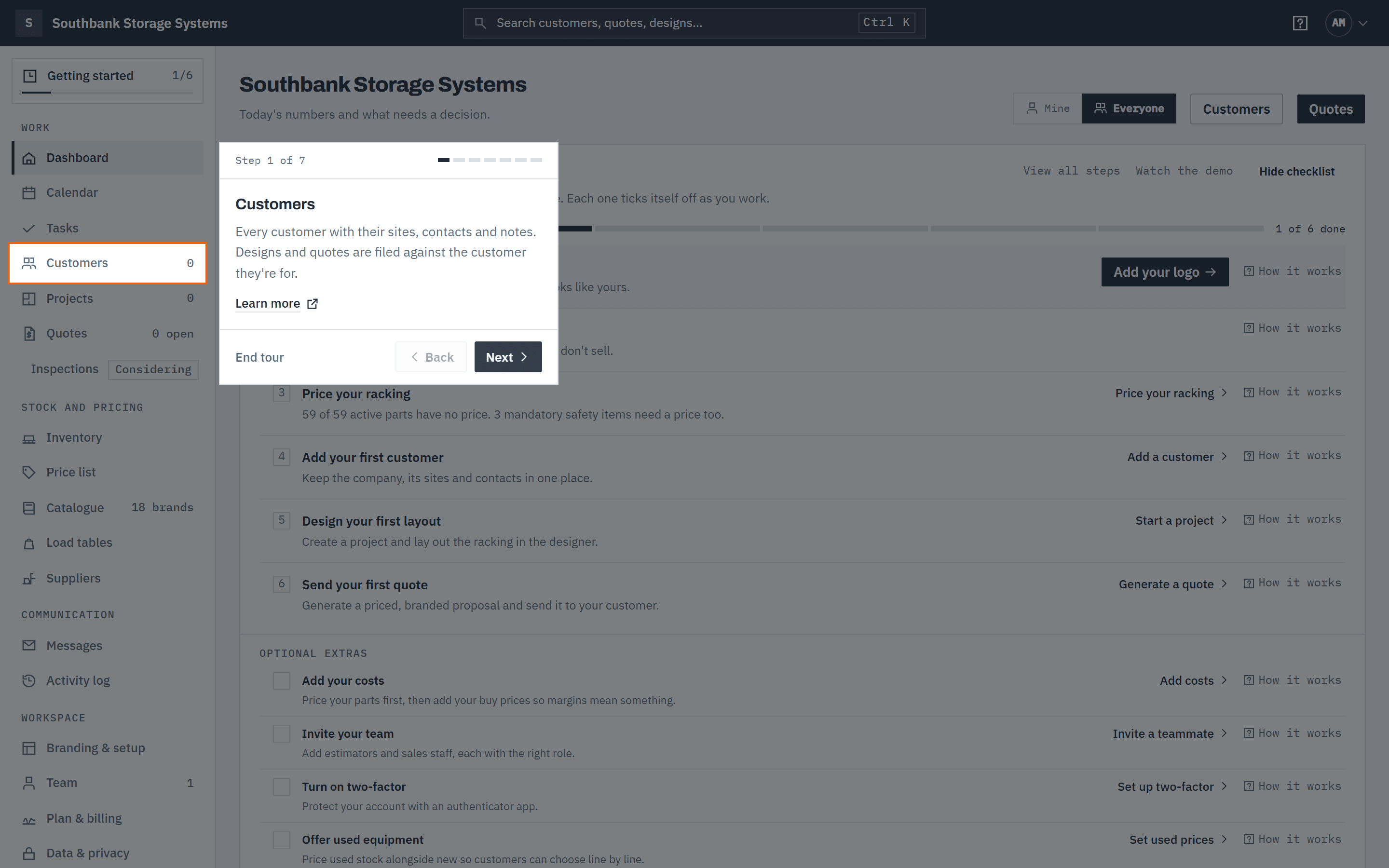
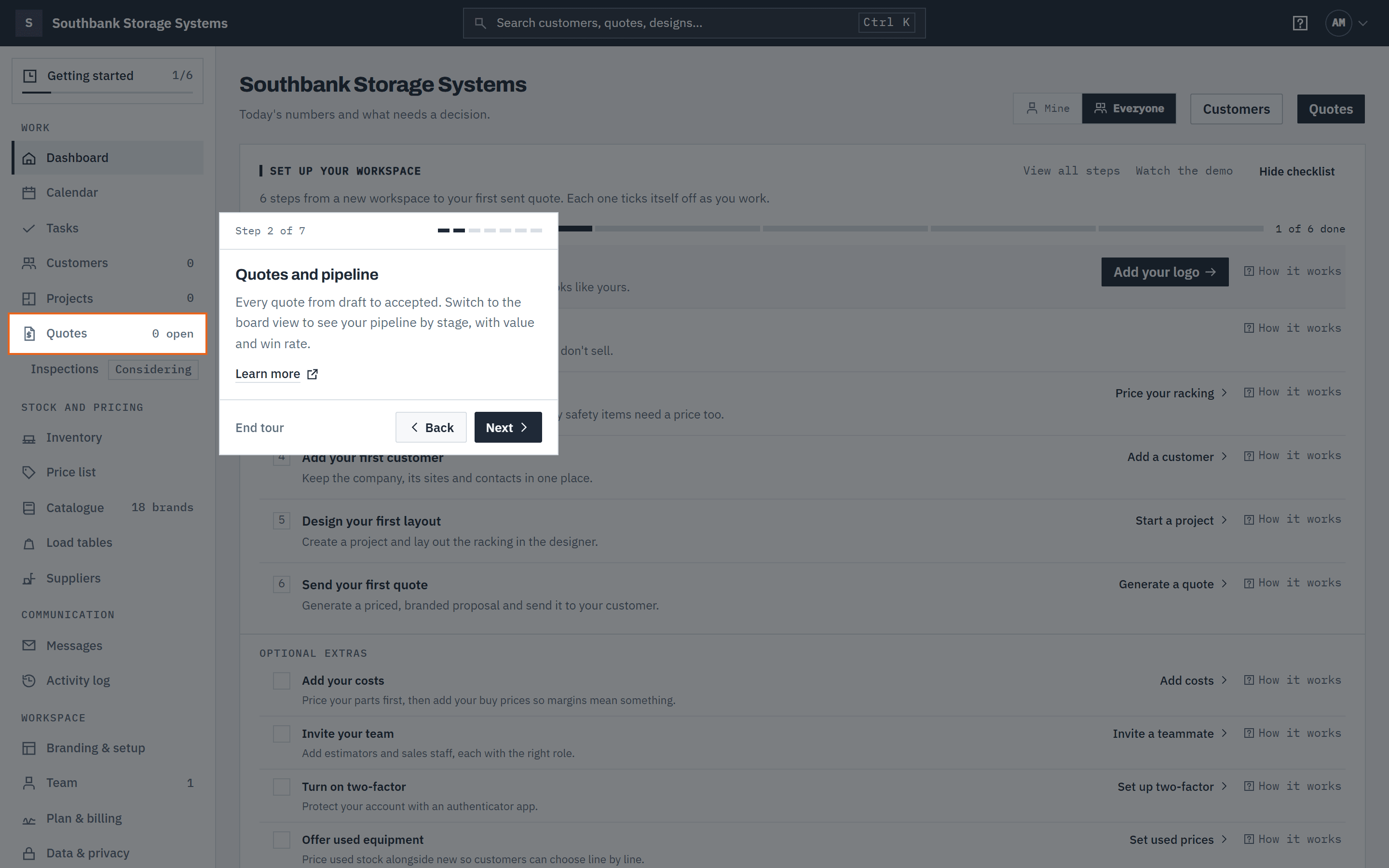
Each stop highlights one part of the workspace and dims the rest. The seven stops are Customers, Quotes and pipeline, Price list, Inventory, Branding and setup, Your account and workspaces (the account menu in the top bar) and Help, any time.
The callout shows where you are, for example Step 1 of 7.
 (opens full size in a new tab)
Each tour stop highlights one part of the workspace; use Next or the arrow keys to move on. Step 3: Move on, go back or read more
Use Next and Back, or → and ←. On the last stop Next becomes Finish. Learn more opens the matching Help article in a new tab, so you don't lose your place. End tour or Esc stops at any time.
 (opens full size in a new tab)
Every stop links to the matching Help article if you want the detail. Step 4: Restart it whenever you like
Open the ? Help menu in the top bar and choose Restart the tour. The same menu has Help centre, Watch the demo, What's new, Request a feature, Report a problem and Contact support, each opening in a new tab. See Feature requests and problem reports.
The top bar
Step 5: Search from anywhere
Search sits in the centre of the top bar. Click it or press Ctrl K (⌘ K on a Mac) to find customers, contacts, sites, designs, quotes and notes.
Step 6: Open your account menu
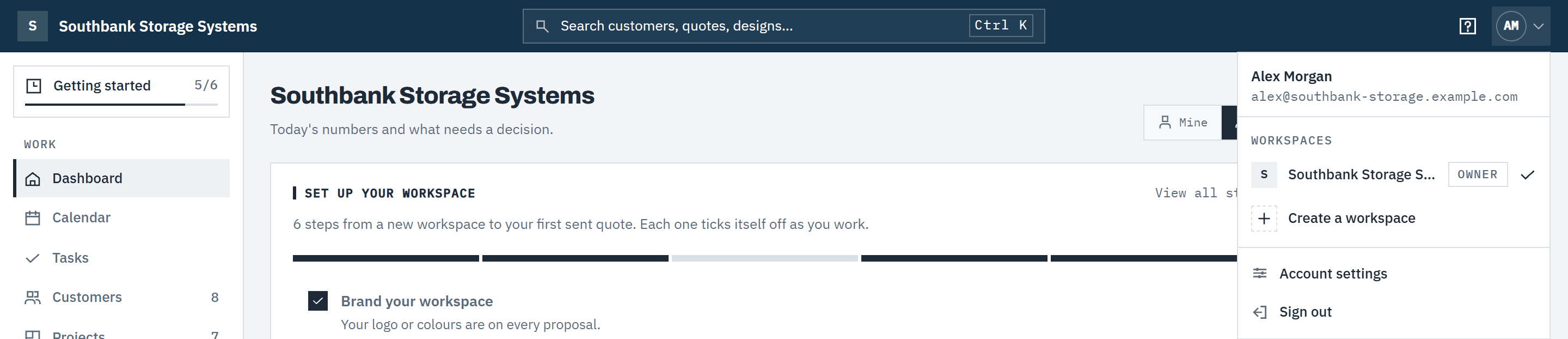
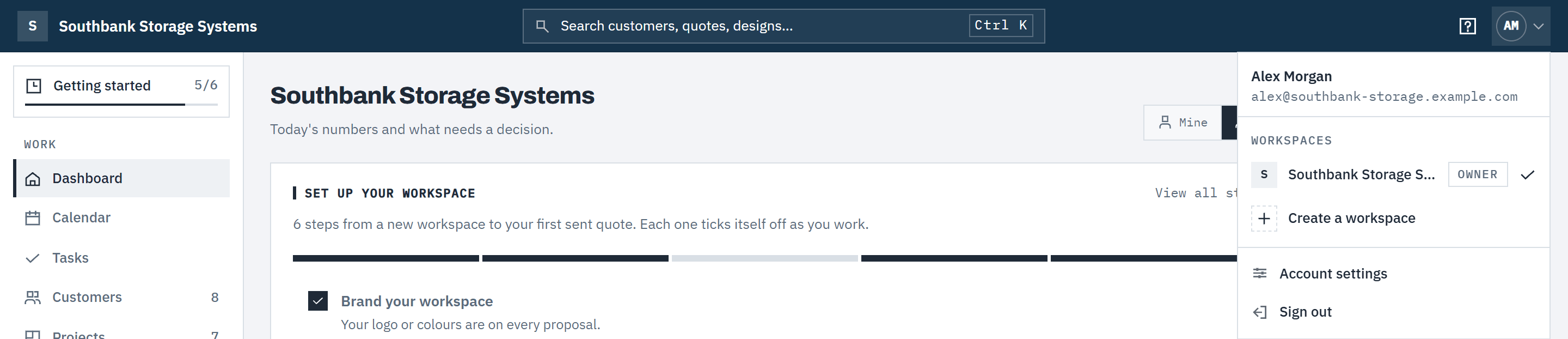
Your initials, top right, open the account menu: your name and email, the workspaces you belong to (switch, or create another), Account settings and Sign out. The ? beside it is the Help menu.
 (opens full size in a new tab)
Your initials open the account menu: switch workspaces, open Account settings or sign out.
The click-through demo
Step 7: Open the demo
Open the demo from the Help menu, the welcome dialog, the Getting started page or the Baylogik website. It is public, so you can send the link to a colleague or a customer.
Step 8: Click through at your own pace
Each screen has a highlighted area: click it, press → or Enter, or use Next. ← or Back goes back. The demo follows one job from the customer record through the designer, a new and used quote, and the customer accepting it online.
Good to know
- A tour stop is skipped if its part of the screen isn't showing, for example on a narrow window where the navigation is collapsed.
- While the tour runs, focus stays in the callout and clicks on the dimmed page are ignored. End the tour to carry on working.
- The demo uses a fictional business, Southbank Storage Systems. Nothing you click in it changes your workspace.
- Deep link to any demo screen by adding #step-5 (or any step number) to the demo address.
Related articles
- Getting startedThe steps from a new workspace to your first sent quote.
- Feature requests and problem reportsWhat's new, requesting and voting for features, and reporting a problem.
- Customers, sites and contactsKeep customer records, sites, contacts and notes.
- Create and send a quoteGenerate, review and send a priced, branded proposal.