
Feature requests and problem reports
What's new, requesting and voting for features, and reporting a problem.
The Help menu — ? in the top bar — is where you hear from us and we hear from you: What's new for release notes, Request a feature and Report a problem.
Each one opens in a new tab, so you don't lose your place in a quote or design.
Step 1: Open the Help menu
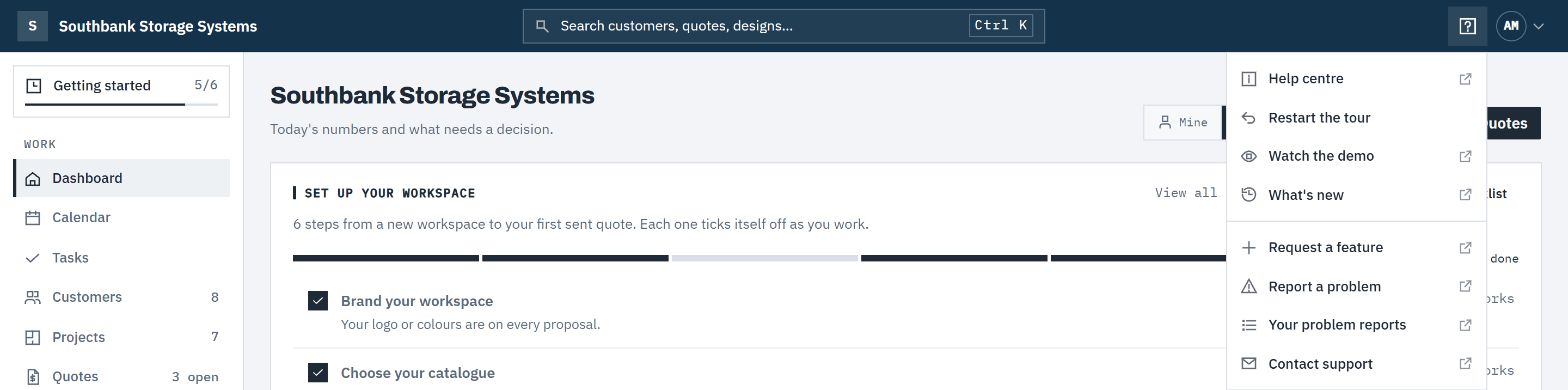
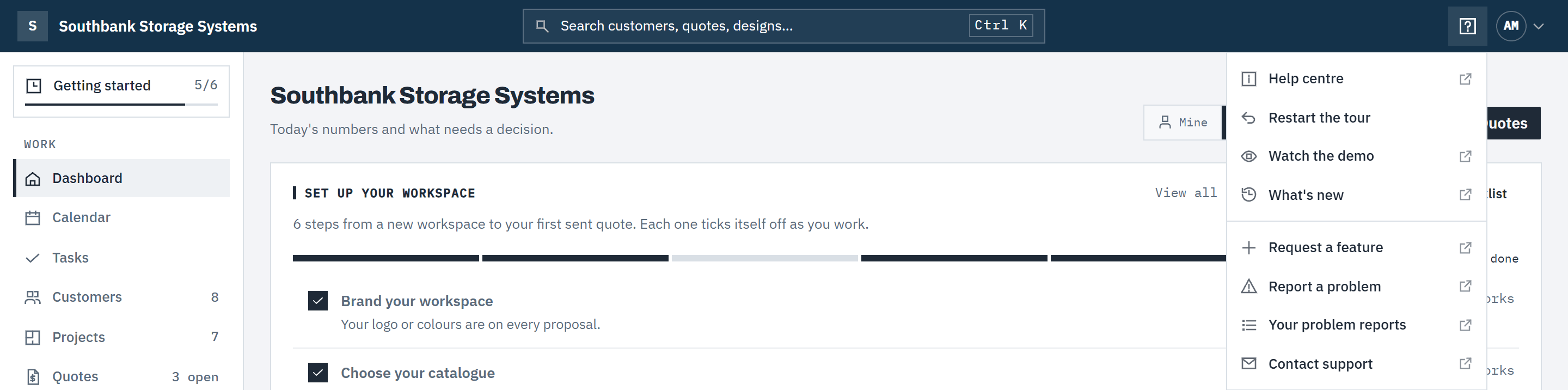
Choose ? in the top bar. Alongside Help centre, Restart the tour, Watch the demo and Contact support, it has What's new, Request a feature and Report a problem.
 (opens full size in a new tab)
What's new, feature requests and problem reports are all in the Help menu. Step 2: See what's new
What's new opens the release notes: every Baylogik release in plain English. After an update, a short What's new note also appears once in your workspace; Got it closes it for good.
Step 3: Request a feature, or vote for one
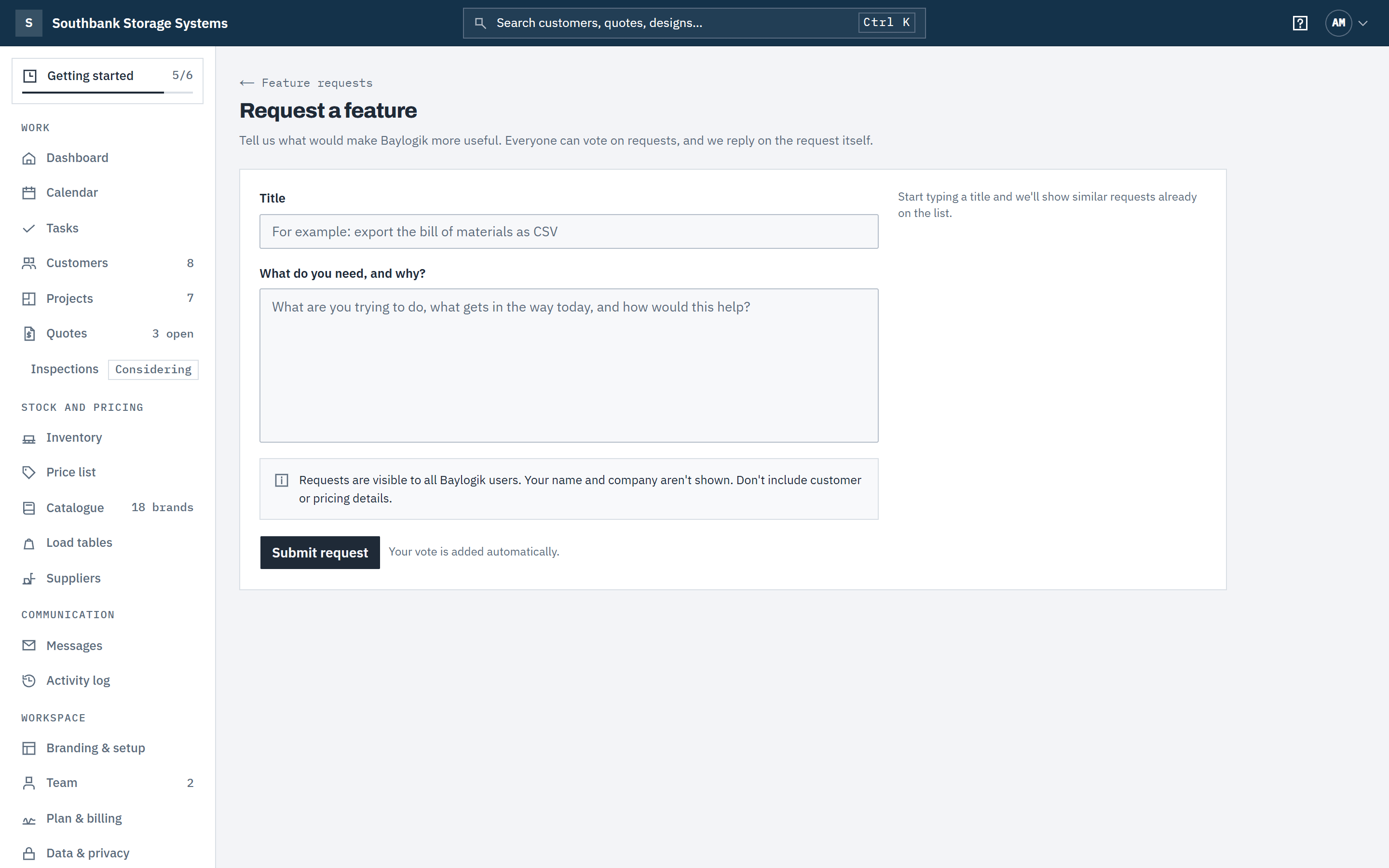
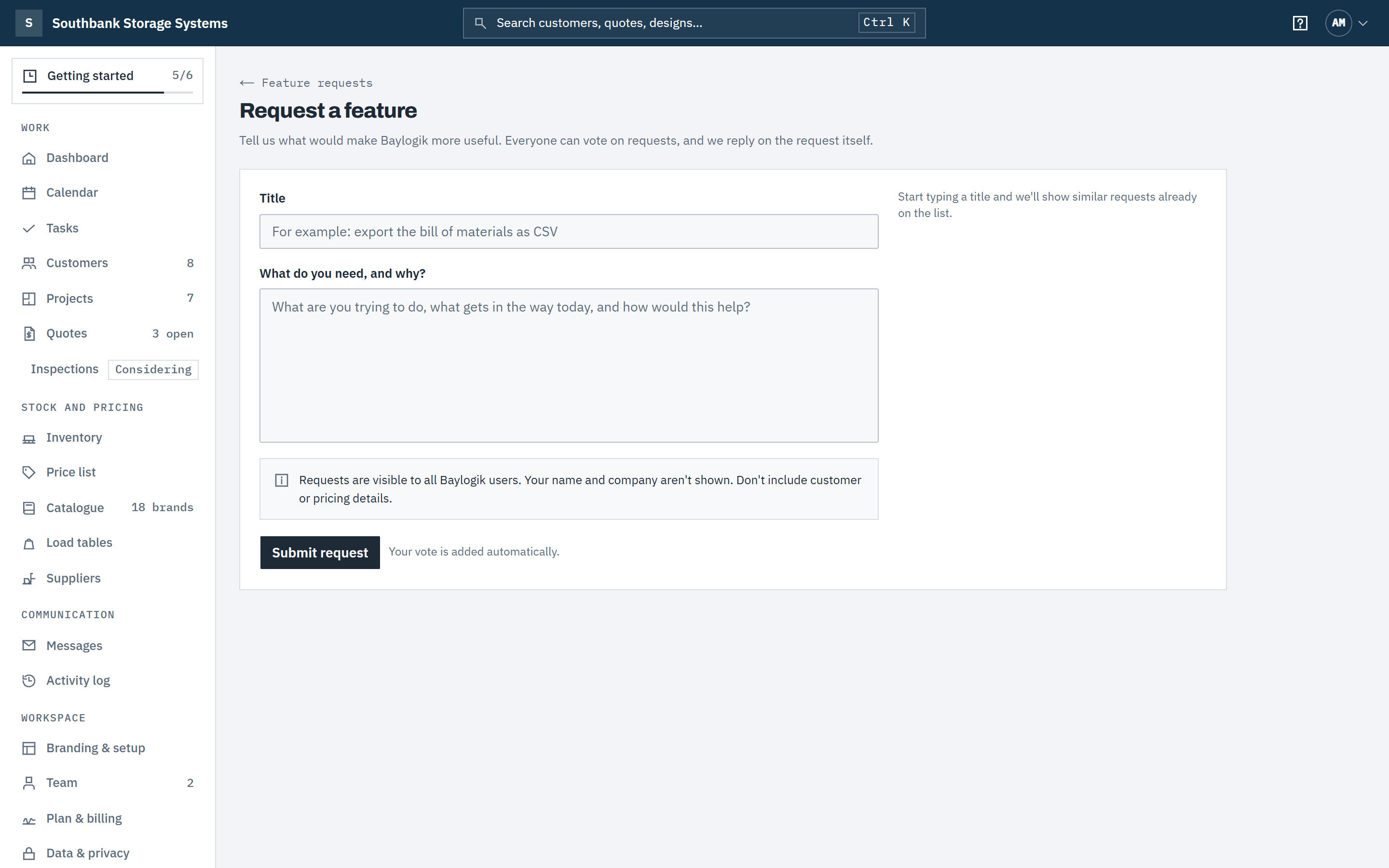
Request a feature opens Feature requests. Search first, and vote for a request you want rather than adding the same thing again. To add one, choose Request a feature, give it a Title, answer What do you need, and why? and choose Submit request. Similar requests appear beside the form as you type.
 (opens full size in a new tab)
Describe what you need and why; similar requests show beside the form as you type. Step 4: Report a problem
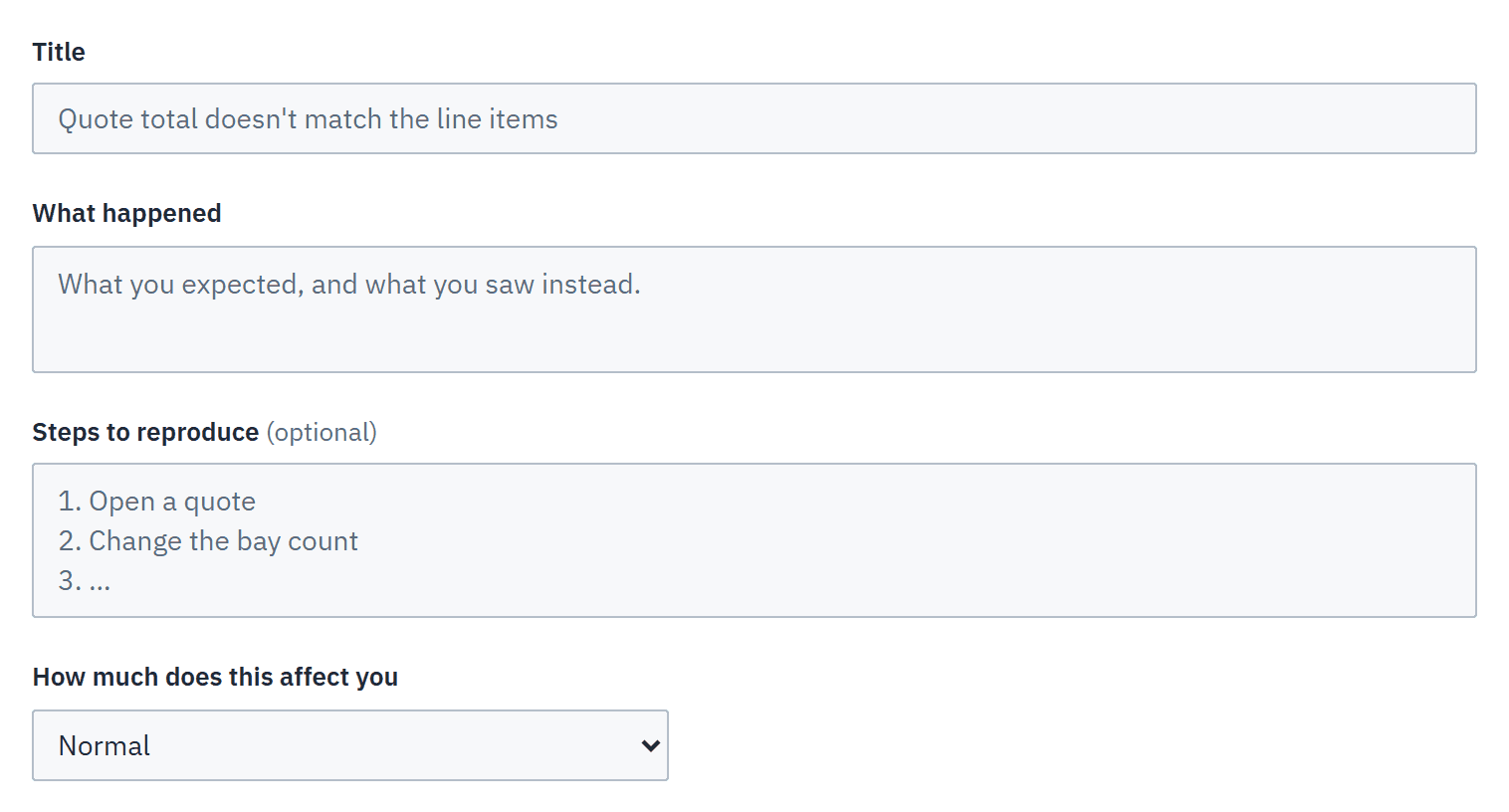
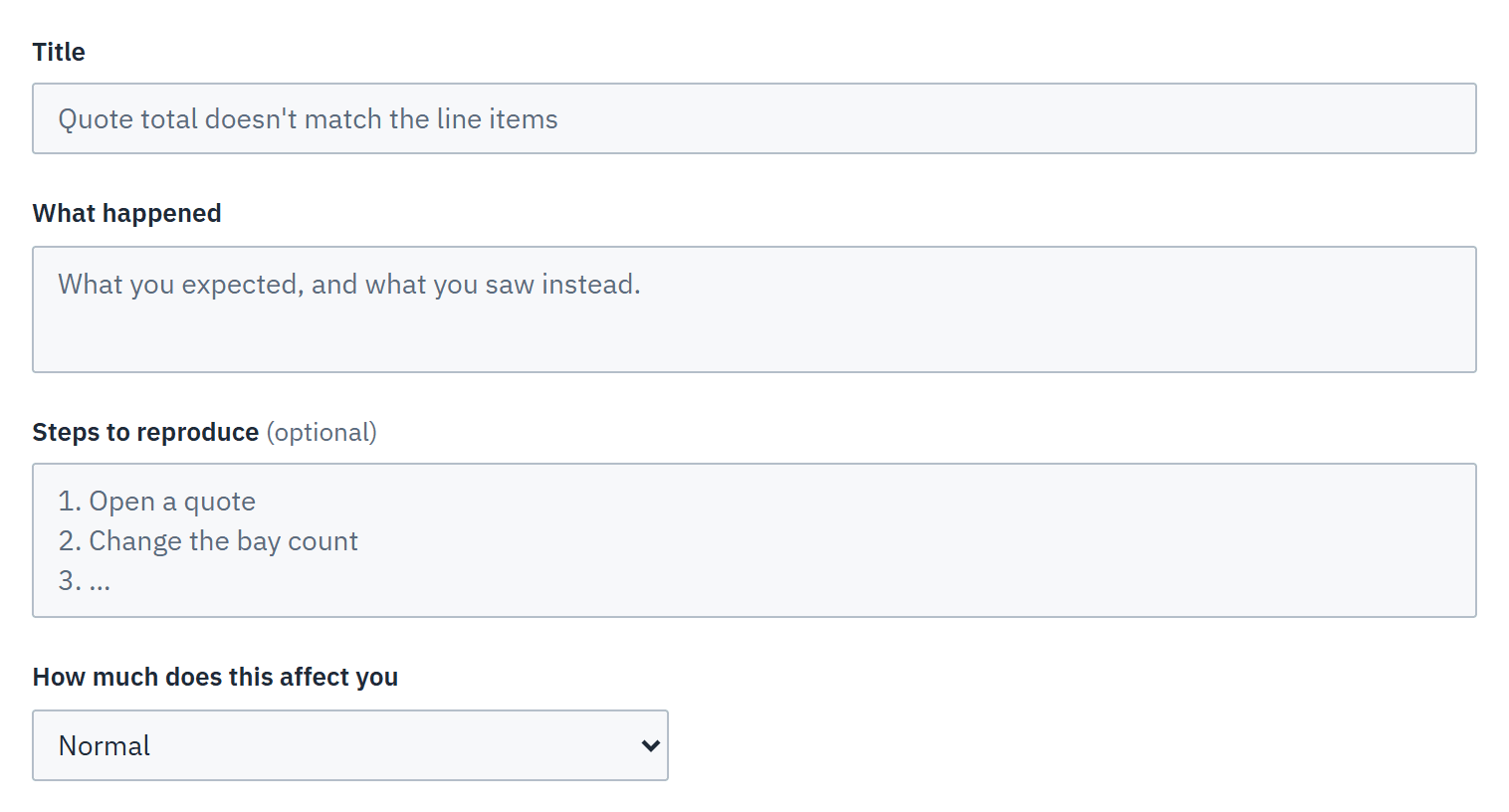
Report a problem opens a form that already knows the page you came from. Give it a Title, describe What happened, add Steps to reproduce if you can, choose How much does this affect you and attach up to 5 screenshots or files. Choose Send report.
 (opens full size in a new tab)
Say what happened and how to reproduce it; screenshots help. Step 5: Follow it up
Problem reports lists your reports with their status and Baylogik's response. We email you when we respond to a report or close it, and when a request you made is planned, shipped or declined.
Good to know
- Feature requests are visible to every Baylogik user, but your name and company aren't shown. Don't include customer or pricing details.
- A problem report is seen by Baylogik support and, in your workspace, by you and the owners and admins.
- A report carries the page, your browser and the Baylogik version, so we can reproduce the problem. Attach images, PDFs or plain text files; you can add more files for 30 minutes after sending.
- Requests move through Open, Under review, Planned, In progress, Shipped and Declined. Voting closes once a request is shipped or declined.
- Every role can send feedback, including read only.
- For anything urgent or about your account, use Contact support.
Related articles
- Take the interactive tourThe guided tour of your workspace, the top bar, and a click-through of Baylogik from room to signed quote.
- Getting startedThe steps from a new workspace to your first sent quote.
- Roles and permissionsOwner, admin, estimator, finance, warehouse and read only: who can see and change what, including cost prices.