
Tasks and follow-ups
Give each follow-up an owner and a due date, and record what was done.
A task is a job for someone on your team with a due date: call the customer back, chase a signature, book the install crew. Each one can be linked to the customer, design or quote it is about, so it shows up there as well as on the Tasks page, the calendar and your dashboard.
Tasks replace follow-up reminders on notes. Every reminder you had was converted to a task, open or done as it was, assigned to the person who set it and linked to the same record. Those tasks are marked From a note follow-up.
Work with tasks
Step 1: Open your tasks
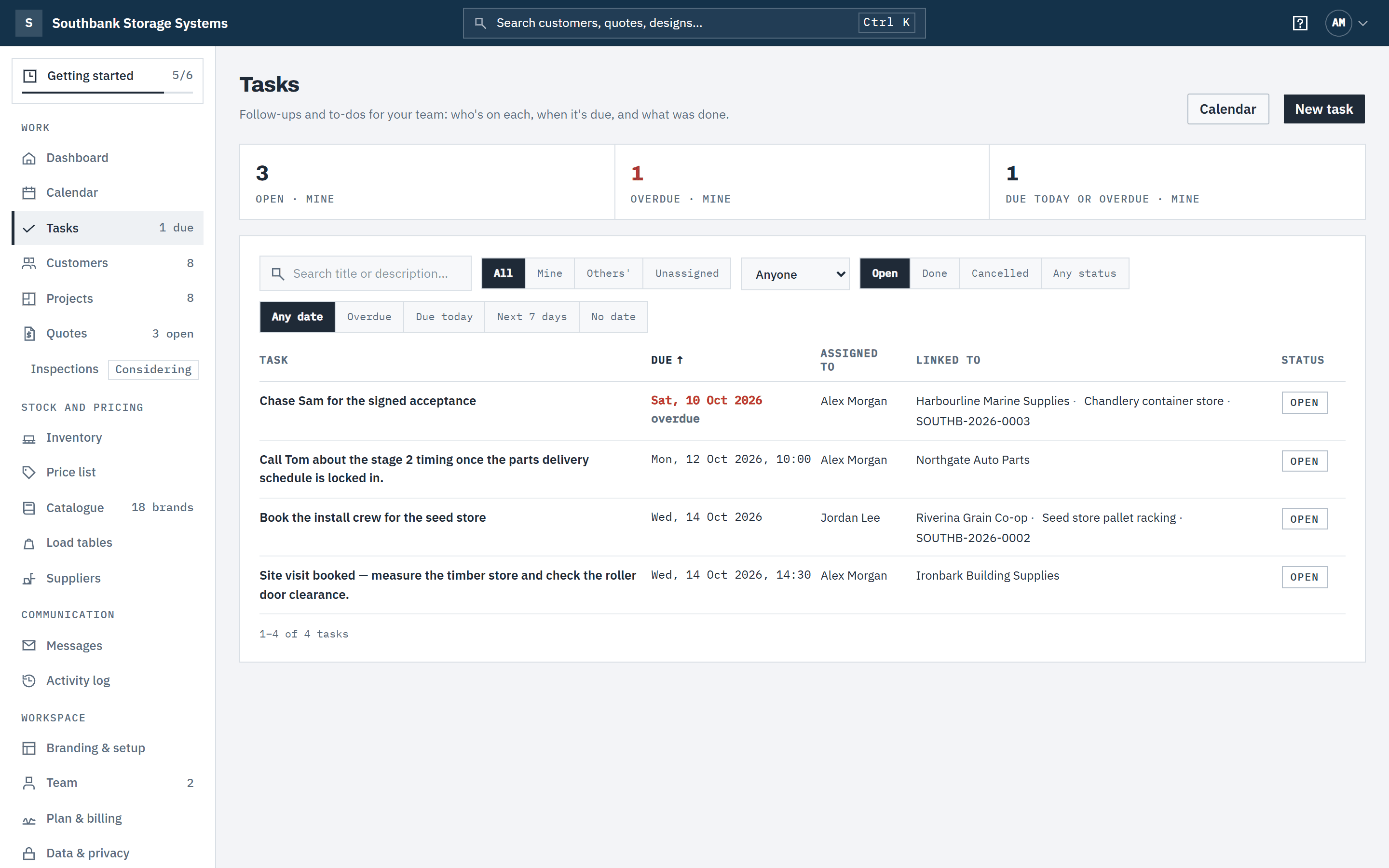
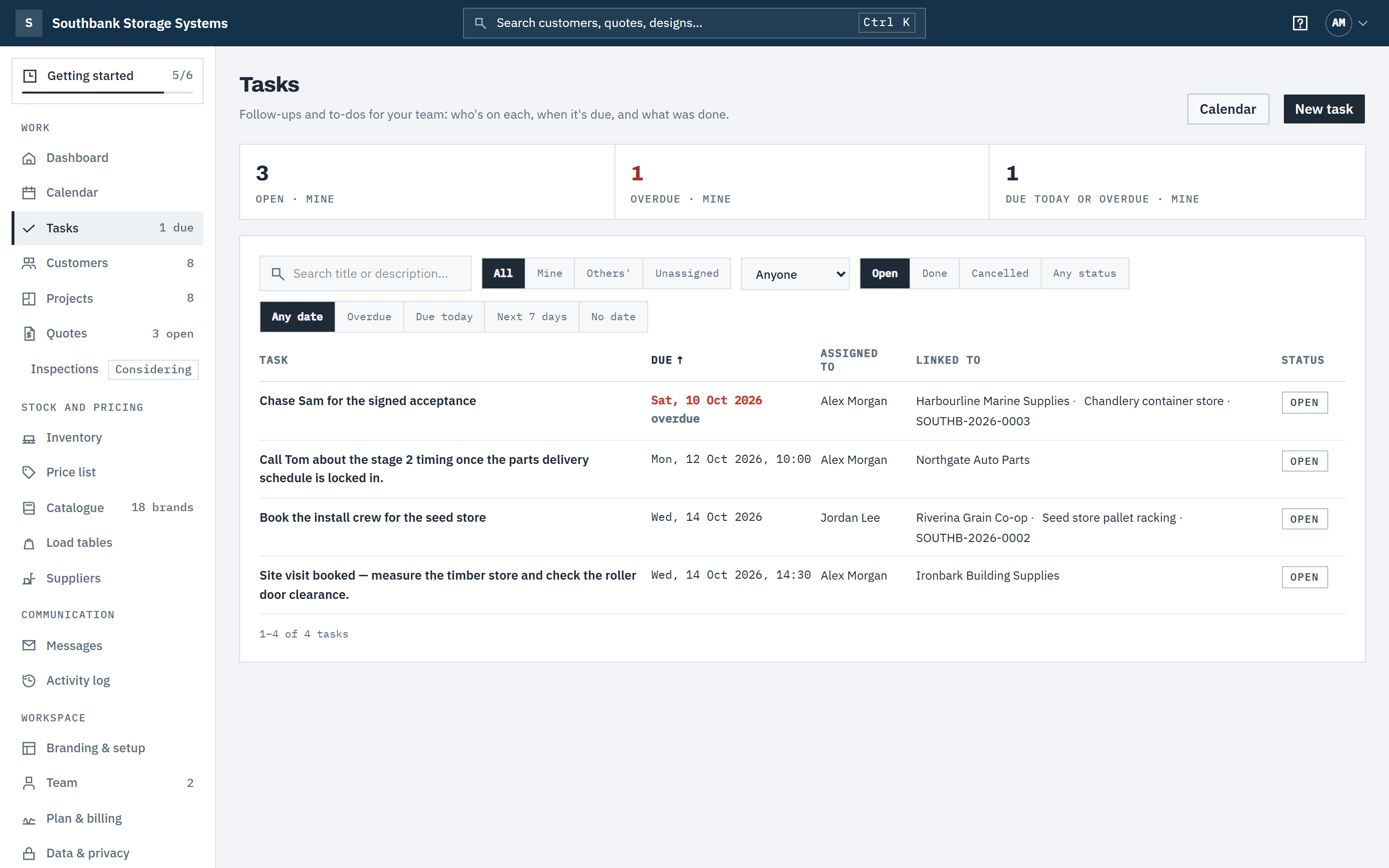
In the navigation, under Work, choose Tasks. When something of yours is due today or overdue, the menu item shows how many, for example 2 due. The figures at the top count your open tasks, your overdue tasks and those due today or overdue; each one opens the list filtered to them.
Narrow the list by whose tasks they are (All, Mine, Others', Unassigned, or one person under Assigned to), by status (Open, Done, Cancelled, Any status) and by date (Overdue, Due today, Next 7 days, No date). Overdue tasks are marked in red.
 (opens full size in a new tab)
Every follow-up and to-do in one list: who has it, when it's due and what it's about. Step 2: Create a task
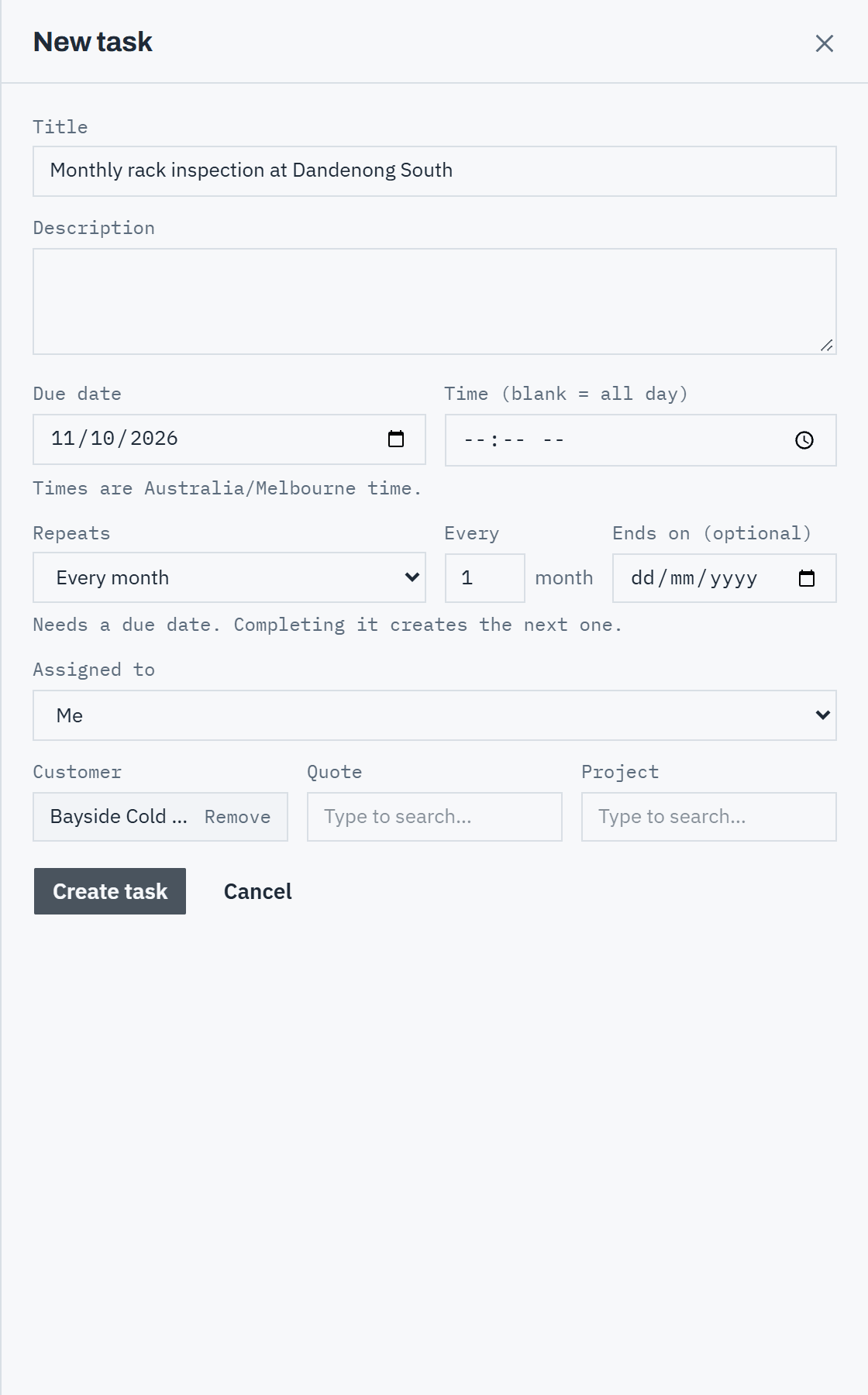
Choose New task. Enter a Title and, if it helps, a Description. Set the Due date, and a time if it matters; leave the time blank for an all-day task. Times are in your workspace's timezone.
Under Assigned to, choose Me or Unassigned. Owners and admins can also give it to anyone in the team. Link it to a Customer, Quote or Project by typing a name, then choose Create task.
Step 3: Make it repeat
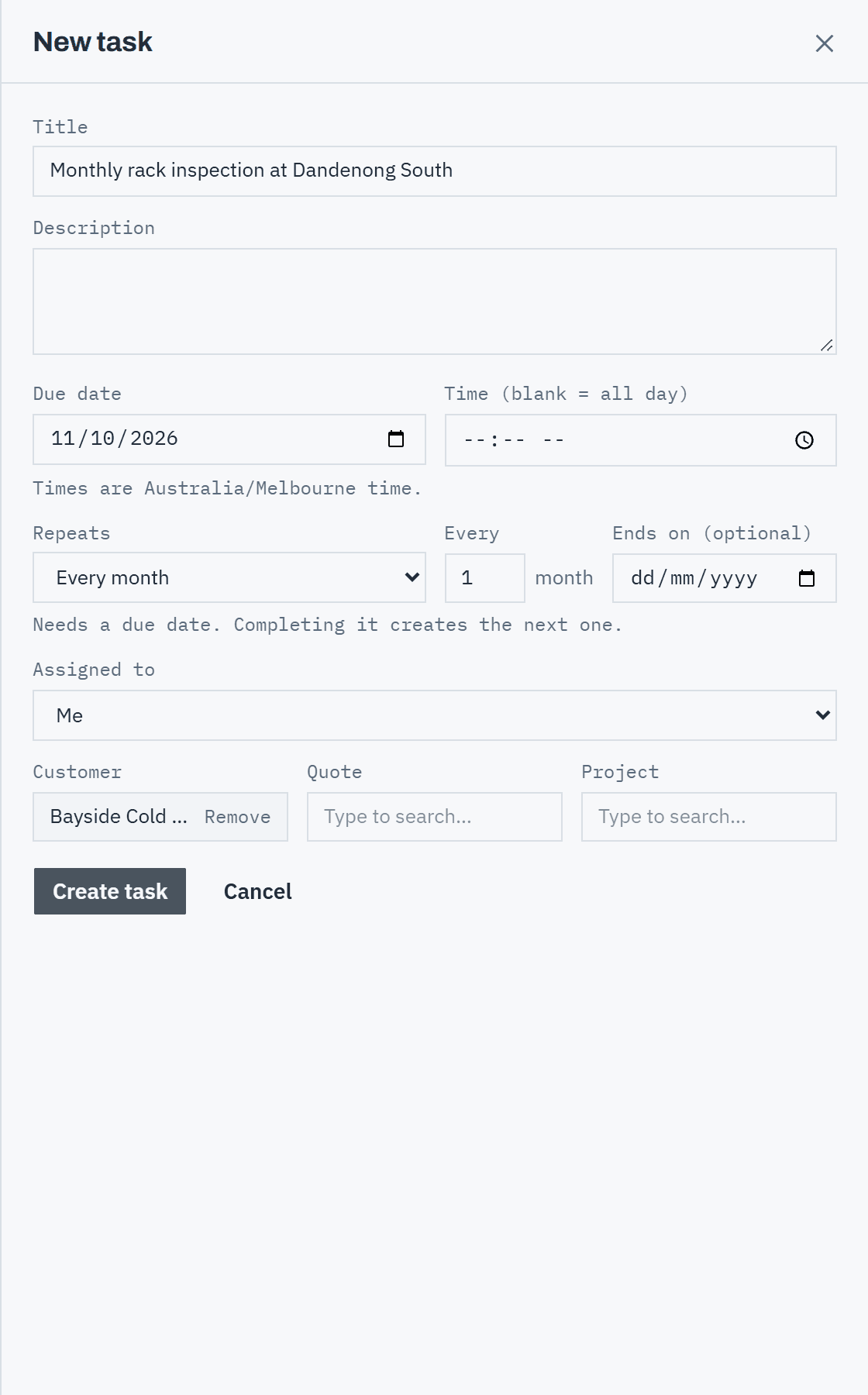
For a job that comes round again, such as a monthly rack inspection, choose how often under Repeats: Every day, Every weekday, Every week, Every fortnight, Every month, Every quarter or Every year. For days, weeks, months and years, Every sets the gap, for example 3 weeks (up to 99). Add an Ends on (optional) date to stop the series.
A repeating task needs a due date. In the list it's marked, for example Repeats weekly.
 (opens full size in a new tab)
Pick how often it repeats; completing one creates the next. Step 4: Add a follow-up from a customer, design or quote
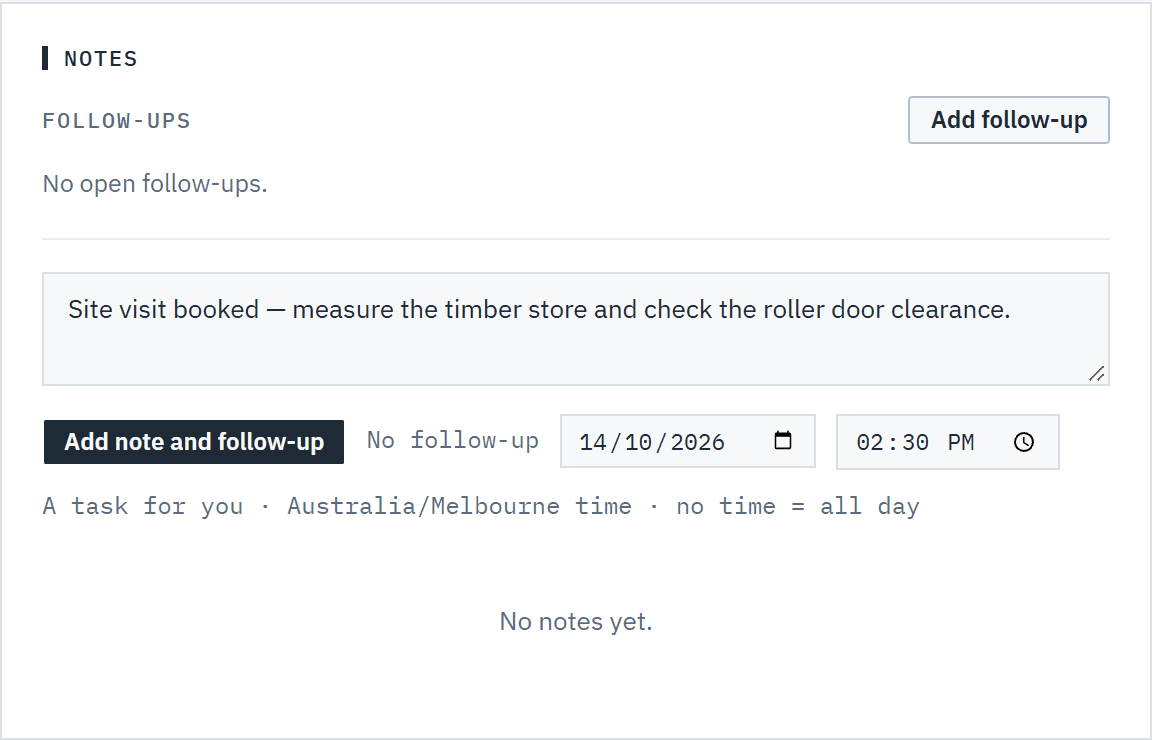
The notes card on a customer, design or quote lists that record's open Follow-ups. Add follow-up there opens the task form already linked to the record; choose Create follow-up.
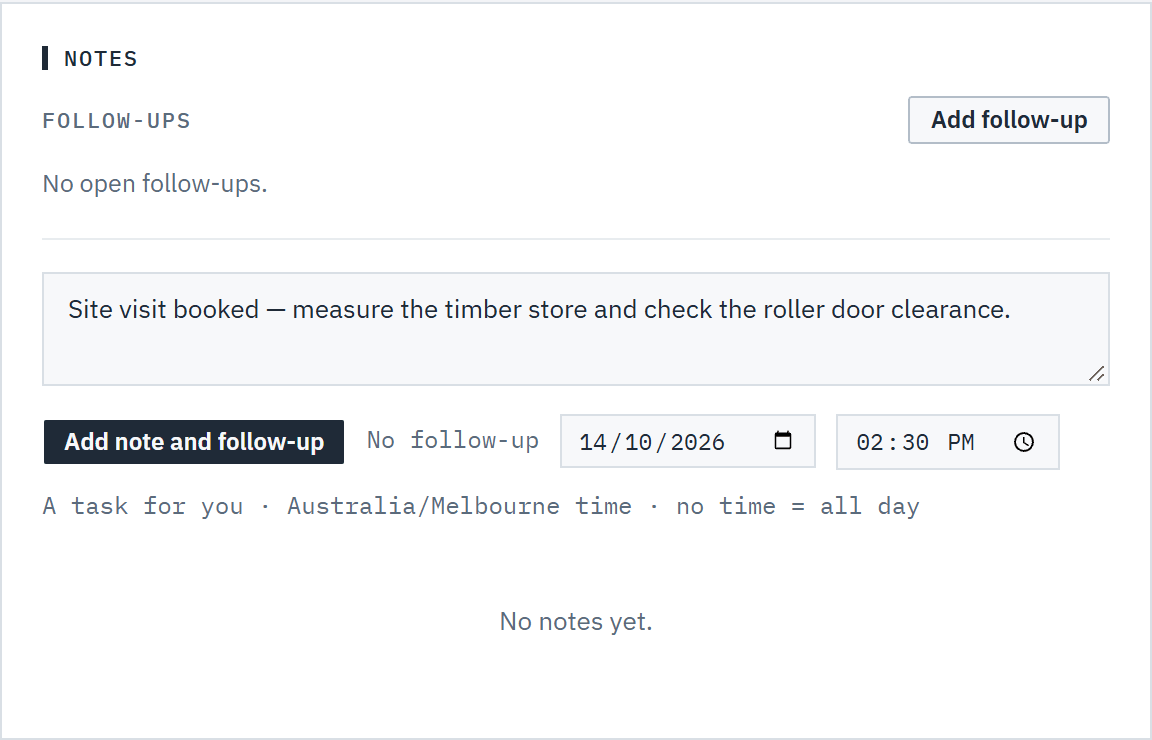
To write a note and a follow-up in one go, type the note, choose Add follow-up under it, set the Follow-up date and, if you like, a time, then choose Add note and follow-up. You get a task titled from the note's first line. Set follow-up on any note does the same later.
 (opens full size in a new tab)
Add follow-up under a note makes a task for you, linked to the record, in the same step. Step 5: Open a task and add a note
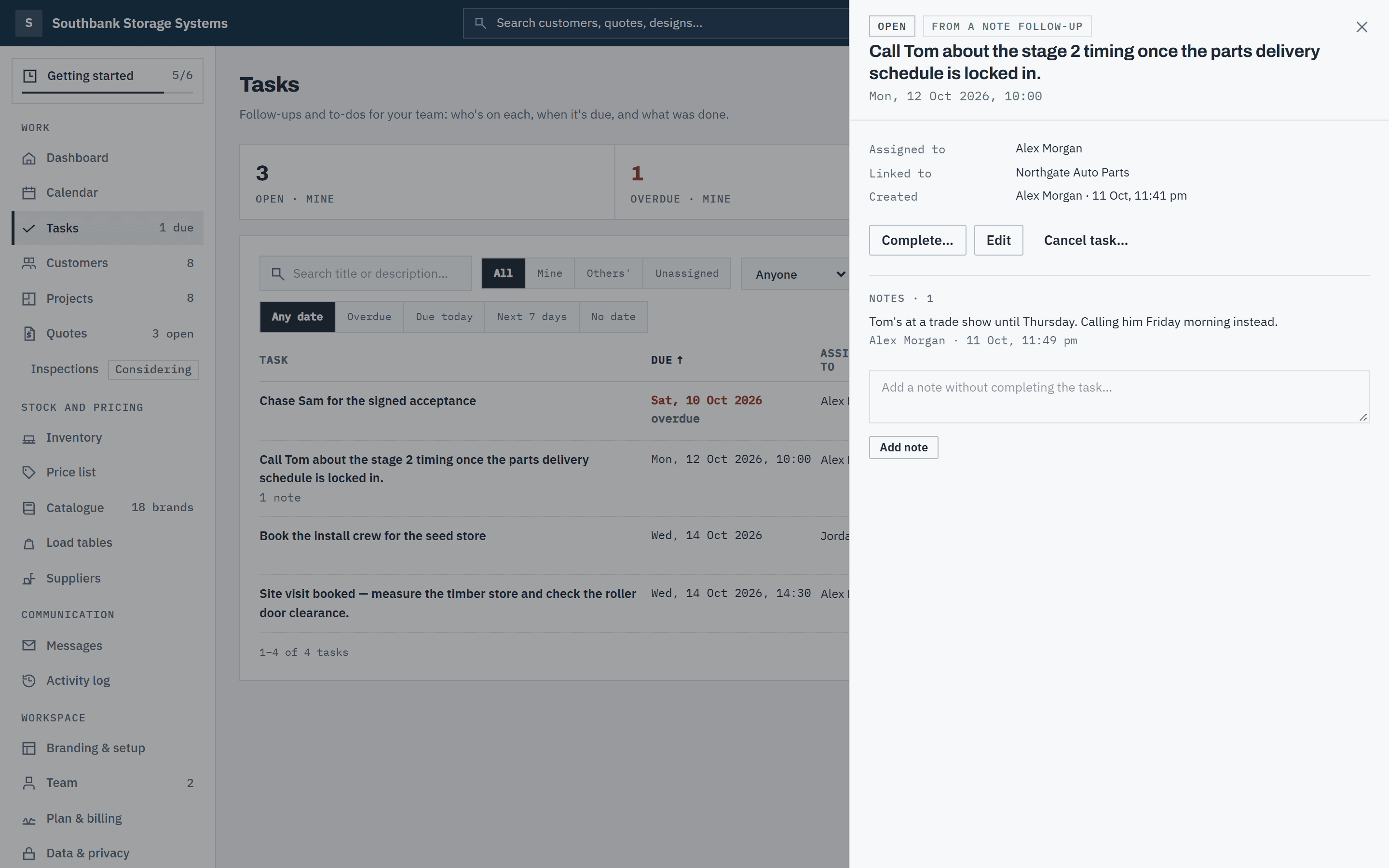
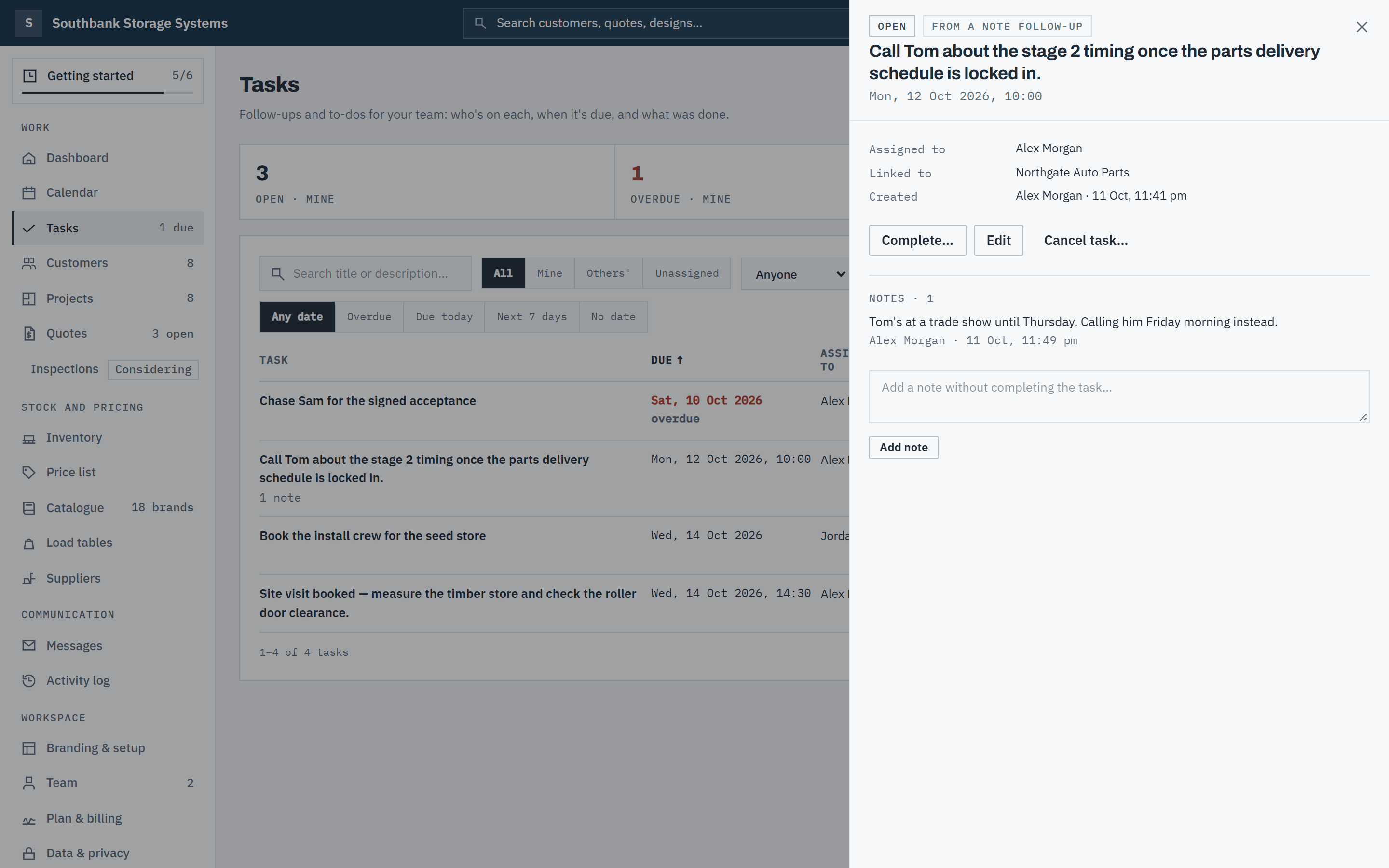
Click a task's title to open it beside the list: who has it, what it's linked to, who created it and when, and its notes. To record progress without finishing, type in Add a note without completing the task… and choose Add note. Use Edit to change the title, date, assignee or links.
 (opens full size in a new tab)
Open a task to add a note, complete it with what was done, edit or cancel it. Step 6: Complete it with a note
Choose Complete…, say What was done? and choose Confirm. The note is required: a follow-up is only useful if the next person can see how it ended. You can complete a task the same way from your dashboard, the calendar or the record it's linked to.
Step 7: Complete a repeating task
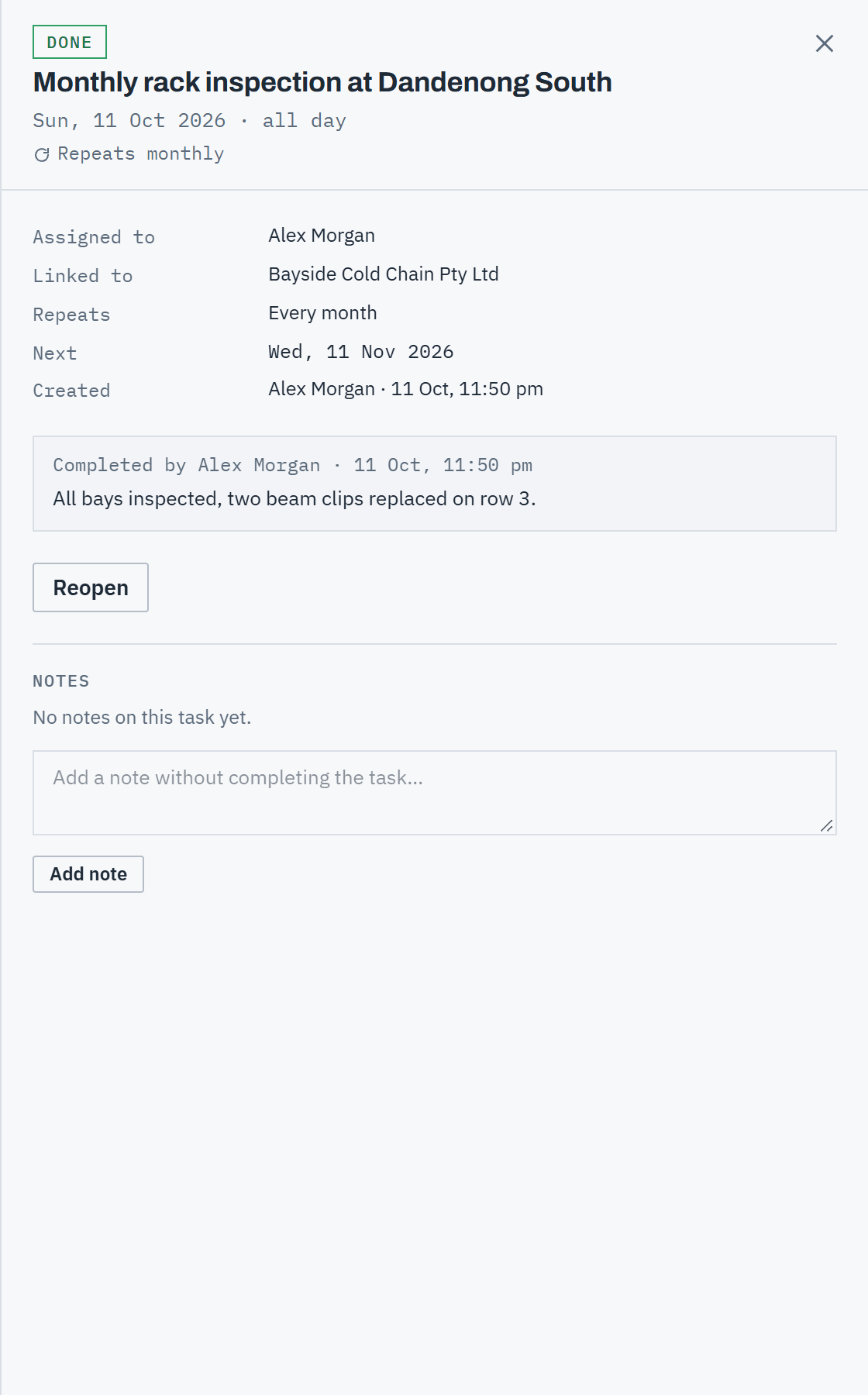
Completing an occurrence creates the next one straight away, with the same title, assignee, links and time of day. The task shows its Repeats rule, and once it's done, Next links to the next occurrence.
Dates follow your workspace's calendar. Every weekday skips Saturday and Sunday, so Friday's task comes back on Monday. A monthly task on the 31st falls on the last day of a shorter month, then goes back to the 31st. A timed task keeps its clock time when daylight saving starts or ends. If you complete one late, the occurrences you missed are skipped: the next one is due today or later, not in the past. Nothing is created after the Ends on date.
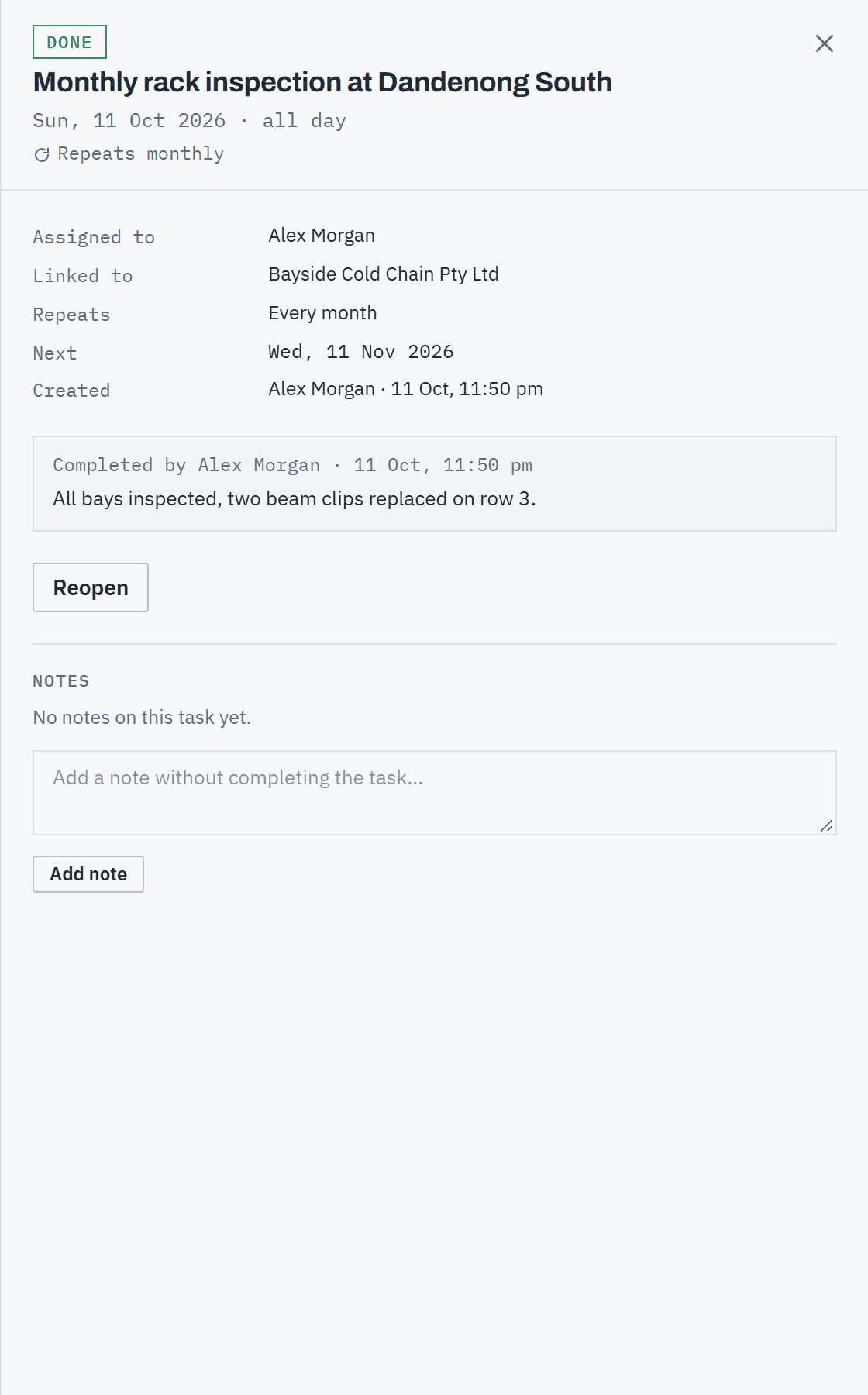 (opens full size in a new tab)
Completing a repeating task creates the next one, linked from the one you finished. Step 8: Cancel or reopen
Cancel task… closes a task that no longer needs doing, with an optional reason, then Cancel task (or Keep it). Reopen brings back a done or cancelled task; its completion note moves to the task's notes so nothing is lost.
Cancelling a repeating task asks which: This one skips this occurrence and the next one is still scheduled; This and future stops it repeating.
Task emails
Step 9: When a task is assigned to you
When someone else gives you a task, new or reassigned, you get an email such as Alex Morgan assigned you a task: Book the install crew, linking to it. Tasks you take yourself never email you.
Step 10: The morning digest
Early each morning, before the working day (around 2 to 3 am Sydney time), you get one email per workspace with your open tasks that are overdue or due today, and how many more are due in the next 7 days. It lists tasks that fell overdue in the last 30 days; older ones are counted in one line that links to your tasks. It's only sent when something is overdue from the last 30 days or due today.
Step 11: Turn them off
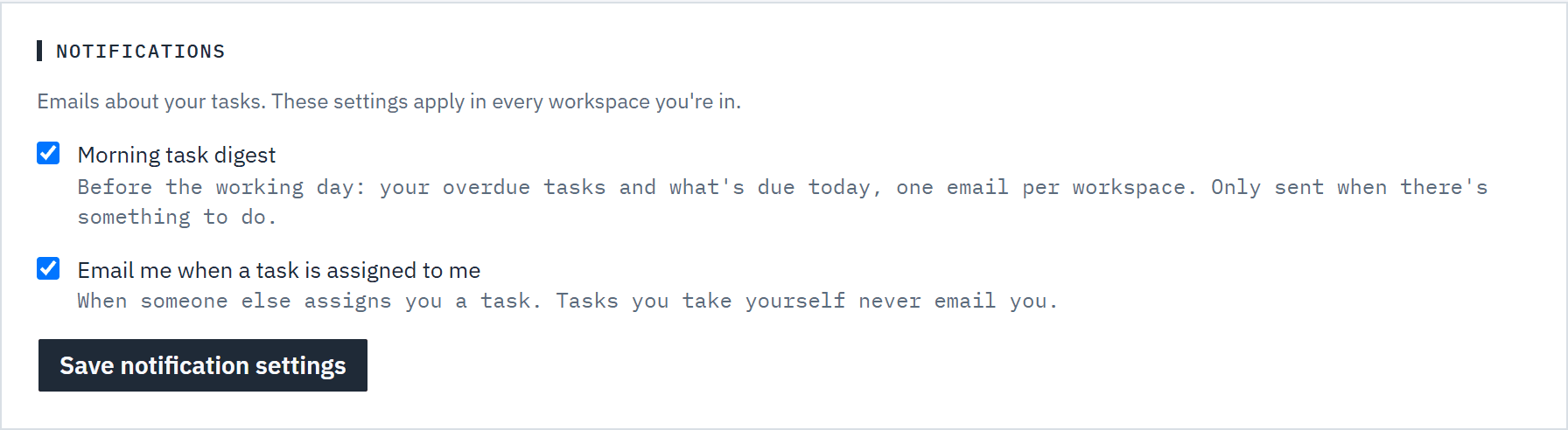
Open the account menu (your initials, top right) and choose Account settings. Under Notifications, untick Morning task digest or Email me when a task is assigned to me and choose Save notification settings. Both are on until you turn them off, and the setting applies in every workspace you're in.
 (opens full size in a new tab)
Turn either task email off here; it applies in every workspace you're in.
Good to know
- Every role except read only can create tasks, add notes to them, complete, cancel and reopen them, and take a task that's unassigned. Only owners and admins can give a task to someone else or take it off them. Read-only members see every task but can't change them.
- A customer's follow-ups include those on its designs and quotes, and a design's include its quotes'. A quote with follow-ups due shows it at the top of the quote page.
- An all-day task is overdue once its day has passed; a timed task once its time has passed.
- Tasks are never deleted. A cancelled task stays in the list under Cancelled.
- Your open tasks for the week are on your dashboard under My tasks, and every task with a date is on the calendar. See Your dashboard and The calendar.
Related articles
- The calendarTasks, quote expiry, deliveries, installations and price changes by day, week or month.
- Your dashboardQuote health, what needs a decision today, and your tasks for the week.
- Customers, sites and contactsKeep customer records, sites, contacts and notes.
- Subscribe to your calendarSee your Baylogik dates in Google Calendar, Outlook or Apple Calendar.