
Tax and currency
Pick your country for GST or VAT and your currency, or set your own rate.
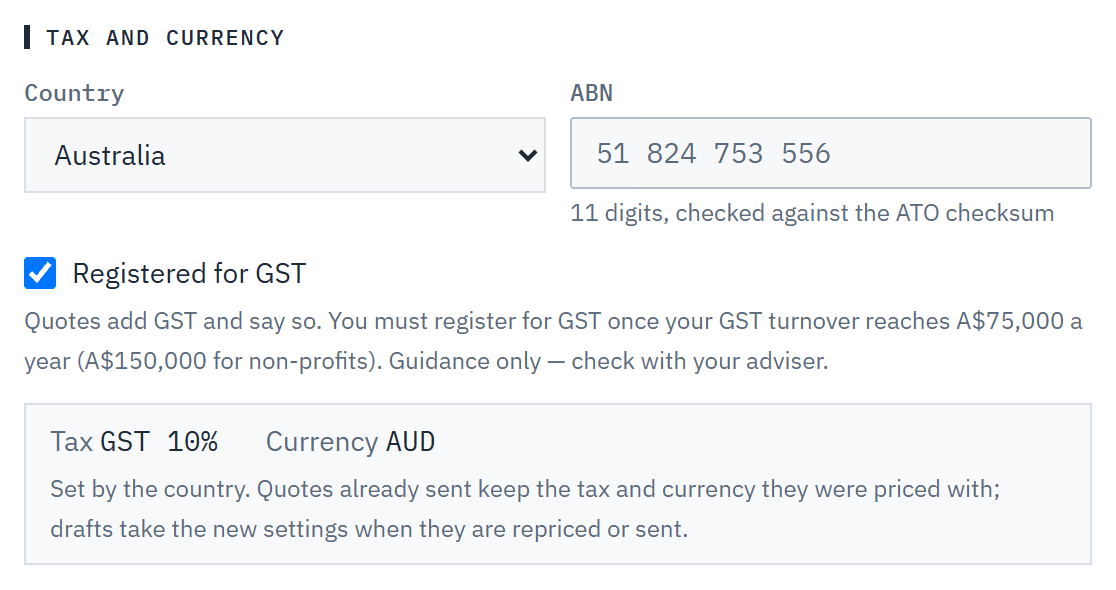
Your workspace's country decides the currency your prices and quotes are in, the tax added to them, and what the tax is called on every proposal, PDF, online quote and email. A new workspace starts as Australia: GST at 10%, in AUD.
You set it once, under Branding & setup. Quotes you price afterwards use it; quotes already sent keep the tax they were sent with.
Step 1: Open Tax and currency
In the navigation, under Workspace, choose Branding & setup and find the Tax and currency group.
Step 2: Pick your country
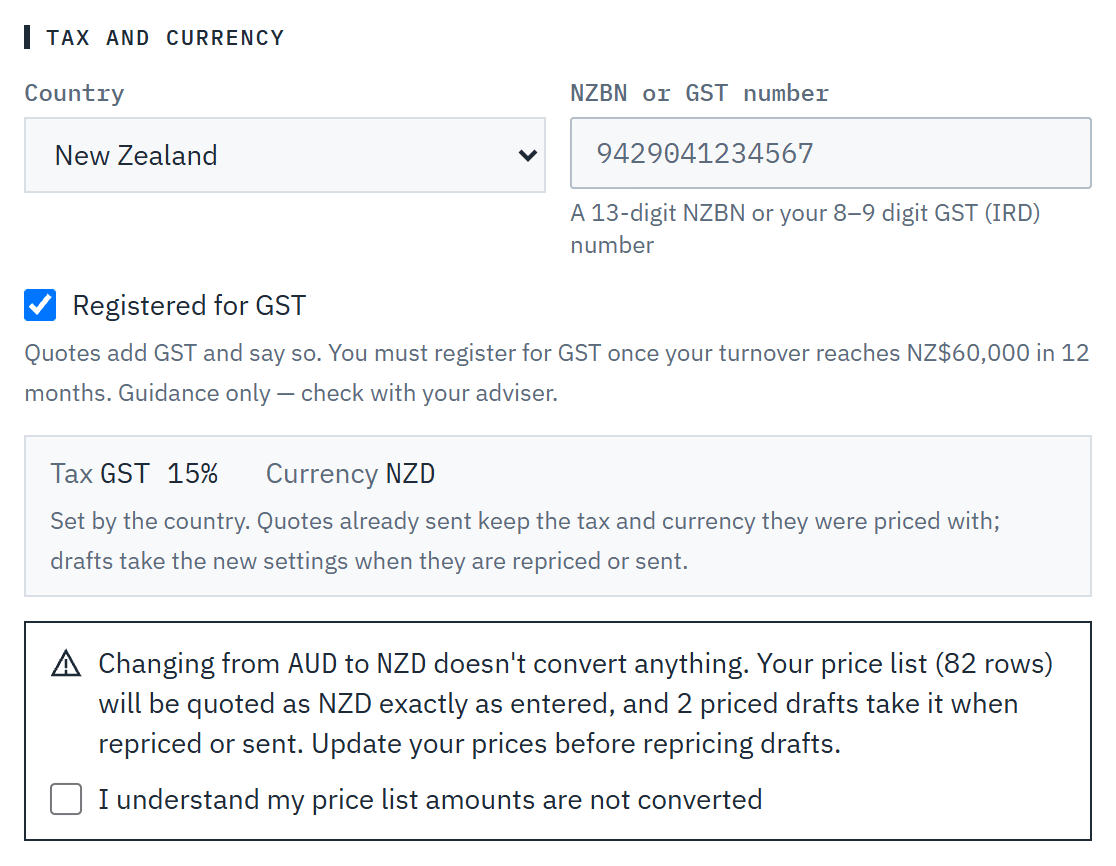
Choose your Country. Each one sets the tax, its rate and the currency for you: Australia, GST 10% in AUD; New Zealand, GST 15% in NZD; United Kingdom, VAT 20% in GBP; Ireland, VAT 23% in EUR; Singapore, GST 9% in SGD.
The country also sets which business number your proposals show and how it's checked, such as an ABN in Australia or an NZBN in New Zealand. Your customers' business numbers follow the same country: a UK workspace records a customer's VAT number, an Australian one their ABN.
A number you saved before stays as it is when you save other changes, even if it doesn't match the country's check. If you're in Australia and the number is an NZBN, the form suggests choosing New Zealand.
Step 3: Or set your own
Somewhere else? Choose Another country and enter the tax's name, its rate and your currency yourself.
Step 4: Say whether you're registered
If you're registered for the tax, it's added to every quote: totals read inc GST (or VAT), and the totals show a line such as GST (10%).
If you're not registered, no tax is added and amounts carry no tax wording. Where the tax line would be, the quote says No GST charged — not registered for GST. The note under the switch says when registration becomes compulsory in your country; Baylogik doesn't check it for you.
Step 5: Save
Choose Save setup. Quotes you generate from now on use the new settings.
Changing the currency doesn't convert anything. If you have a price list or priced draft quotes, a warning says how many, and you tick I understand my price list amounts are not converted before you can save. The amounts you entered are then quoted in the new currency exactly as they are, so update your prices before you reprice drafts.
More screens
 (opens full size in a new tab)
 (opens full size in a new tab)
Good to know
- Quotes already sent or accepted keep the tax, rate and currency they were sent with, even if you change your settings later.
- Enter your price list ex tax, in your workspace's currency. Tax is worked out once on each quote, on the subtotal after any discount, and the deposit is a share of the total.
- Where a catalogue product carries a guidance RRP, it's an Australian price. Outside Australia the price list labels the column RRP (AUD) and Start from RRP is off, so an AUD figure is never copied into your prices as if it were your currency.
- A draft priced before you changed the settings keeps its old tax and currency until it's repriced. Its page says Tax settings changed with a Reprice button.
- Dashboard, board and customer totals add up quotes in your workspace's currency only. Quotes in another currency are never converted: a note says how many were left out, for example plus 2 quotes in AUD not included.
- Not registered for the tax? A distributor's inc-tax prices are kept as they are when you import them. You can't claim the tax back, so that amount is your real cost. See Import a supplier price file.
- The proposal's Payment term can print your currency and tax with the {currency} and {taxStatement} placeholders, for example Totals include GST at 10% where shown. See Brand your workspace.
- Only owners and admins can change tax and currency. Baylogik works the numbers out; whether you need to register, and what you charge, is between you and your tax adviser.
Related articles
- Brand your workspaceLogo, colours and the proposal your customers see.
- Create and send a quoteGenerate, review and send a priced, branded proposal.
- Discounts and end datesGive a quote a discount, set the day it ends, and what happens after that.
- Price your rackingCost, sell and margin, lead times, and editing prices in Excel.
- Import a supplier price fileUpdate prices and supplier costs from a supplier's CSV or Excel file, with a preview and undo.