
The calendar
Tasks, quote expiry, deliveries, installations and price changes by day, week or month.
The calendar puts everything with a date in one place: tasks and follow-ups, quotes about to expire, deliveries, installations and scheduled price changes. Plan the week from it, then work the day from the day view.
It shows only what your role can open anyway. Quote dates need access to quotes, and price changes need access to the price list.
Step 1: Open the calendar
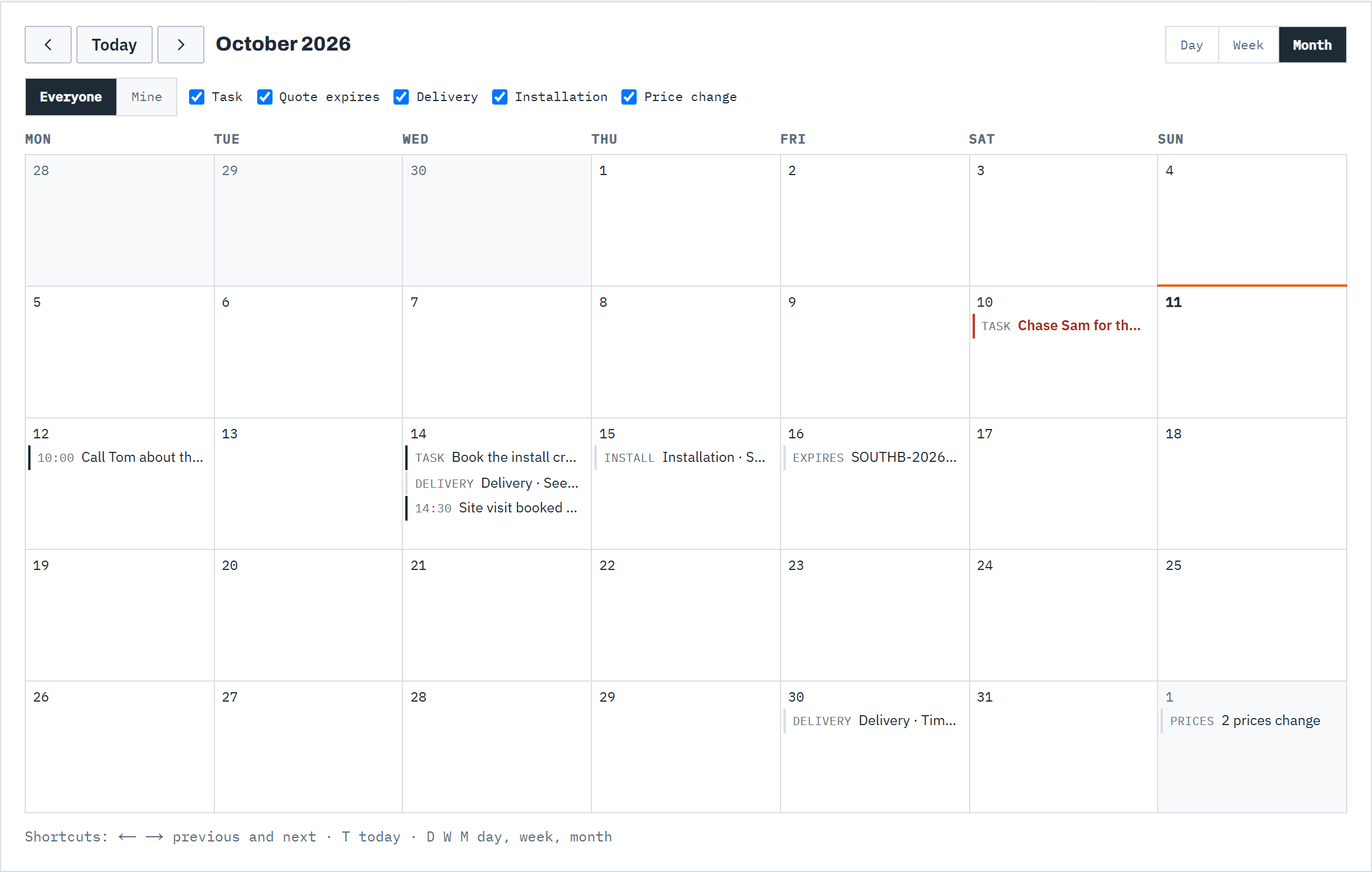
In the navigation, under Work, choose Calendar. It opens on this month; switch with month, week and day, and move with the arrows either side of Today. Weeks run Monday to Sunday, and today has a line across its top.
Each entry is labelled with what it is (Task, Expires, Delivery, Install, Prices) or, for a timed task, its time. A month day shows up to three; +2 more opens the day.
 (opens full size in a new tab)
One month of tasks, quote expiry, deliveries, installations and price changes. Step 2: Choose what to show
Everyone shows the whole team's dates. Mine narrows it to tasks assigned to you and quotes you own, and leaves out price changes. Untick a kind to hide it: Task, Quote expires, Delivery, Installation or Price change.
Step 3: Open an entry
Every entry is a link. A task opens over the calendar, where you can add a note or complete it. A quote expiry, delivery or installation opens the quote, and a price change opens the price list. Completed tasks stay on the calendar, struck through.
Step 4: Work the day
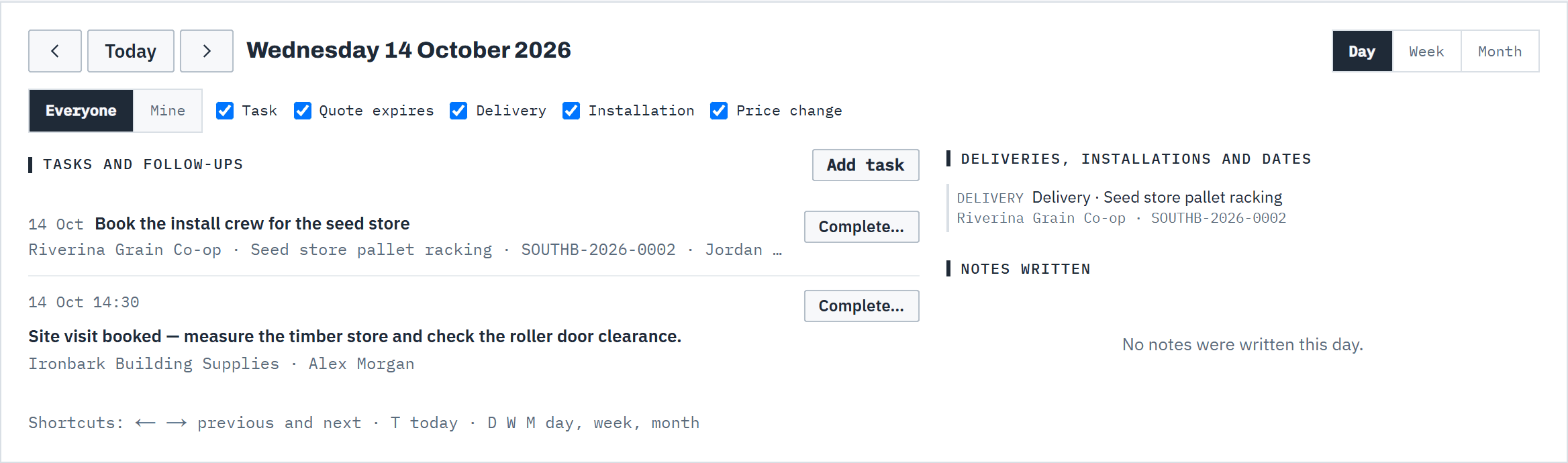
Click a date, or press D, for the day view. Tasks and follow-ups lists the day's tasks with Complete… on each, and on today anything overdue comes first. Deliveries, installations and dates lists the rest, and Notes written shows the notes your team wrote that day.
Add task creates a task due that day. See Tasks and follow-ups.
 (opens full size in a new tab)
The day view is the working view: the day's tasks to complete, and everything else dated that day.
Good to know
- Keyboard shortcuts: ← and → for the previous and next month, week or day, T for today, and D, W and M for the day, week and month views. They don't fire while you're typing in a field.
- On a phone the month becomes a list of the days that have something on them.
- Delivery and installation dates come from accepted quotes. See Create and send a quote. Quote expiry dates are shown for sent and viewed quotes only.
- Dates and times are in your workspace's timezone, set in Branding & setup.
- To see these dates in Google Calendar, Outlook or Apple Calendar, subscribe to your calendar feed. See Subscribe to your calendar.
Related articles
- Tasks and follow-upsGive each follow-up an owner and a due date, and record what was done.
- Subscribe to your calendarSee your Baylogik dates in Google Calendar, Outlook or Apple Calendar.
- Your dashboardQuote health, what needs a decision today, and your tasks for the week.
- Create and send a quoteGenerate, review and send a priced, branded proposal.