
Projects
Find a job, see its layout and quotes, and open it in the designer.
A project is one job for one customer: the room or warehouse you're racking out, its layout and every quote you've priced from it. The Projects list is the quickest way back to a job, and the project page is where the layout and its quotes meet.
Each project has one layout. The designer always edits that layout, and each quote keeps a frozen copy of the layout it was priced from.
Step 1: Open the projects list
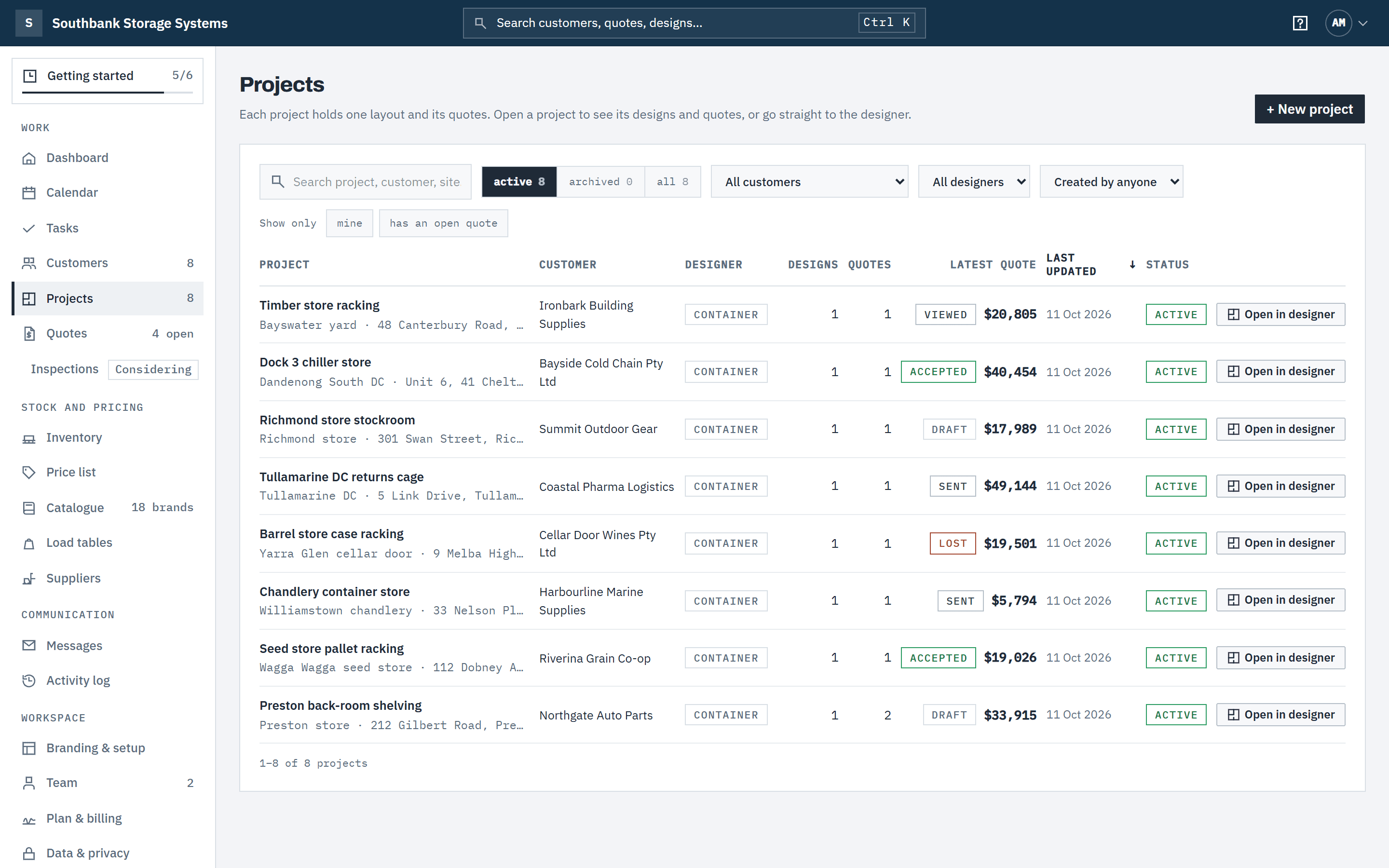
In the navigation, under Work, choose Projects. Each row shows the project and its site, the customer, the designer it uses (Container or Warehouse), how many designs and quotes it has, when it was last updated, and whether it's active or archived. Latest quote shows where the job stands: the newest quote's status, for example Sent, and its total inc GST, or No quote yet. Click the Latest quote heading to put the biggest jobs first.
Search by project, customer or site, and switch between active, archived and all. Narrow the list by Customer, Designer or Created by (the member who created the project; Former member finds projects created by someone who has left). Under Show only, mine keeps the projects you created or whose latest quote you own (the quote's Owner on the quotes list), and has an open quote keeps projects with a draft, sent or viewed quote. The filters stay in the page address, so you can bookmark or share the view. Click a row to open the project.
 (opens full size in a new tab)
Every job in one list; Open in designer goes straight to the layout and comes back here. Step 2: Go straight to the layout
Open in designer on a row opens the layout without stopping at the project page. When you're done, Save and return to projects brings you back to the same list, with your search and page kept. See Design a layout.
Step 3: Start a new project
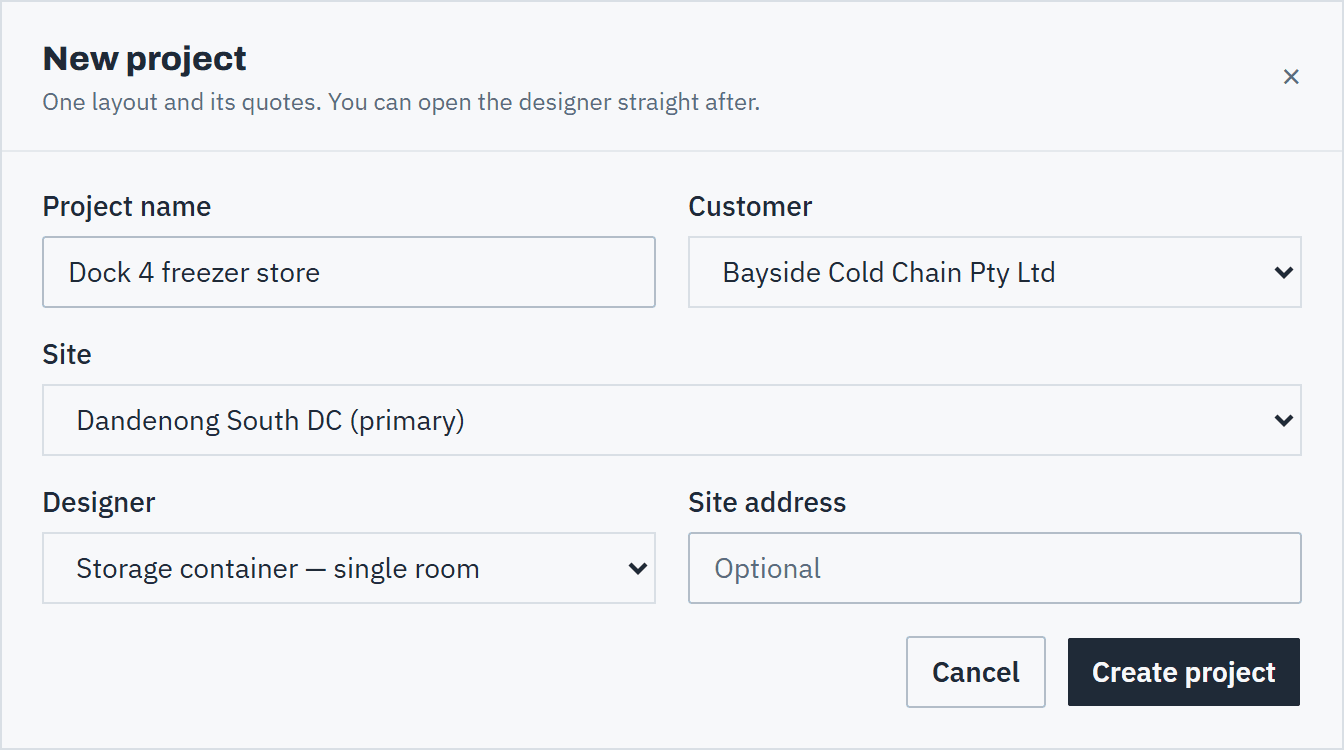
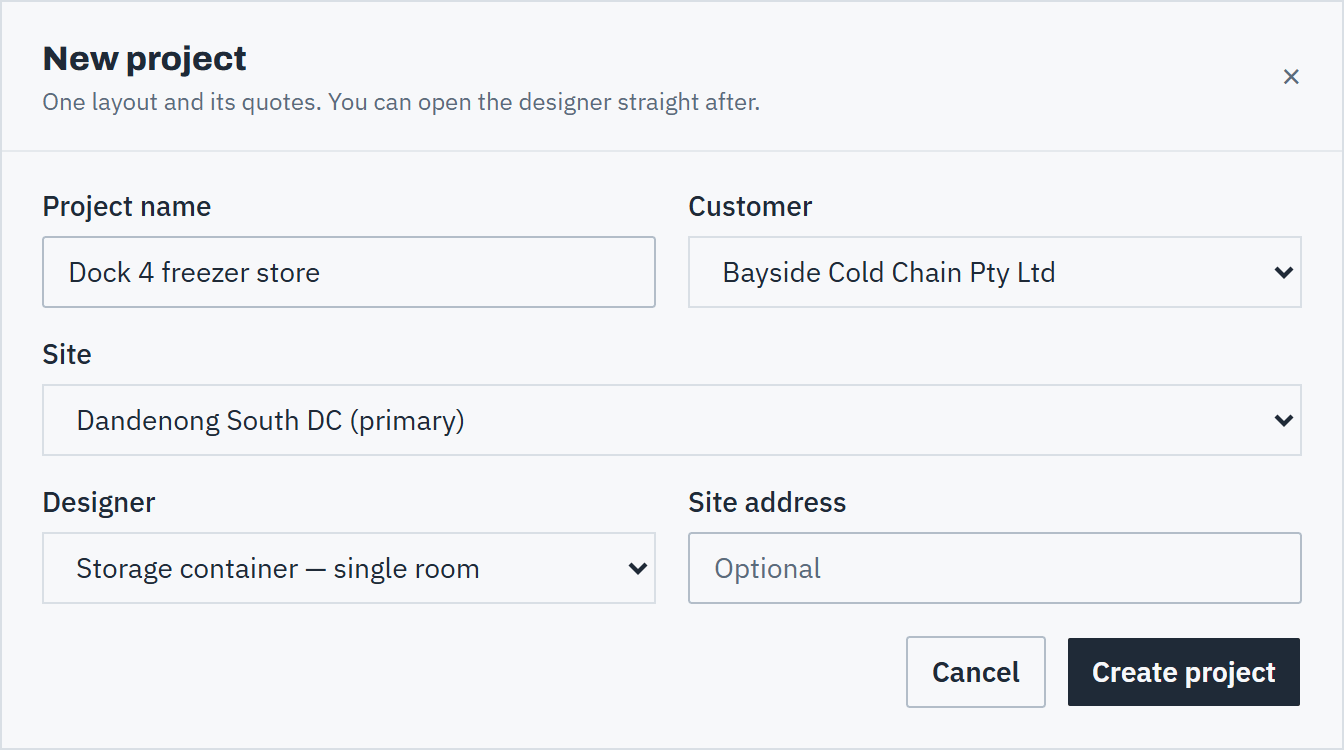
Choose + New project. In the New project dialog, enter the Project name and pick the Customer; their primary site is chosen under Site for you. Choose the Designer: Storage container — single room or Warehouse (beta) — multi-row floor planning, and add a Site address if it differs.
Choose Create project to open the new project's page, or Cancel. If something needs fixing, the dialog stays open with what you typed. You can also start a project from a customer with + New design.
 (opens full size in a new tab)
A new project in one dialog; Create project opens its page, ready for the designer. Step 4: Work from the project page
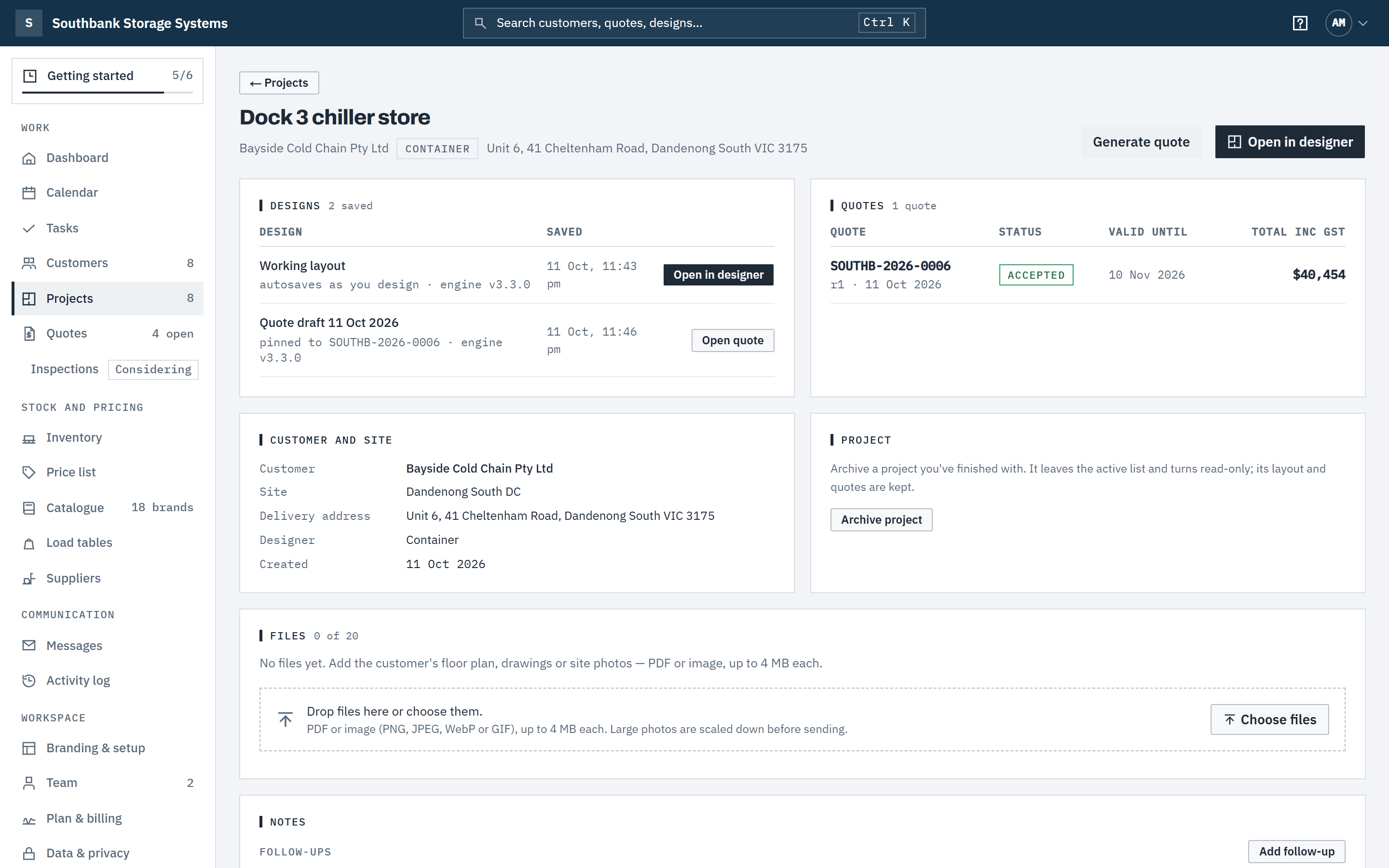
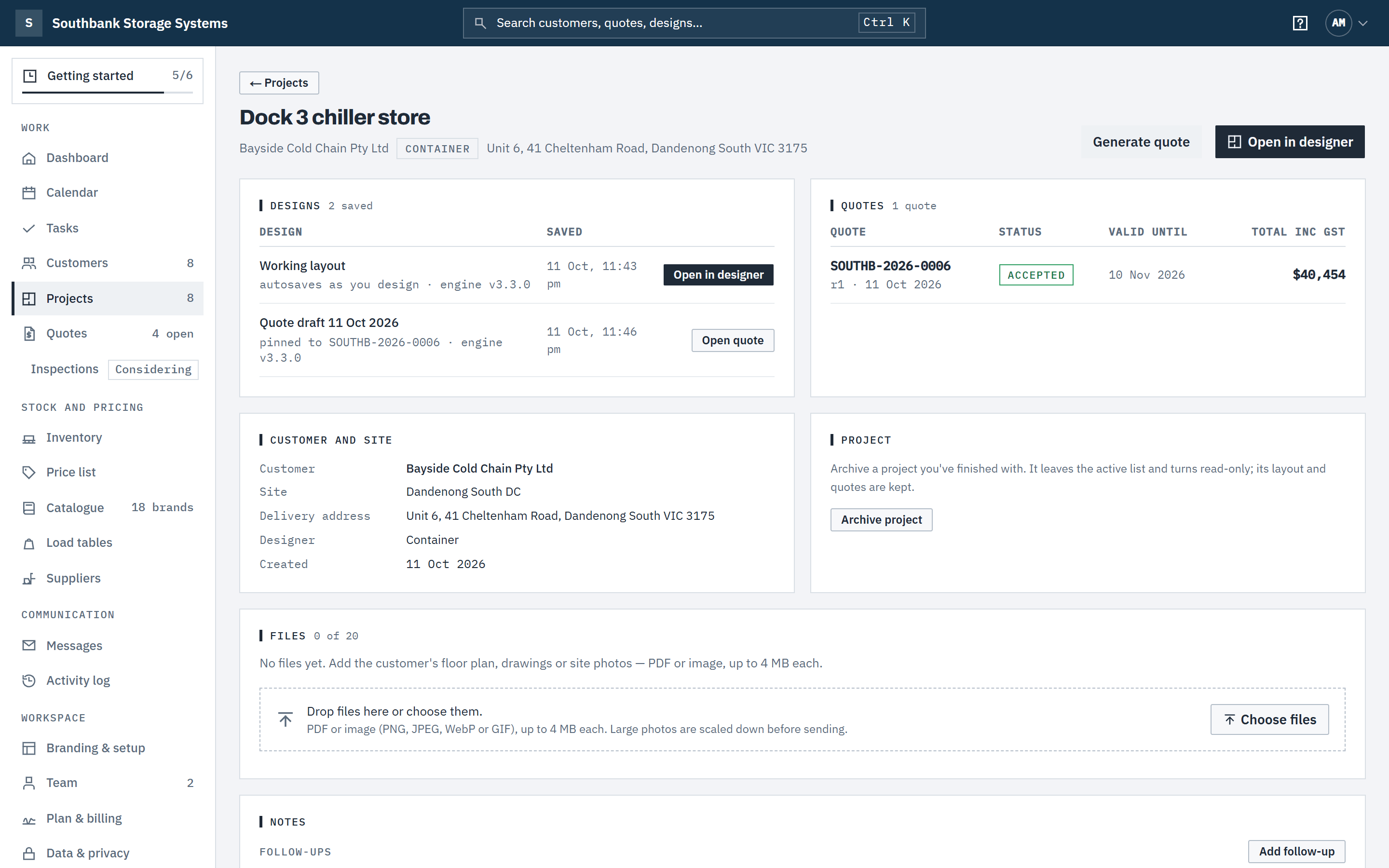
The top of the page has Generate quote and the way into the designer: Start designing for a new project, then Open in designer.
Designs lists the Working layout (it saves as you design), any named revisions, and the copies pinned to quotes, each with Open quote. Quotes lists every quote on the project with its revision, status, valid-until date and total inc GST. Below are the customer and site, and the project's notes and follow-ups.
 (opens full size in a new tab)
The project page brings the layout and every quote priced from it together. Step 5: Archive a finished job
In the Project card, choose Archive and confirm. The project leaves the active list and turns read-only; its layout and quotes are kept. Restore project puts it back.
Good to know
- Roles that can see designs but not change them get View in designer instead, and the designer opens read-only. An archived project is read-only for everyone.
- Owners, admins and estimators can create, archive and restore projects. See Roles and permissions.
- The Projects count in the navigation is the number of active projects.
- The latest quote's total is what the customer accepted when they chose options, otherwise the total offered.
- The warehouse designer is in beta: per-bay levels, pallets on the floor and capacity from your load tables all work, and it stays labelled beta until a racking engineer has reviewed what it says about standards and capacity. Every warehouse proposal says its layout is indicative and must be engineered for the site. See Design a layout.
- A quote is priced from the layout as it was when the quote was generated. Changing the layout later doesn't change a sent quote. See Create and send a quote.