
New stock and lead times
Count new stock and tell customers how long ordered-in items take.
When a job needs more new stock than you hold, your customer needs to know how long it will take. Turn on new-stock tracking and Baylogik flags every quote line that has to be ordered in: the quantity for you, a lead time for the customer.
It is information only. Prices never change because something has to be ordered, and the customer never sees your stock figures.
Set it up
Step 1: Turn on new-stock tracking
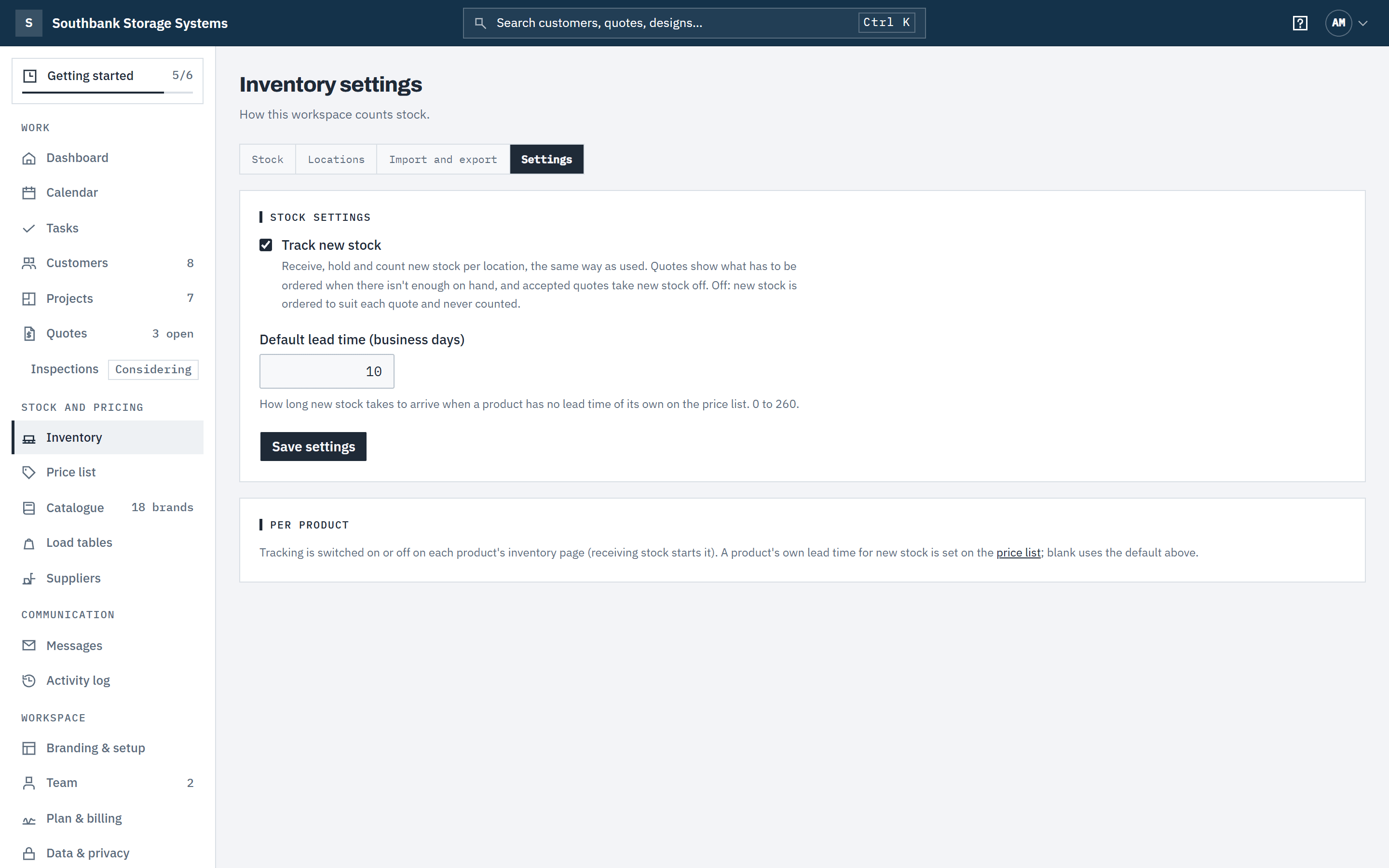
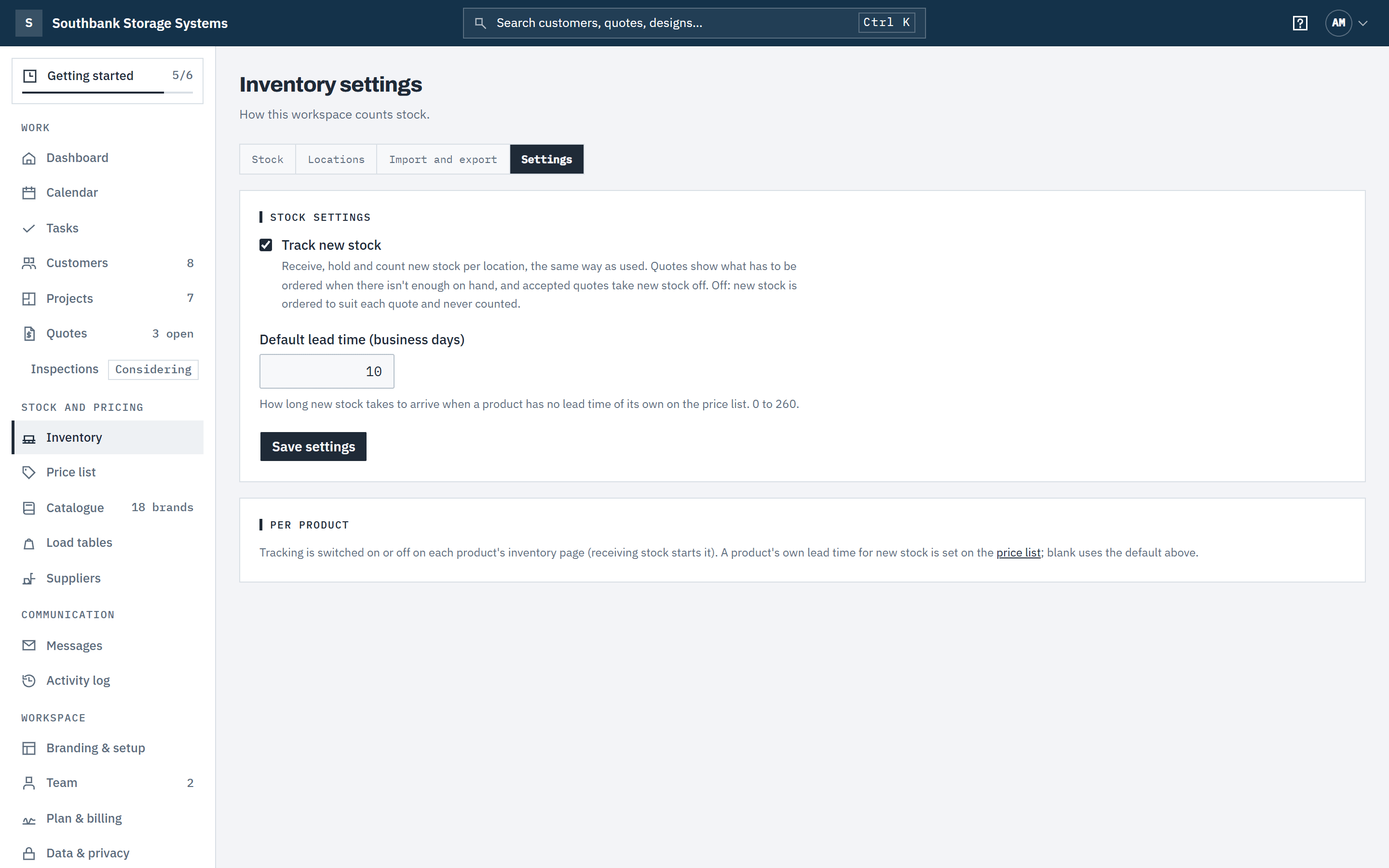
In Inventory, choose the Settings tab. Tick Track new stock, set the Default lead time (business days) — from 0 to 260, starting at 10 — and choose Save settings. New stock can then be received, held, counted and transferred per location, the same way as used.
 (opens full size in a new tab)
Turn on new-stock tracking and set how long new stock usually takes to arrive. Step 2: Give products their own lead time
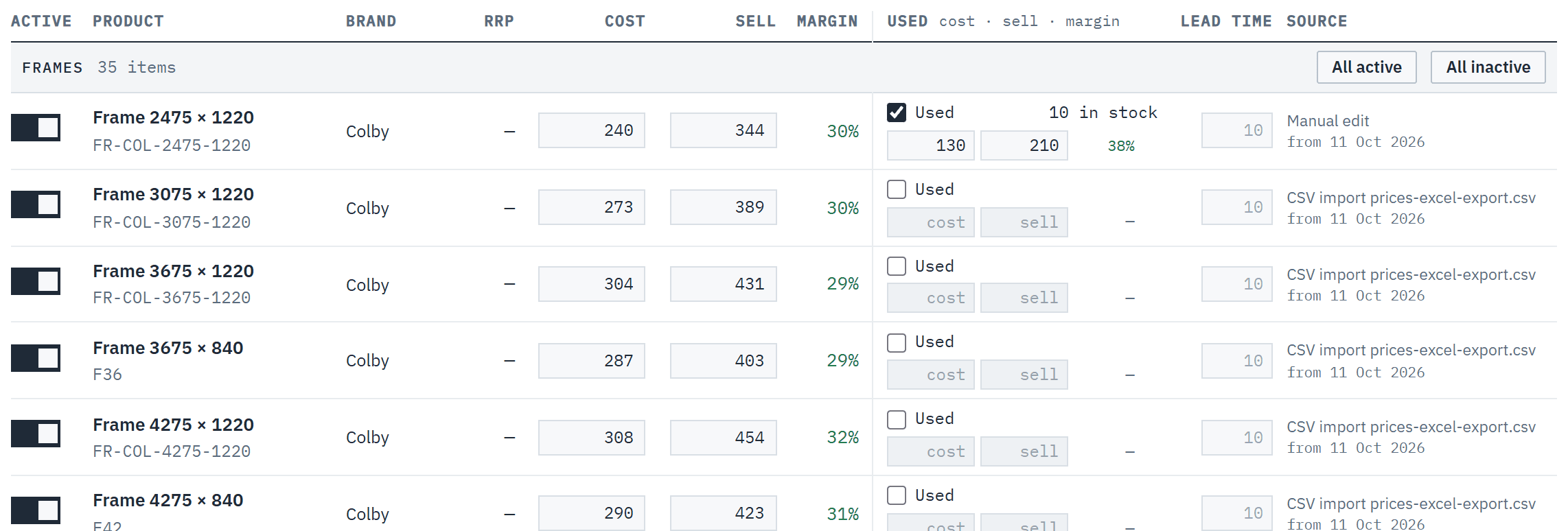
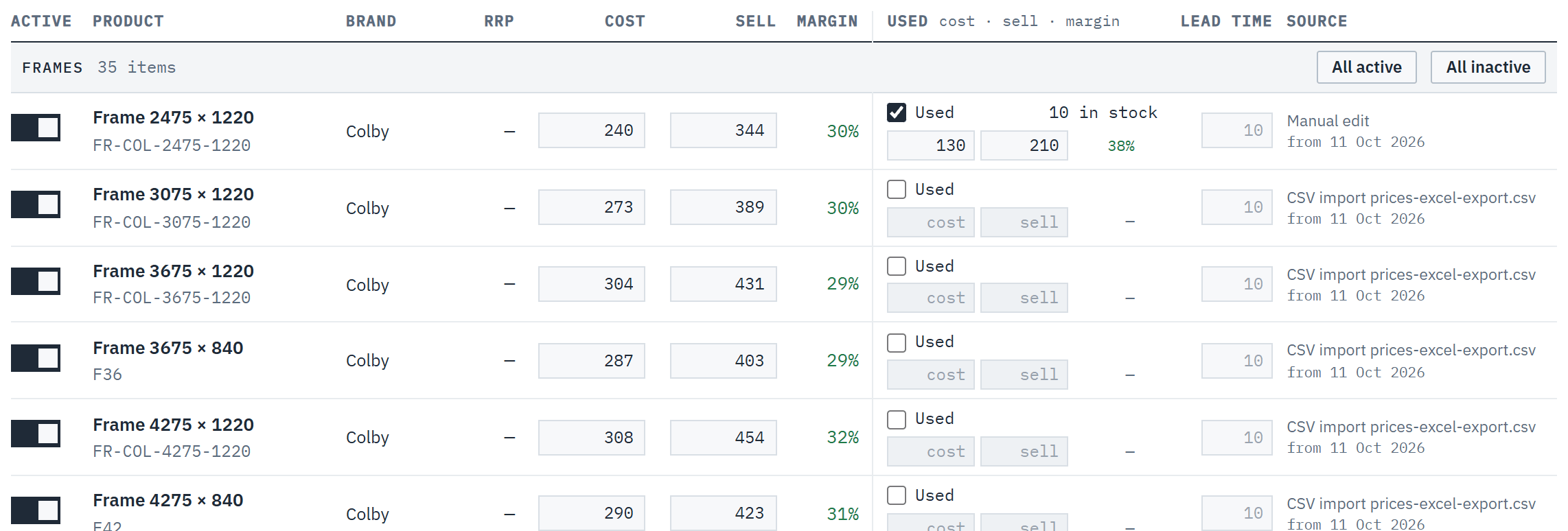
On the price list, the Lead time column holds the business days it takes to get each product new. Leave it blank to use the workspace default, which shows faintly in the cell. Save as usual, or fill the new_lead_time_days column in a CSV import. See Price your racking.
 (opens full size in a new tab)
A product's own lead time; blank uses the workspace default. Step 3: Receive the new stock you hold
Choose Receive stock with the Condition set to New, or import a count. A frame, beam or deck panel on your price list that you have never received new counts as none on hand, so a new quote line for it reads to order. Safety items, accessories and services with no stock row are never flagged, and nor is a product you stop tracking on its stock row.
On a quote
Step 4: See what has to be ordered
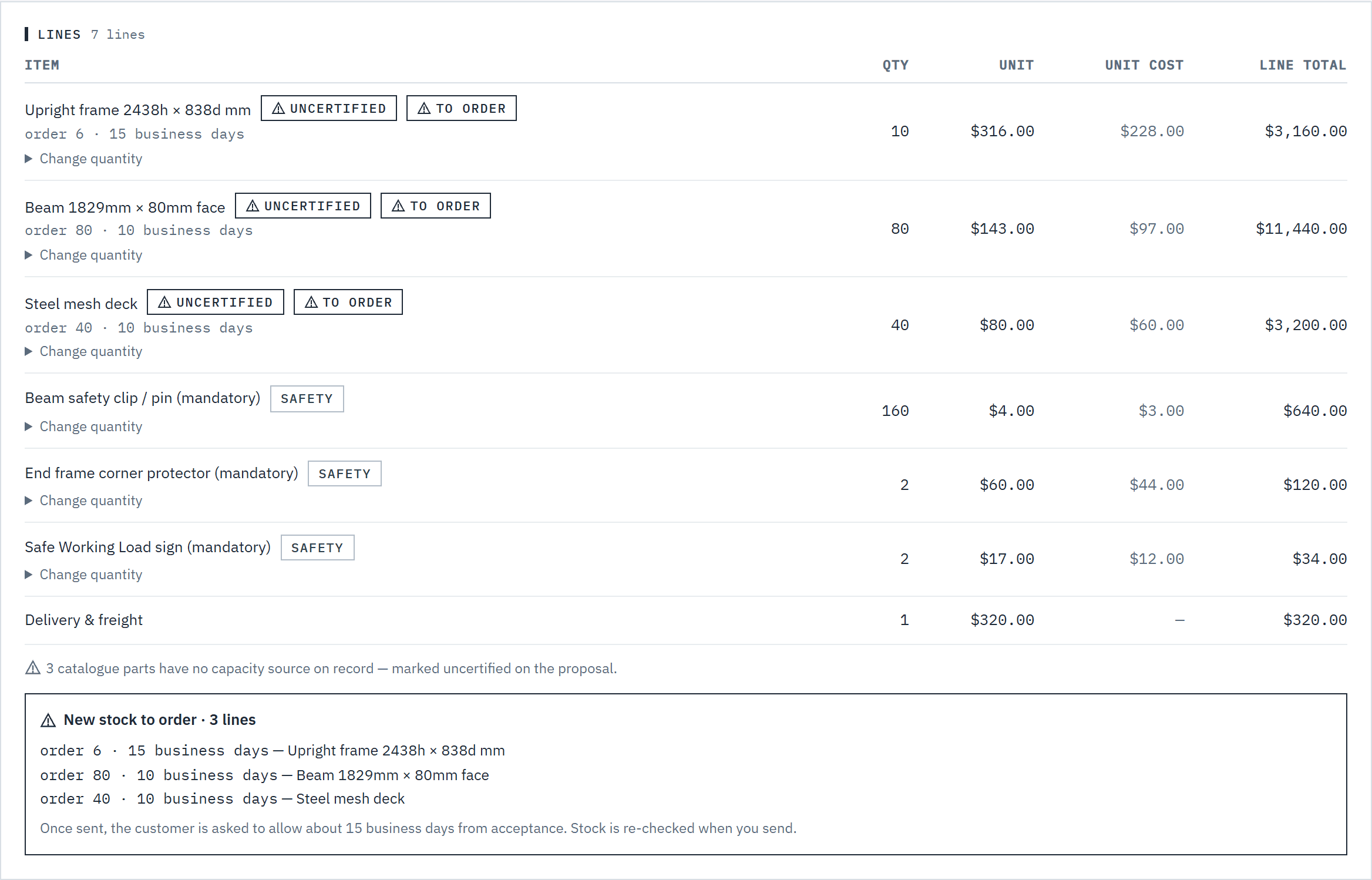
On a draft, a line that needs more than is available is marked to order, with the quantity and lead time, for example order 6 · 15 business days. New stock to order under the lines lists every one. A draft is re-checked each time you open it and again when you send.
 (opens full size in a new tab)
On a draft, lines that need more new stock than you hold show what to order and how long it takes. Step 5: What the customer sees
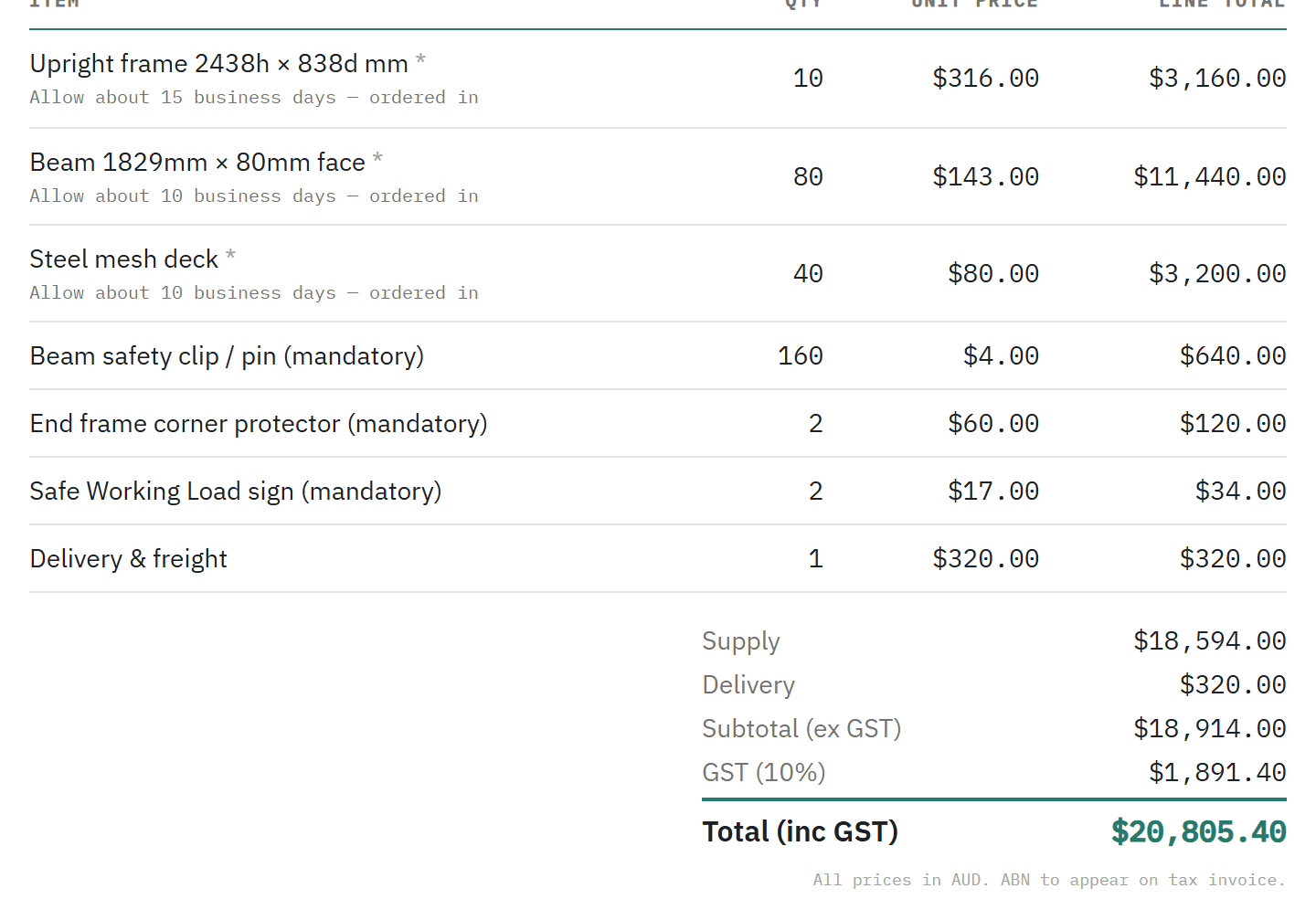
The online proposal and the PDF say Allow about 15 business days — ordered in on the line, and Some items need to be ordered in. Allow about 15 business days from acceptance. near the total, using the longest lead time. The quote email carries the same sentence. No stock figures, no order quantities.
 (opens full size in a new tab)
The customer sees how long to allow, never your stock figures. Step 6: When the customer accepts
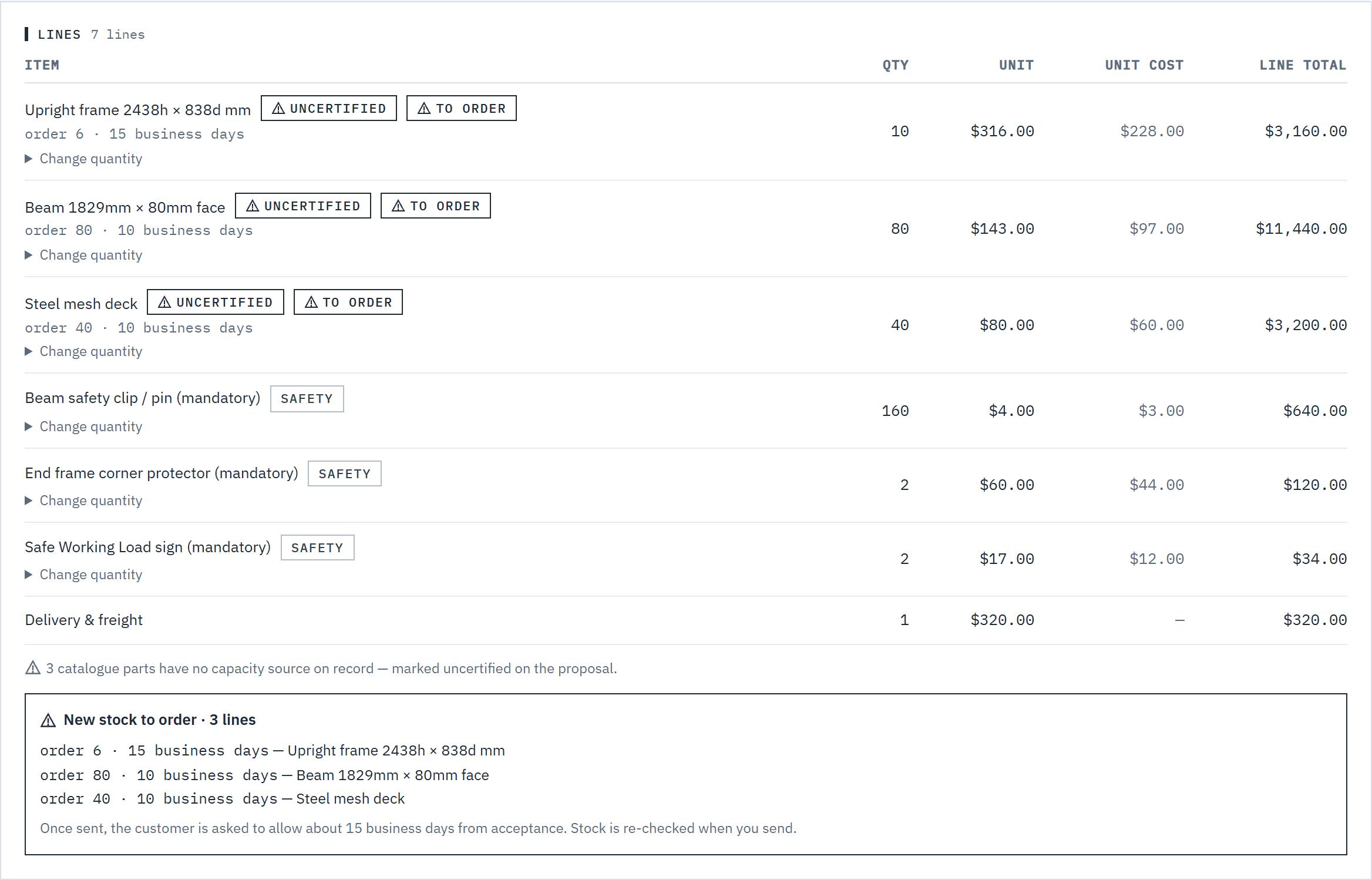
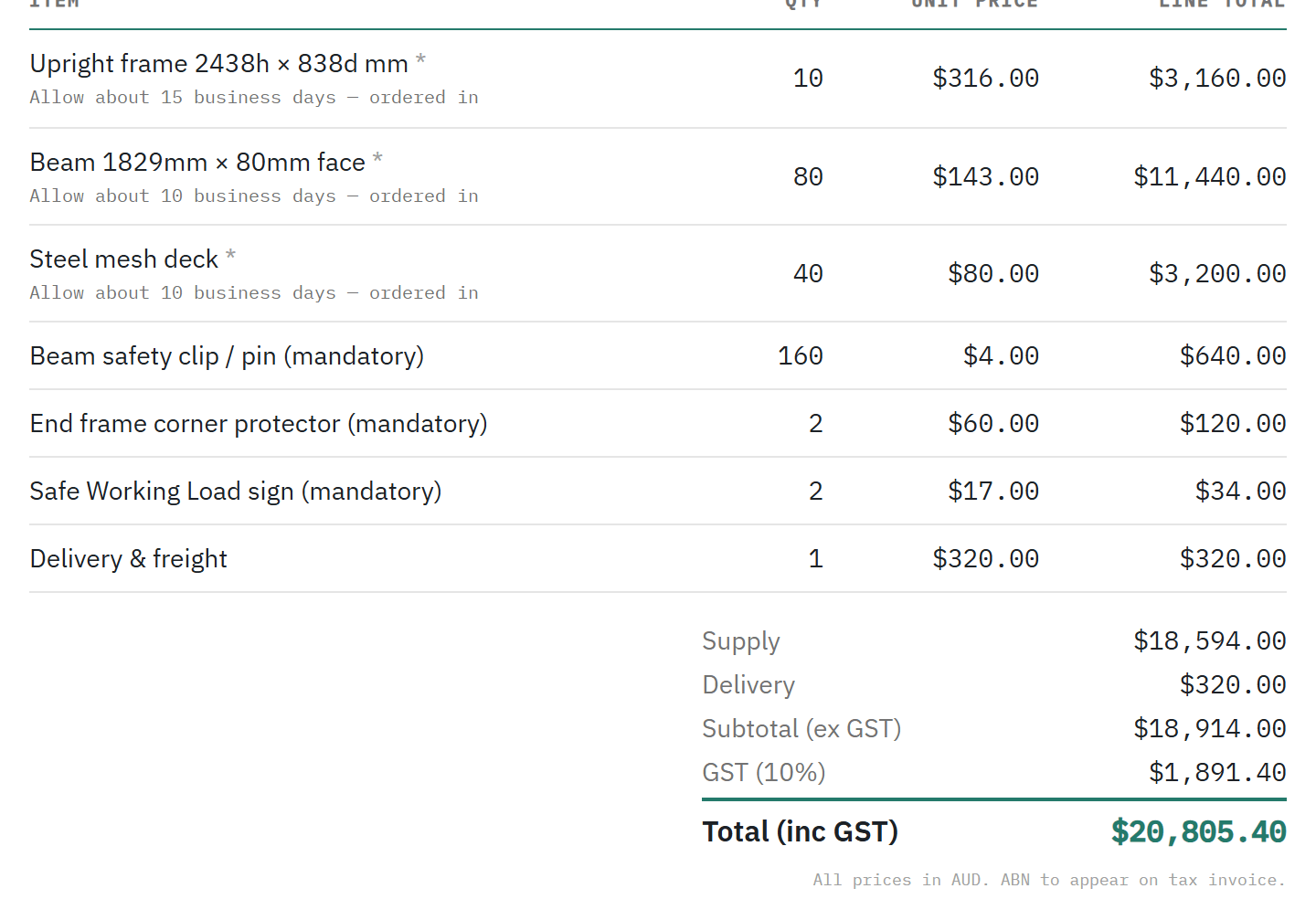
Acceptance re-checks new stock as it is at that moment. Your quote accepted email lists New stock to order — each item with its quantity and lead time — and the longest lead time. The customer's confirmation says how long to allow, and the quote page shows the re-checked list.
Good to know
- Available means on hand at locations offered on quotes. Stock in a quarantine location isn't counted. See Stock locations, transfers and counts.
- A sent quote keeps the lead times it was sent with. A quote marked accepted by hand shows the list as sent, so check new stock before you order.
- On a new and used quote whose recommendation needs nothing ordered but another option would, the customer sees Some options need to be ordered in. If you choose them, allow about 15 business days from acceptance.
- Accepted quotes take new stock off as well as used. With new-stock tracking off, nothing is flagged and new stock is never counted.
- Owners, admins and warehouse members change inventory settings. Owners, admins and finance set product lead times on the price list.
Related articles
- Create and send a quoteGenerate, review and send a priced, branded proposal.
- Price your rackingCost, sell and margin, lead times, and editing prices in Excel.
- Used pricing and stockOffer used equipment alongside new, and count the stock you hold.
- What your customer seesThe online proposal, chat, and accepting with a confirmation code.