
Stock locations, transfers and counts
Hold stock in yards, stores and vans, move it between them and count it.
Baylogik counts stock per location: a warehouse, a yard, the service van or a customer's site. Every workspace starts with one, Main store, as the default. Add the places you really hold stock and every receipt, count, transfer and sale is recorded against one of them.
Locations are under Inventory, on the Locations tab next to Stock, Import and export and Settings.
Set up locations
Step 1: Open Locations
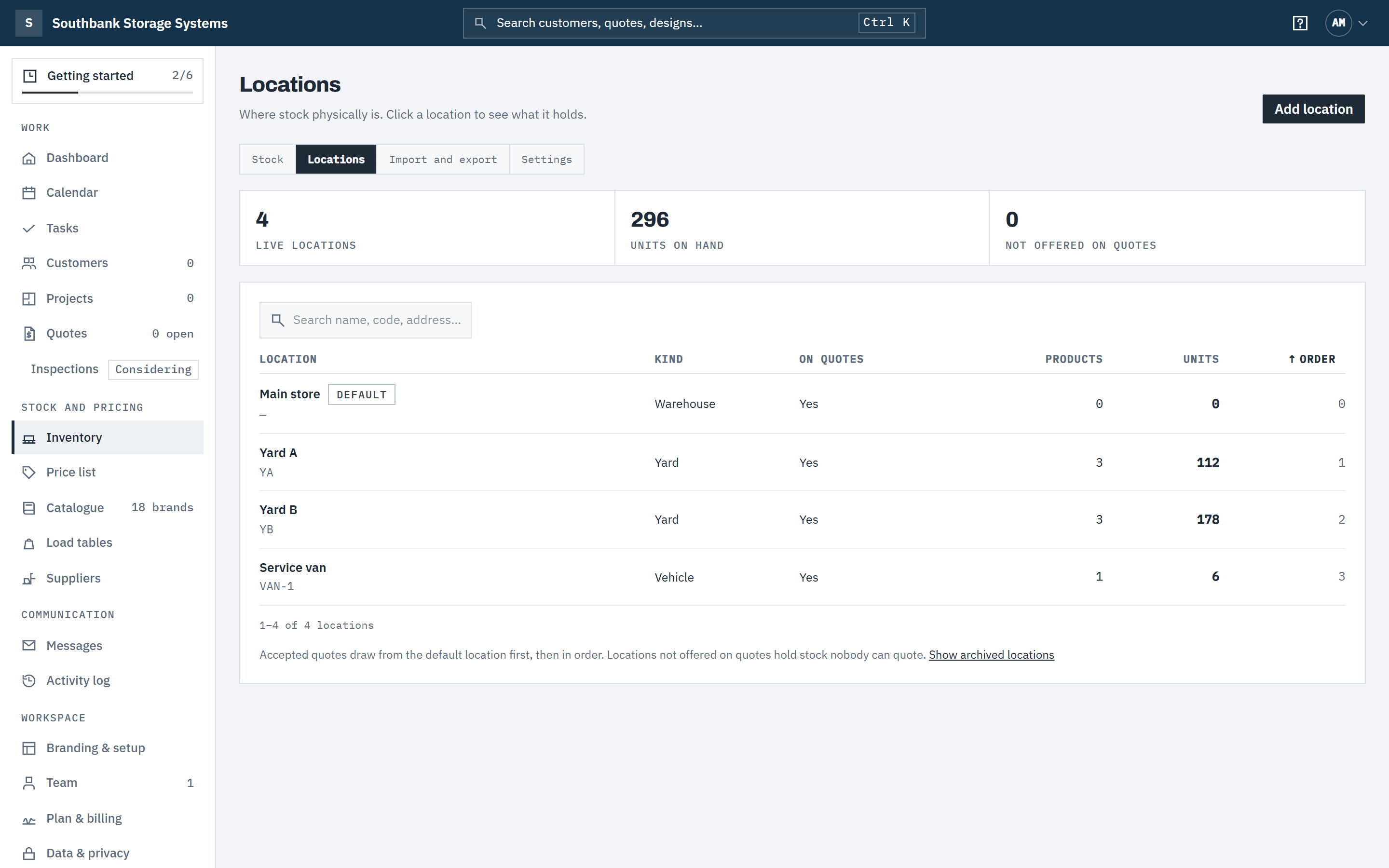
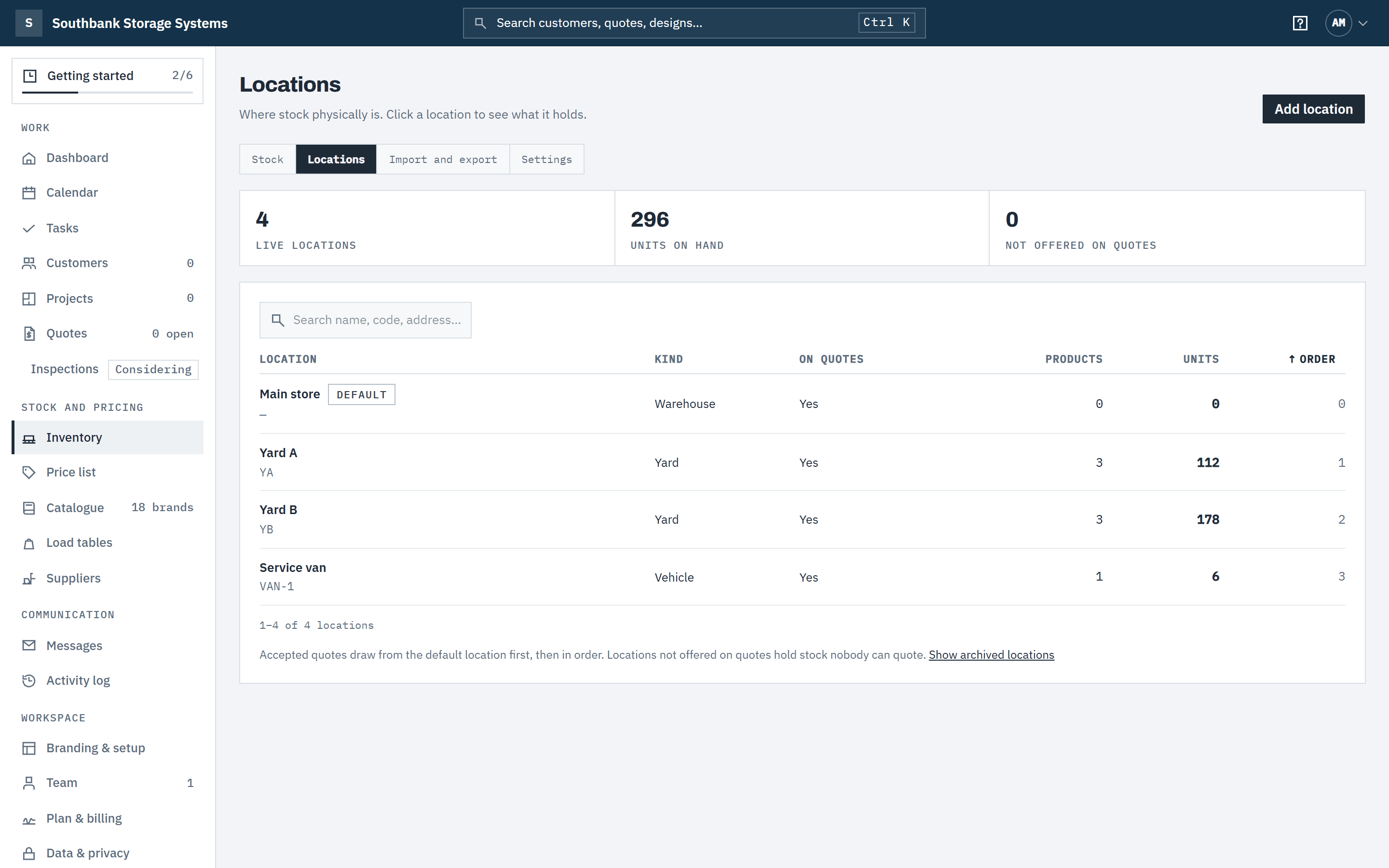
In Inventory, choose the Locations tab. Each location shows its Kind, whether it's offered On quotes, how many Products and Units it holds, and its Order. The default location is marked default.
 (opens full size in a new tab)
Locations are the yards, stores and vans you hold stock in. Step 2: Add a location
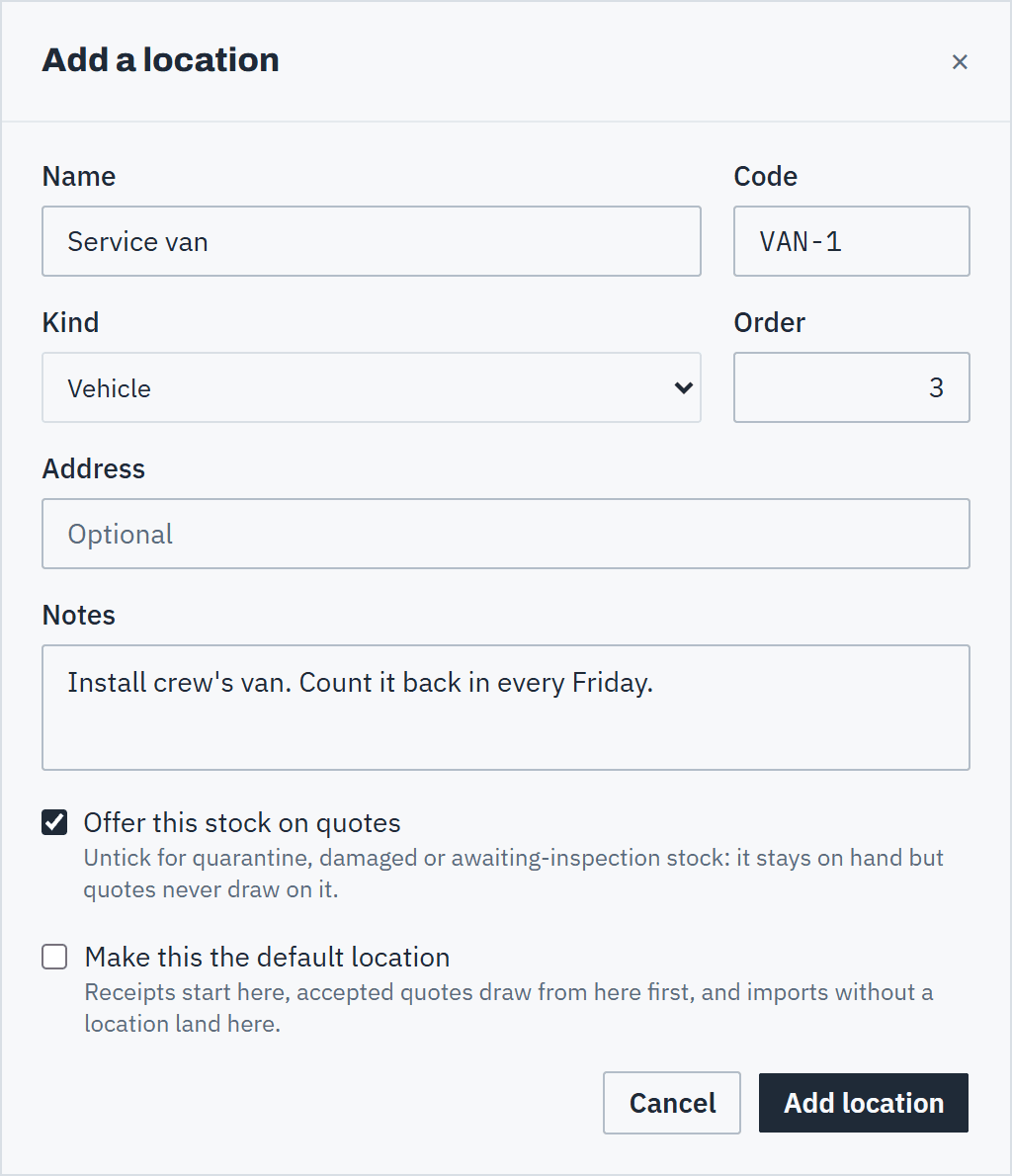
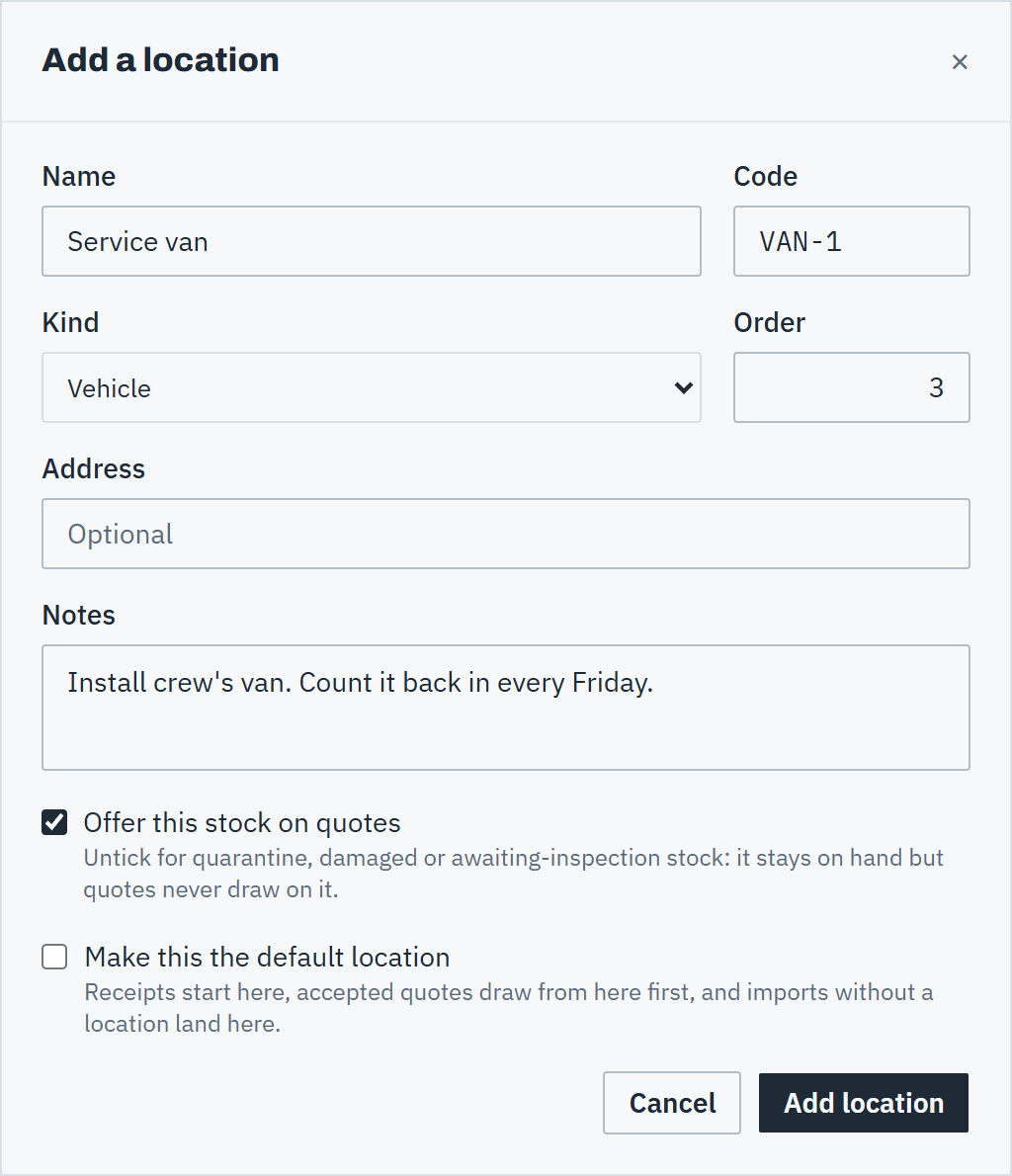
Choose Add location. Enter a Name, such as Yard B, and an optional Code of up to 16 letters, numbers, dots, dashes or slashes, such as YB or VAN-1. Pick the Kind: Warehouse, Yard, Vehicle, Customer site or Other. Order sets the sequence; Address and Notes are for whoever goes there. Choose Add location and its page opens.
 (opens full size in a new tab)
Add every place you hold stock, with a short code for labels and imports. Step 3: Decide what quotes can draw on
Offer this stock on quotes is ticked by default. Untick it for quarantine, damaged or awaiting-inspection stock: it stays on hand, but quotes never draw on it. Tick Make this the default location to make it where receipts start, where accepted quotes draw from first, and where imports without a location land.
Move and count stock
Step 4: Open a location
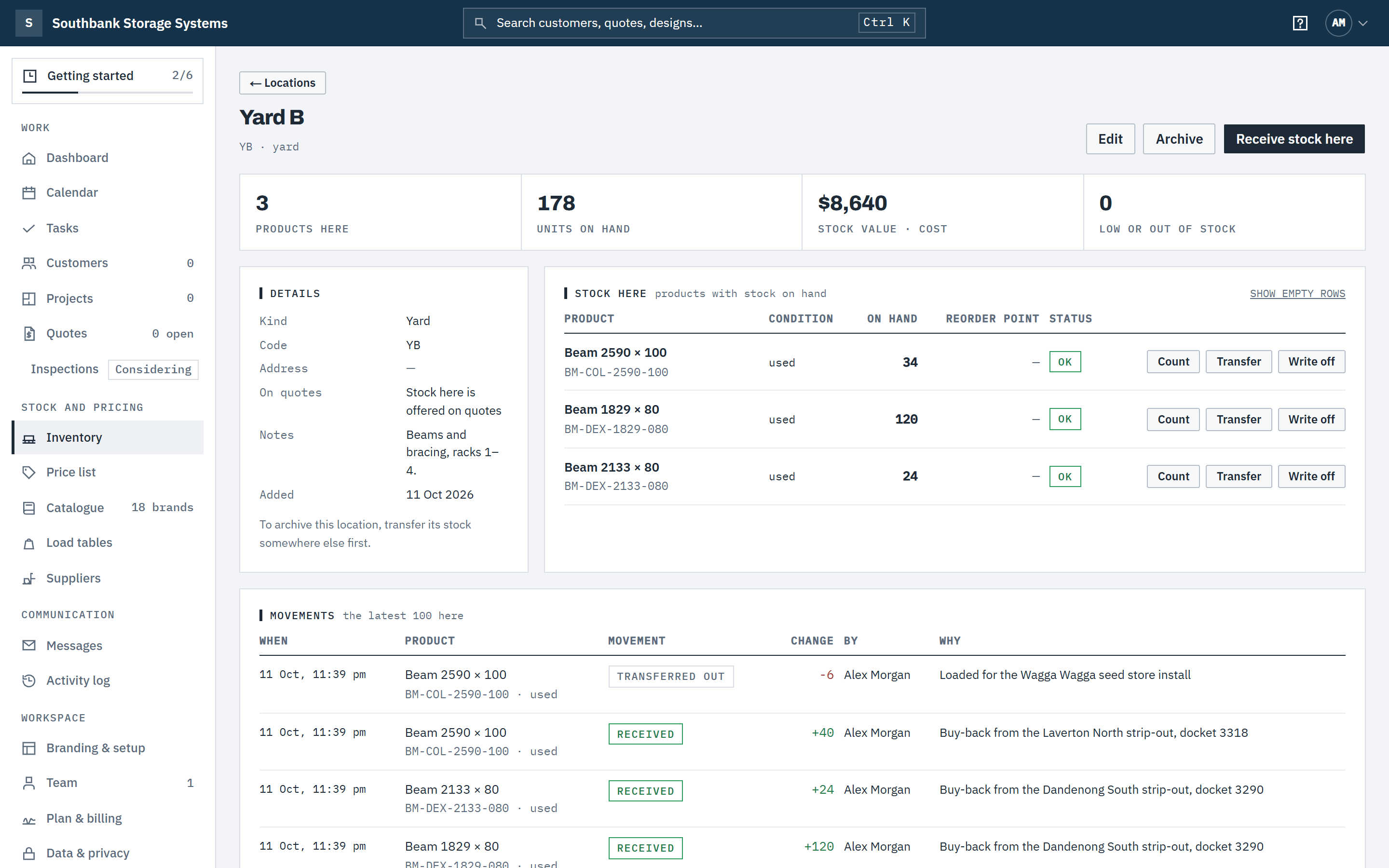
Click a location to see Stock here — on hand, reorder point and status for each product and condition — with its details and the latest 100 movements in and out. Receive stock here starts a receipt at this location.
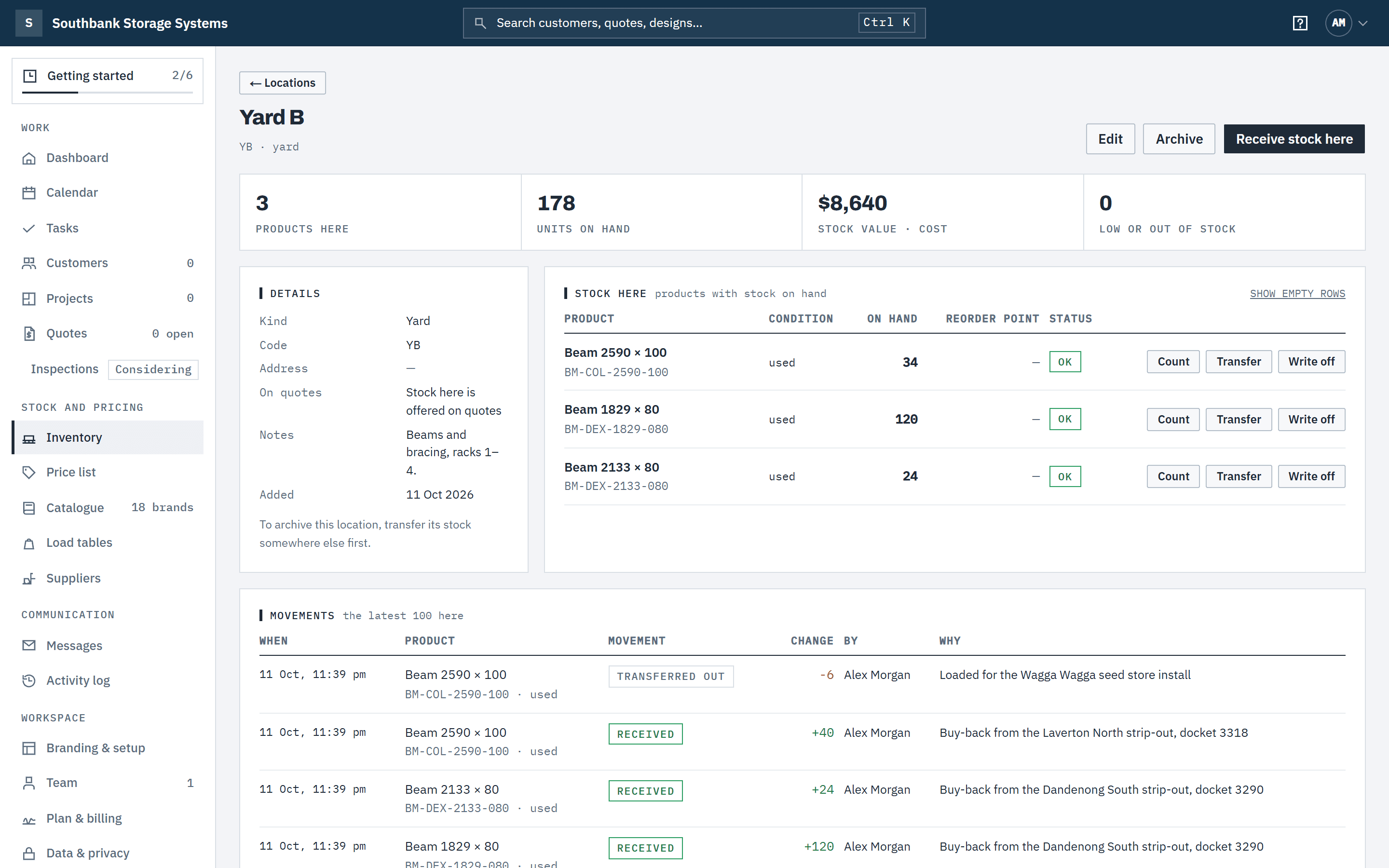 (opens full size in a new tab)
Each location lists what it holds and every movement in and out. Step 5: Transfer stock between locations
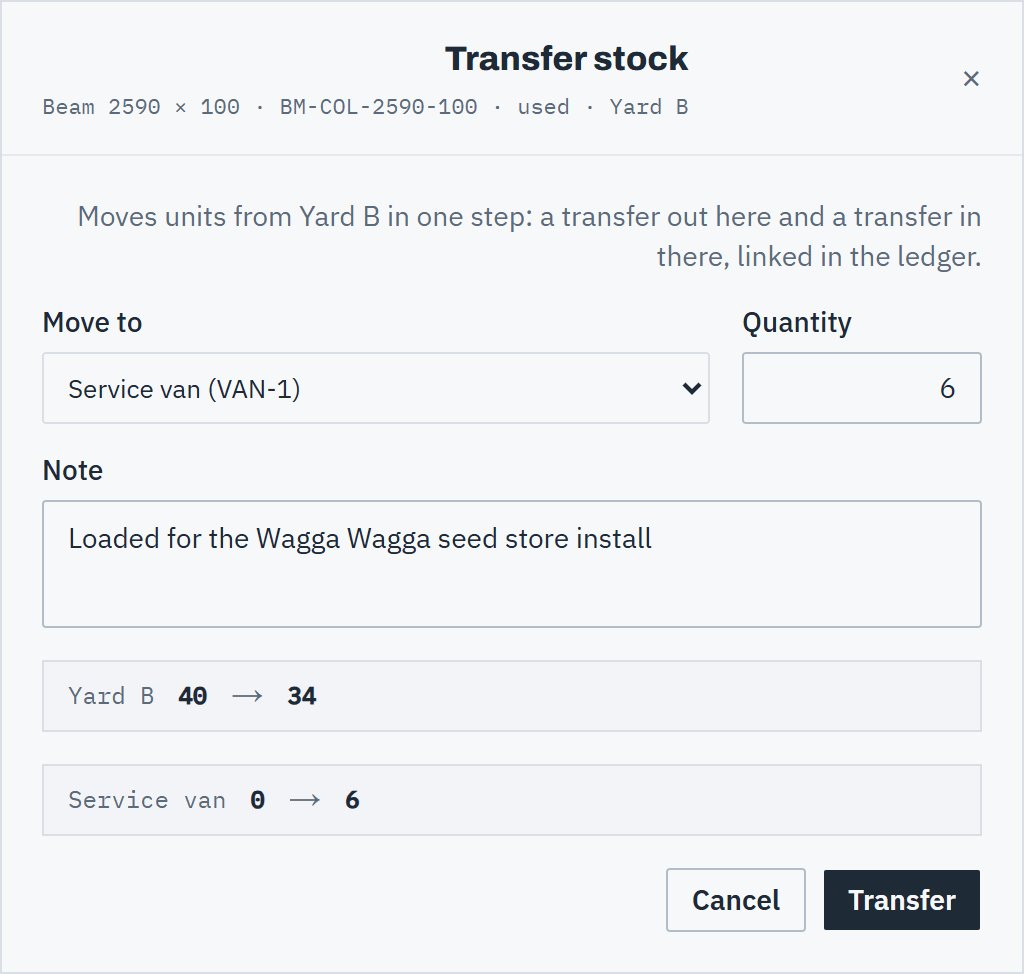
On a row, choose Transfer. Pick where to Move to, enter the Quantity and an optional Note; the dialog previews the count at both ends. The ledger records Transferred out at one location and Transferred in at the other, linked to each other. You can't move more than is on hand.
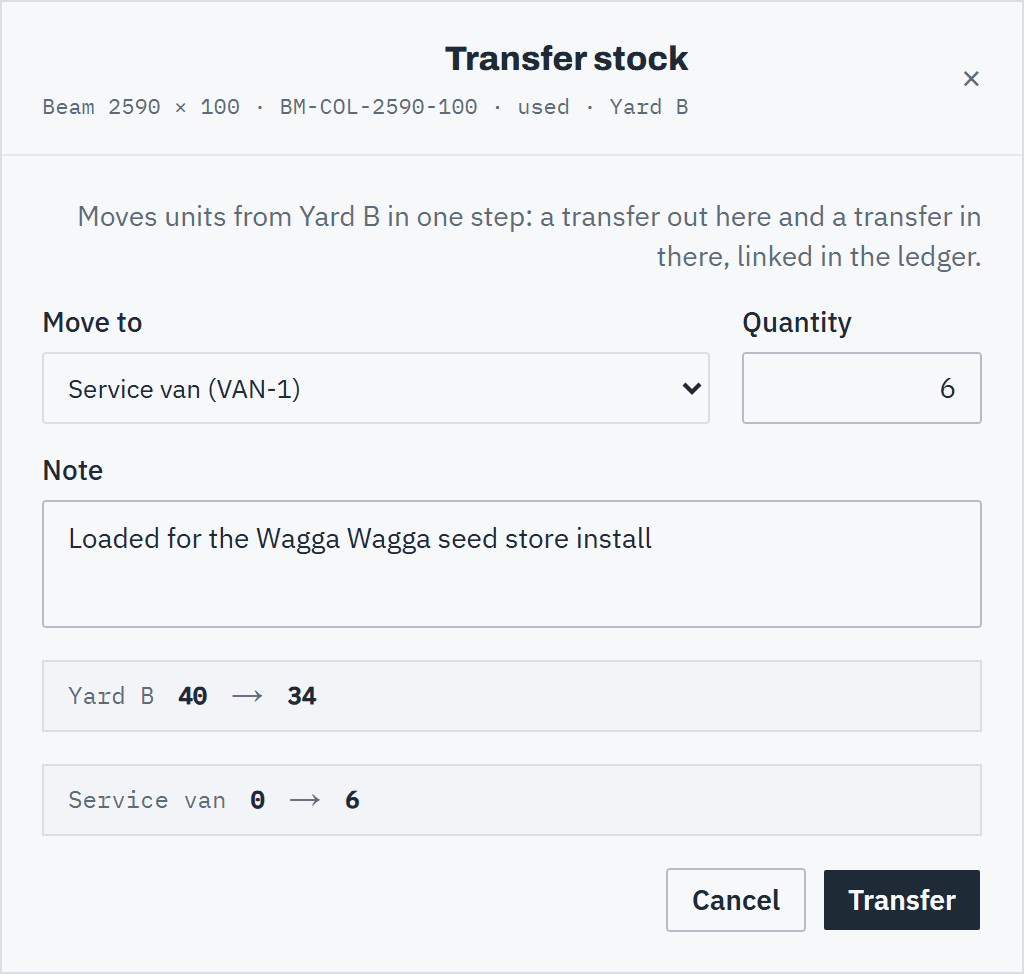 (opens full size in a new tab)
A transfer moves units in one step and records both ends in the ledger. Step 6: Count what's there
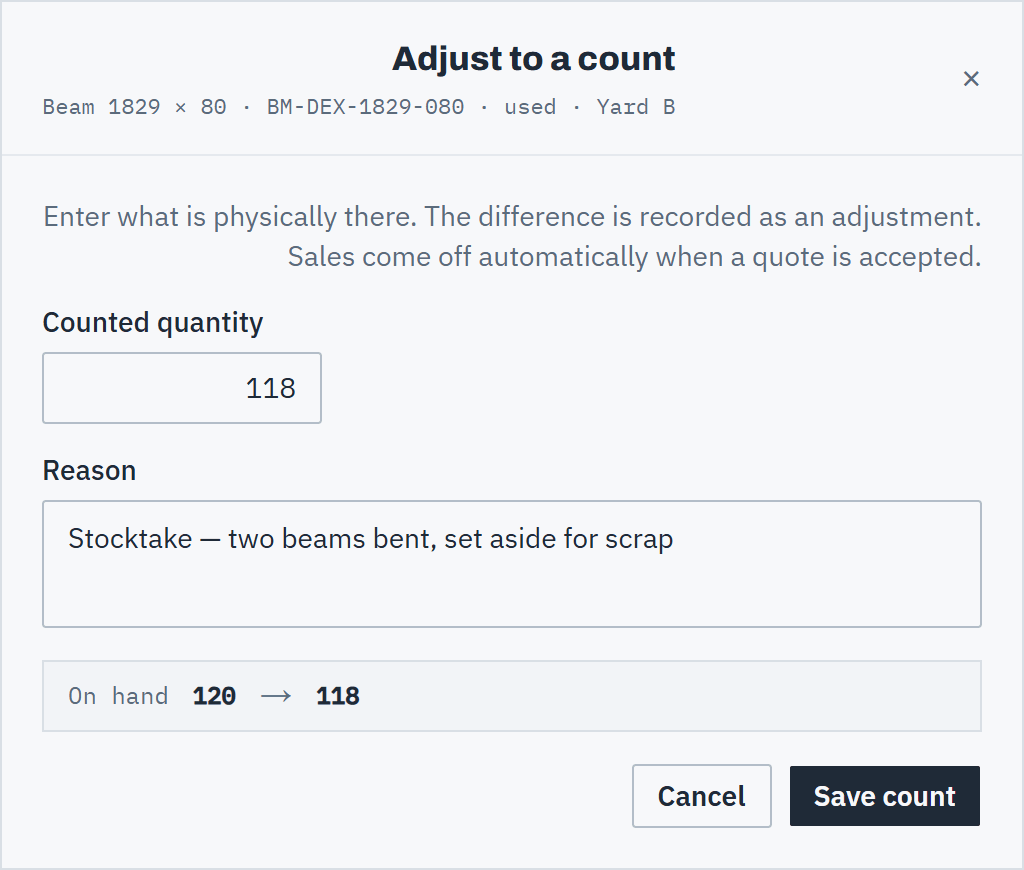
Choose Count on a row and enter the Counted quantity — what is physically there — with a Reason. Baylogik records the difference as an Adjustment, so on hand matches your count. Sales come off automatically when a quote is accepted, so don't count them out by hand.
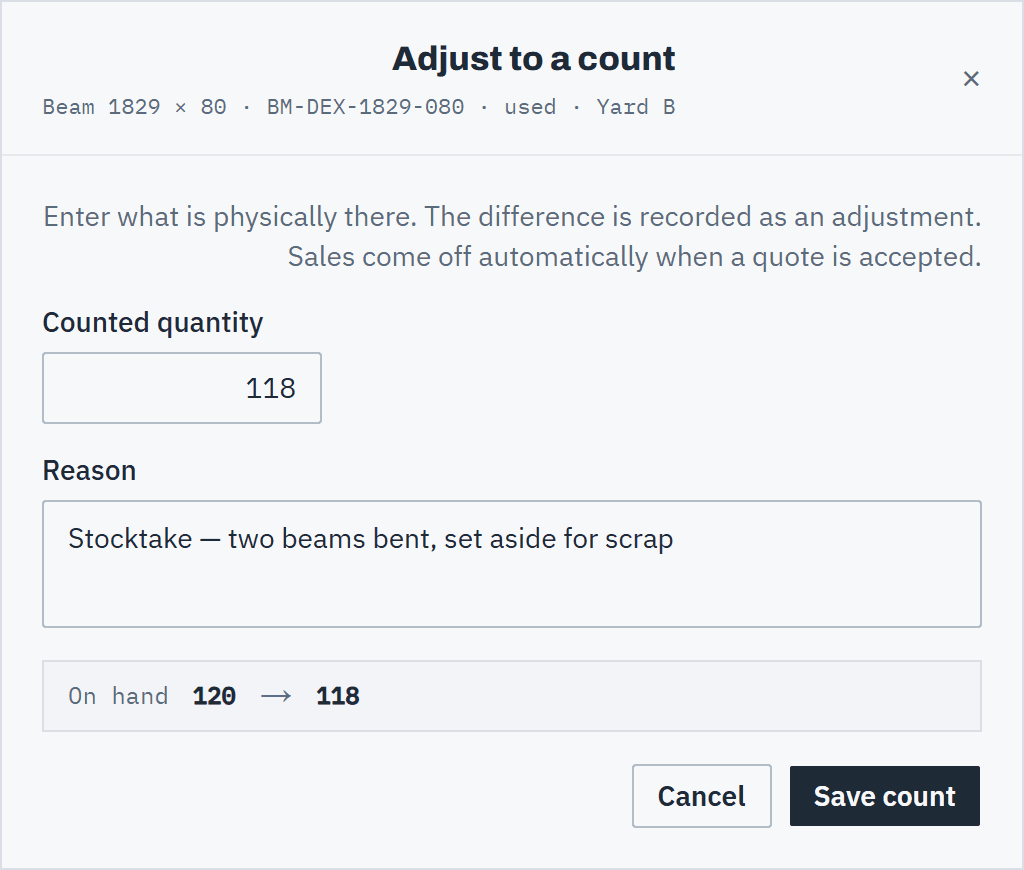 (opens full size in a new tab)
Enter what is physically there; Baylogik records the difference. Step 7: Write off damaged stock
Write off removes stock that is damaged, scrapped or lost, with a reason. If a write-off was wrong, correct it. See Correct a stock movement.
Good to know
- More than one location, and transfers between them, come with the Team plan and the trial. On Starter a workspace keeps one active location, its default. See Plans, trial and billing.
- A location can be archived only when it holds no stock and isn't the default: transfer its stock out first, and make another location the default. Archived locations disappear from pickers but stay in the history. Show archived locations lists them, with Restore.
- Accepted quotes draw stock from the default location first, then the other locations by Order, skipping any that aren't offered on quotes.
- Reorder points are set per location with Details on an item's page. The Stock tab adds them up across locations to flag an item as low.
- Names and codes can't be shared by two live locations. Stock imports match codes first.
- Owners, admins and warehouse members add, edit and archive locations and move stock. Everyone else sees locations and stock read-only.
Related articles
- Used pricing and stockOffer used equipment alongside new, and count the stock you hold.
- Correct a stock movementPut right a receipt, count or write-off recorded wrongly, or return sold stock.
- Import and export stockCount stock in a spreadsheet and load the counts back, with a review first.
- Roles and permissionsOwner, admin, estimator, finance, warehouse and read only: who can see and change what, including cost prices.