
Invite your team
Invite people, give them a role, and change or remove access.
A workspace is your business in Baylogik. Everyone on your team signs in with their own account and gets a role that decides what they can see and change. Invite people by email; they join with one click.
Give people the least they need. Estimators quote, finance looks after prices, the yard looks after stock, and a read-only seat suits anyone who only needs to look.
Step 1: Open your team
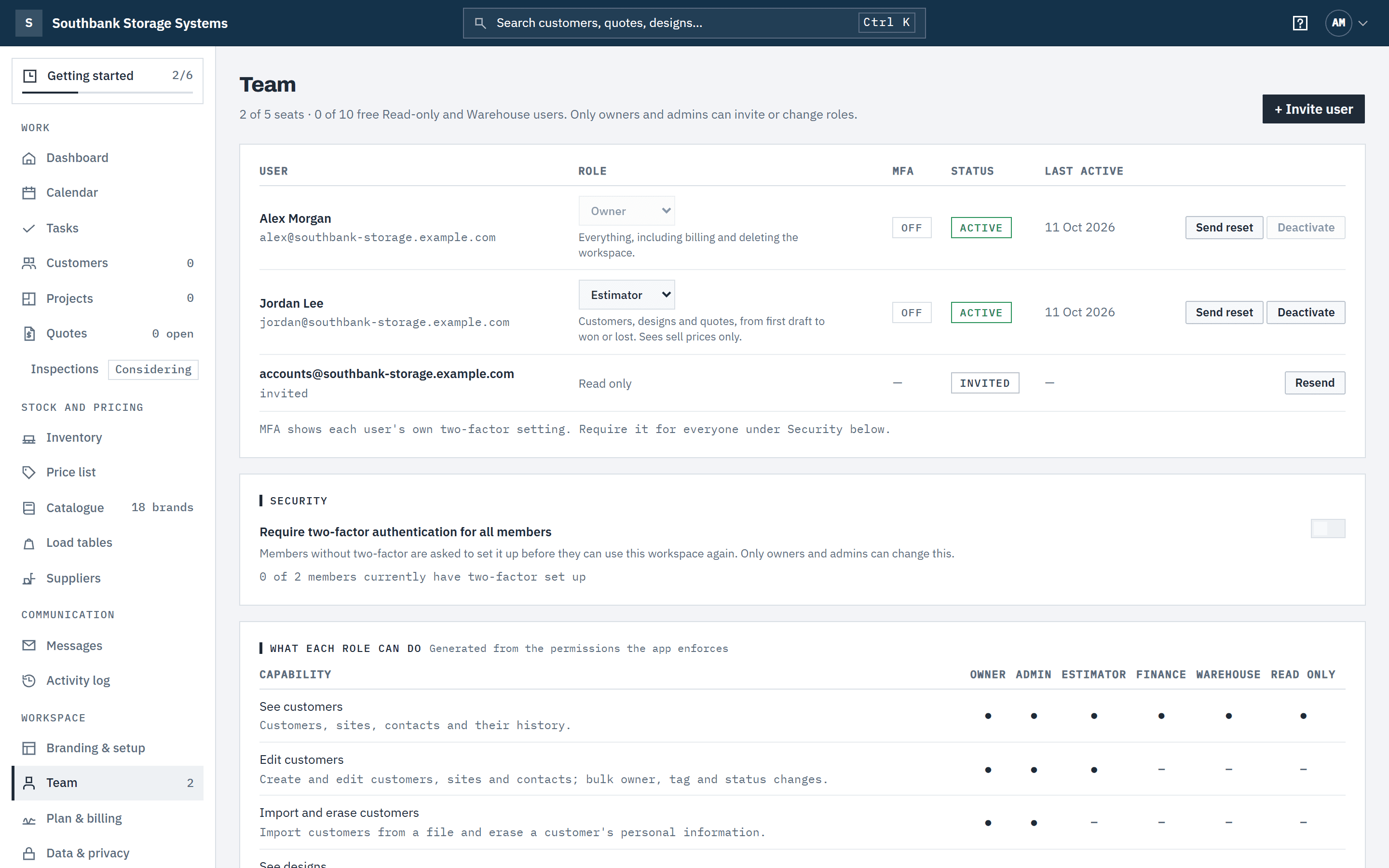
In the navigation, under Workspace, choose Team. You'll see everyone in the workspace with their role, two-factor status and when they were last active, invitations still waiting, and how many seats and free places are in use, for example 2 of 5 seats · 0 of 10 free Read-only and Warehouse users.
 (opens full size in a new tab)
Everyone in your workspace, their role, and any invitations still waiting to be accepted. Step 2: Invite someone
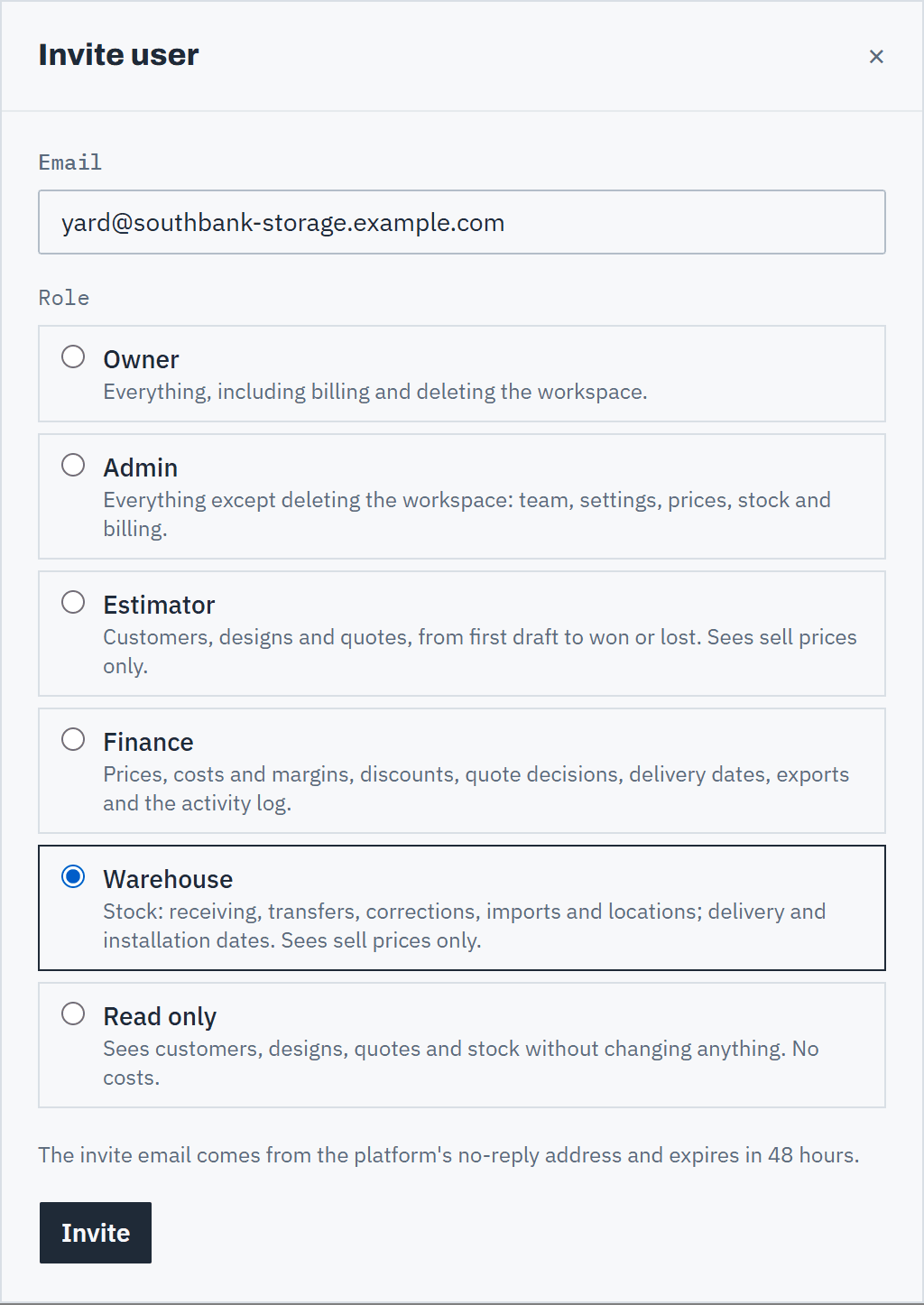
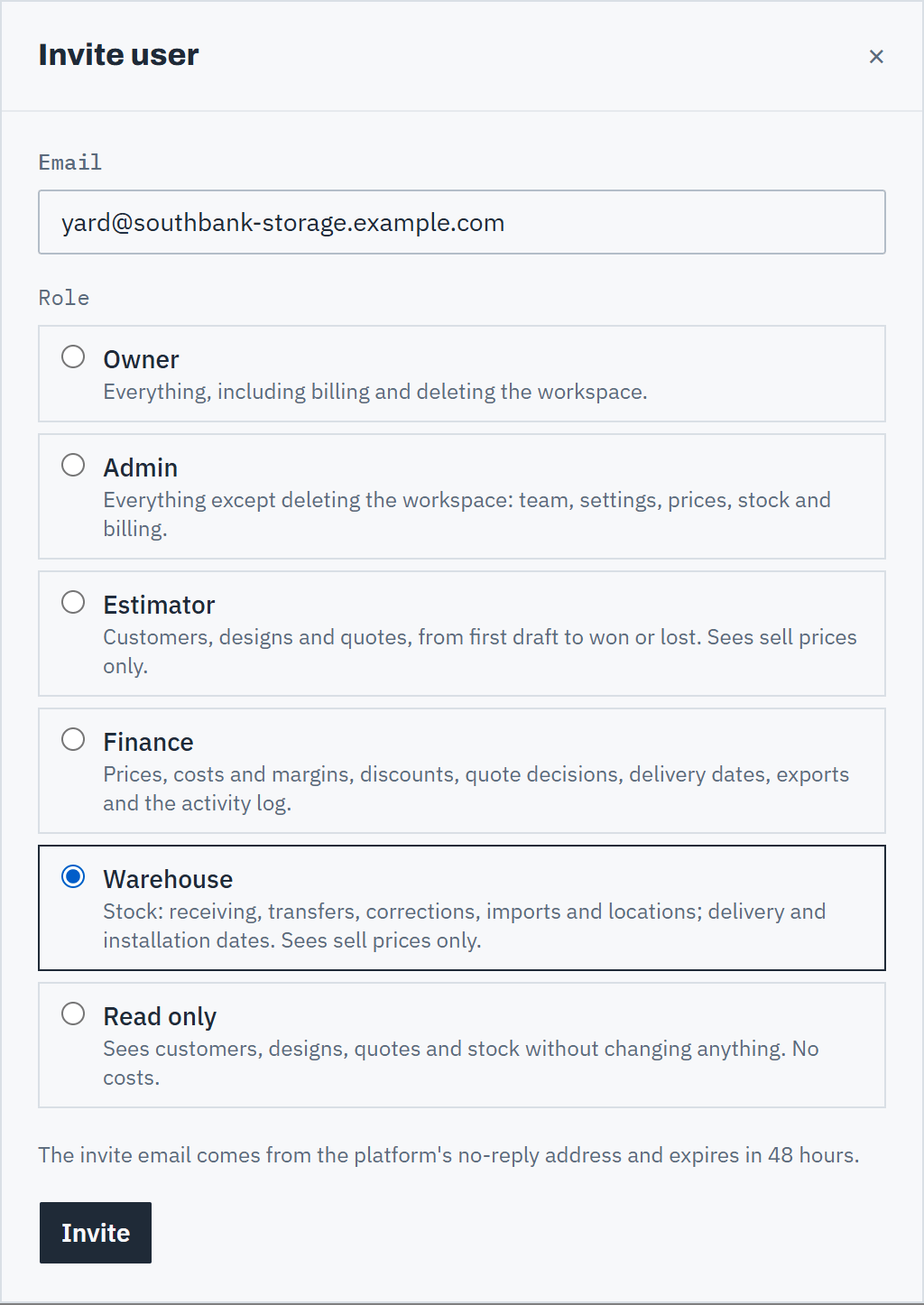
Choose + Invite user, enter their Email, pick a Role — each one lists what it can do — and choose Invite. The invitation email comes from our no-reply address and expires after 48 hours. Use Resend if it has lapsed or gone to spam.
 (opens full size in a new tab)
Invite by email and pick a role; the invitation expires after 48 hours. Step 3: Pick the right role
- Estimator: customers, designs and quotes, from first draft to won or lost. Sell prices only.
- Finance: prices, costs and margins, quote decisions, exports and the activity log.
- Warehouse: receiving, transfers, counts, corrections, stock imports and locations. Sell prices only.
- Read only: sees customers, designs, quotes and stock without changing anything. No costs.
- Admin: everything except deleting the workspace.
- Owner: everything, including billing and deleting the workspace.
Finance and Warehouse come with the Team plan (and the trial): on Starter they aren't offered. The full list is in Roles and permissions.
Step 4: Change a role or remove someone
Change a person's role from the list at any time. To remove them, choose Deactivate and confirm. Customers they owned become unassigned so nothing is orphaned; their designs and quotes stay.
Step 5: Ask your team to turn on two-factor
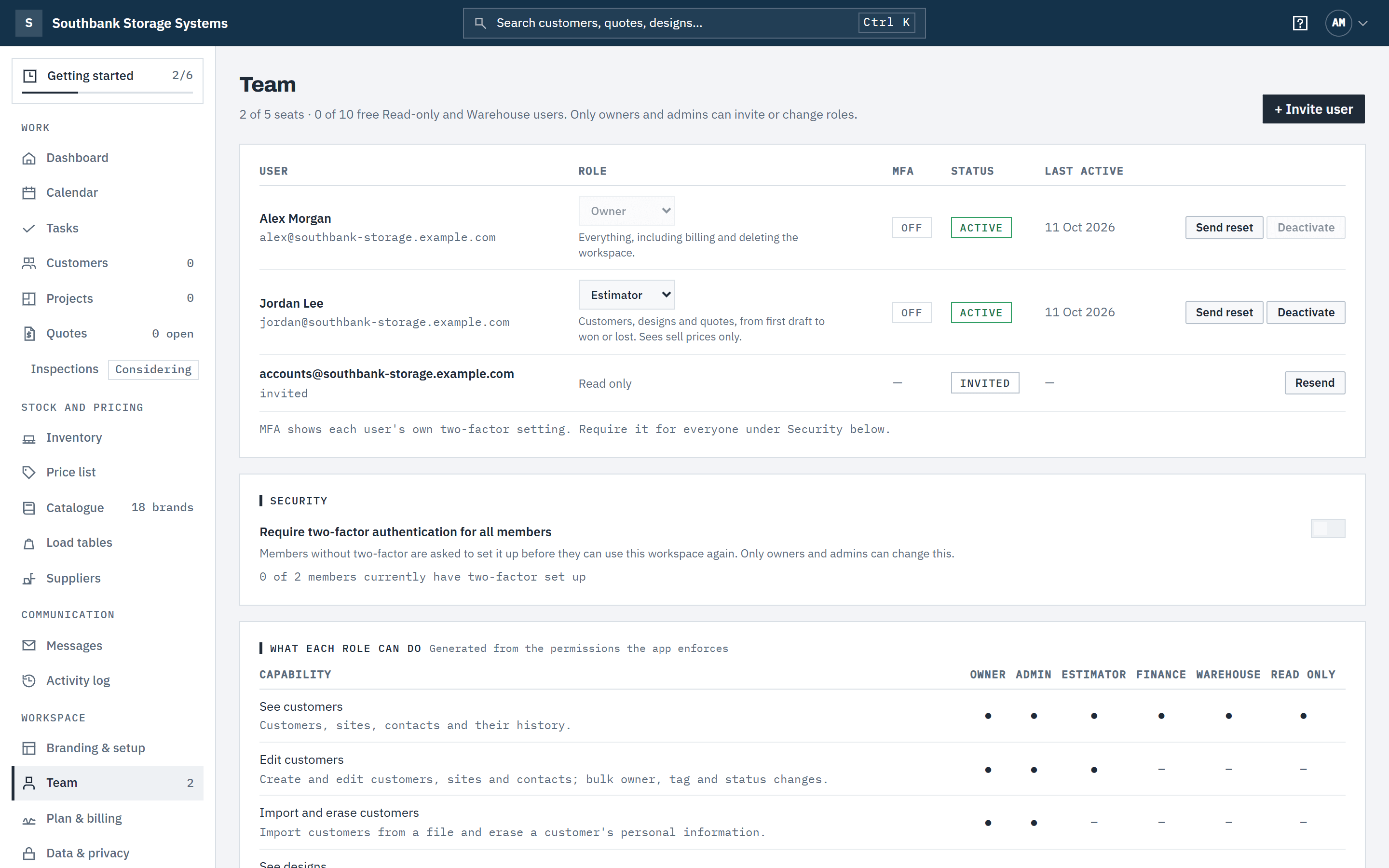
Under Security, owners and admins can switch on Require two-factor authentication for all members. The MFA column shows who has it on. See Two-factor authentication.
Good to know
- Only owners and admins can invite people or change roles. Only an owner can invite an owner, make someone an owner or change an owner's role.
- A workspace must keep at least one owner: the last owner can't be removed or demoted.
- Owners, admins, estimators and finance each take a seat. Read-only and Warehouse members are free, up to 10 on Starter and Team. When every seat is taken you can still invite Read-only and Warehouse users; for anyone else, add seats in Plan & billing or remove someone first. See Plans, trial and billing.
- If the workspace is read-only because its trial or subscription ended, you can still remove people, but not invite anyone or change roles.
- Owners and admins can send a member a password reset email with Send reset.
- Everyone can open the Team page and its What each role can do table; only owners and admins get the controls.
- People can belong to more than one workspace and switch between them from the account menu (their initials, top right).
Related articles
- Roles and permissionsOwner, admin, estimator, finance, warehouse and read only: who can see and change what, including cost prices.
- Plans, trial and billingThe 30-day trial, Starter, Team and Enterprise, seats, applying a code, and what happens when a trial ends.
- Two-factor authenticationProtect your account with an authenticator app.
- Getting startedThe steps from a new workspace to your first sent quote.