
Suppliers
Your vendors and distributors: their codes for your products, their costs, and which one sets your prices.
A supplier is anyone you buy stock from: a distributor, a manufacturer selling direct, another dealer or a source of used stock. For each product you can keep every supplier's own part number (their supplier code), what they charge (their supplier cost), and one preferred supplier.
Only the preferred supplier moves your price list. Costs from other suppliers are kept so you can compare them, and switching to another supplier is one deliberate step with a review first, so nothing reprices behind your back.
Add your suppliers
Step 1: Open Suppliers
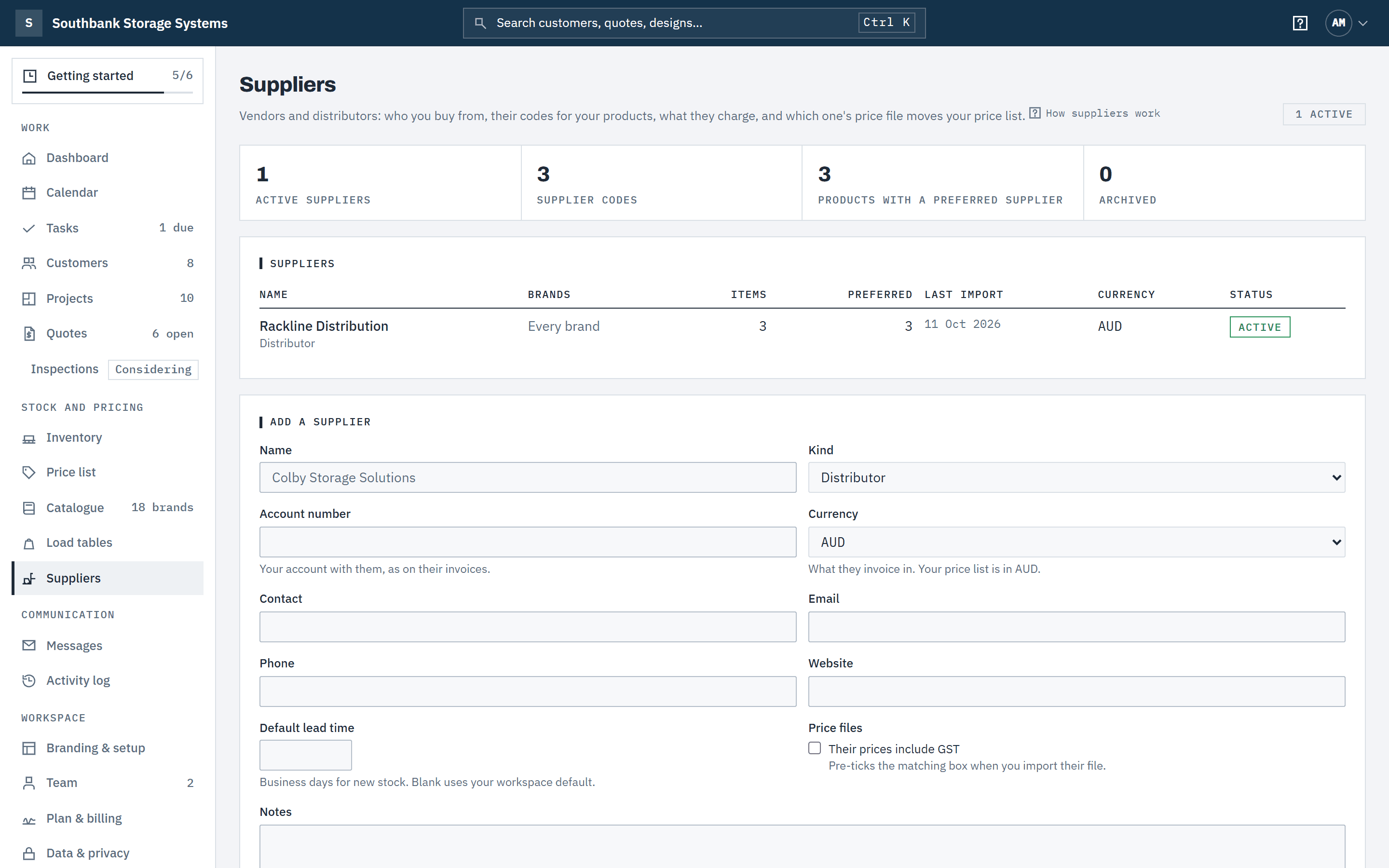
In the navigation, under Stock and pricing, choose Suppliers. The list shows each supplier's brands, how many of your products it has a code for, how many it is preferred for, its last import and the currency it invoices in.
 (opens full size in a new tab)
Suppliers lists each vendor and distributor with its codes, preferred products and last import. Step 2: Add a supplier
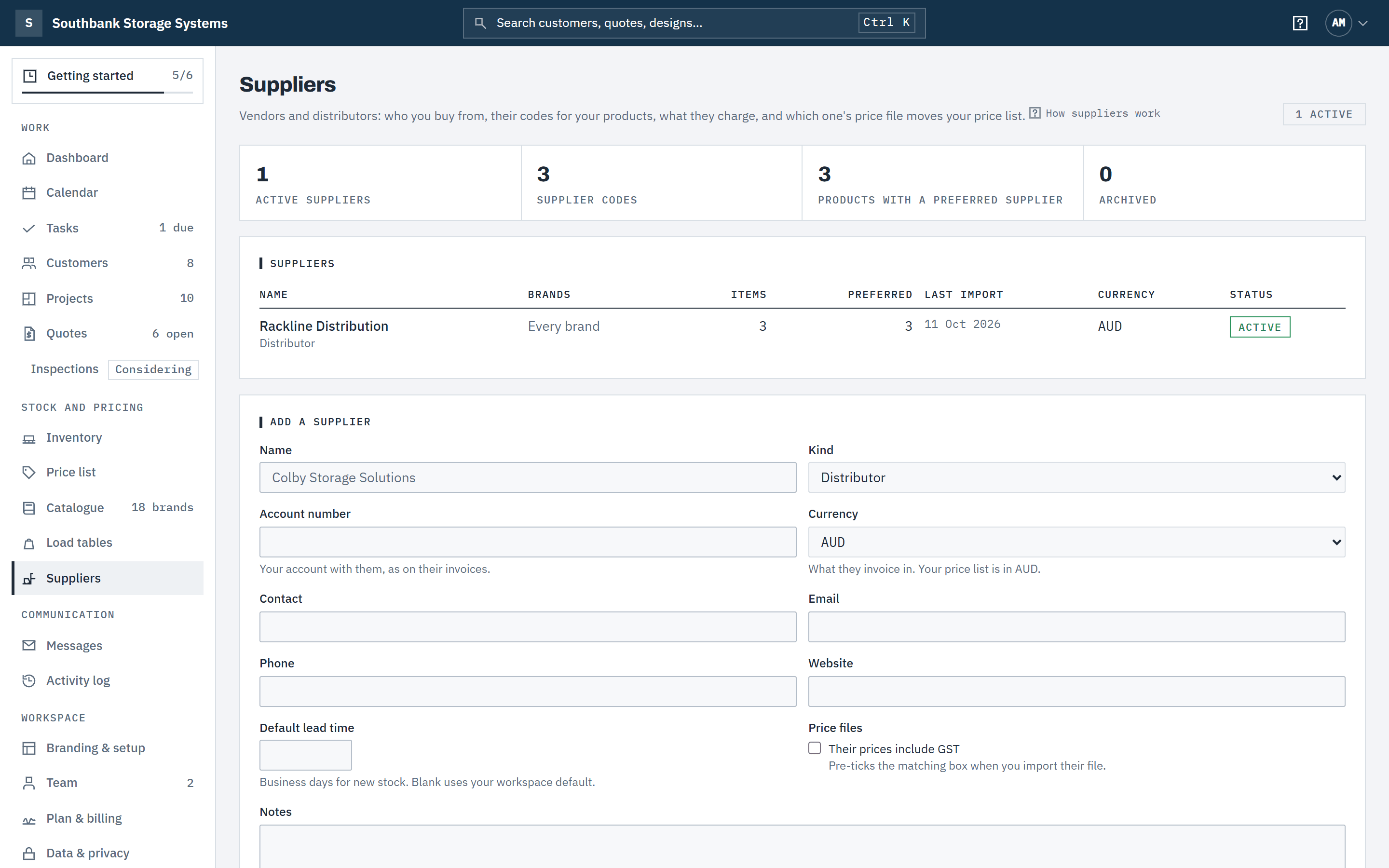
Under Add a supplier, enter the Name, the Kind (distributor, manufacturer direct, another dealer, used stock source or other), your Account number with them, a contact, and the Currency they invoice in. Tick Their prices include GST if their price files do, and set a Default lead time in business days if they quote one. Choose Add supplier.
Step 3: Choose the brands they carry
On the supplier's Brands carried tab, tick the brands you buy from them and choose Save brands. Their price files are then matched only against products of those brands, so a code can't land on another brand's part. Tick none to match every brand.
Link their codes to your products
Step 4: Add a code
On the Items tab, under Add a code, type your product id or part number (suggestions appear as you type), the Supplier code as they print it, and their description if you like. Leave Make this the preferred supplier when the product has none ticked for a product nobody supplies yet. Choose Link code.
Step 5: Link many codes at once
Under Link codes in bulk, paste lines straight from a spreadsheet: your product id or part number, their supplier code, then an optional description. Choose Link all. If any line doesn't match exactly one product, nothing is linked and the lines are named, so you can fix them and paste again.
 (opens full size in a new tab)
Each linked product shows the supplier's code, its latest cost and whether it is the preferred supplier. Step 6: Keep codes tidy
Use Edit code on a row to correct a code or description, and Mark discontinued when the supplier stops selling an item. A discontinued item keeps its history but is no longer anyone's preferred supplier.

Costs and the preferred supplier
Step 7: Record a cost
On an item, choose Add cost and enter the cost ex tax in the supplier's currency and the date it applies from (today, or up to two years ahead). For a supplier in another currency, also enter the exchange rate you pay, such as 1.52 AUD per 1 USD: it is stored with the cost and never updated live. For the preferred supplier, Update the price list's cost too moves your price list's cost from the same date. Sell prices don't change.
Step 8: Compare suppliers for a product
Choose a product's name on the Items tab to compare every supplier's code and cost for it. vs preferred shows how much more or less each one charges than the preferred supplier, in your currency, and Price list today shows which supplier your current cost came from.
Step 9: Switch to another supplier's costs
Choose Apply this supplier's costs on the supplier's Items tab, or Switch to this supplier for one product on the comparison. Baylogik opens a review of every cost, sell and margin change. Nothing changes until you apply it: then this supplier becomes the preferred supplier for those products and your price list moves, together. Undo puts the earlier prices and the earlier preferred supplier back, like any import.
Step 10: Change the preferred supplier only
Make preferred on a row changes whose future price files move the price list, without changing any price today. Clear preferred leaves the product with no preferred supplier.
Imports, history and exports
Step 11: See a supplier's imports
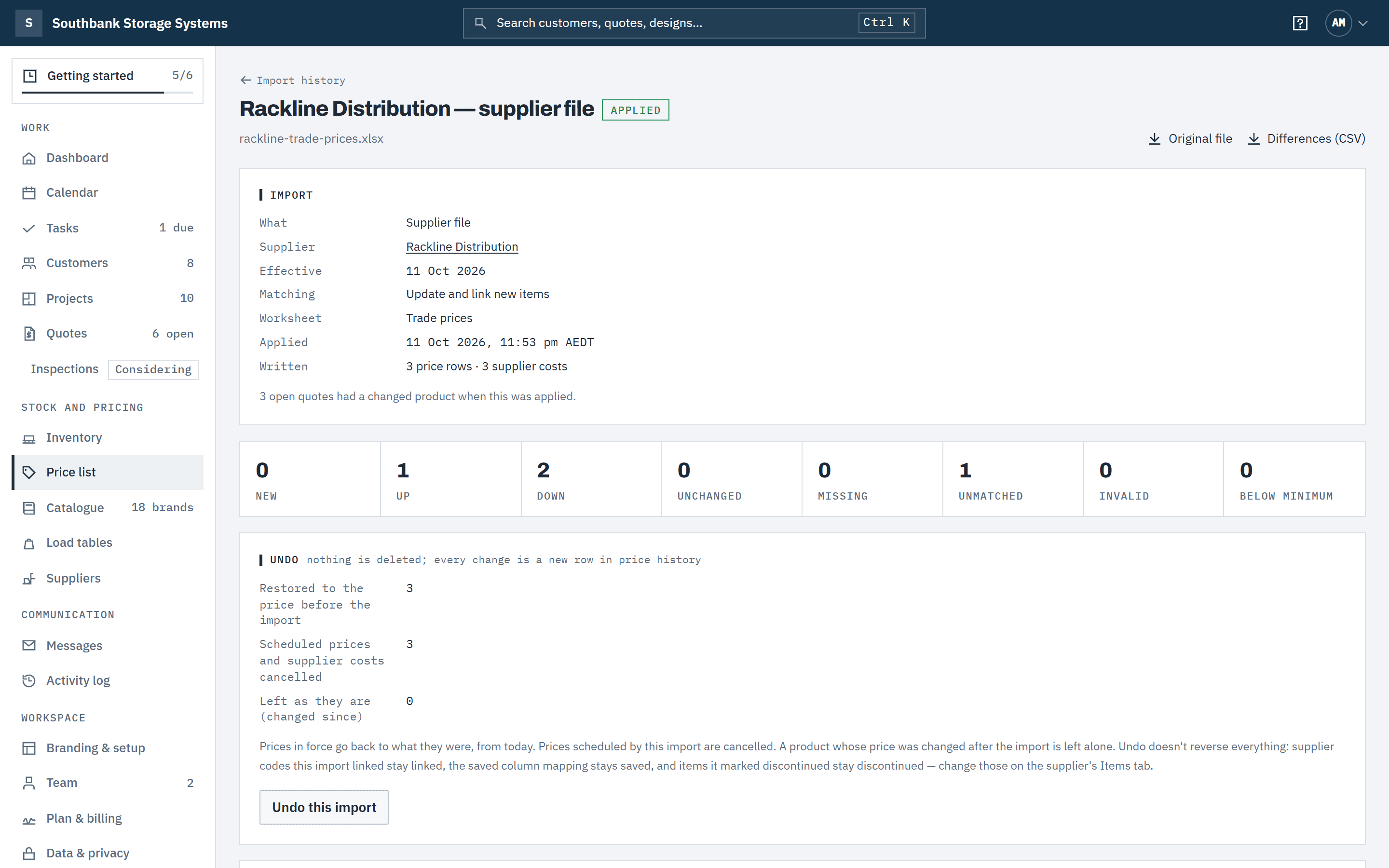
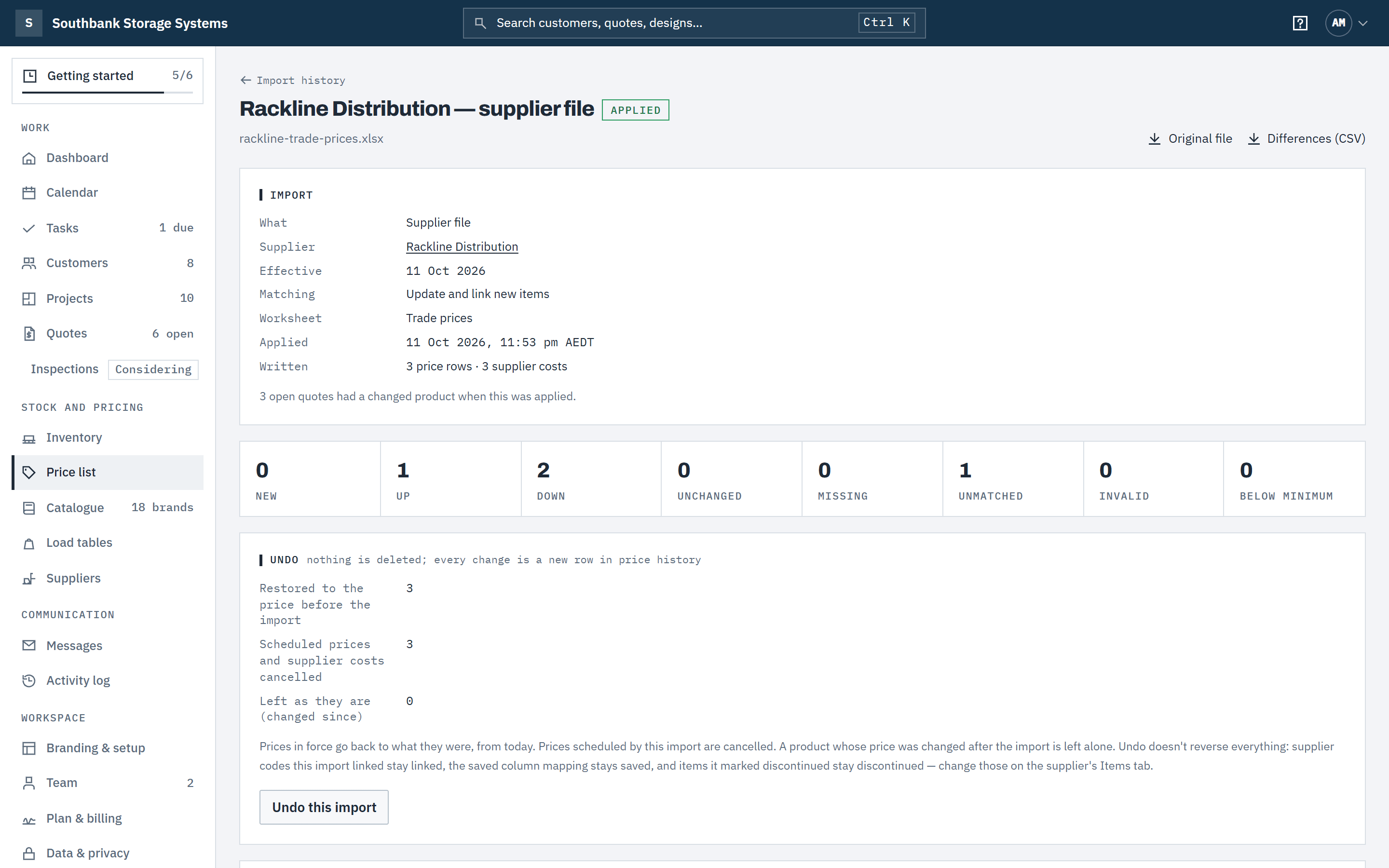
The Imports tab lists every price file and applied cost from this supplier. Open one to see each row it changed, download the original file, or undo it. To bring in a new file, choose Import a price file; see Import a supplier price file.
 (opens full size in a new tab)
Each import has its own page: every row it changed, the original file, and Undo this import. Step 12: Attribute earlier imports
Prices imported before you added suppliers are listed under Earlier imports on the Suppliers page, by the source they were imported with. Choose the supplier and Attribute. Only rows with exactly that source change, and only to name the supplier: no price, date or quote changes.
Step 13: Export a supplier's items
On the Export tab, choose Excel (.xlsx) or CSV for every code with its product, brand, cost in force (in their currency and yours), date, lead time and preferred flag. Once you've imported one of their files, Excel, with their column names uses their own headings.
Good to know
- Owners, admins and finance manage suppliers. Supplier codes and costs need the right to edit prices, and suppliers are only shown to people who can see cost prices.
- Supplier codes match ignoring case and spaces but not punctuation: F-36 and F36 are different codes. A code belongs to only one of a supplier's products.
- Archiving a supplier keeps its codes, costs and history, and it stops being the preferred supplier for its products. Restore it from its Details tab.
- Every plan has the supplier directory, supplier codes, a preferred supplier and its costs, exports and undo. Importing supplier price files, comparing costs from more than one supplier and applying another supplier's costs come with the Team plan. See Plans, trial and billing.
- A workspace whose subscription has lapsed can still see and export its suppliers, but can't change them.
Related articles
- Import a supplier price fileUpdate prices and supplier costs from a supplier's CSV or Excel file, with a preview and undo.
- Price your rackingCost, sell and margin, lead times, and editing prices in Excel.
- Choose your catalogueEnable the brands you sell, and add your own frames, beams and services.
- New stock and lead timesCount new stock and tell customers how long ordered-in items take.