
Pipeline and win rate
Track every quote from draft to won or lost.
The pipeline board shows every quote in a column by status, so you can see at a glance what's waiting on you, what's waiting on the customer, and what's about to expire.
Most moves happen by themselves: sending, the customer opening the link, accepting online and expiry all update the board without anyone touching it.
Step 1: Open the board
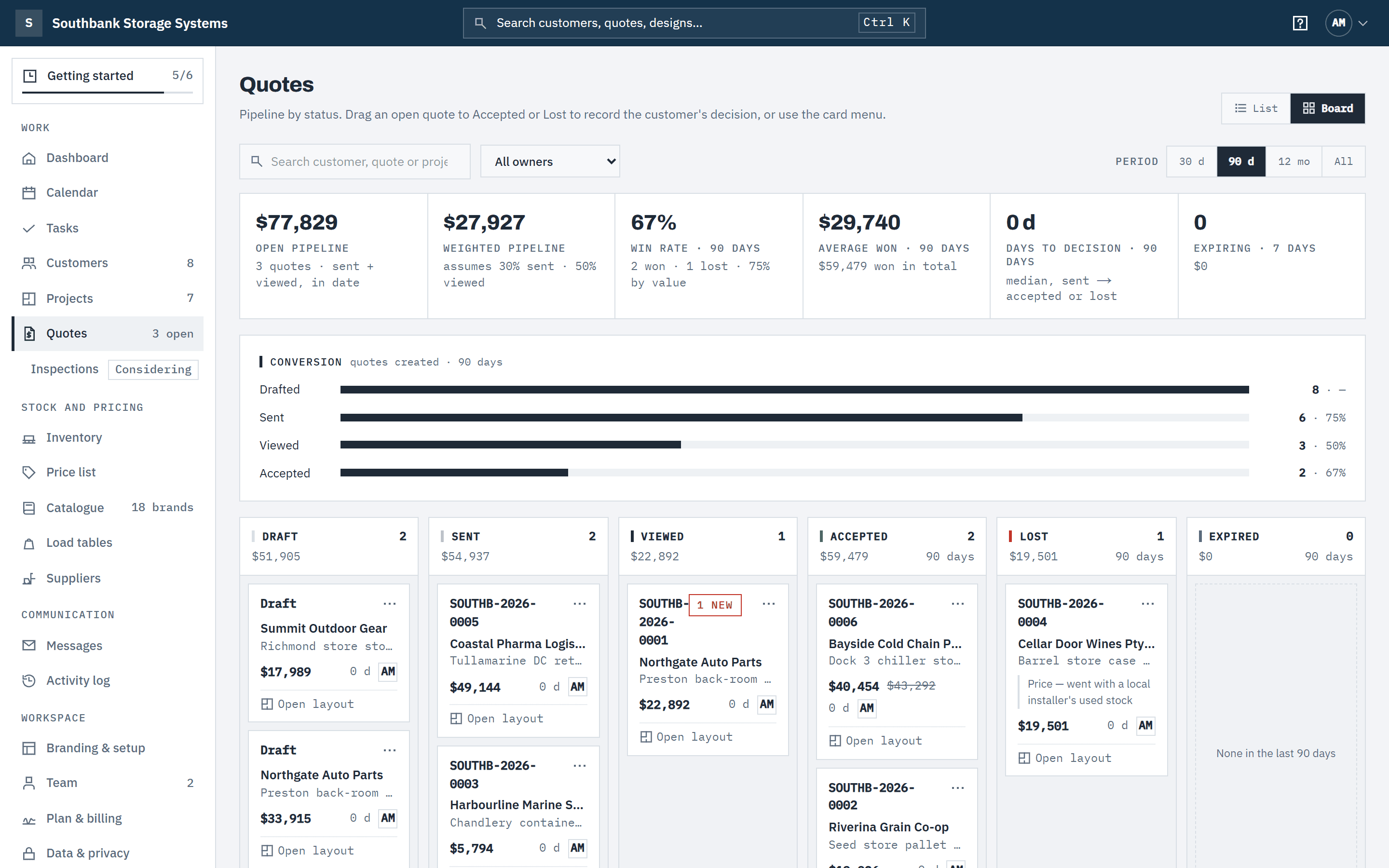
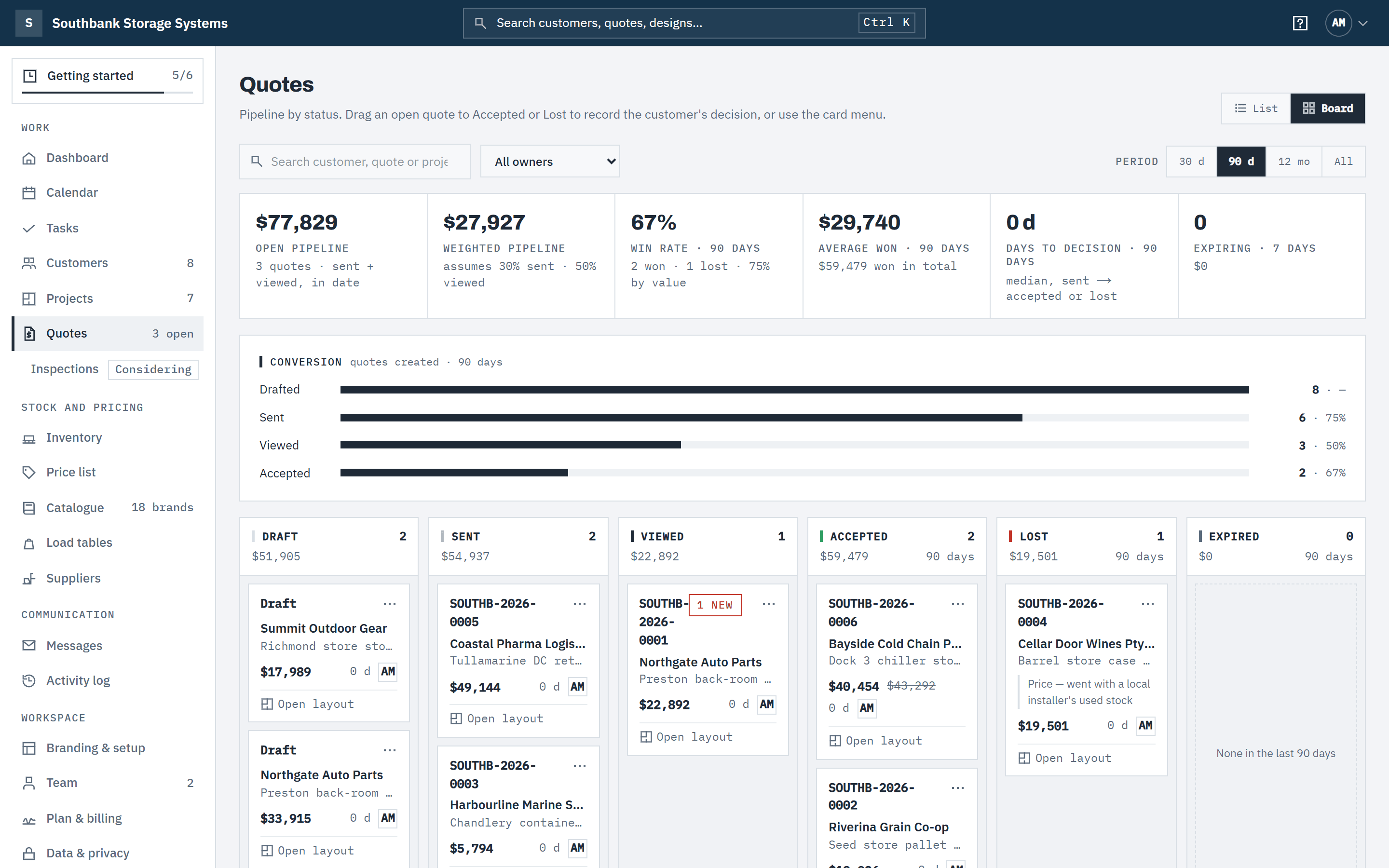
In the navigation, under Work, choose Quotes, then Board (switch back with List). The columns are Draft, Sent, Viewed, Accepted, Lost and Expired, each headed with its count and value. Cards show the quote number, customer, project, value, days left, days in the stage and the owner. Open layout on a card opens the project's designer and comes back to the board.
 (opens full size in a new tab)
Every quote sits in a column by status, with the count and value of each column at the top. Step 2: Read the numbers
The strip above the board tracks, all inc GST:
- open pipeline: sent and viewed quotes still in date.
- weighted pipeline: sent at 30% plus viewed at 50%. A rule of thumb, not a forecast.
- win rate: accepted ÷ (accepted + lost) for decisions in the period, by count and by value.
- average won and days to decision (the median days from sent to accepted or lost).
- expiring · 7 days: open quotes due to lapse within a week.
 (opens full size in a new tab)
The strip above the board tracks open pipeline, win rate and how long decisions take. Step 3: Filter to what matters
Search by customer, quote or project, pick an owner, and set the Period: 30 d, 90 d (the default), 12 mo or All. The period applies to decided quotes and the rates; open pipeline always shows everything still open.
Step 4: Record a win or loss that happened offline
If the customer said yes on the phone, drag the card from Sent or Viewed to Accepted, or use the card menu's Mark accepted…. For a loss, drag to Lost or choose Mark lost… and pick a reason: Price, Timing, Went with a competitor, Scope changed or No decision made, with an optional note.

Good to know
- Quotes move to Sent when you send them, Viewed the first time the customer opens the link, and Accepted when they accept online. Expiry runs nightly: quotes past their valid-until date move to Expired.
- Decisions are final: an accepted or lost quote can't be dragged back. An expired quote reopens with Extend validity or a revision.
- Marking a quote accepted accepts it exactly as sent, as recommended, and draws down any used stock on it. If its discount has ended, it's accepted at the full price, and the dialog says so first. See Discounts and end dates.
- Drafts are sent from the quote page, not by dragging. Replaced (superseded) quotes are hidden from the board. Viewers see the board read-only.
- Decided columns show up to 60 cards for the period; the rest are in the list view.
Related articles
- Create and send a quoteGenerate, review and send a priced, branded proposal.
- What your customer seesThe online proposal, chat, and accepting with a confirmation code.
- Customers, sites and contactsKeep customer records, sites, contacts and notes.
- Invite your teamInvite people, give them a role, and change or remove access.