
What your customer sees
The online proposal, chat, and accepting with a confirmation code.
When you send a quote, your customer gets an email from you with a link to their online proposal and a PDF. The proposal is in your colours with your logo and details; Baylogik appears only as a small powered-by line.
They don't need an account. The link is theirs, and acceptance is verified with a six-digit code sent to the email address you have on record for them.
Step 1: The customer opens the proposal
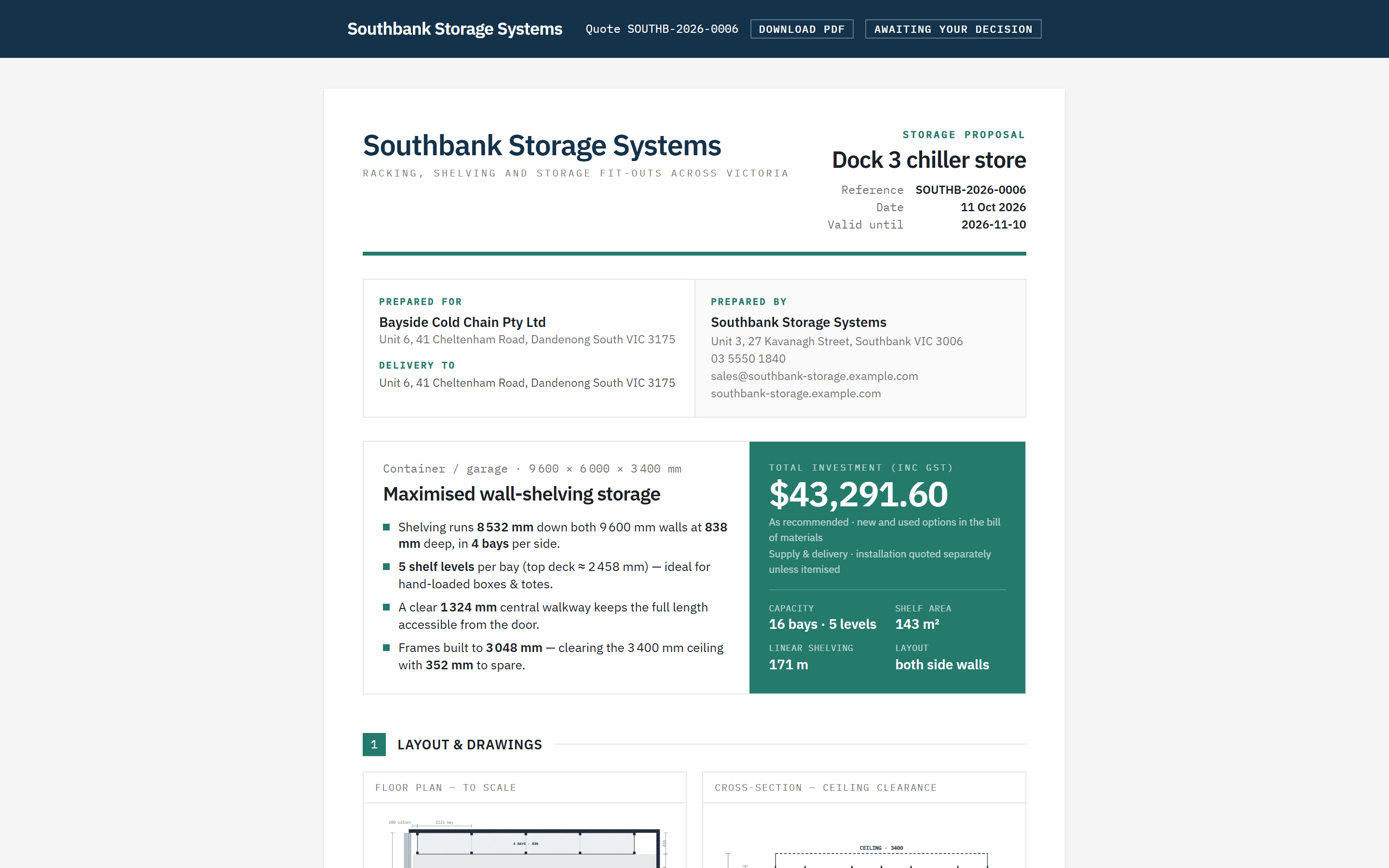
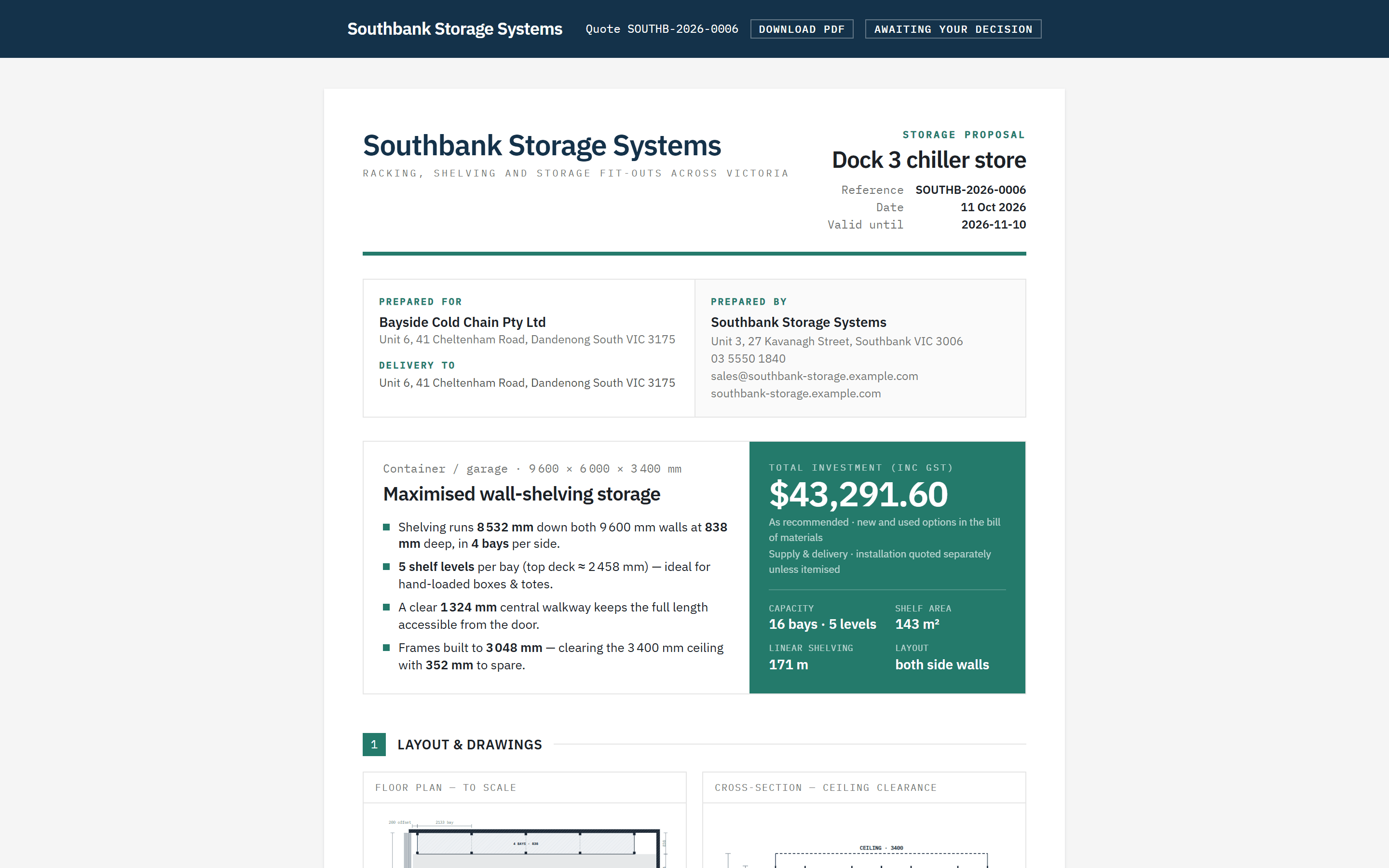
The header shows your logo, the quote number, Download PDF and the status, for example Awaiting your decision. Below it: reference, date and valid until, who it's prepared for and by, and the Total investment (inc GST).
The proposal carries the floor plan and cross-section, four 3D views, the bill of materials, your recommendation, totals with GST and deposit, and your terms. The first time the customer opens it, the quote moves to Viewed on your pipeline.
 (opens full size in a new tab)
Your customer opens a branded online proposal: no account, just the link from their email. Step 2: They explore the layout in 3D
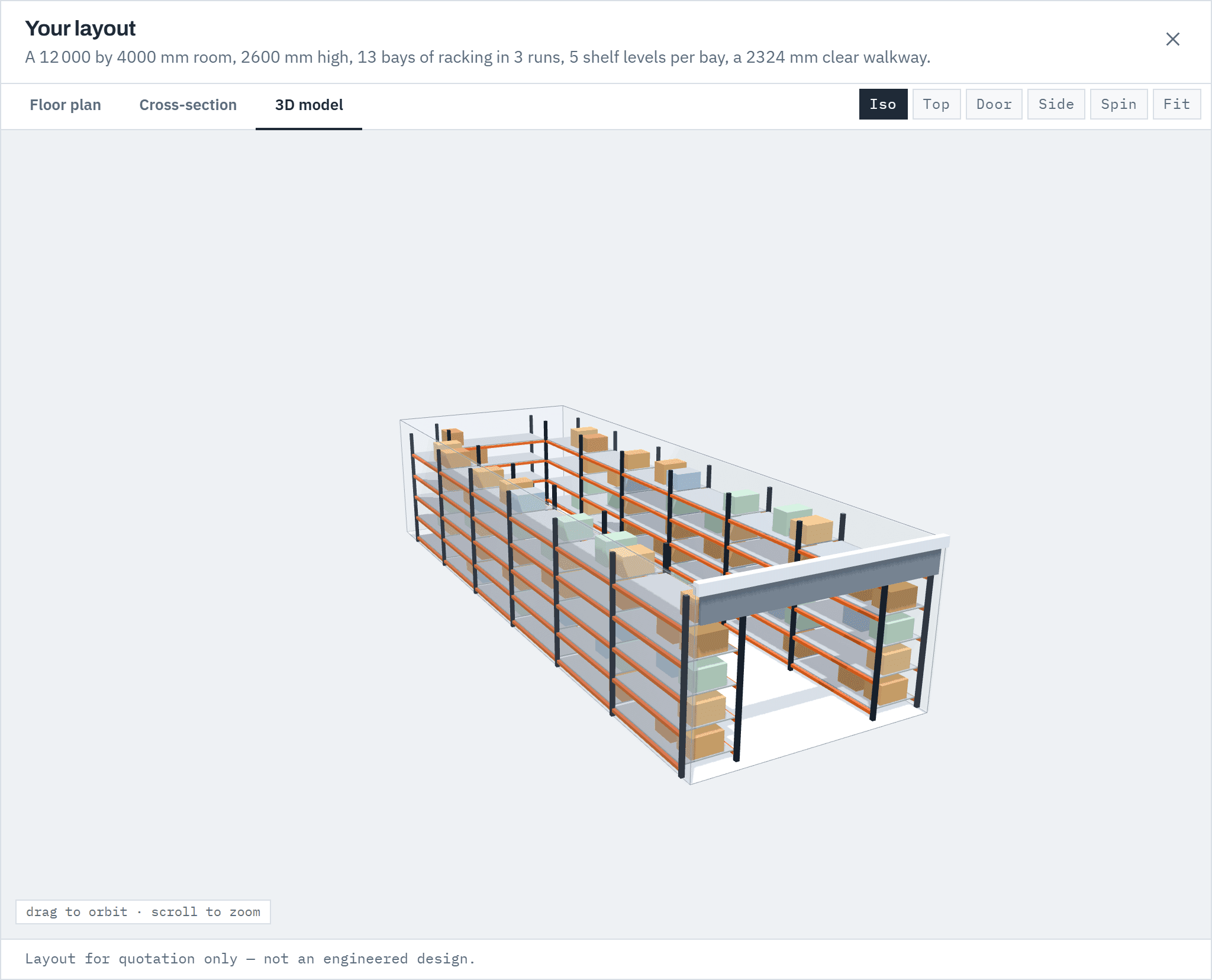
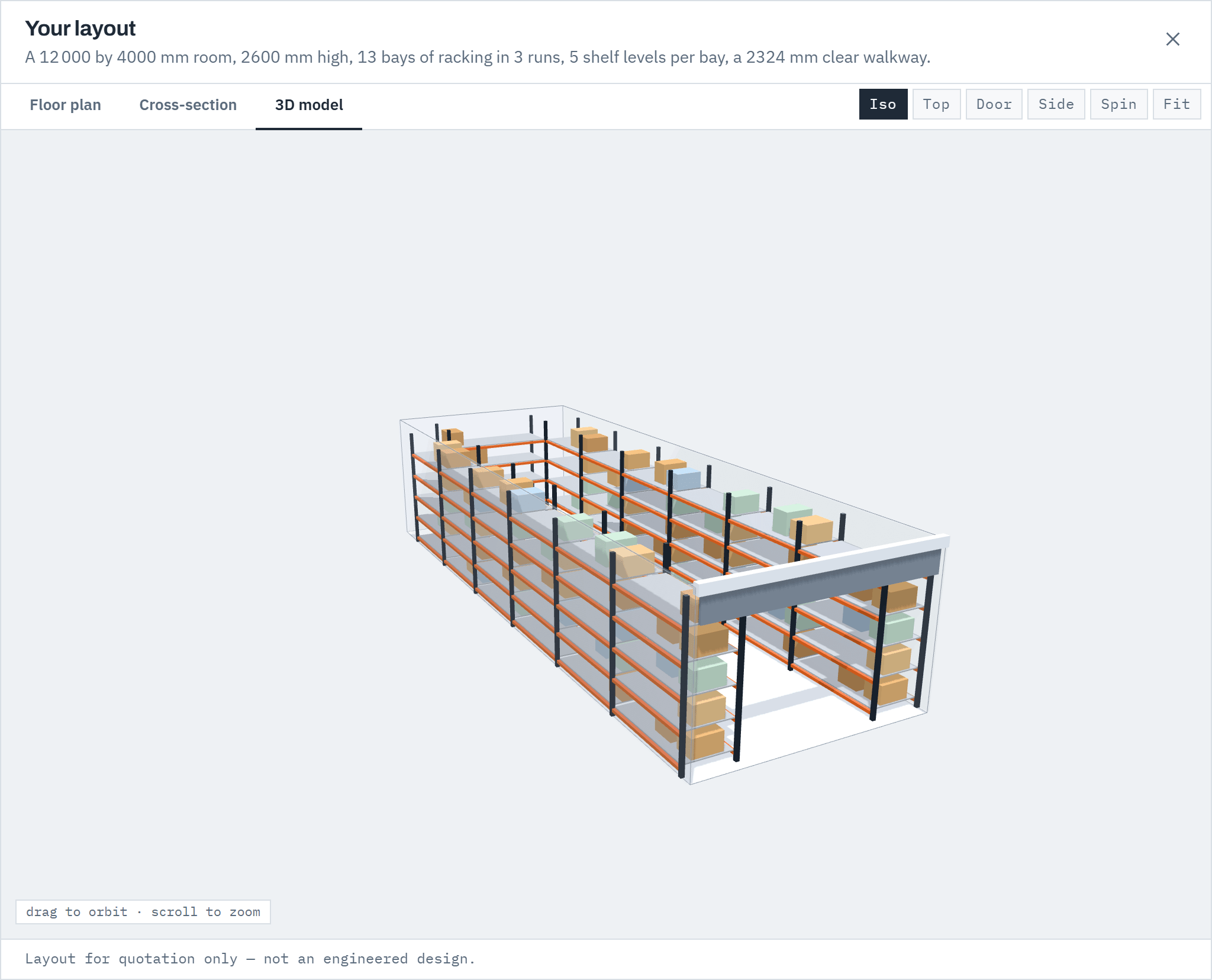
Below the proposal's drawings, Explore the layout in 3D opens Your layout: the Floor plan, the Cross-section and a 3D model they can turn, which it opens on. The views Iso, Top, Door (Front for a warehouse) and Side jump to a fixed angle, and Spin turns the model slowly. Drag to orbit and scroll or pinch to zoom.
It shows the layout exactly as quoted, drawn in the customer's browser. The layout data it loads carries no prices, costs or part numbers, and nothing loads until they click. If their browser can't show 3D, the floor plan and cross-section still work. The PDF is unchanged.
 (opens full size in a new tab)
Explore the layout in 3D opens the quoted layout in the customer's browser, with no prices in it. Step 3: They see any discount and its deadline
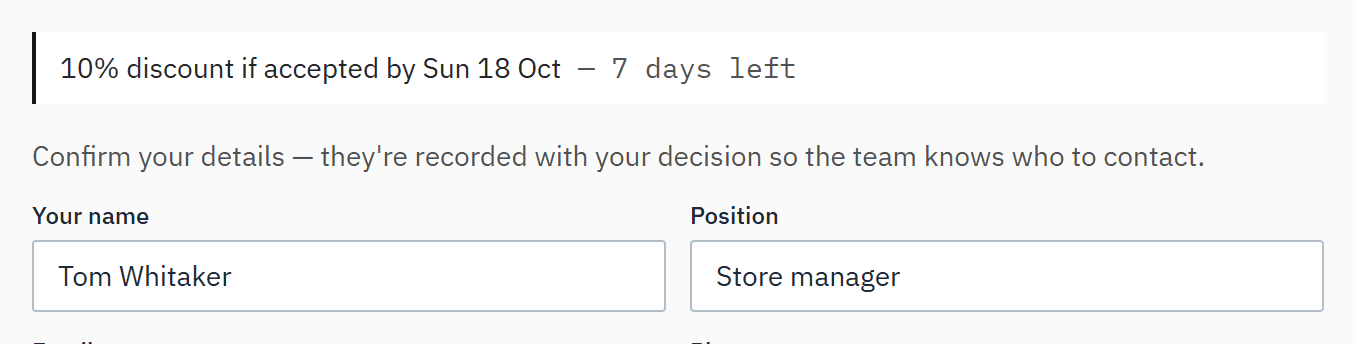
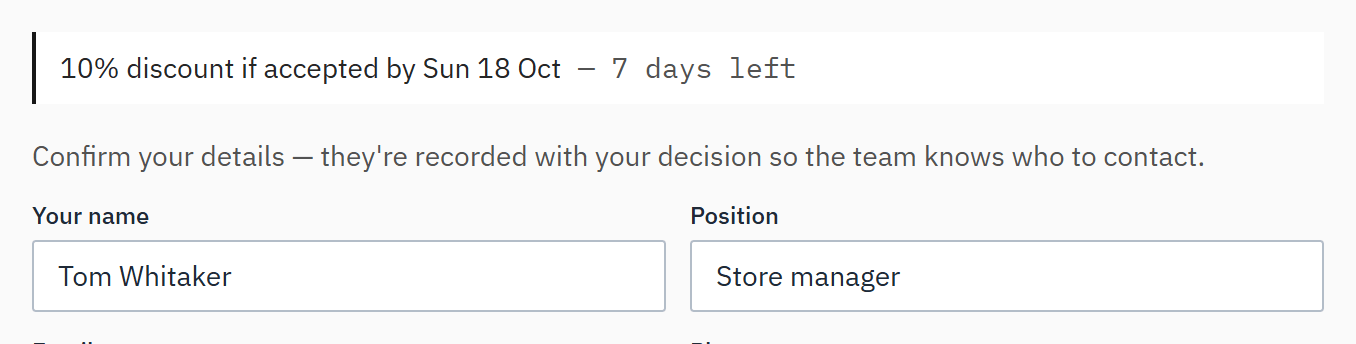
If the quote has a discount with an end date, the proposal says 10% discount if accepted by Fri 9 Oct, and the acceptance area counts down the days and hours left. After that day the proposal shows the full price and says the customer can still accept at that price. See Discounts and end dates.
 (opens full size in a new tab)
A discount with an end date is counted down above the acceptance form. Step 4: They choose new or used
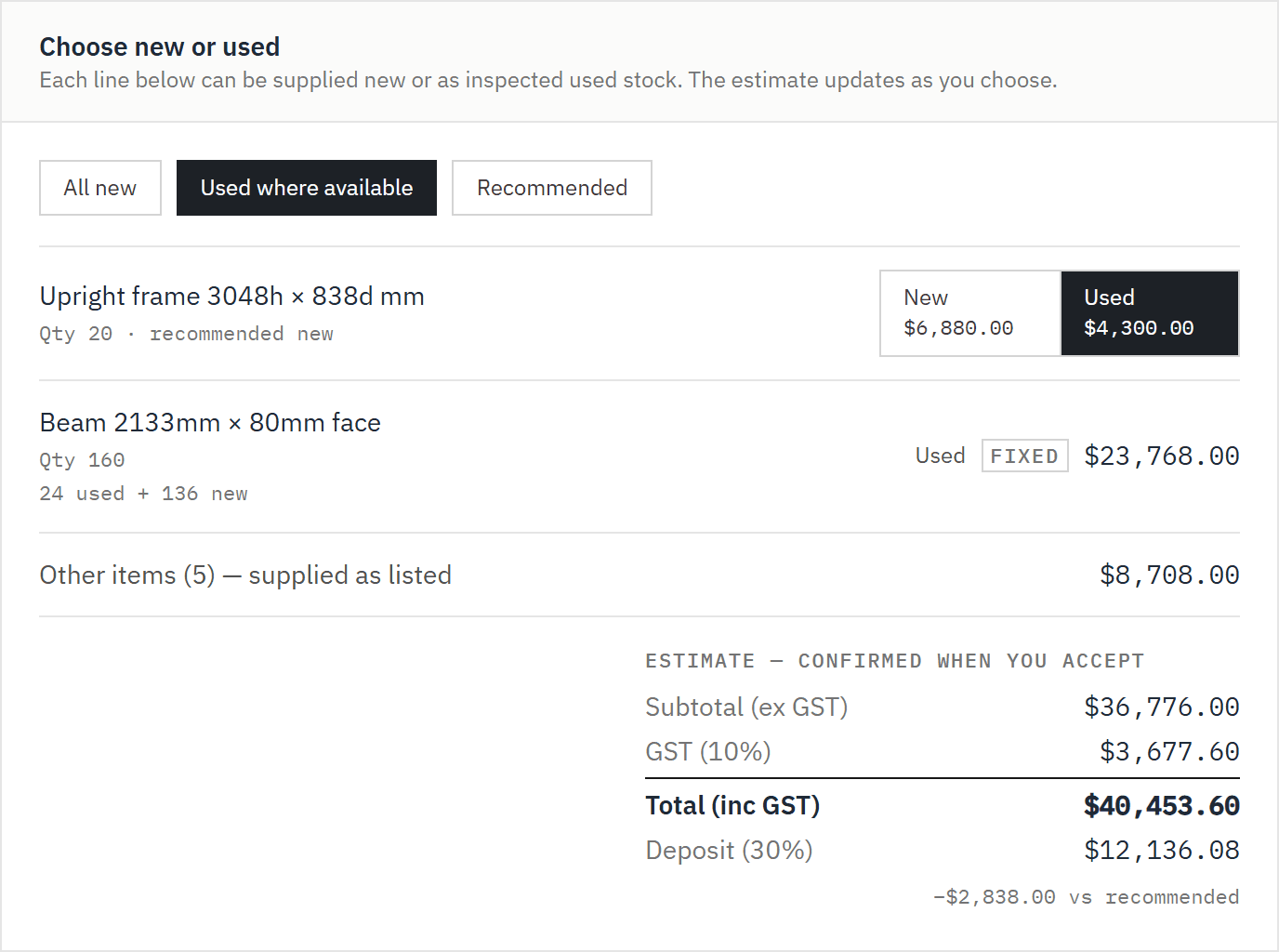
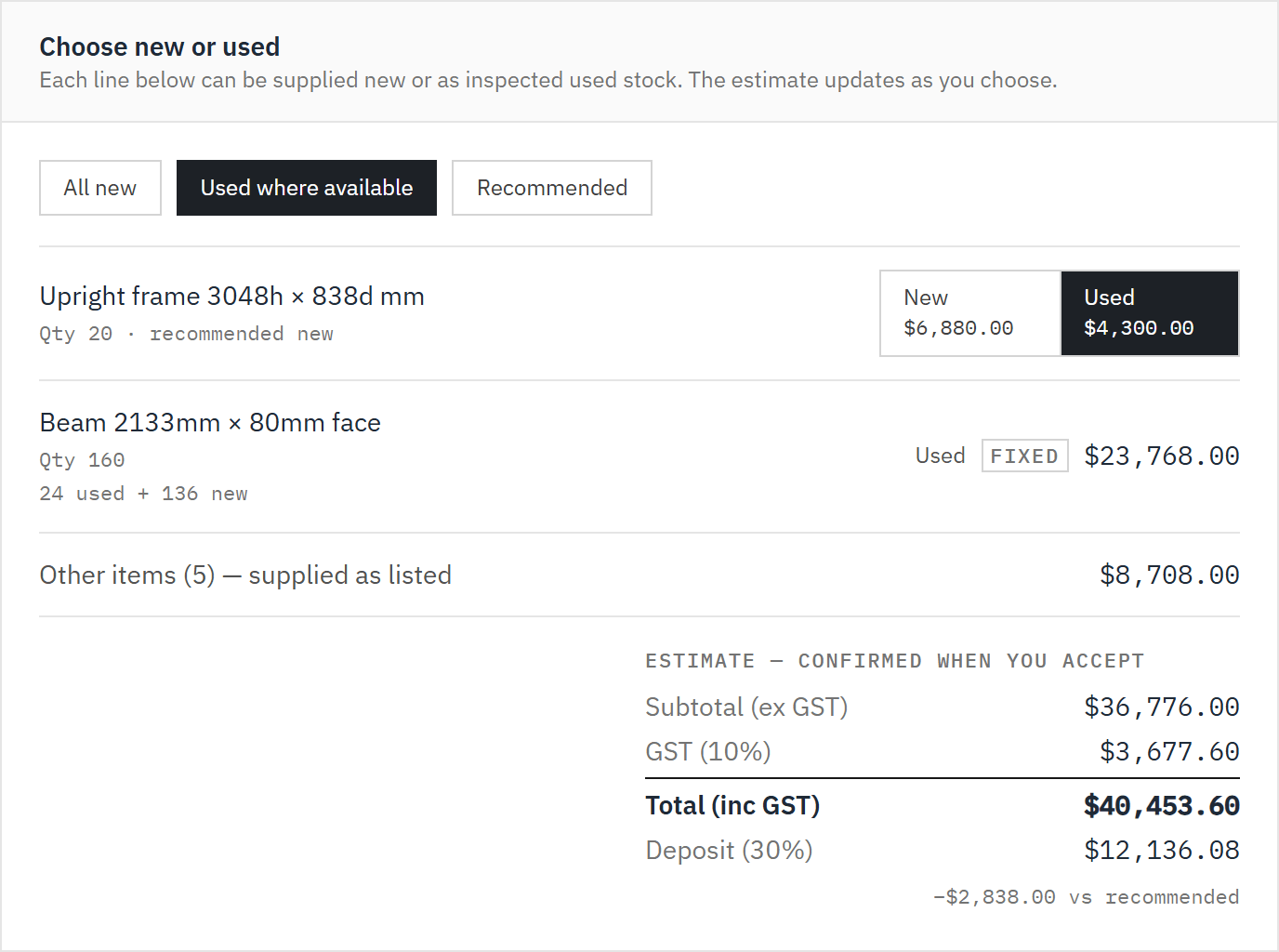
On a new and used quote, Choose new or used lists each open line with a New / Used toggle and your recommendation. Locked lines show Fixed. The total, deposit and the difference against your recommendation update straight away. See Quote new, used or both.
 (opens full size in a new tab)
Each switch updates the total straight away, with the difference from your recommendation. Step 5: They ask questions in the chat
Chat with our specialists lets the customer send you a message from the proposal. You're emailed, and you reply from the Messages card on the quote; they're emailed when you do.
Step 6: They ask for changes
While the quote is open, Request changes… lets the customer tick what it's about (Layout, Quantities, Levels, New or used, Delivery and install, Timing or Other) and say what they'd like changed, up to 2 000 characters. It arrives in the quote's Messages card marked Change request, and on your dashboard's new messages; you're emailed. Revise the quote to make the changes. Customers can't change the layout themselves.
Step 7: They confirm their details and ask for a code
To accept, the customer confirms Your name, Position, Email and Phone (prefilled from the primary contact), adds any notes for your team, and chooses Email me a confirmation code.
Step 8: They enter the code and accept
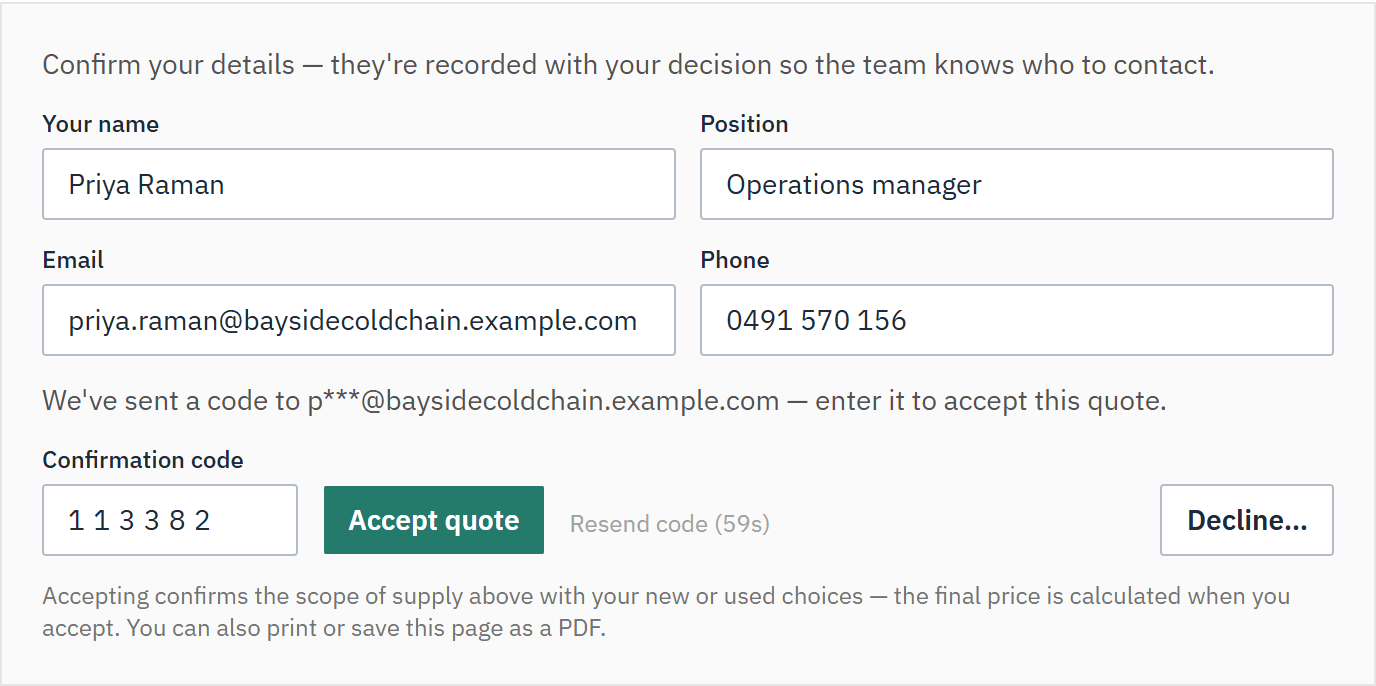
A six-digit code goes to the primary contact's email on record. The customer types it into Confirmation code and chooses Accept quote. The code proves the acceptance came from someone with access to that inbox.
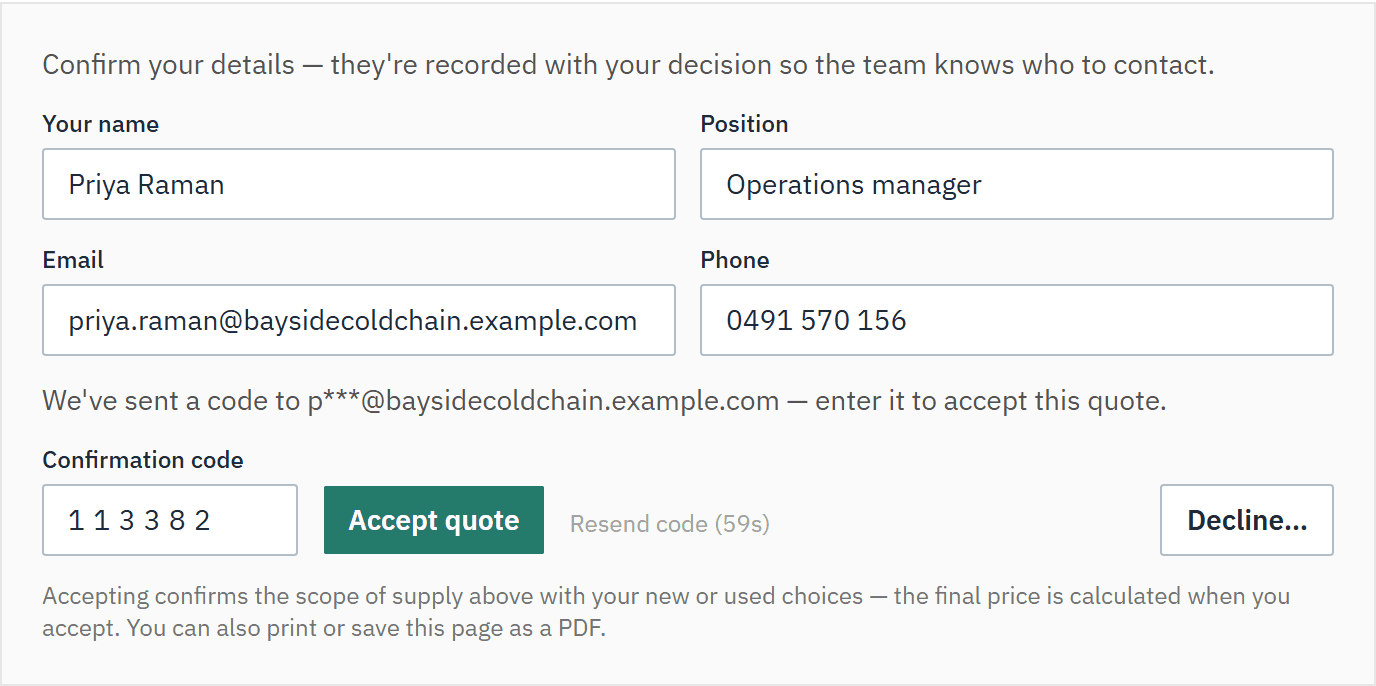 (opens full size in a new tab)
The customer enters the code from their email to accept; it proves the acceptance came from them. Step 9: You're notified, and the quote is won
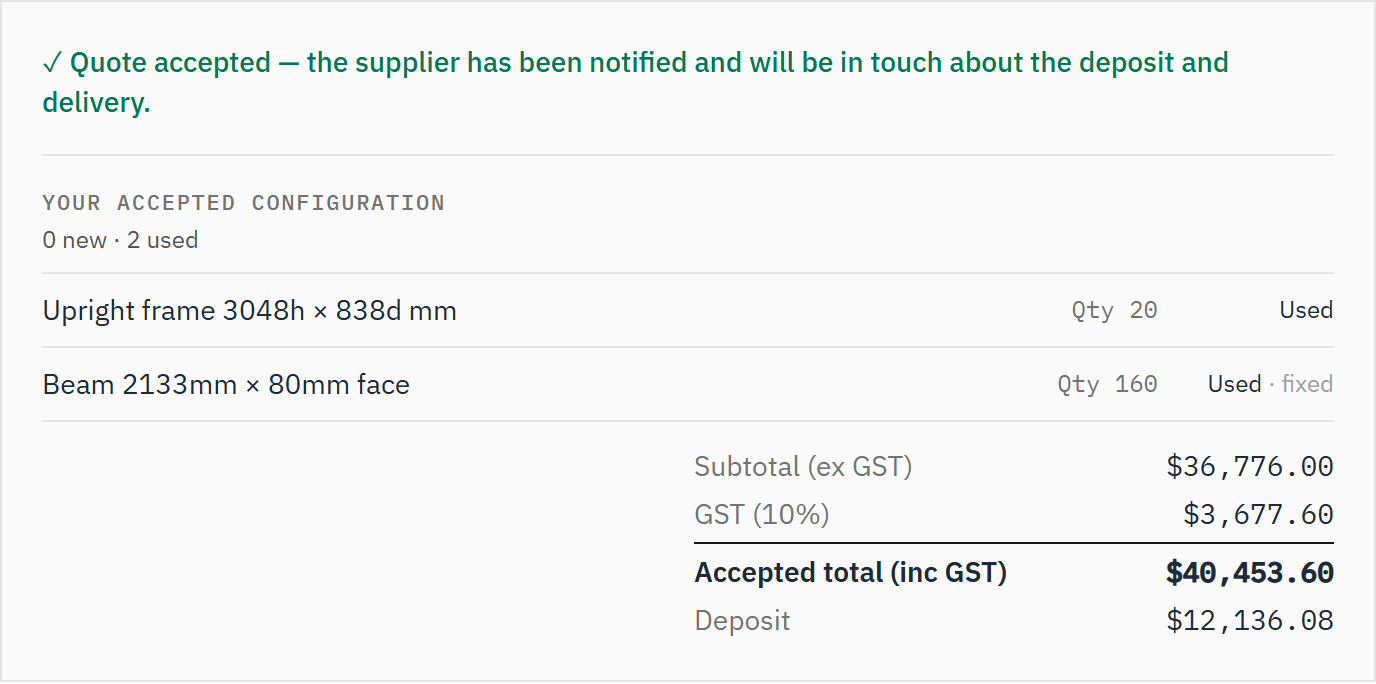
The customer sees their accepted configuration and the confirmed total. You're emailed straight away, the quote moves to Accepted, used stock on the lines they took used is drawn down, and the quote page shows who accepted and when.
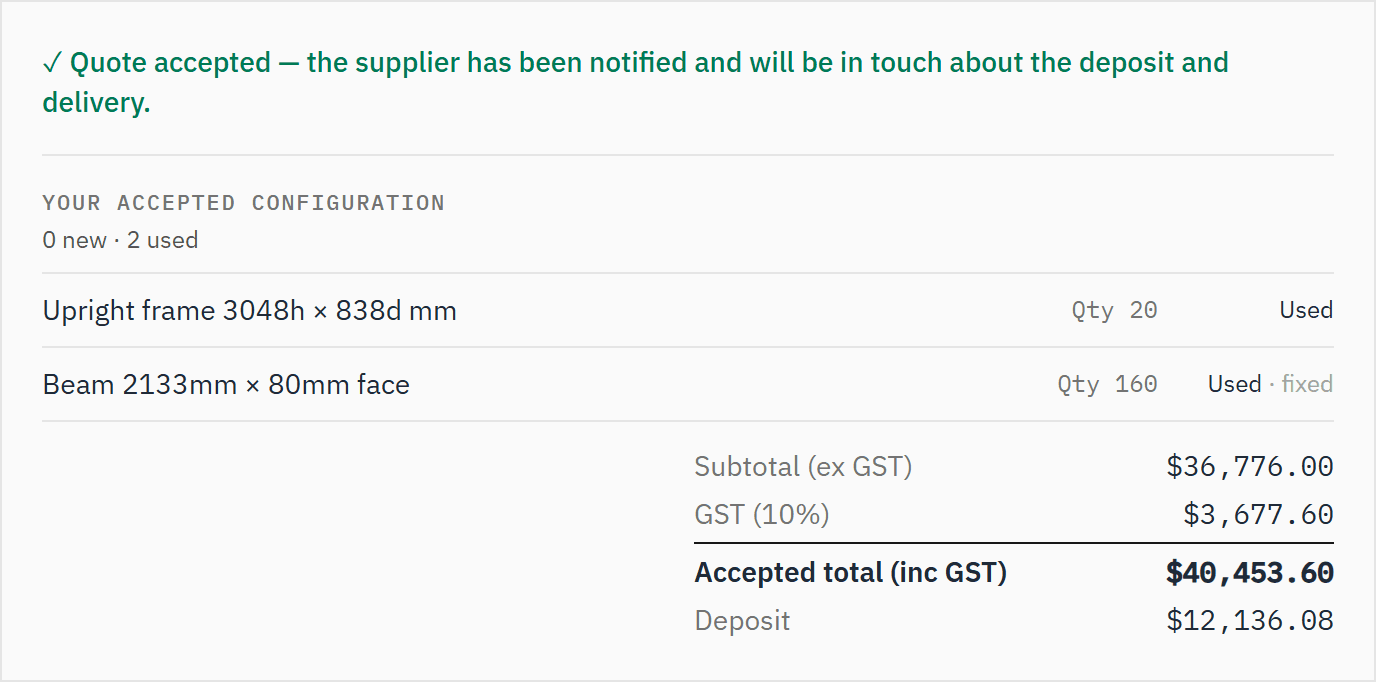 (opens full size in a new tab)
Once accepted, the proposal shows the configuration the customer chose and the confirmed total.
More screens
 (opens full size in a new tab)
Good to know
- If your workspace is read-only because its trial or subscription ended, customers can still open your proposals, the PDF and the 3D view, but can't accept, decline or send a message: they're asked to contact you. See Plans, trial and billing.
- The code expires after 10 minutes and allows 5 attempts. Resend code is available after 60 seconds. If the customer changes their new or used choices after asking for a code, they request a new one.
- The acceptance records the name, position, email, phone, notes, the time, and for new and used quotes the lines chosen and the server-calculated total.
- If something has to be ordered in, the proposal says how many business days to allow, never how much stock you hold. See New stock and lead times.
- Download PDF appears only while the PDF matches the proposal. Once a discount ends or a date moves it's hidden until the PDF is made again, for example when you resend the quote.
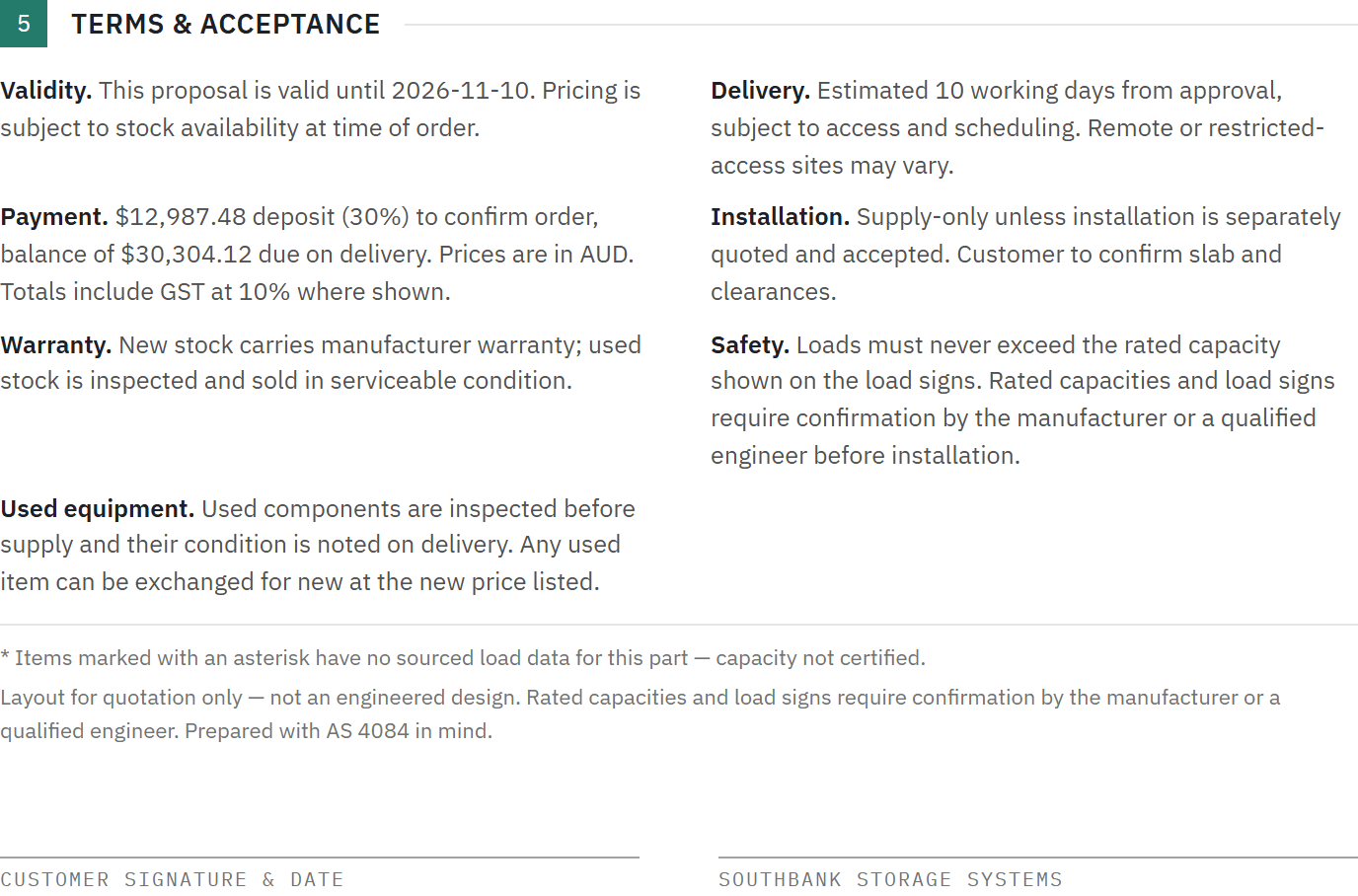
- Every layout drawing and 3D view says Layout for quotation only — not an engineered design. The proposal's terms end with the same line and a note that rated capacities and load signs need confirming by the manufacturer or a qualified engineer. You can't edit or remove either.
- The customer can choose Decline… with an optional reason. The quote moves to Lost and you're emailed.
- Request changes… is offered only on a sent or viewed quote that's still valid, and is limited to 3 requests in 10 minutes and 10 a day per quote. Accepted, declined, replaced and expired quotes don't offer it.
- After the valid-until date the proposal can no longer be accepted. A revised quote replaces the old link's content with a note to contact you; a revoked link stops working.
- Notifications go to the email set in Branding & setup, or the quote owner if that's blank. Your own team's visits don't count as the customer viewing.
Related articles
- Quote new, used or bothLet the customer choose new or used line by line.
- Discounts and end datesGive a quote a discount, set the day it ends, and what happens after that.
- Create and send a quoteGenerate, review and send a priced, branded proposal.
- Brand your workspaceLogo, colours and the proposal your customers see.