
Price your racking
Cost, sell and margin, lead times, and editing prices in Excel.
The price list is where your numbers live: your cost and your sell price for every catalogue product. Your own products from My products are on the list too. Some products also carry a guidance RRP; most don't yet, so the fastest start is your supplier's price file (see Import a supplier price file). Quotes are always priced from sell; cost drives the margin you see. Each product can also carry a lead time: how many business days new stock takes to arrive.
There are three ways to get priced, best first: import your supplier's price file, start from RRP where the catalogue has a sourced one, or type your prices in. A quote can't be sent while any of its lines is Not priced.
Prices are effective-dated. A quote uses the sell price in force on the day it is priced, and a sent quote keeps the prices it was sent with, so changing a price never rewrites a quote your customer already has. Every price also records where it came from: a manual edit, a CSV import or a supplier's price file.
Price your racking
Step 1: Check what still needs a price
While any active frame or beam the designer offers has no sell price, the price list shows a Price your racking panel with the count, for example 37 of 52 active parts have no price. The Getting started step of the same name ticks once every active frame and beam has a sell price.
Step 2: Import your supplier's price file
The best start: choose Import a supplier price file and map its columns (see Import a supplier price file). On the Starter plan the button reads Import a price list CSV: export the list, fill in the sell prices and import it back.
Step 3: Start from RRP
Where the catalogue has a sourced RRP (one with a published source and date), Start from RRP sets the sell price of every product in view that has none yet. Choose a discount from 0 to 60% and a rounding, check the preview, then apply. An RRP that includes GST is taken back to ex GST first. Costs stay blank, and prices you already have don't change.
These prices are marked Indicative: they come from a list price, not from your supplier costs. The strip counts them (indicative (from RRP)), Indicative only shows just those rows, and the quote page reminds you before you send a quote that uses them. Customers never see the word RRP. Any later edit or import replaces the mark with your own price. Most products have no sourced RRP yet; when none in view do, the button is off and the list says why.
Step 4: Set sell from cost
If you can see costs and have entered or imported them, Set sell from cost works sell prices out with a markup or a target margin and a rounding — for products with no sell price only, or for every product with a cost. The preview counts any that would sit below your minimum margin. Costs don't change.
Step 5: Undo it if it's wrong
Both are recorded like an import: Undo Start from RRP or Undo Set sell from cost appears next to the result, and the change is listed in Import history. Undo puts back what was in force before, a blank sell included; products changed again since stay as they are.
Edit prices on screen
Step 6: Open the price list
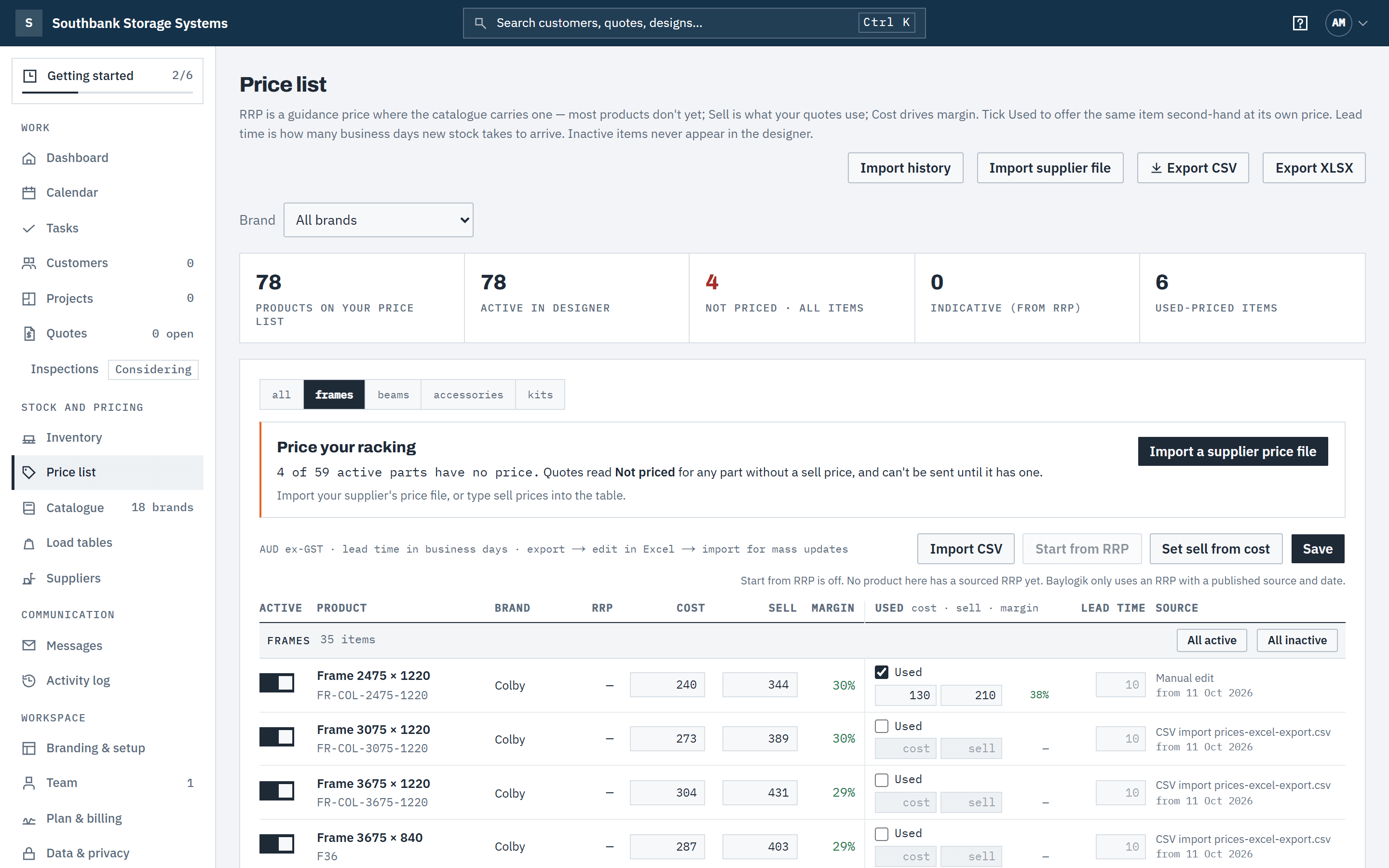
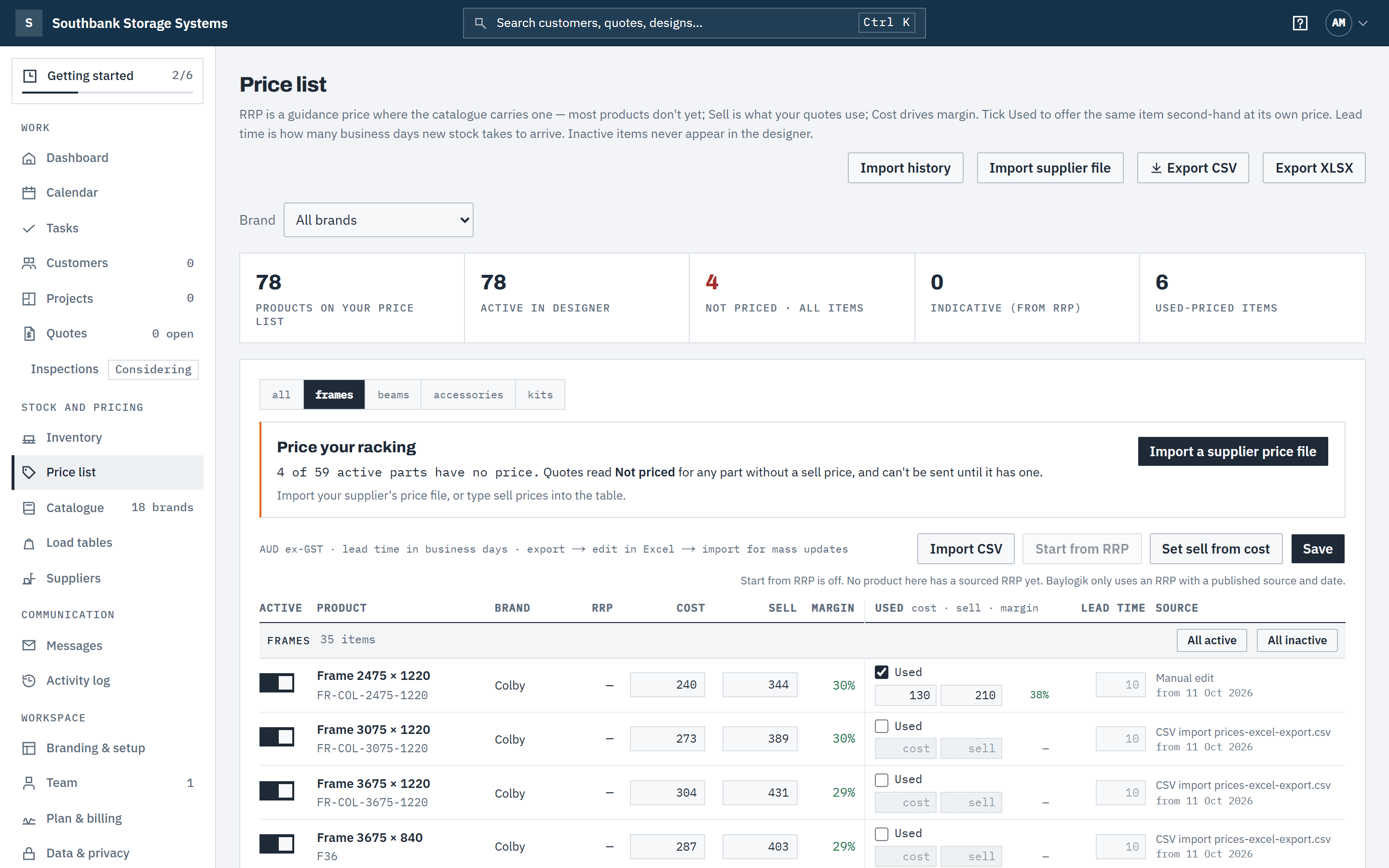
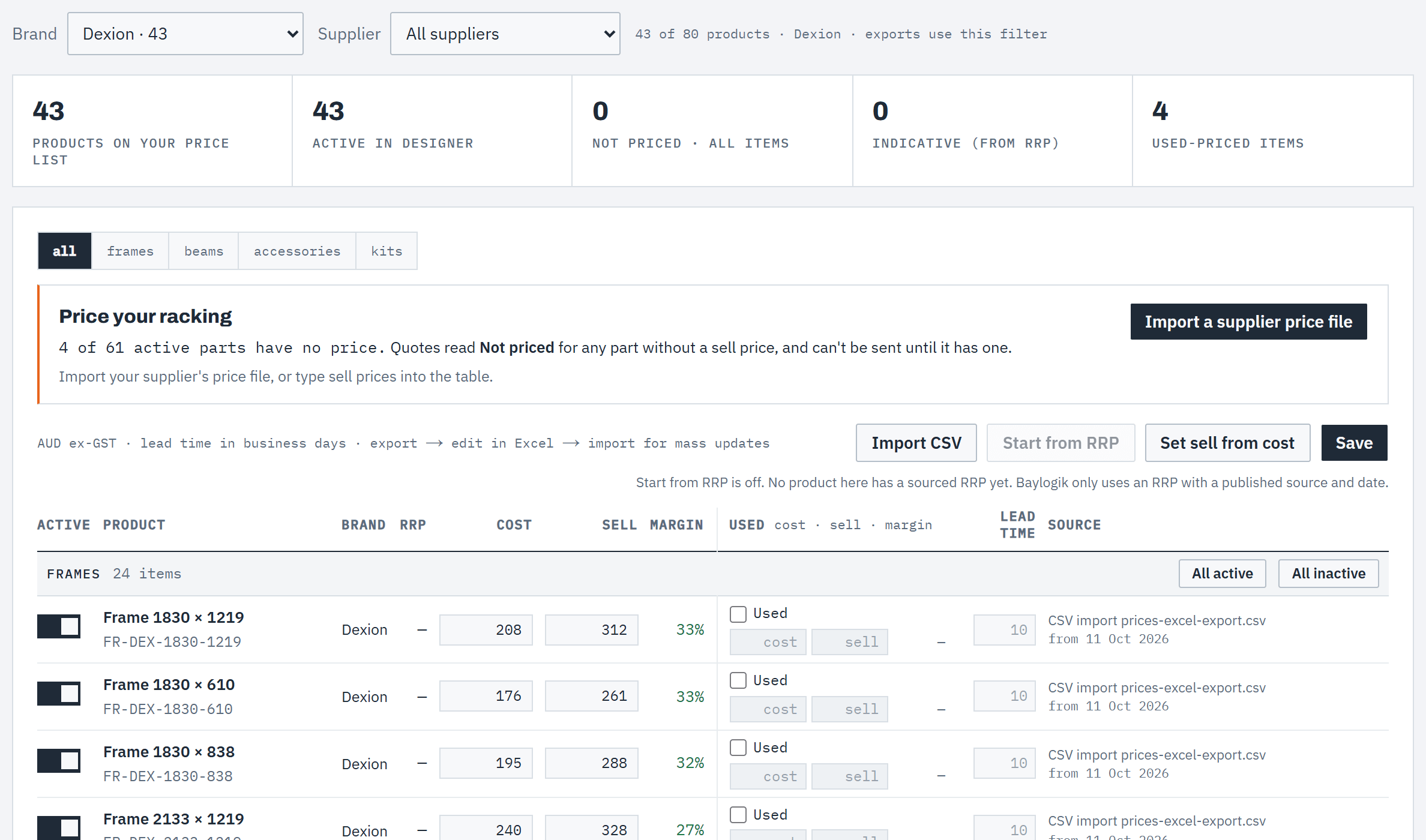
In the navigation, under Stock and pricing, choose Price list. The strip across the top counts the products on your price list, those active in the designer, not priced items, prices that are indicative (from RRP) and used-priced items. Use the tabs — all, frames, beams, accessories, kits, and services when you have service items — to narrow the table. Everyone in the workspace can see the price list; what you can change depends on your role.
 (opens full size in a new tab)
Cost, sell and margin sit side by side; your quotes always use the sell price in effect on the day. Step 7: Enter cost and sell
Type into the Cost and Sell cells. All prices are ex tax, in your workspace's currency (AUD ex GST in Australia); you can type 38.50, $38.50 or A$1,245.00. The Margin column updates as you type: (sell − cost) ÷ sell, to the nearest whole per cent. Margins under 25% show a warning — or under your workspace's minimum margin when one is set, which also adds a below minimum margin count to the strip. Set it under Branding & setup › Defaults & clearances › Minimum margin (0–90%; blank keeps the 25% warning). A row with a sell price and no cost reads Cost not set instead of a margin.
The RRP column is read-only guidance where the catalogue has one, with whether it includes GST and sourced when it has a published source and date (hover to see them). The catalogue's RRPs are in AUD, so outside Australia the column reads RRP (AUD) and Start from RRP is off — enter your own prices instead.
Step 8: Switch items on or off for the designer
The Active switch controls whether a catalogue item can be picked in the designer. Inactive items never appear there. All active and All inactive work on a whole category. Your own products show own instead: switch those on or off in Catalogue → My products.
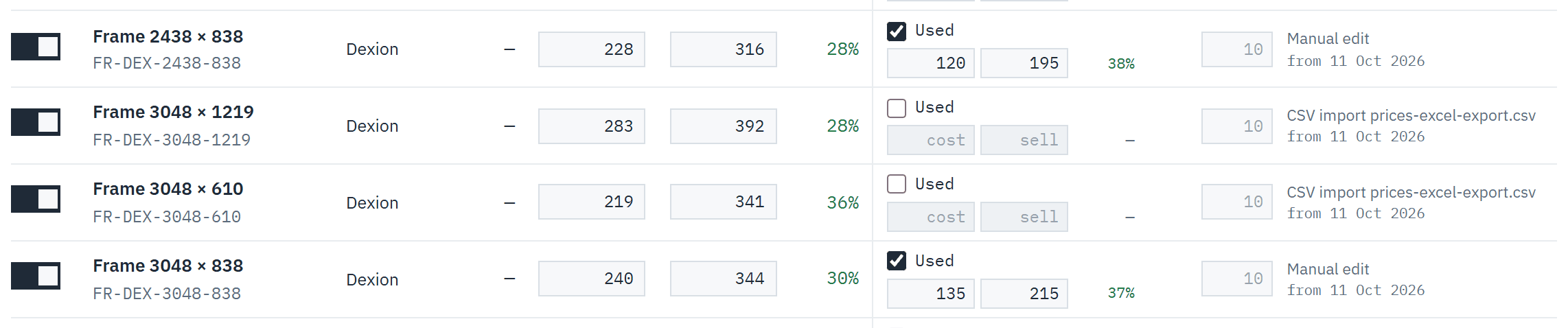
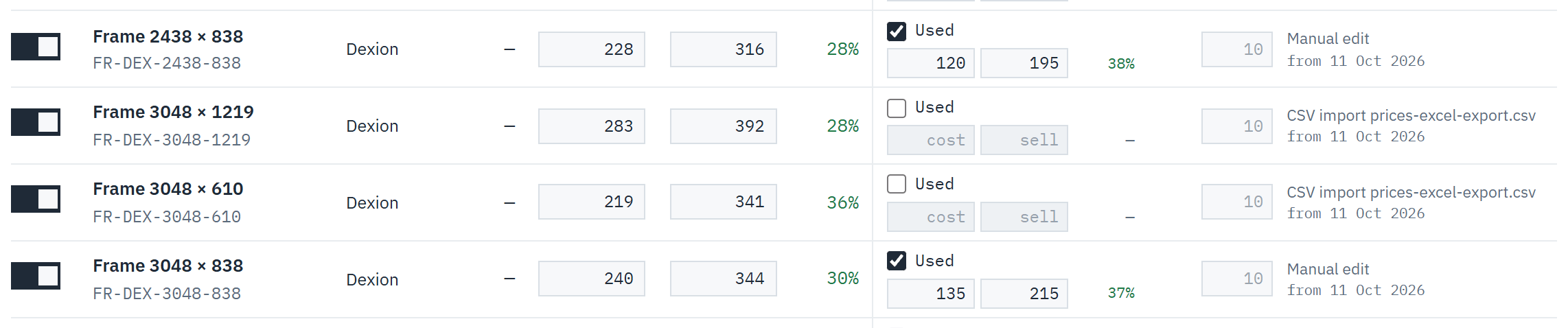
Step 9: Offer an item used, if you stock second-hand
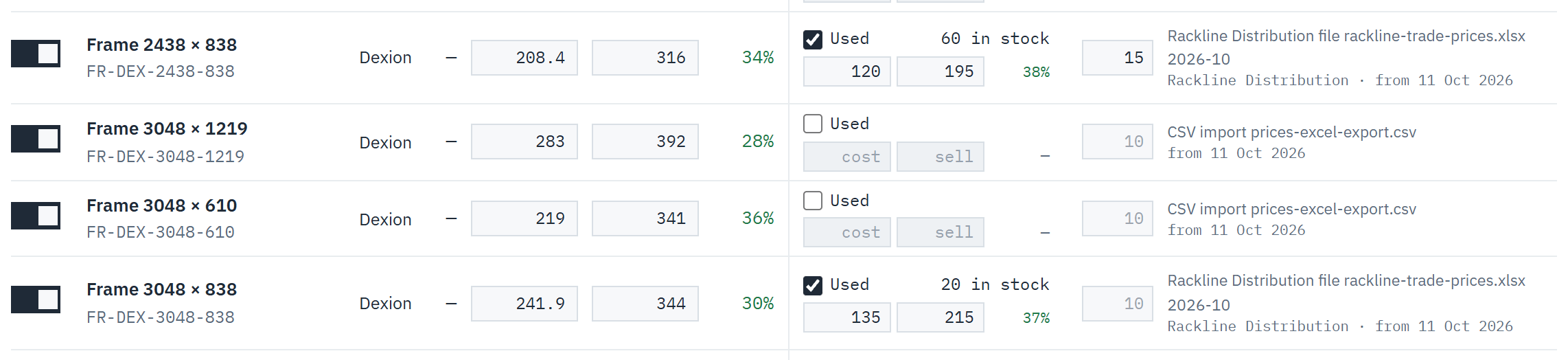
Tick Used on a row to give it a second price for used stock, with its own cost, sell and margin. A used sell price is required once Used is ticked. See Used pricing and stock.
 (opens full size in a new tab)
Tick Used on any item to give it a second price for used stock, with its own margin. Step 10: Set lead times for new stock
The Lead time column is the business days it takes to get the item new. Leave it blank to use the workspace default, which shows faintly in the cell. When new stock is tracked, quotes use it for anything that has to be ordered in. See New stock and lead times.
Step 11: Save
The toolbar counts your unsaved changes. Choose Save: only the prices you changed are written, effective today, with the source Manual edit. If anything can't be read as a price, nothing is saved and the message names the rows to fix.
Filter by brand and supplier
Step 12: Choose a brand
The Brand selector above the table narrows the list to one brand: a platform brand such as Dexion, one of your own brands, or Generic (no brand). Each option shows how many products it has. Your choice is remembered for you in this workspace, on any device, until you pick All brands. It's a filter only: quotes still mix brands freely.
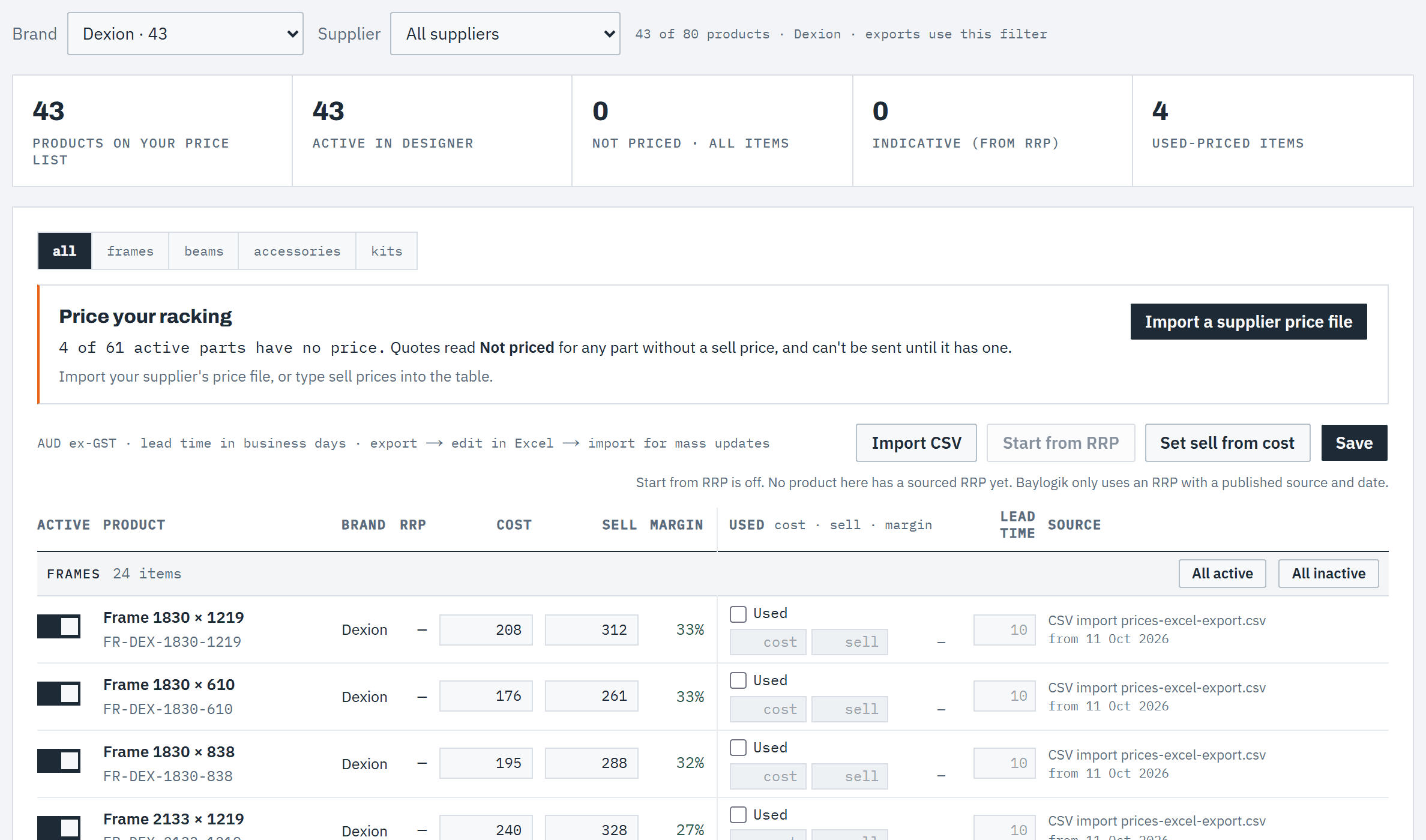 (opens full size in a new tab)
Choose a brand to narrow the price list; exports follow the same filter. Step 13: Choose a supplier
If you can see costs and have suppliers set up, the Supplier selector shows the products a supplier carries, or No preferred supplier for products nobody is preferred for yet. See Suppliers.
Step 14: See where a price came from
The Source column says what set the price in force and the date it took effect. For a supplier price file or a CSV import, the source links to that import, so you can see the whole file's changes. If you can see costs, it also names the supplier whose cost the price carries, and the product's preferred supplier when that's someone else.
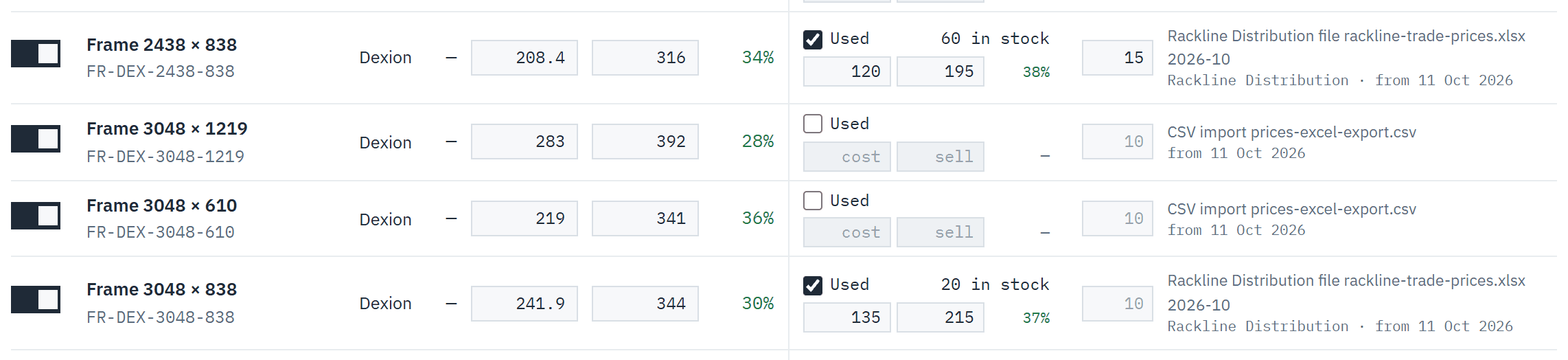 (opens full size in a new tab)
The Source column links each price to the import that set it and names the supplier.
Bulk-edit in Excel
Step 15: Export the price list
Choose Export CSV or Export XLSX. Both export what the brand and supplier filters show, so you can send one brand's prices on their own. The file has product_id, name, category, brand, part_number, source, effective_from, rrp, cost, sell, used_enabled, used_cost, used_sell, used_on_hand and new_lead_time_days, plus preferred_supplier if you can see costs.
Open it in Excel and edit the prices, used columns and lead times. Leave product_id alone: it's how rows are matched. To import your changes, save the file as CSV.
Step 16: Import it back and review
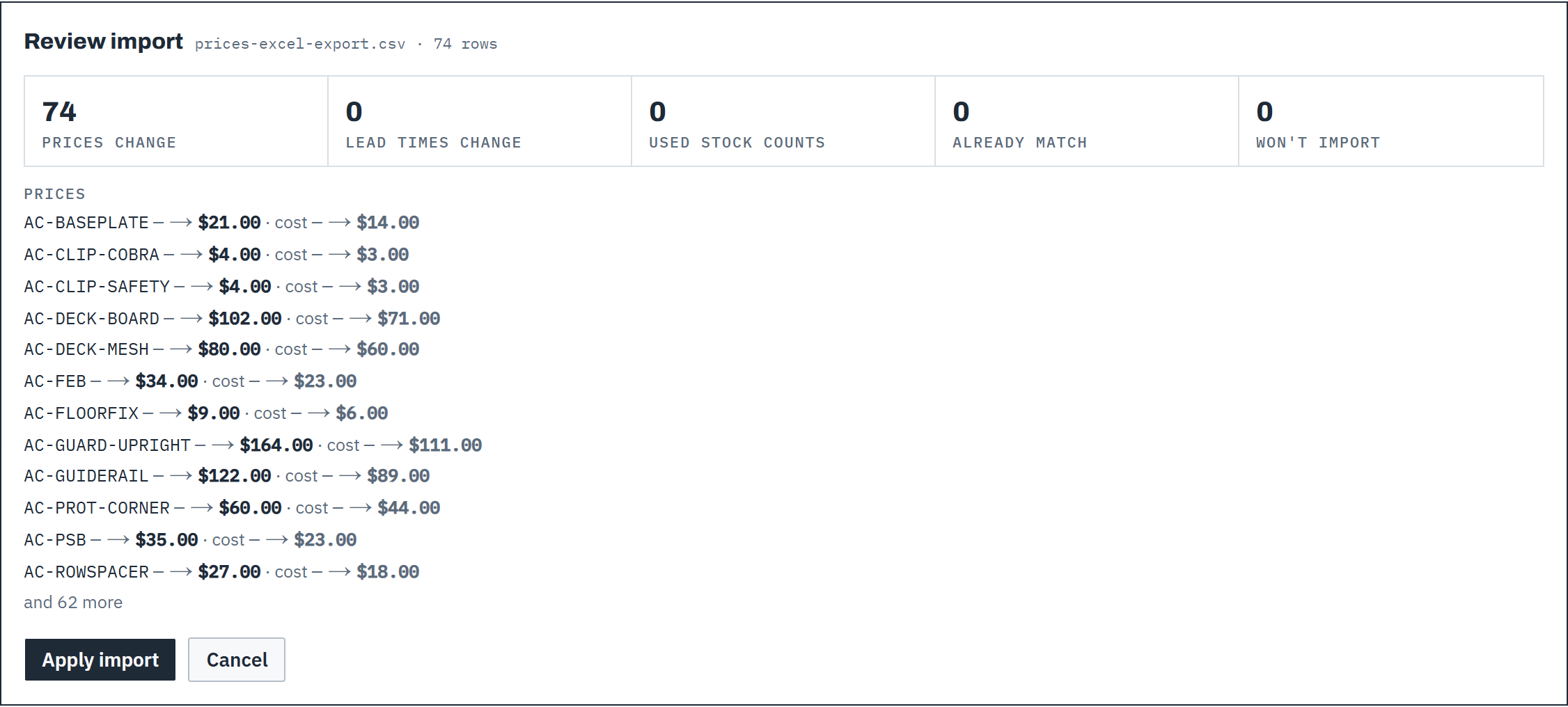
Choose Import CSV. Nothing is written yet: Review import counts the prices change, lead times change, used stock counts, already match and won't import rows, and lists the first changes old and new side by side. Choose Apply import, or Cancel.
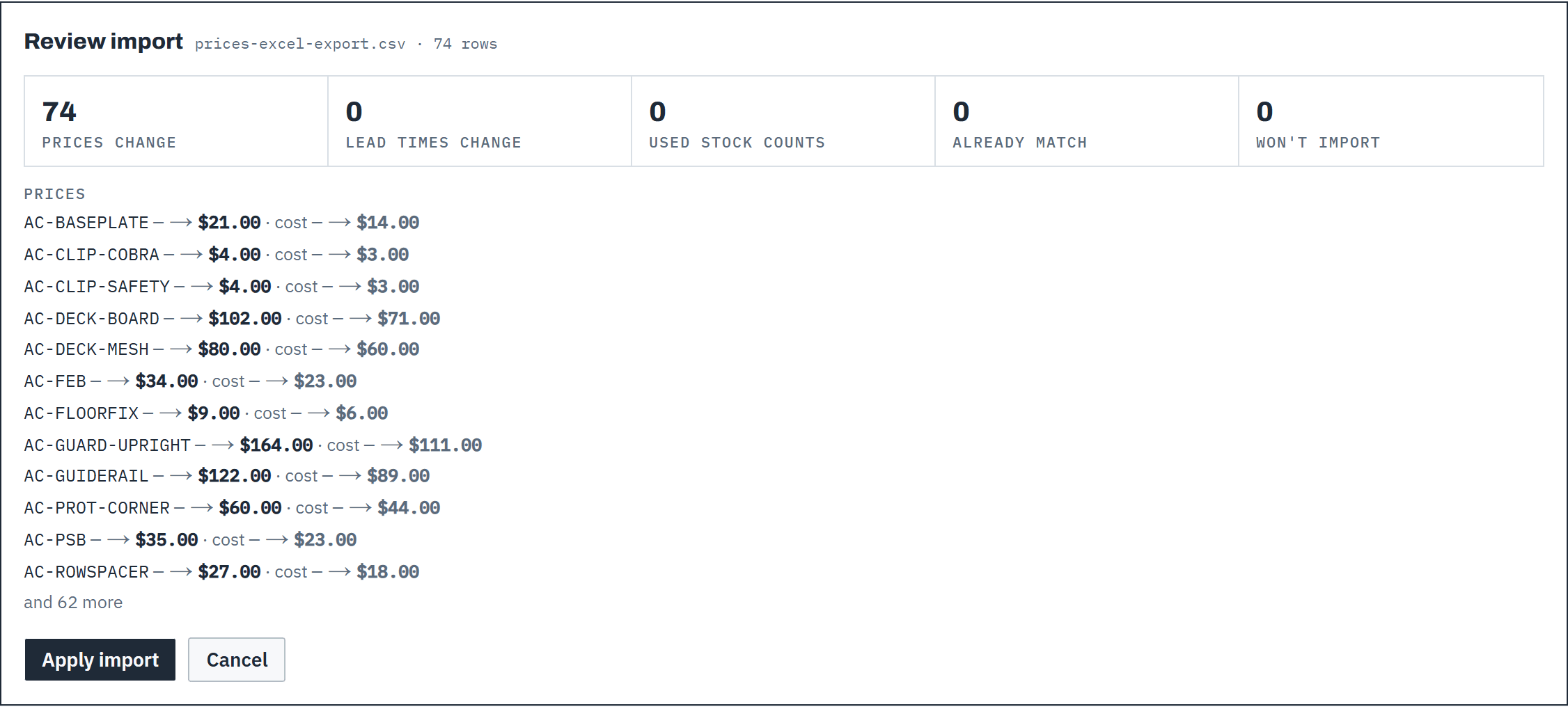 (opens full size in a new tab)
A CSV import is reviewed first: nothing changes until you choose Apply import. Step 17: Check the result
Baylogik reports what changed: prices updated, lead times changed, used stock counts recorded, rows that already matched, and the product ids of any rows it couldn't use — unreadable values, used without a used sell, or unknown products. Rows that won't import are left out; the rest are saved.
 (opens full size in a new tab)
After an import, Baylogik reports how many prices changed and flags any rows it could not read. Step 18: Undo an import
Imported the wrong file? Choose Undo import next to the result. Baylogik first shows what the undo will do: how many prices go back to what was in force before the import, and which products were changed again since — those stay as they are. Choose Undo import again to confirm, or Keep it. Nothing is deleted: the price history keeps both, and the activity log records the undo. Used stock counts from the file aren't undone; correct those in inventory.

Scheduled changes
Step 19: Check prices that start later
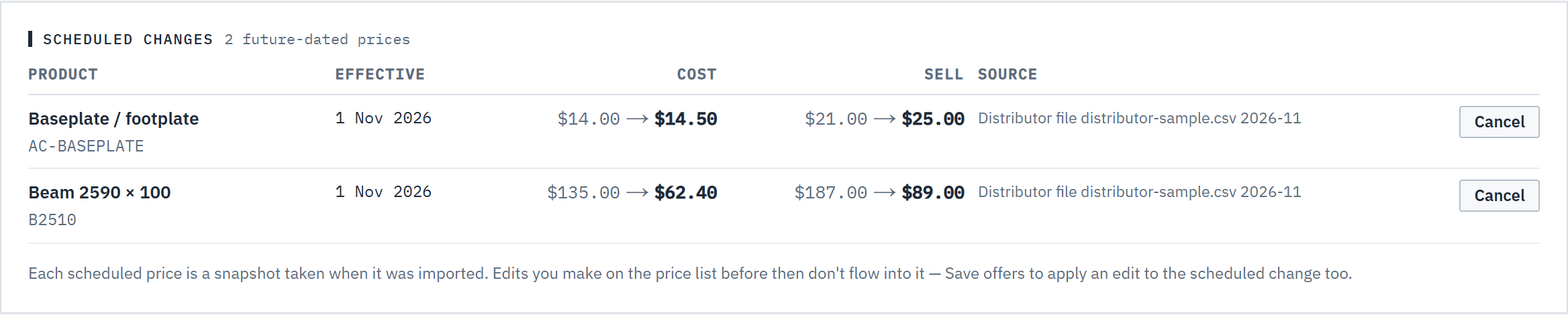
When a supplier price file is dated in the future, its prices wait under Scheduled changes with their Effective date, old and new cost and sell, and source. They take over automatically on that date. The panel follows the brand and supplier filters.
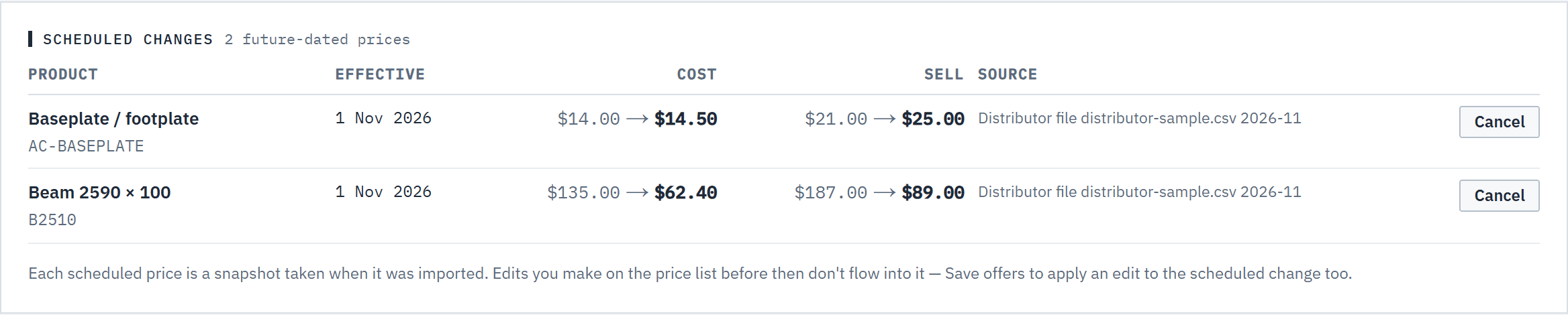 (opens full size in a new tab)
Scheduled price changes are listed with their effective date and can be cancelled before they apply. Step 20: Cancel one if plans change
Choose Cancel on a row and confirm. The scheduled price is switched off (not deleted) and the activity log records who cancelled it. A change that has already started can't be cancelled; edit the price instead.
Keep draft quotes up to date
Step 21: Watch for the draft quotes banner
When prices change after draft quotes were priced, the price list says how many drafts are affected, with a link to them. Open a draft and choose Get latest prices to reprice it. Sent quotes never change: revise one if the customer needs the new prices.
Good to know
- Owners, admins and finance edit, import, undo and export the price list and run supplier imports. For everyone else it's read only, and Cost, Margin, used cost and supplier details are left off the screen and out of the export. Switching items Active and private products are owner and admin jobs.
- An import reads product_id and sell (both required) plus the optional cost, used, used_on_hand and new_lead_time_days columns. The other columns are ignored. An empty price cell clears that price, an empty lead time goes back to the default, and a missing column keeps what's there. Maximum 10 000 rows per file.
- used_on_hand is the used stock counted at your default location. A blank cell leaves stock alone; a number is recorded as an Imported movement for the difference. Only owners and admins can set stock this way, as the roles that both edit prices and import stock; for anyone else the column is ignored, with a note in the review.
- If the prices change between your review and Apply import, Baylogik shows the new review instead. The same goes for an undo: if prices moved after you opened it, check it again.
- Every price is labelled with your workspace's currency. Changing the currency in Tax and currency relabels the whole price list, history included — amounts are never converted. See Tax and currency.
- A scheduled price is a snapshot. If you edit a row that has one, Baylogik offers Apply this edit to the scheduled change too.
- If someone else saved the same price since you opened the page, your change to that row is skipped and marked Changed elsewhere. Reload to see their price.
- Leaving a tab with unsaved edits asks first; unsaved edits are dropped if you go.
Related articles
- Import a supplier price fileUpdate prices and supplier costs from a supplier's CSV or Excel file, with a preview and undo.
- SuppliersYour vendors and distributors: their codes for your products, their costs, and which one sets your prices.
- Choose your catalogueEnable the brands you sell, and add your own frames, beams and services.
- New stock and lead timesCount new stock and tell customers how long ordered-in items take.
- Used pricing and stockOffer used equipment alongside new, and count the stock you hold.
- Tax and currencyPick your country for GST or VAT and your currency, or set your own rate.
- Roles and permissionsOwner, admin, estimator, finance, warehouse and read only: who can see and change what, including cost prices.