
Discounts and end dates
Give a quote a discount, set the day it ends, and what happens after that.
A discount is set on the draft, in its own Discount card, and sending freezes it. Give it an end date and the customer sees the offer and a countdown on their proposal: a reason to decide this week rather than next month.
When the end date passes, the quote doesn't stop working. The customer can still accept it, at the full price, and is told so before they confirm.
Set a discount on a draft
Step 1: Enter the percentage
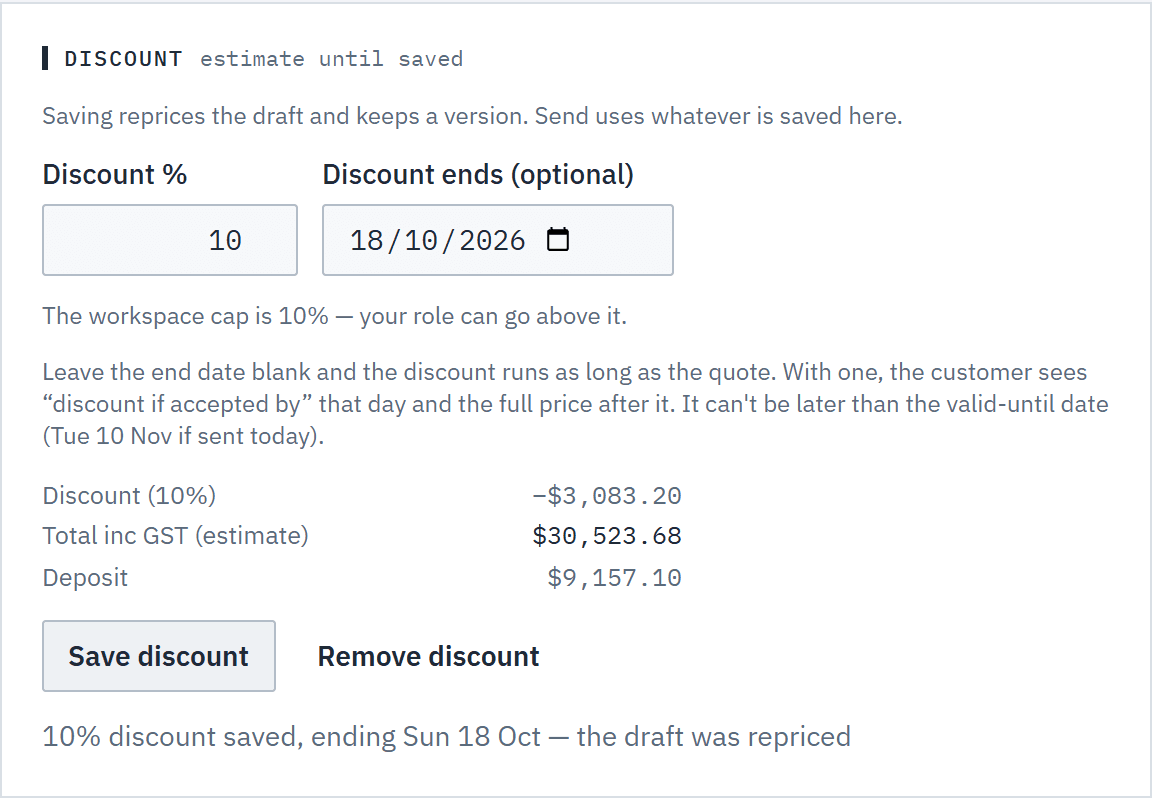
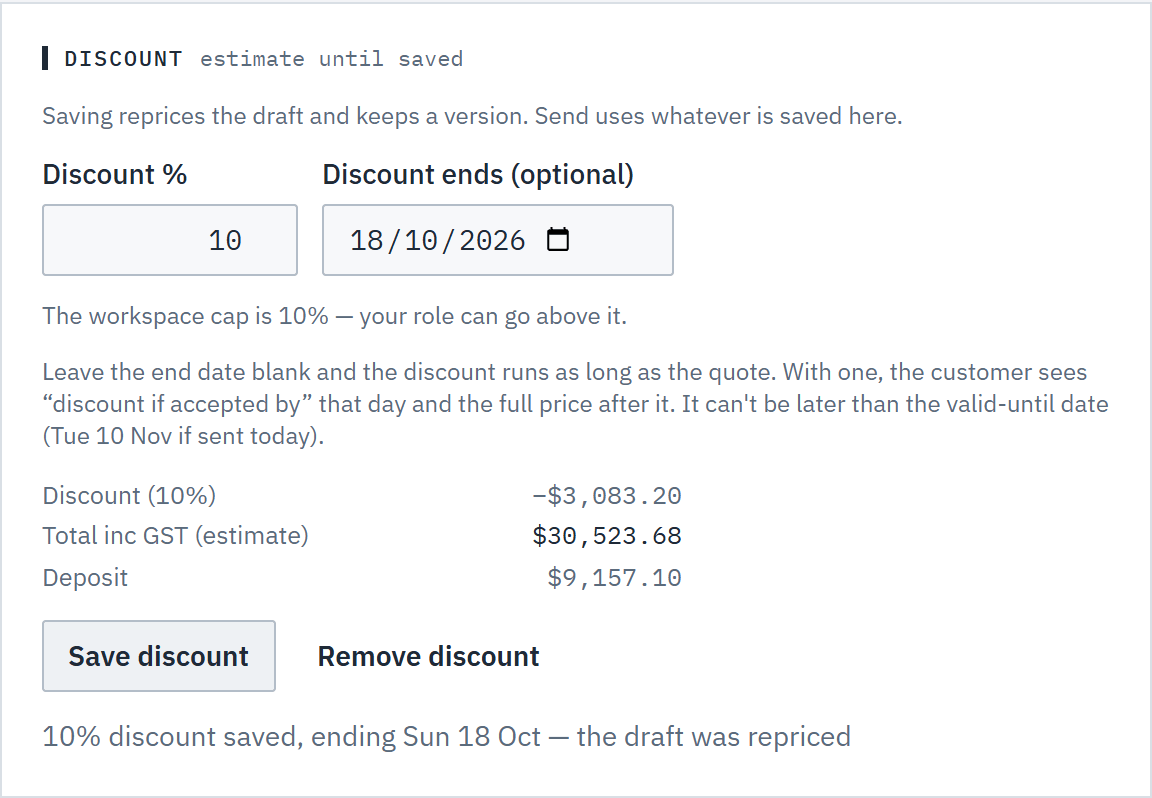
On a draft quote, the Discount card sits above Send. Enter the Discount %. The estimate below updates as you type: the discount, the Total inc GST (estimate) and the Deposit.
The line under the field tells you your limit, for example Up to 10%, the workspace cap. Above that needs an owner or admin. Over the cap, Save discount is turned off for your role.
 (opens full size in a new tab)
Set the percentage and, if you like, the last day it applies; saving reprices the draft. Step 2: Choose when it ends
Discount ends (optional) is the last day the discount applies. It ends at midnight at the end of that day, in your workspace's timezone. Leave it blank and the discount runs as long as the quote.
The date can be today or later, but not after the valid-until date the quote would get if you sent it today; the card shows that date.
Step 3: Save it
Choose Save discount. The draft is repriced on the server and the card confirms it, for example 10% discount saved, ending Fri 9 Oct — the draft was repriced. The Totals card shows the discount line and when it ends, and Versions keeps the change as Discount changed.
To take it off, choose Remove discount. The end date goes with it.
Send it
Step 4: Check the Send card
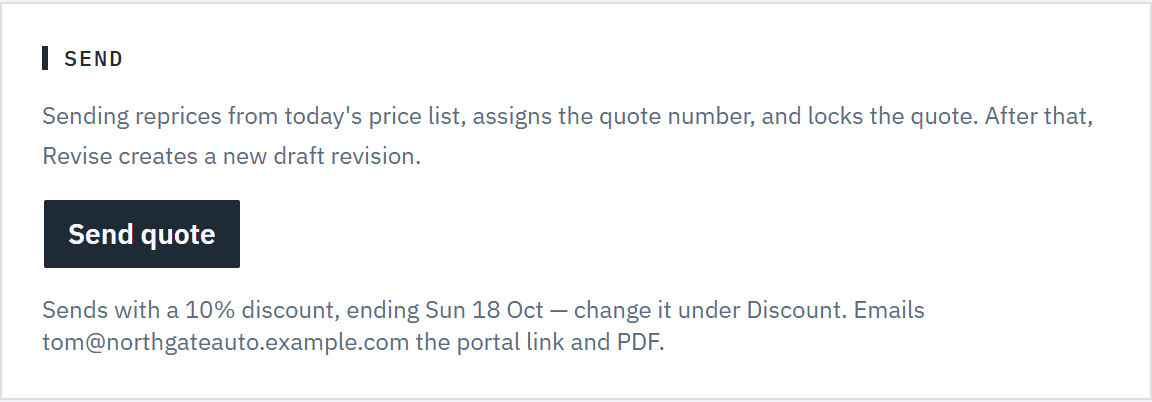
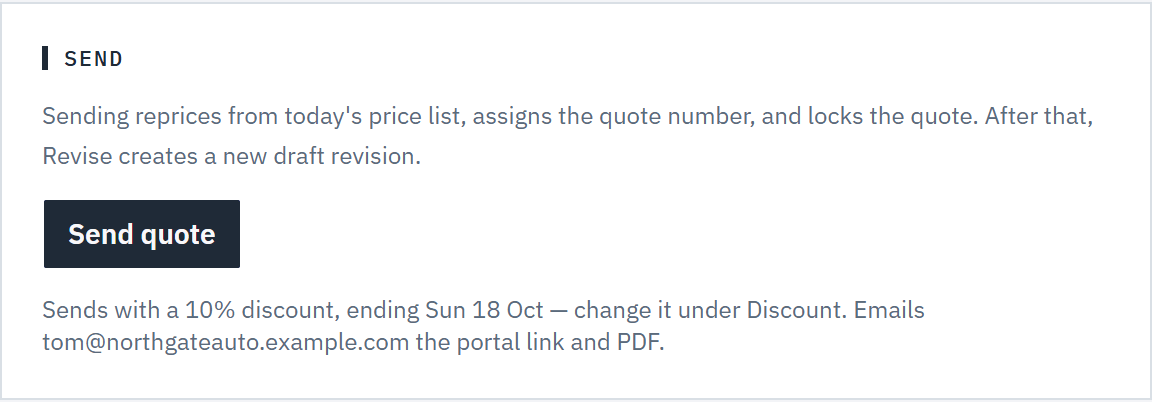
Send has no discount field: it sends whatever is saved in the Discount card, and says so, for example Sends with a 10% discount, ending Fri 9 Oct — change it under Discount. With none it reads No discount.
Send refuses a draft whose discount end date has already passed: move the date or remove the discount first. It also refuses a discount above the workspace cap unless you're an owner or admin, even if someone else set it.
 (opens full size in a new tab)
Send has no discount field: it sends what the Discount card saved.
After it's sent
Step 5: Extend the end date, or remove it
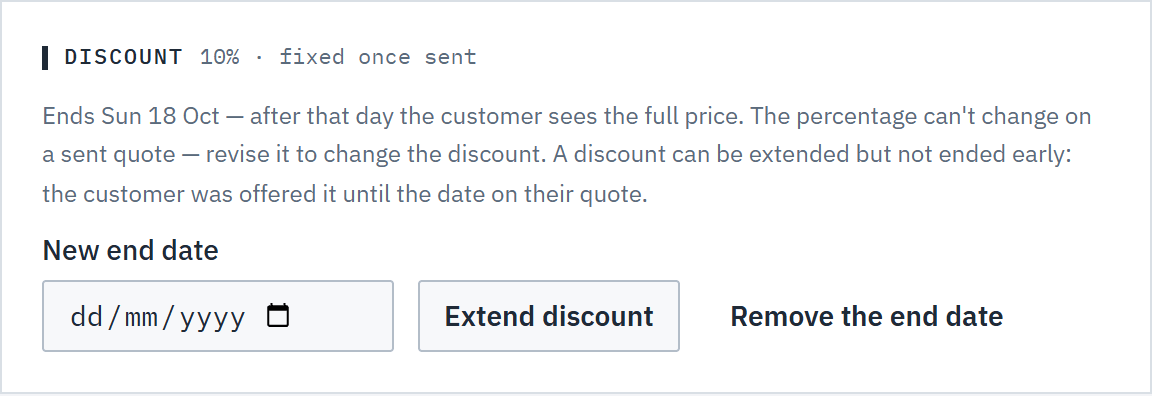
On a sent, viewed or expired quote, the Discount card is marked fixed once sent. Pick a New end date and choose Extend discount, or choose Remove the end date to let it run until the quote's valid-until date.
The date can only move later. The customer was offered the discount until the date on their quote, so it can't be ended early. It also can't run past the valid-until date: extend the quote's validity first. Extending a discount that has already ended brings it back, as long as the customer hasn't accepted yet. The PDF is made again with the new date.
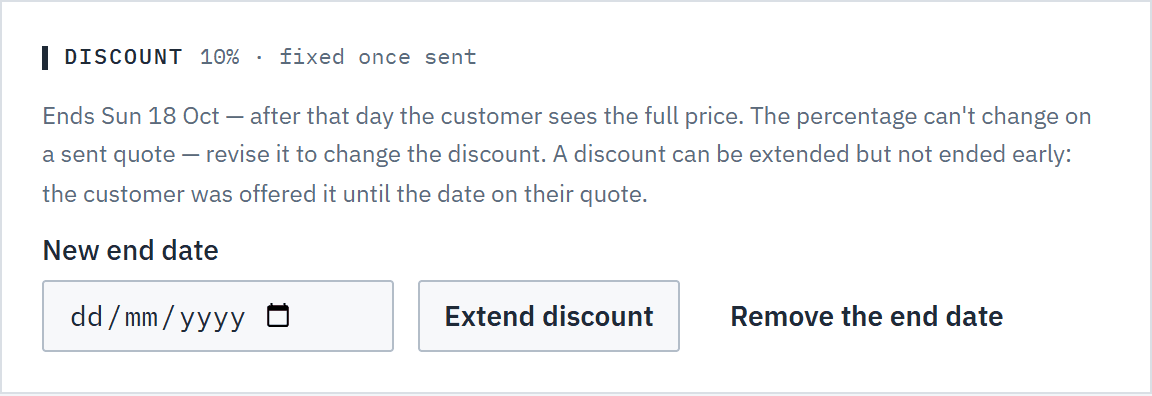 (opens full size in a new tab)
After sending, the end date can move later or be removed; the percentage stays. Step 6: Change the percentage
The percentage is fixed once the quote is sent. To change it, revise the quote. The new draft starts with the same percentage, and the end date carries over only if it hasn't passed. Change it in the new draft's Discount card, then send the revision. See Create and send a quote.
What the customer sees
Step 7: The offer and the countdown
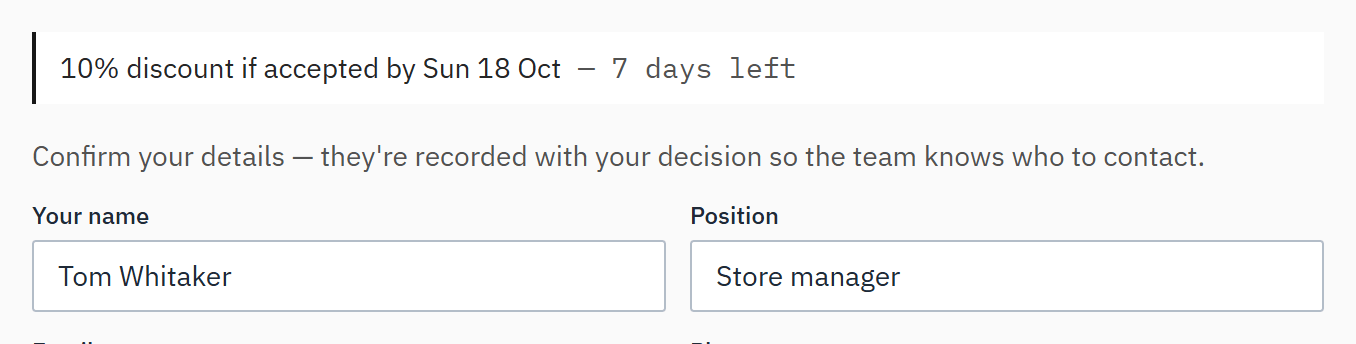
With an end date, the proposal's investment panel and totals say 10% discount if accepted by Fri 9 Oct. Above the acceptance form the same line has a countdown in days and hours, such as 3 days 4 hours left, and less than an hour left at the end. The email says This price includes a 10% discount if accepted by Fri 9 Oct.
A discount without an end date shows as a discount line in the totals, with no countdown.
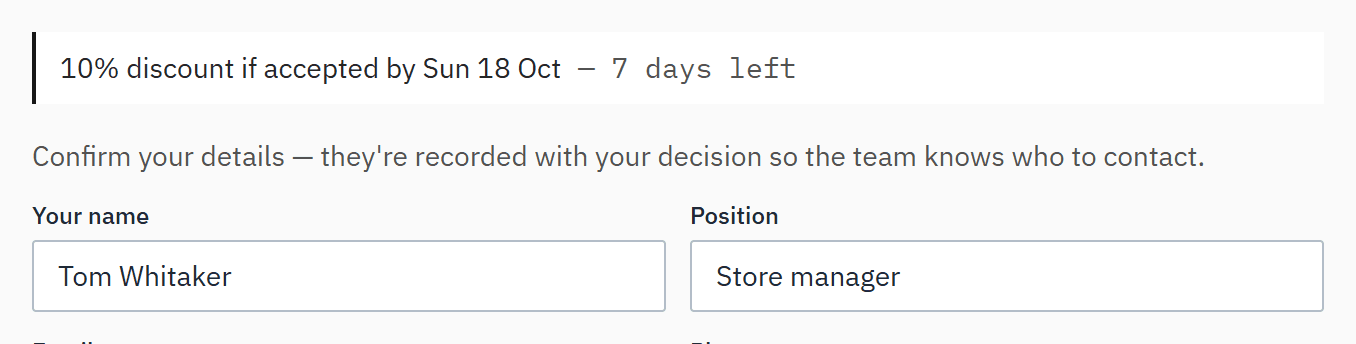 (opens full size in a new tab)
The customer sees the offer and how long is left, counted down in days and hours. Step 8: After the end date
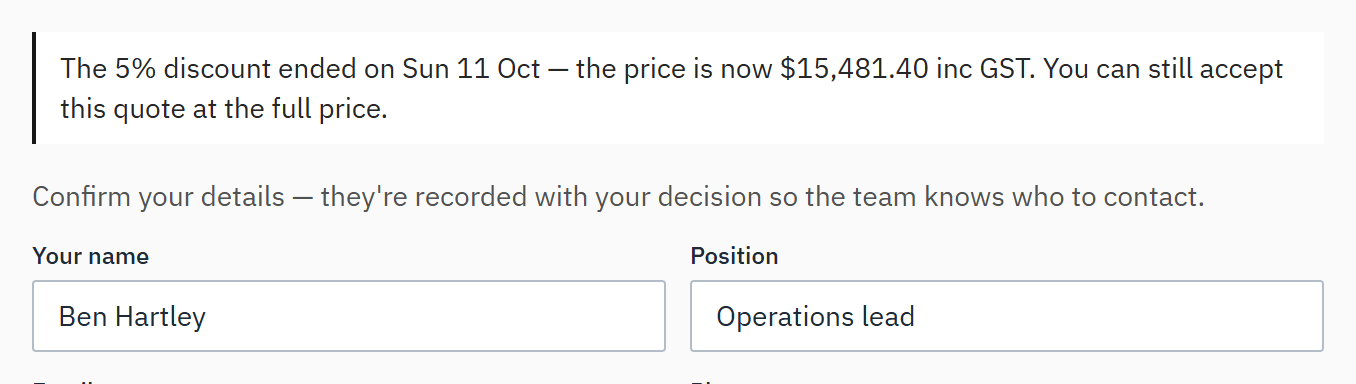
Once the day has passed, the proposal shows the full price and says The 10% discount ended on Fri 9 Oct — the price is now $12,345.00 inc GST. You can still accept this quote at the full price. When the customer asks for a confirmation code, they're told again that they're accepting at the full price.
If the discount ends between asking for a code and entering it, the acceptance is refused with The discount on this quote has ended — review the full price and accept again, so nobody accepts a total they didn't see.
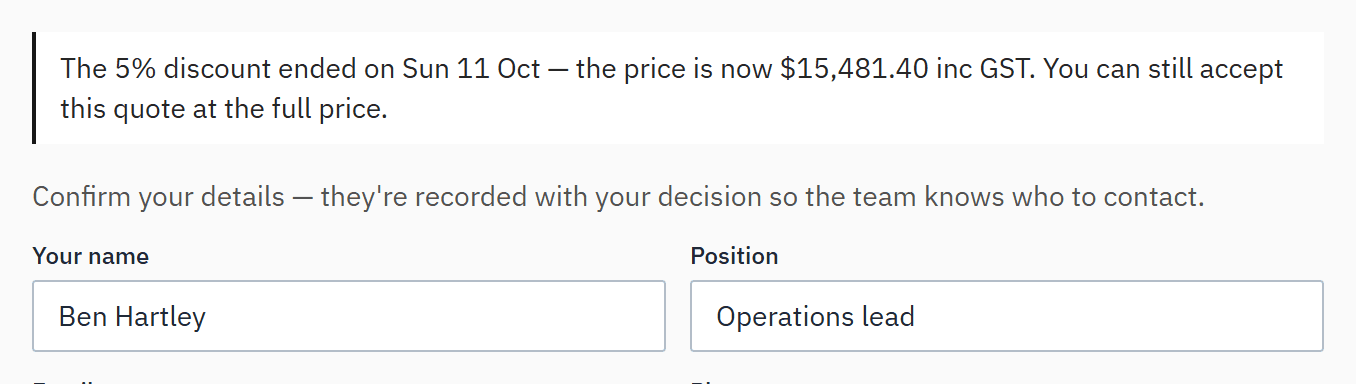 (opens full size in a new tab)
After the end date the customer sees the full price and can still accept at it.
Accepting after the discount ends
Step 9: On the customer's proposal
The full price is this quote's own prices without the discount, with the customer's new or used choices; it's never repriced from today's price list. On the quote page, Totals shows the Accepted total at the full price, with the discounted total as sent struck through beneath it.
Step 10: Marking it accepted yourself
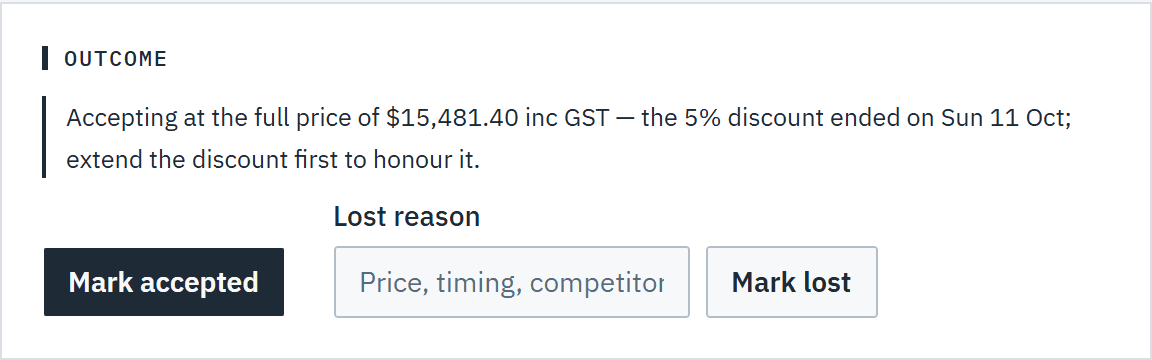
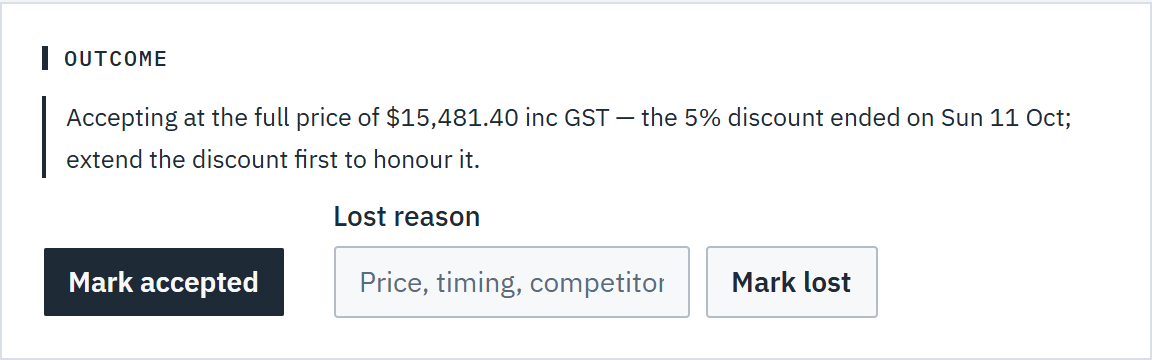
Mark accepted on the quote page, and Mark accepted… on the pipeline board, use the same rule. Both say so first, for example Accepting at the full price of $12,345.00 inc GST — the 10% discount ended on Fri 9 Oct; extend the discount first to honour it. To accept at the discounted price, extend the discount, then mark it accepted.
 (opens full size in a new tab)
Marking it accepted yourself uses the same rule as the customer's proposal, and says so first.
Good to know
- Owners, admins, estimators and finance can set, change, remove and extend discounts. Estimators and finance can go up to the cap, Max discount without an owner or admin on the Catalogue page (default 10%); above it needs an owner or admin. Warehouse and read-only members can't. See Roles and permissions.
- Restoring an earlier version of a draft restores its discount too. If that changes the percentage, the same limits apply. A version doesn't store the end date: the draft keeps the one it has, and restoring a version with no discount removes it.
- Tax — GST at 10% in Australia — is worked out on the subtotal after the discount, and the deposit from the discounted total. See Tax and currency.
- When the discount has ended, the PDF the customer was sent no longer matches the proposal, so Download PDF is hidden until it's made again. Resend quote makes a new one at the full price, and the email says The 10% discount ended on Fri 9 Oct — this is the full price.
- When a sent or viewed quote's discount ends within 3 days, the quote's owner gets one reminder email for that end date (extending the discount reminds again), and the dashboard lists the quote as Discount ends in 2 days. The customer isn't emailed. A discount that runs to the valid-until date is covered by the expiry reminder instead.
- Every discount change, extension and removal is recorded in the activity log, with who made it.
Related articles
- Create and send a quoteGenerate, review and send a priced, branded proposal.
- What your customer seesThe online proposal, chat, and accepting with a confirmation code.
- Choose your catalogueEnable the brands you sell, and add your own frames, beams and services.
- Roles and permissionsOwner, admin, estimator, finance, warehouse and read only: who can see and change what, including cost prices.