
Customers, sites and contacts
Keep customer records, sites, contacts and notes.
Every design and quote in Baylogik belongs to a customer. The customer record keeps the business, its sites, the people you deal with, your notes, and every design and quote you have done for them in one place.
Getting the primary contact right matters: it's who receives your quotes and the acceptance code.
Step 1: Open your customer list
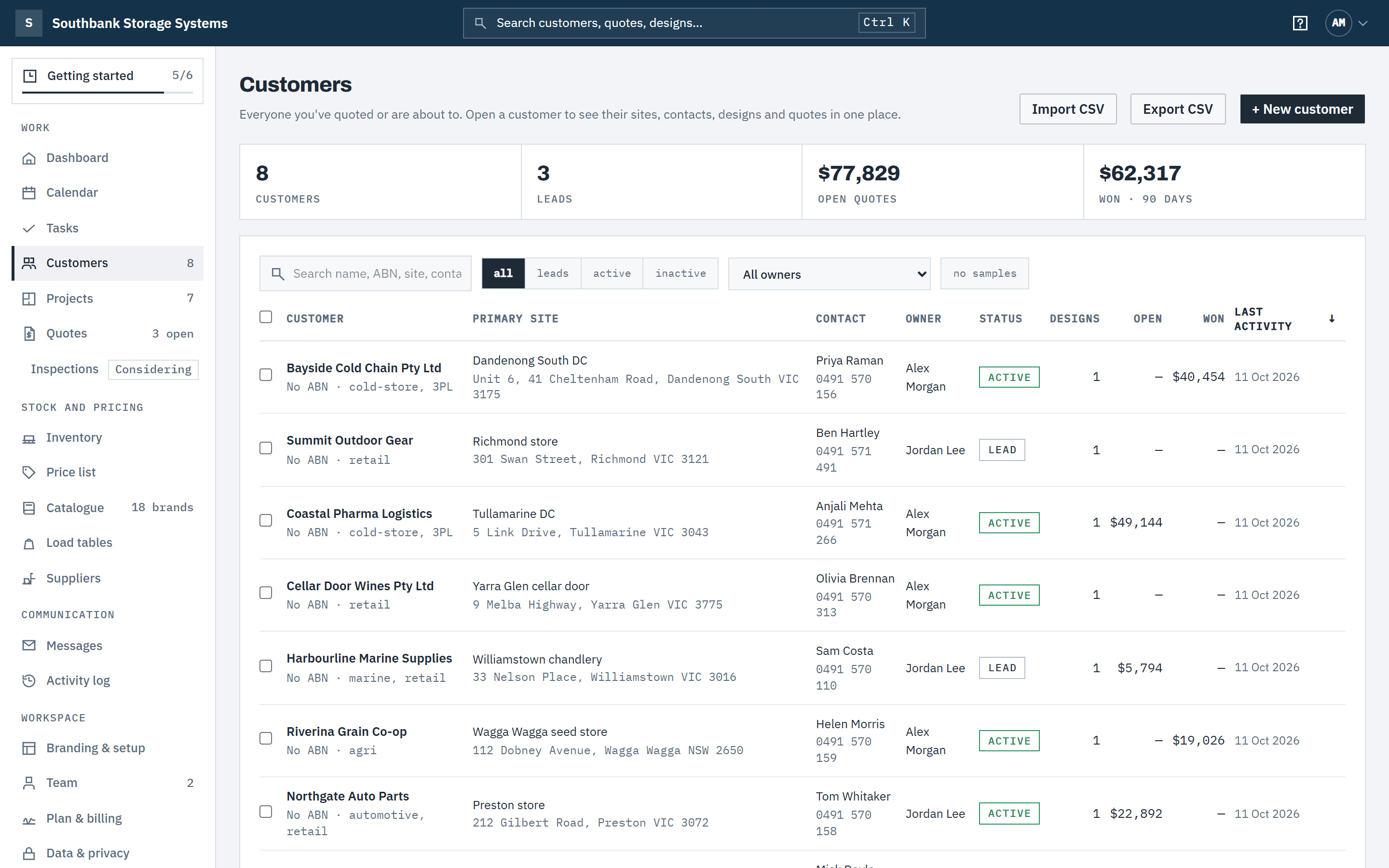
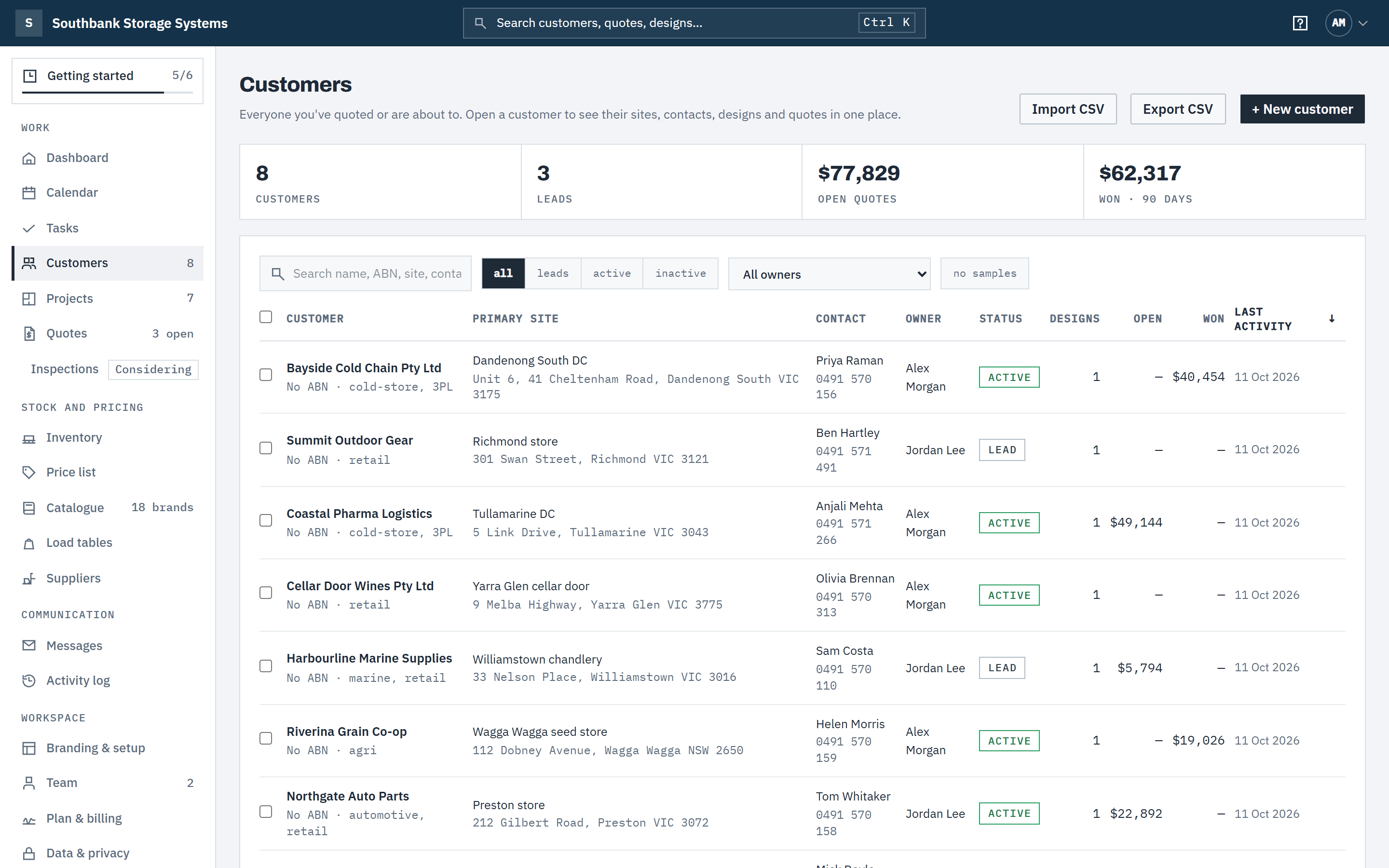
In the navigation, under Work, choose Customers. Search by name, ABN, site, contact or tag, filter by status (leads, active, inactive) and owner, and sort by the Customer, Open, Won or Last activity heading. Each row shows the primary site and contact, owner, designs, and open and won quote value.
 (opens full size in a new tab)
Every customer in one list, searchable and filterable by status and owner. Step 2: Add a customer
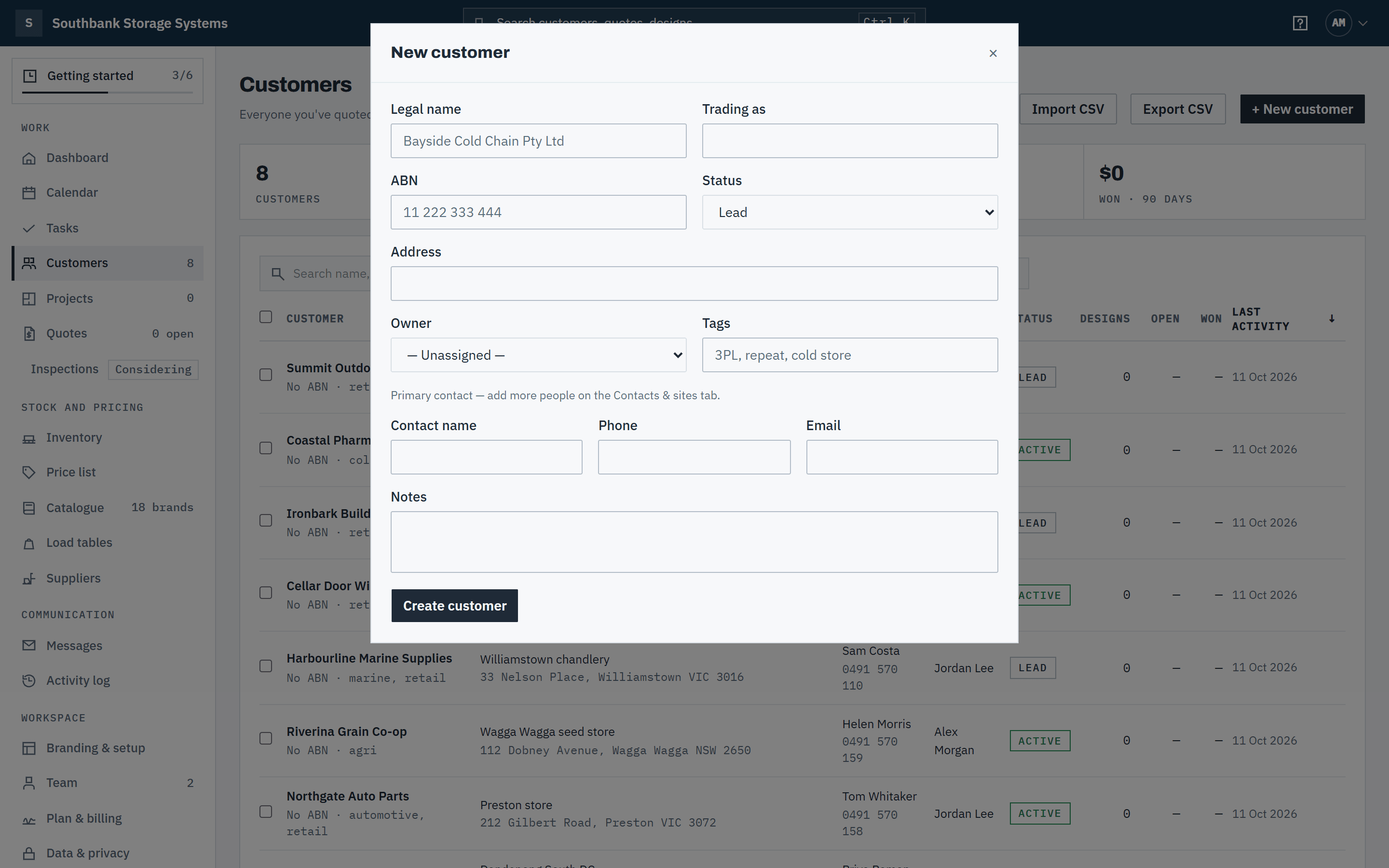
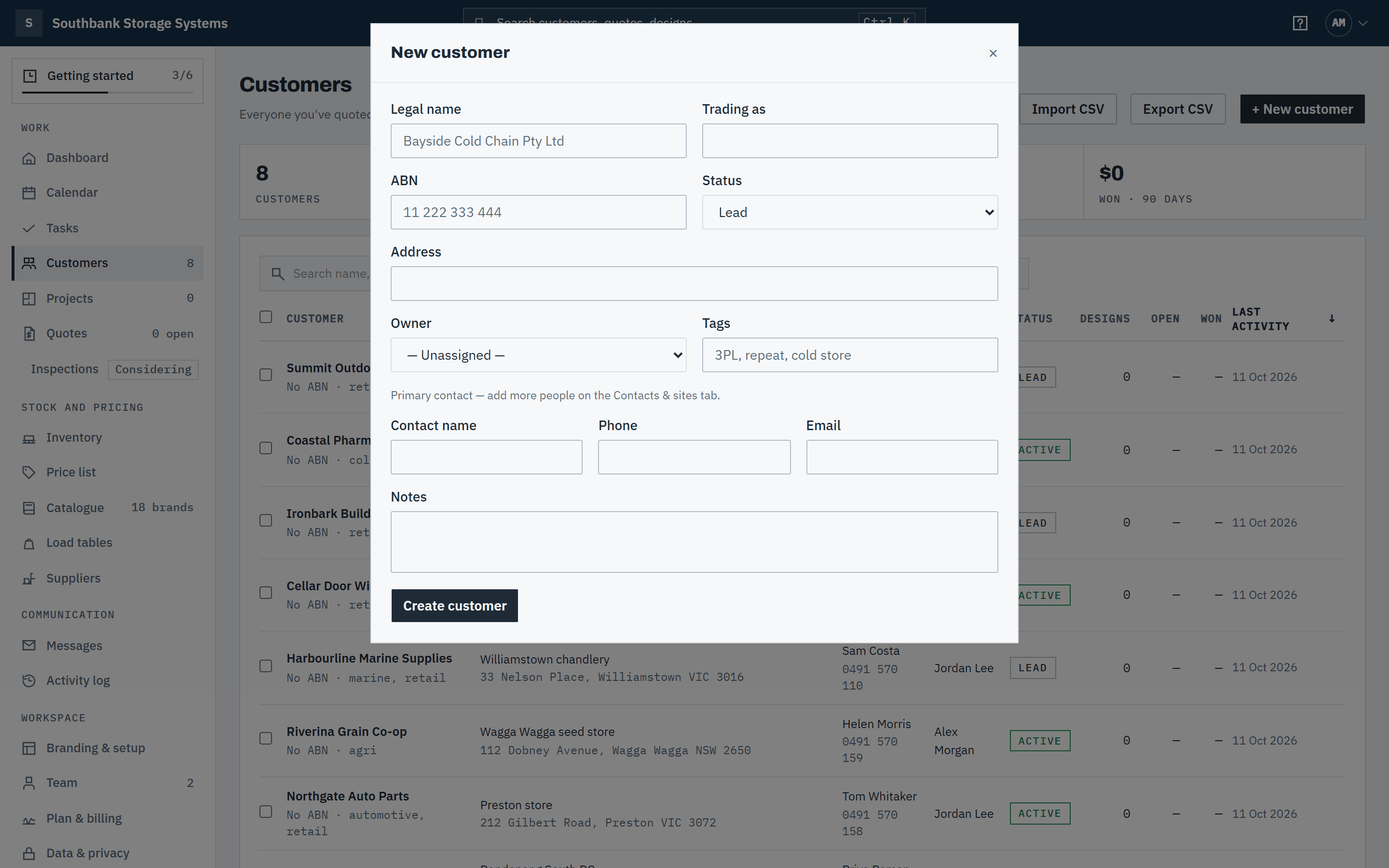
Choose + New customer. Enter the Legal name (required), and if you have them the Trading as name, ABN, Address, Owner and comma-separated Tags. New customers start as a Lead.
Add the primary contact's name, phone and email in the same form, then choose Create customer.
An ABN must be 11 digits that pass the ATO's check, so a mistyped digit is caught: That ABN doesn't pass the ATO checksum — check the digits. Spaces don't matter; Baylogik shows it spaced, as 51 824 753 556. If something needs fixing, the form says what and keeps everything you typed.
Outside Australia the field is your workspace country's number instead, such as a VAT number in the UK, checked the same way your own is. For Another country it takes whatever you type. See Tax and currency.
 (opens full size in a new tab)
Add a customer with their primary contact in one step. Step 3: Work from the overview
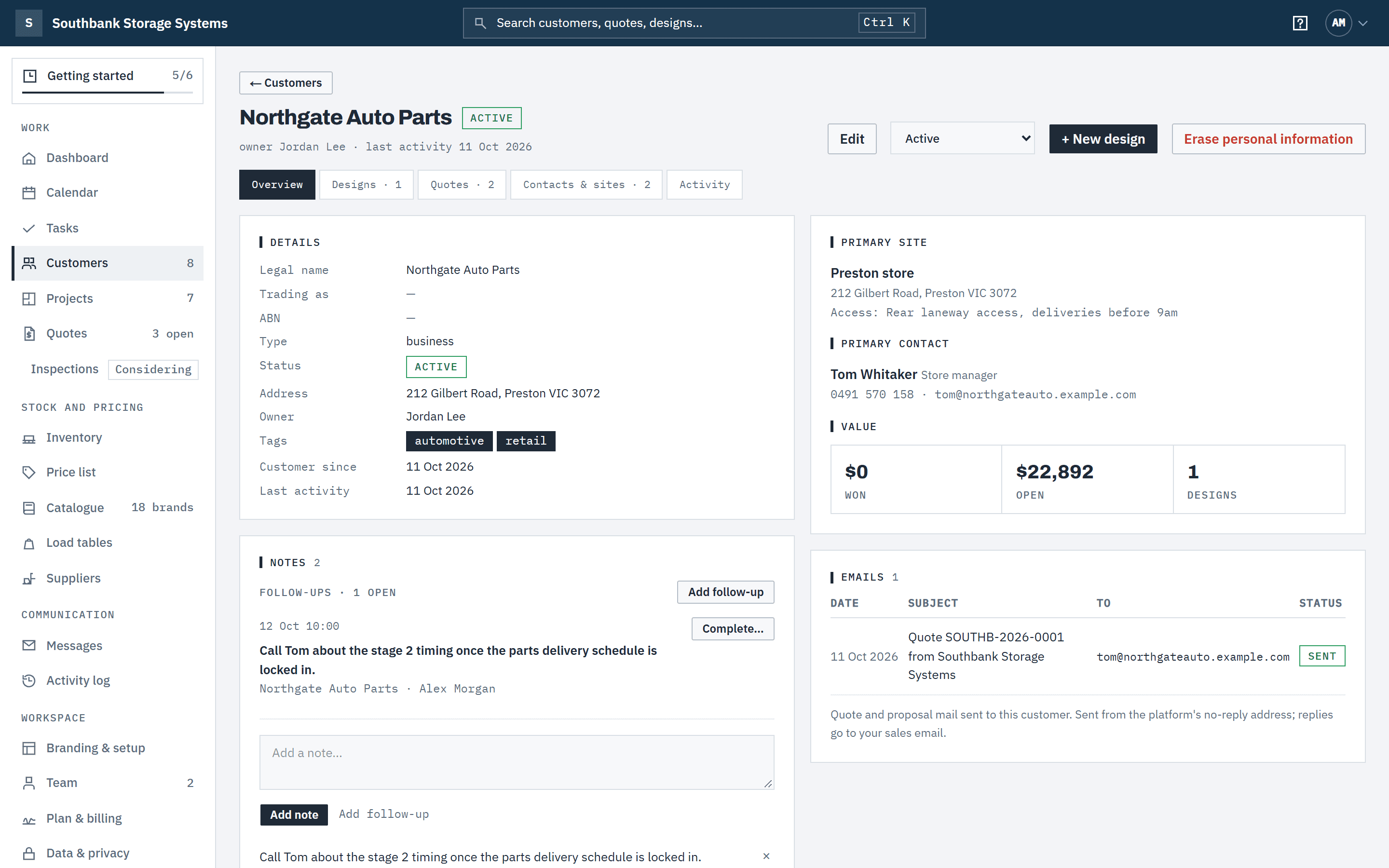
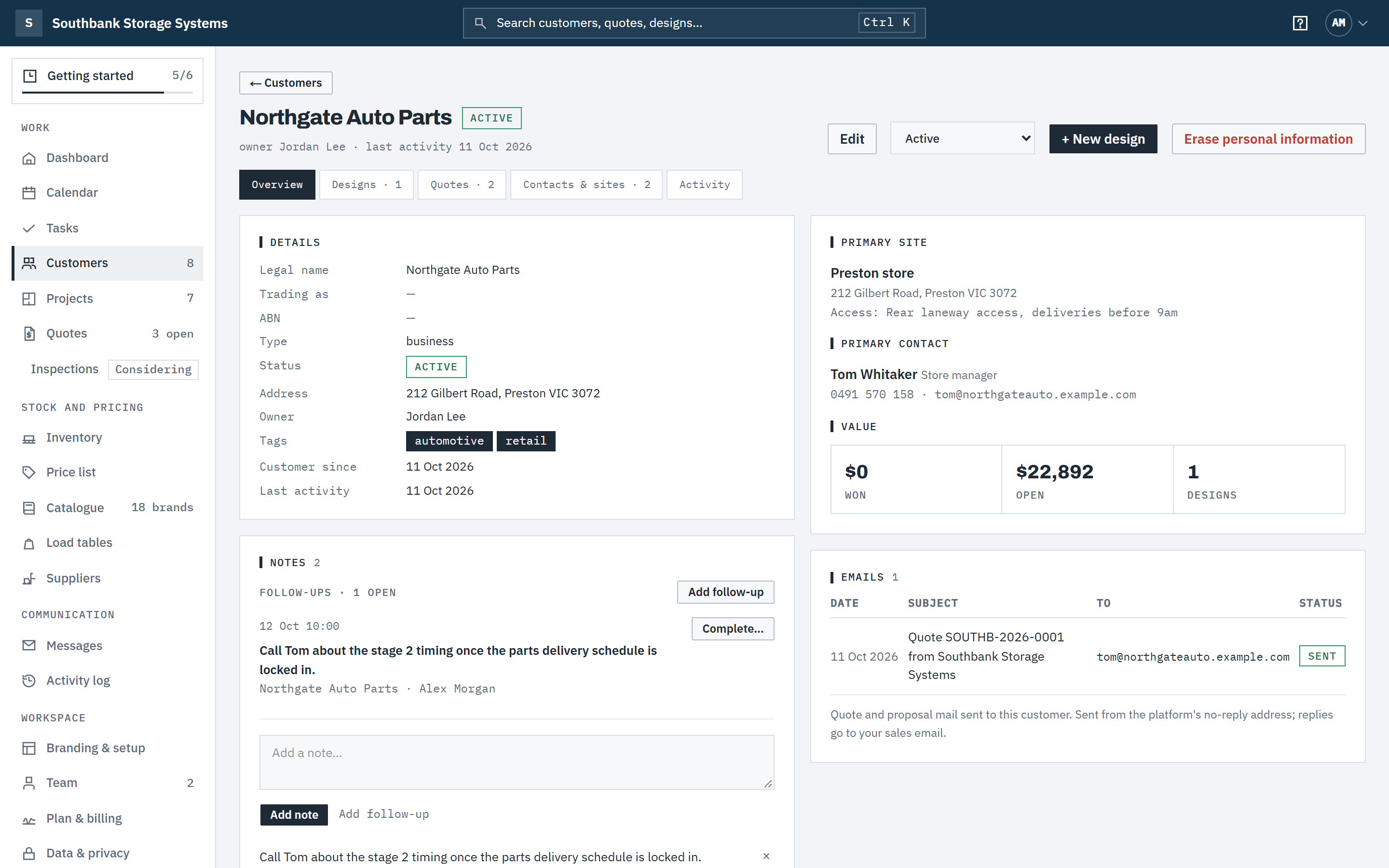
A customer opens on Overview: their details, owner and tags, primary site and contact, won and open value, open follow-ups, notes and emails. The other tabs are Designs, Quotes, Contacts & sites and Activity, which records who changed what.
 (opens full size in a new tab)
The overview keeps the customer's details, value, follow-ups and notes together. Step 4: Record sites and contacts
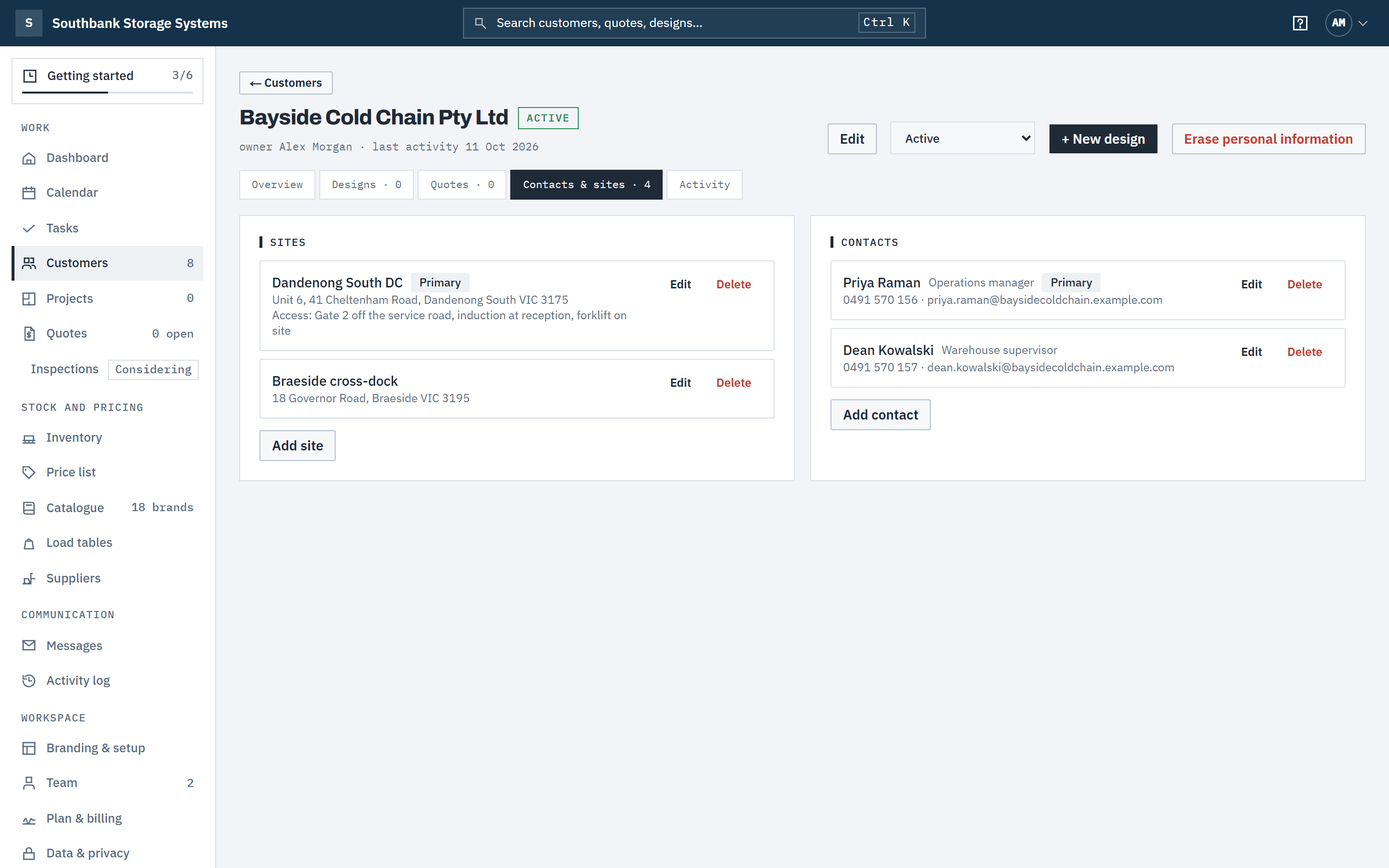
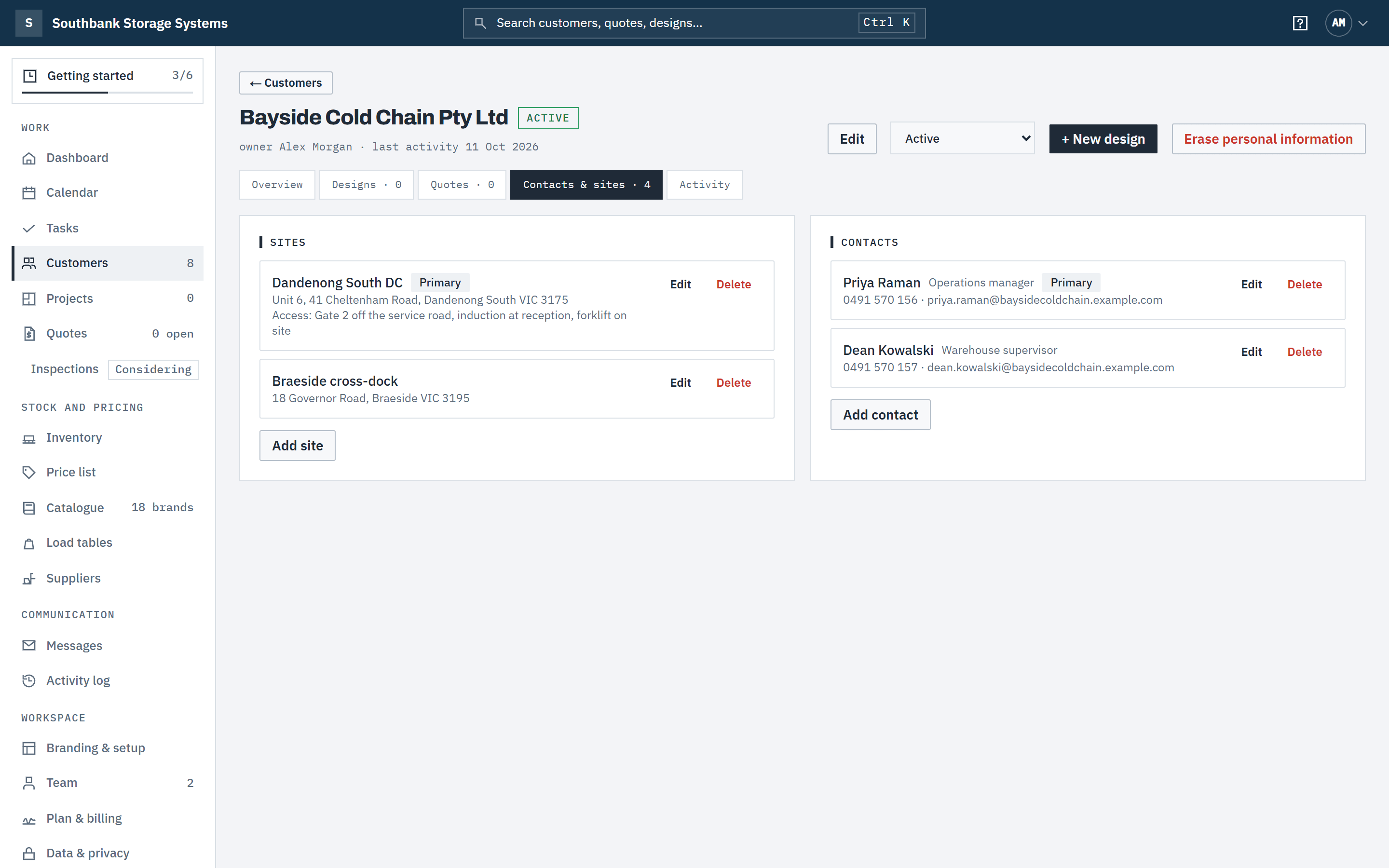
On Contacts & sites, choose Add site for each place you design for. Use Access notes for gate codes, inductions and whether there's a forklift on site. Designs are created against a site.
Choose Add contact for each person, with their role, phone and email. Tick Primary contact on the person who should receive quotes.
 (opens full size in a new tab)
Record every site you design for and every person you deal with; the primary contact receives quotes. Step 5: Add notes and follow-ups
In the notes card, type a note and choose Add note. To be reminded, choose Add follow-up under the note, set the Follow-up date and, if it matters, a time, then choose Add note and follow-up. That makes a task for you, linked to the customer.
Open follow-ups are listed above the notes, including those on the customer's designs and quotes. Complete one with Complete… and a note of what was done. See Tasks and follow-ups.
Step 6: Start a design
Choose + New design at the top of the customer. See Design a layout.
Good to know
- Quotes go to the primary contact if they have an email, otherwise the first contact with one. With no email on record the quote is sent and locked but not emailed.
- The first site and first contact always become primary. Deleting the primary passes it to the next one; designs and quotes at a deleted site stay with the customer.
- Owners and admins can Import CSV an existing customer list (up to 500 rows). Rows match on ABN, then legal name, and you see a preview of new and updated customers before anything is written. A row whose ABN fails the ATO check isn't imported, and the preview says why.
- Two customers can't share an ABN: saving a second one says A customer with this ABN already exists.
- Customers aren't deleted. Set them to Inactive (archived), or use Erase personal information for a privacy request: it removes names, contacts and sites for good but keeps the designs and quotes. Quotes as sent (with the customer's acceptance details), the Activity log and the email log keep the names as they were, as your financial and audit record.
- Select several rows in the list to assign an owner, add a tag or mark them inactive at once.
Related articles
- ProjectsFind a job, see its layout and quotes, and open it in the designer.
- Tasks and follow-upsGive each follow-up an owner and a due date, and record what was done.
- Create and send a quoteGenerate, review and send a priced, branded proposal.
- What your customer seesThe online proposal, chat, and accepting with a confirmation code.