
Your dashboard
Quote health, what needs a decision today, and your tasks for the week.
The dashboard is the first thing you see when you sign in: today's numbers and what needs a decision. Every card is a link to the exact quotes, stock or dates it counts, so a number is always one click from the work behind it.
What comes first depends on your role. Estimators lead with their own pipeline, finance with accepted value, and warehouse with stock and deliveries.
Step 1: Check quote health
In the navigation, under Work, choose Dashboard. Quote health counts your open work with its value: Expiring in 7 days, Expired, Sent, not opened, Viewed, undecided and Drafts, which also flags drafts untouched for 14 days or more.
Click a card to open the quotes list filtered to exactly the quotes it counts. See Create and send a quote.
 (opens full size in a new tab)
Each card opens the quotes list filtered to exactly the quotes it counts. Step 2: Work down Needs attention
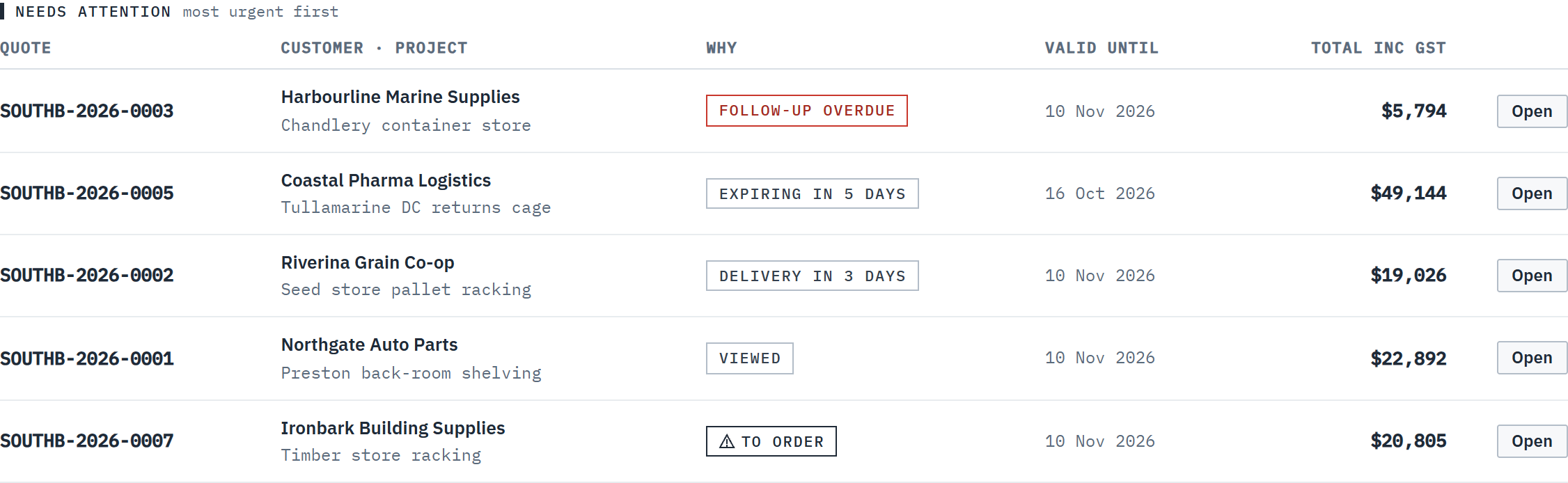
Needs attention lists up to 10 quotes someone should act on, most urgent first. Labels say why: Follow-up overdue or Follow-up due, Lapsed 2 days ago, Expires today or Expiring in 3 days, Viewed, To order, and Delivery in 2 days. Open goes to the quote. When it's empty it reads Nothing needs you right now.
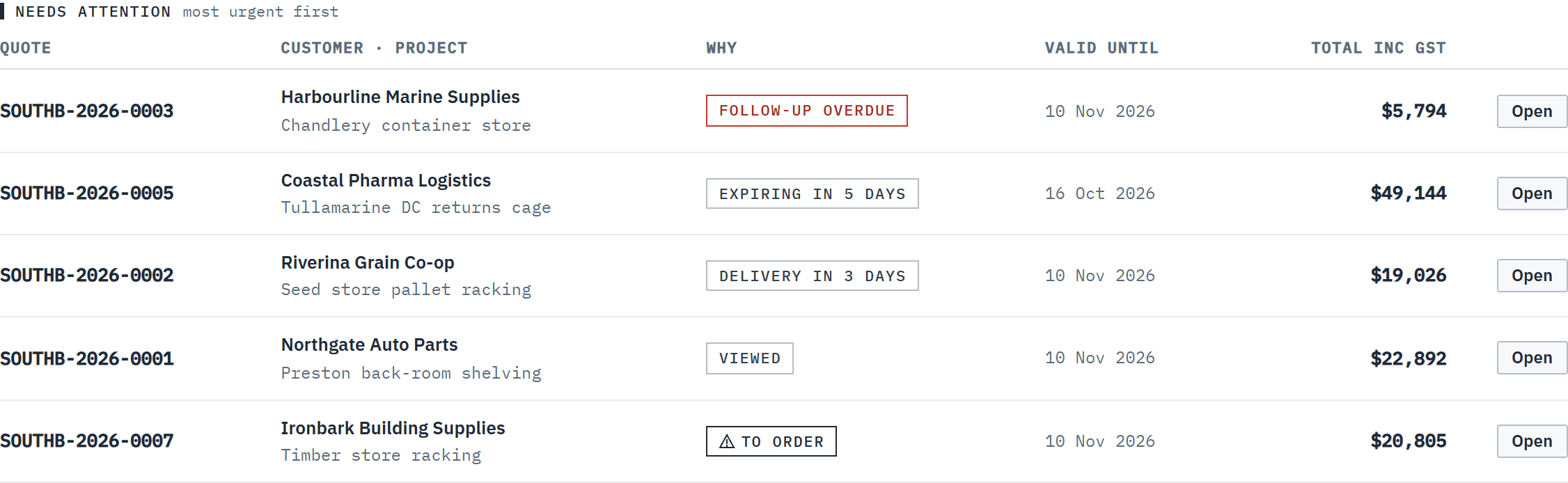 (opens full size in a new tab)
Needs attention ranks the quotes someone should act on, with the reason on each. Step 3: Clear your tasks
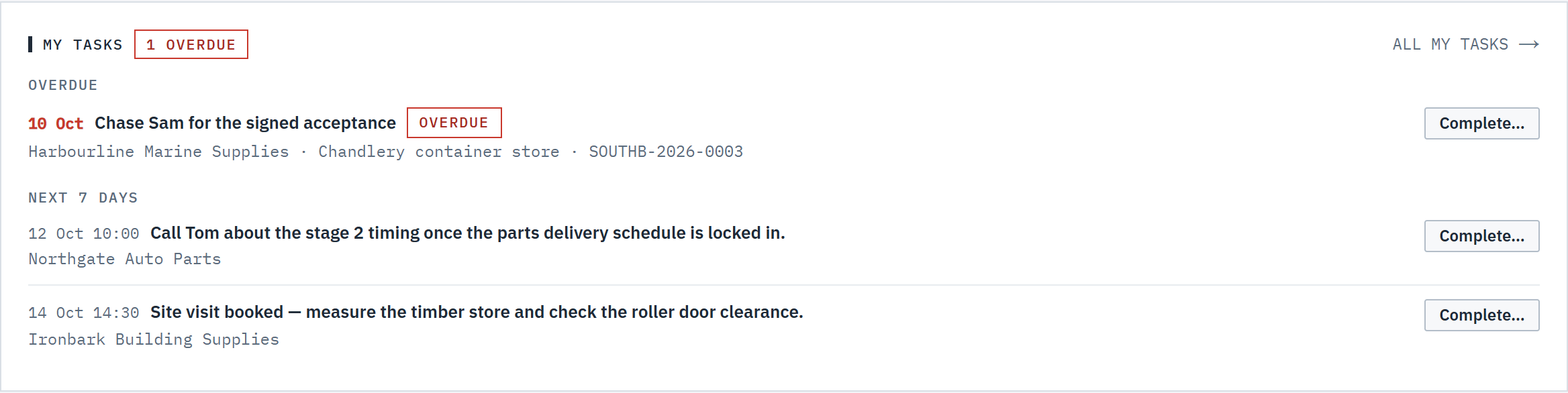
My tasks lists your open tasks that are overdue, due today or due in the next 7 days. Choose Complete… and say what was done, or click a title to open the task. All my tasks → opens the full list. See Tasks and follow-ups.
Owners and admins also see how many unassigned tasks are overdue or due today, under Unassigned · overdue or due today, so nothing sits without an owner.
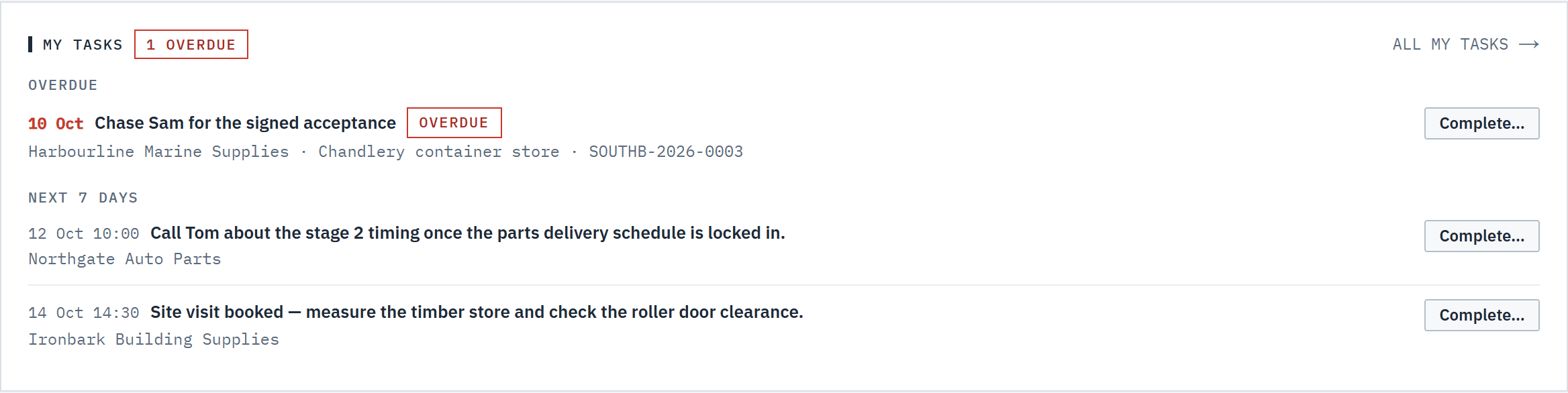 (opens full size in a new tab)
Your overdue tasks and the week ahead, completed from the dashboard with a note. Step 4: See what you've won
Won work shows Accepted this month with deposits, Win rate · 90 days, Open pipeline and Leads. The win rate and pipeline cards open the pipeline board; Leads opens your customers who aren't active yet.
Step 5: Read the trends
Trends shows the last 12 weeks, Monday to Sunday, one tile per figure. Each tile has this week's figure, a line comparing the last 4 full weeks with the 4 before them, such as ▲ 12% vs previous 4 weeks, and a small chart. The current week is left out of the comparison because it's still filling up. Green is better, red is worse.
- Quotes sent: quotes sent each week.
- Accepted value: the value inc GST of quotes accepted each week, at the accepted total.
- Win rate: won as a share of won and lost quotes, by count. The figure is the last 4 full weeks, for example 3 won of 4 decided, and the chart is a rolling 4-week line.
- New customers: customers added each week, leads included.
- Lines to order: new-stock lines to order on quotes accepted each week. More isn't better or worse, so it's never coloured.
- Deposits accepted: deposits on quotes accepted each week.
Click a tile's name to open what it counts: the quotes list, accepted quotes, the pipeline board or the customers list.
 (opens full size in a new tab)
Twelve weeks at a glance; each tile opens the quotes, board or customers it counts. Step 6: Check stock and deliveries
For roles that move stock or schedule deliveries, Stock and deliveries shows New stock to order on accepted quotes, Deliveries this week (today and the next 6 days, opening the calendar), and Low stock and Out of stock, which open the inventory filtered to those items.


Good to know
- Owners, admins and estimators can switch between Mine and Everyone at the top. Mine counts only the quotes you own, and the cards then open your quotes only. Estimators start on Mine, owners and admins on Everyone.
- Sections are ordered by role. Quoting roles and read only see quote health first; finance sees won work first; warehouse sees stock and deliveries first. A section your role has no use for isn't shown.
- Trends are picked by role too. Owners, admins, estimators and read only see quotes sent, accepted value, win rate and new customers, and owners and admins also see lines to order. Finance leads with accepted value and deposits; warehouse with lines to order. With Mine on, the quote figures count only your quotes; new customers are always everyone's.
- Unread customer messages show in a New messages card at the top until you open the quote.
- Until setup is finished, the setup checklist sits above everything else. See Getting started.
Related articles
- Tasks and follow-upsGive each follow-up an owner and a due date, and record what was done.
- Create and send a quoteGenerate, review and send a priced, branded proposal.
- Pipeline and win rateTrack every quote from draft to won or lost.
- The calendarTasks, quote expiry, deliveries, installations and price changes by day, week or month.