
Create and send a quote
Generate, review and send a priced, branded proposal.
A quote comes straight from the design: no retyping parts into a spreadsheet. Baylogik prices every line on the server from your price list and used stock, adds tax (GST in Australia and New Zealand), deposit and your terms, and produces a branded proposal your customer can open online and accept.
The totals you see in the designer are estimates. The numbers on a quote are the real ones.
Find a quote
Step 1: Open the quotes list
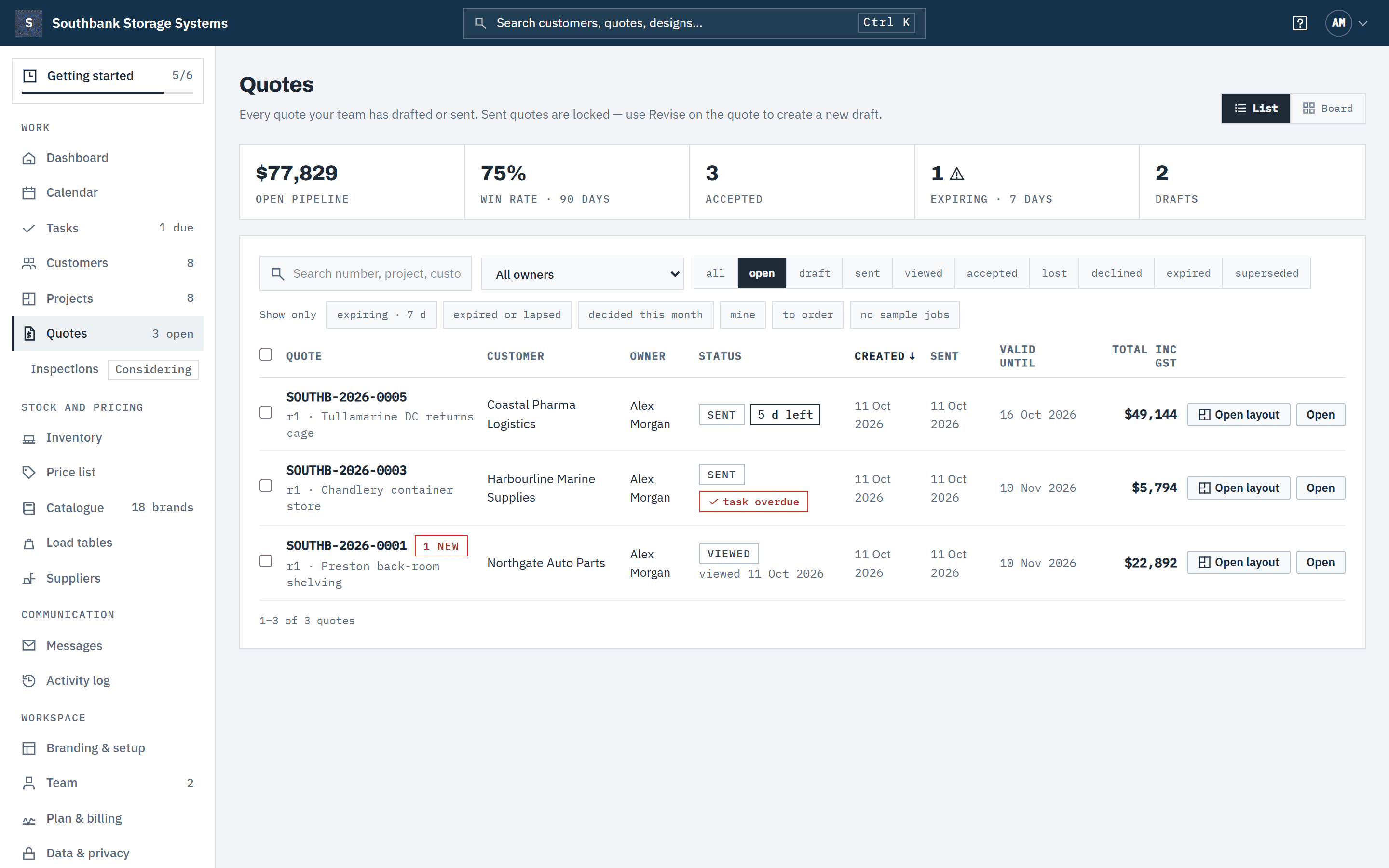
In the navigation, under Work, choose Quotes. The strip at the top shows the open pipeline, win rate over 90 days, accepted quotes, quotes expiring in the next 7 days and drafts. Board switches to the pipeline board; see Pipeline and win rate.
Pick a status: open (sent or viewed), draft, sent, viewed, accepted, lost, declined, expired or superseded. Under Show only, narrow it further to expiring · 7 d, expired or lapsed, decided this month (it reads accepted this month with the accepted status), mine or to order (accepted, with new stock to order).
The Owner list beside the search shows one person's quotes: All owners, Me, anyone in the team, or Unassigned / former member for quotes with no owner or whose owner has left the workspace. mine and Me are the same filter.
 (opens full size in a new tab)
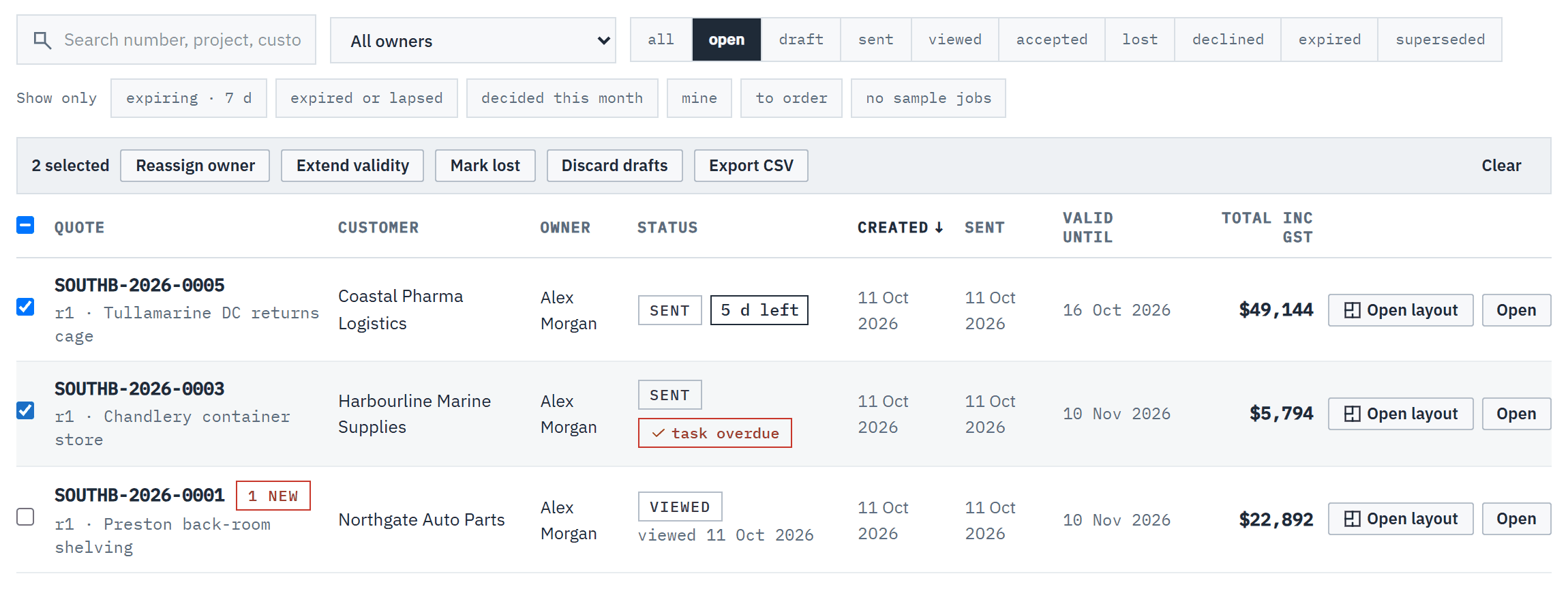
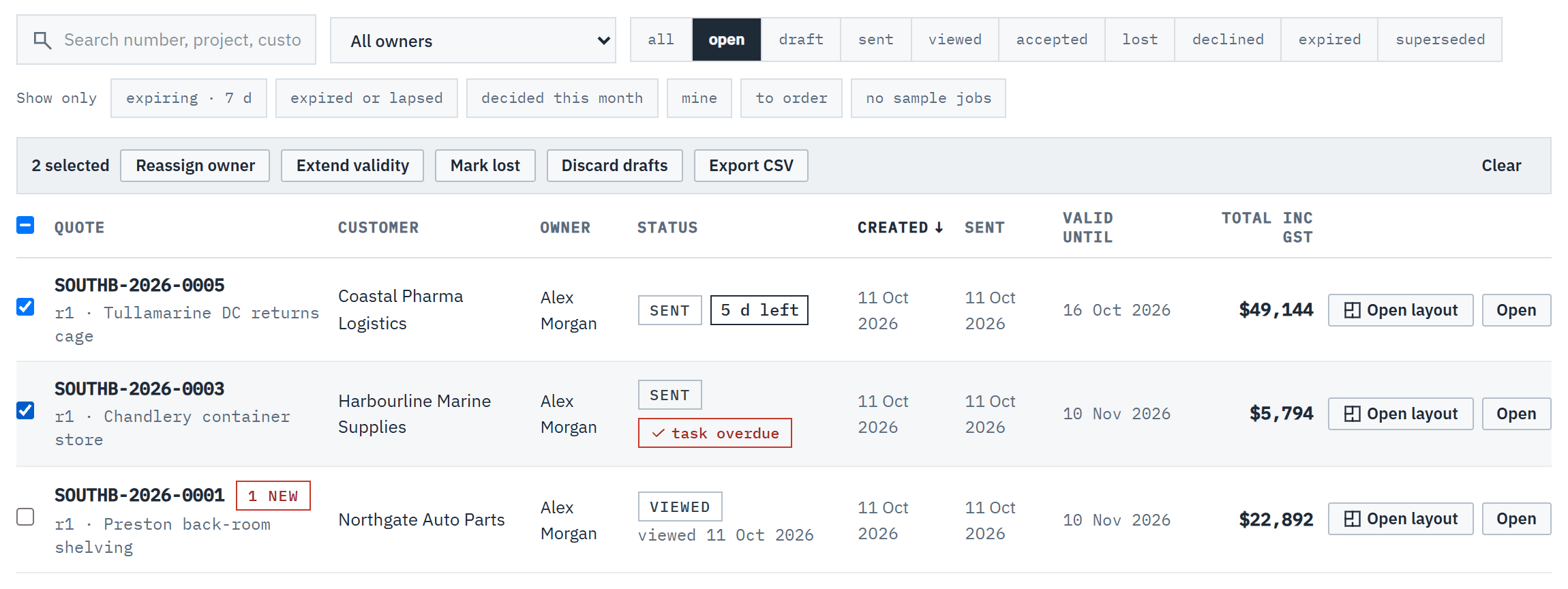
Filter by status, owner or what needs attention; each row says why it might need you. Step 2: Read the row highlights
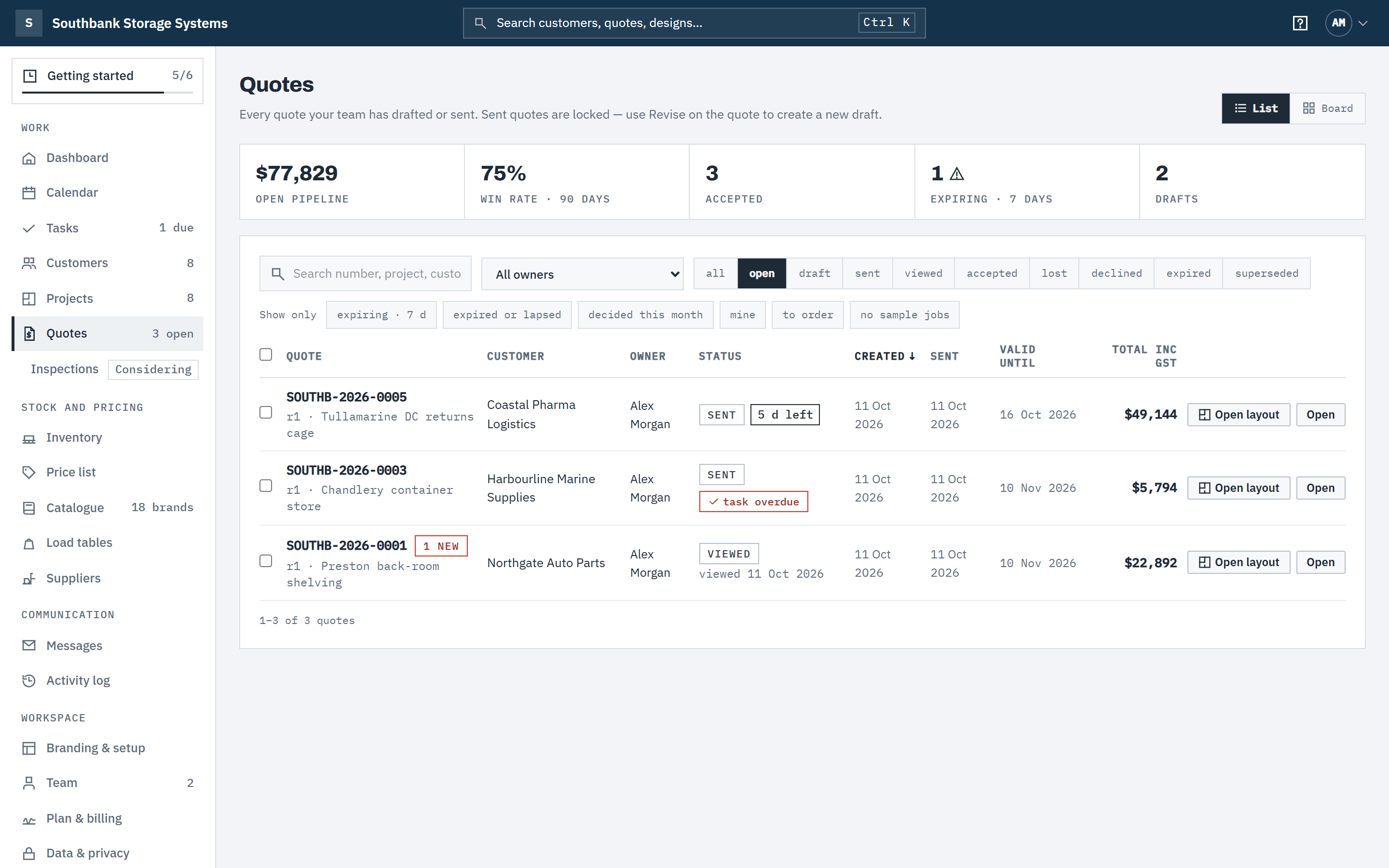
Each row says what needs attention without opening it: unread customer messages (1 new), days left before it expires (5 d left or expires today), lapsed once past its valid-until date, to order, and the next open follow-up, such as task overdue. Under the status you'll see when the customer viewed it, or why it was lost. The Owner column reads Former member when the owner has left. Open layout goes straight to the project's designer and comes back to the same list.
Generate, check and send
Step 3: Generate from the project
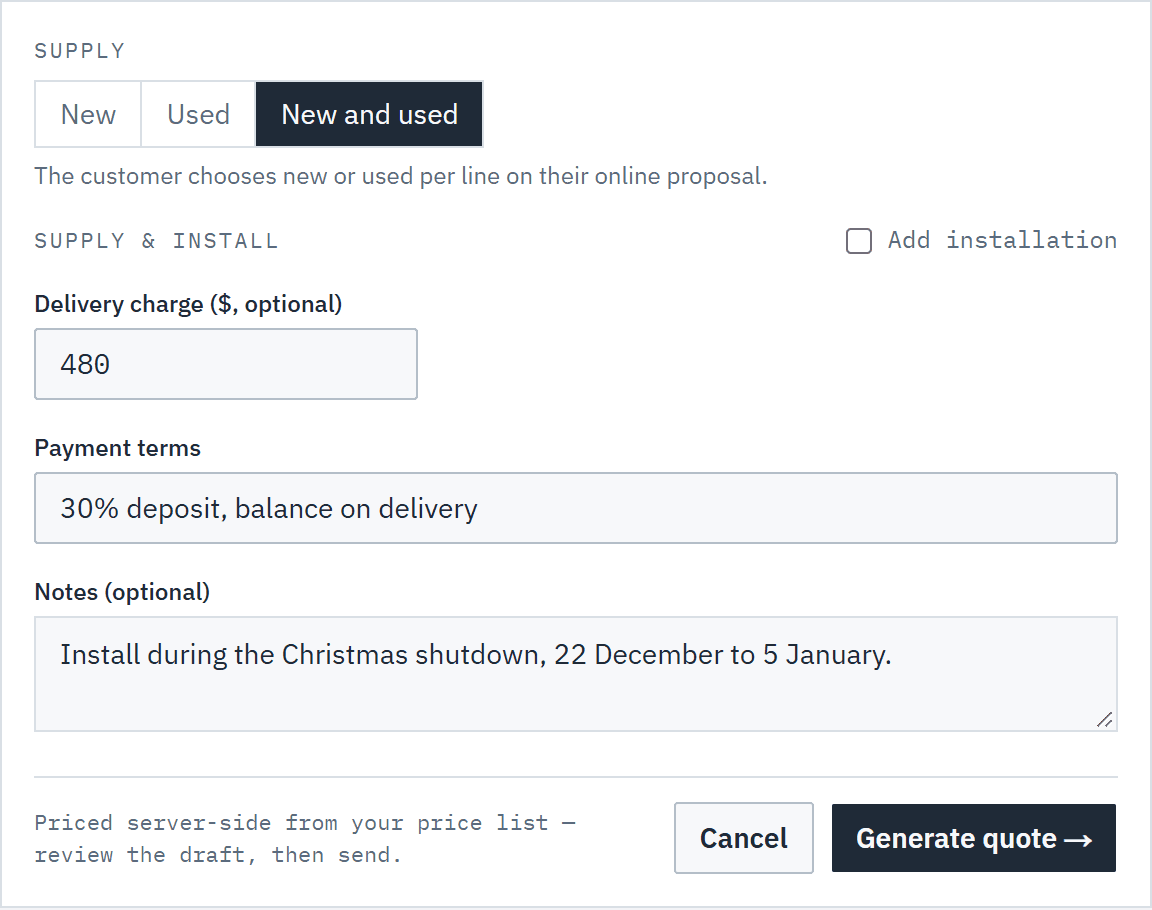
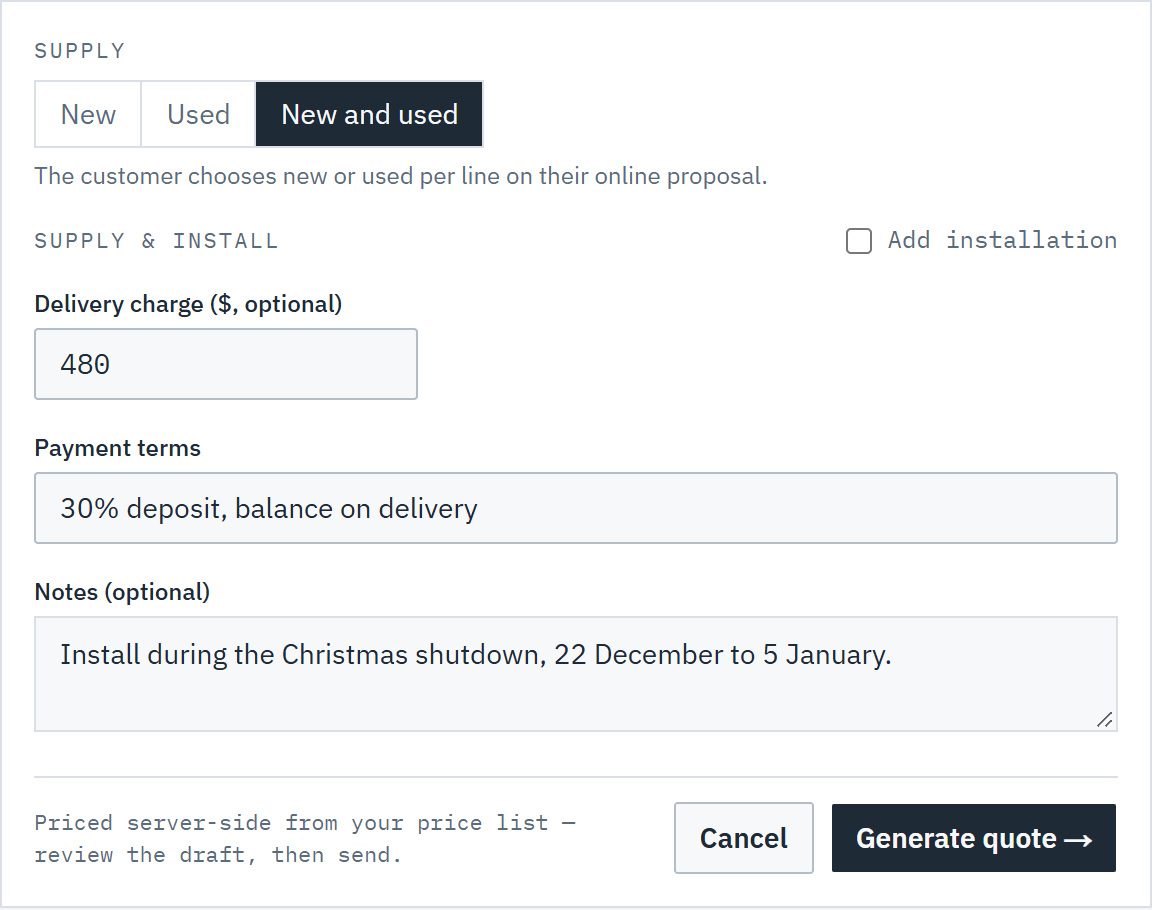
Open the project and choose Generate quote. If you offer used stock, choose the Supply: New, Used or New and used (see Quote new, used or both).
Tick Add installation for a per-bay or fixed install price, and add a Delivery charge, Payment terms and Notes. Defaults come from Branding & setup. Choose Generate quote: Baylogik captures the 3D views and prices the draft.
 (opens full size in a new tab)
Choose how to supply the job, add delivery or installation, then generate a priced draft. Step 4: Review the draft
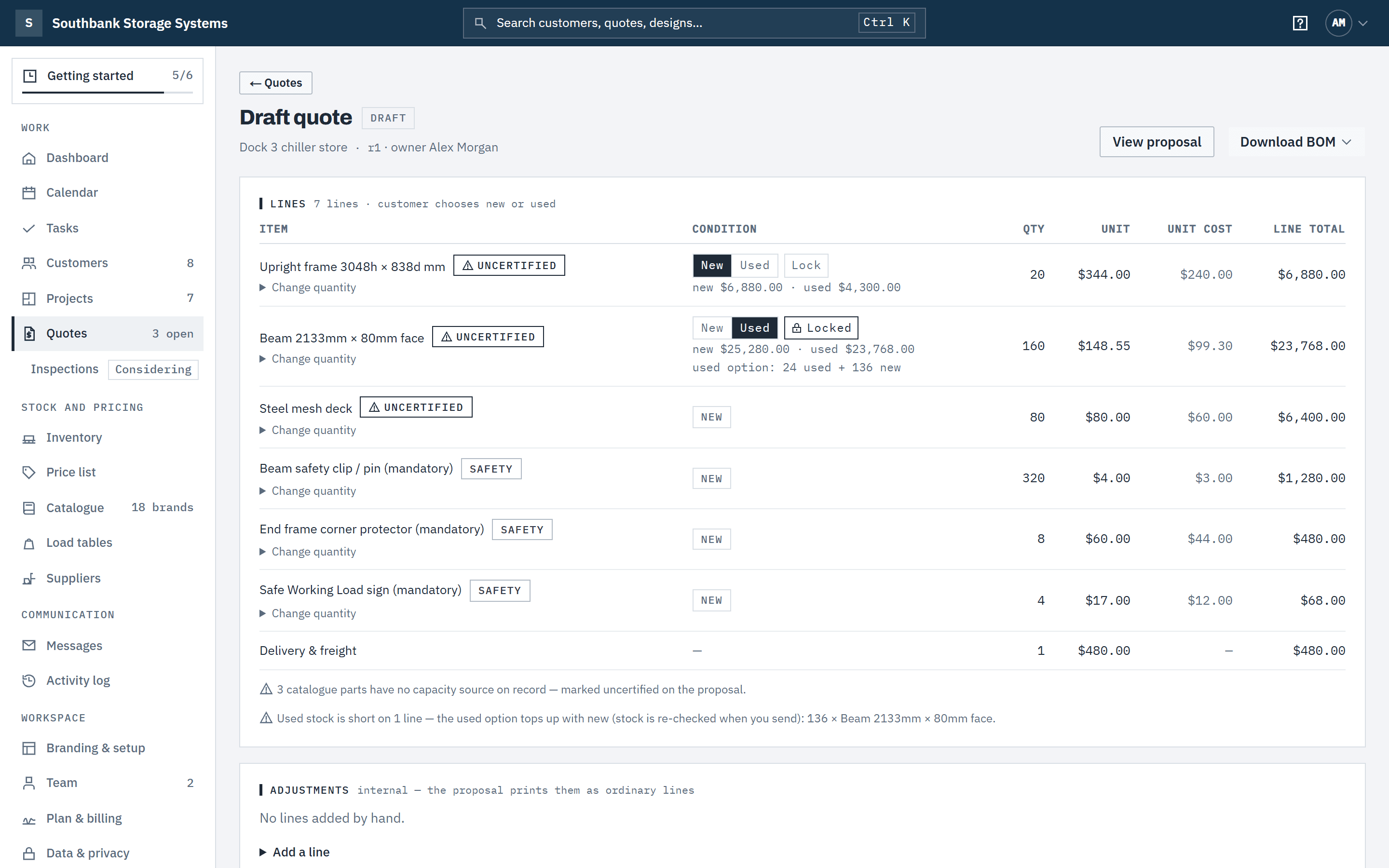
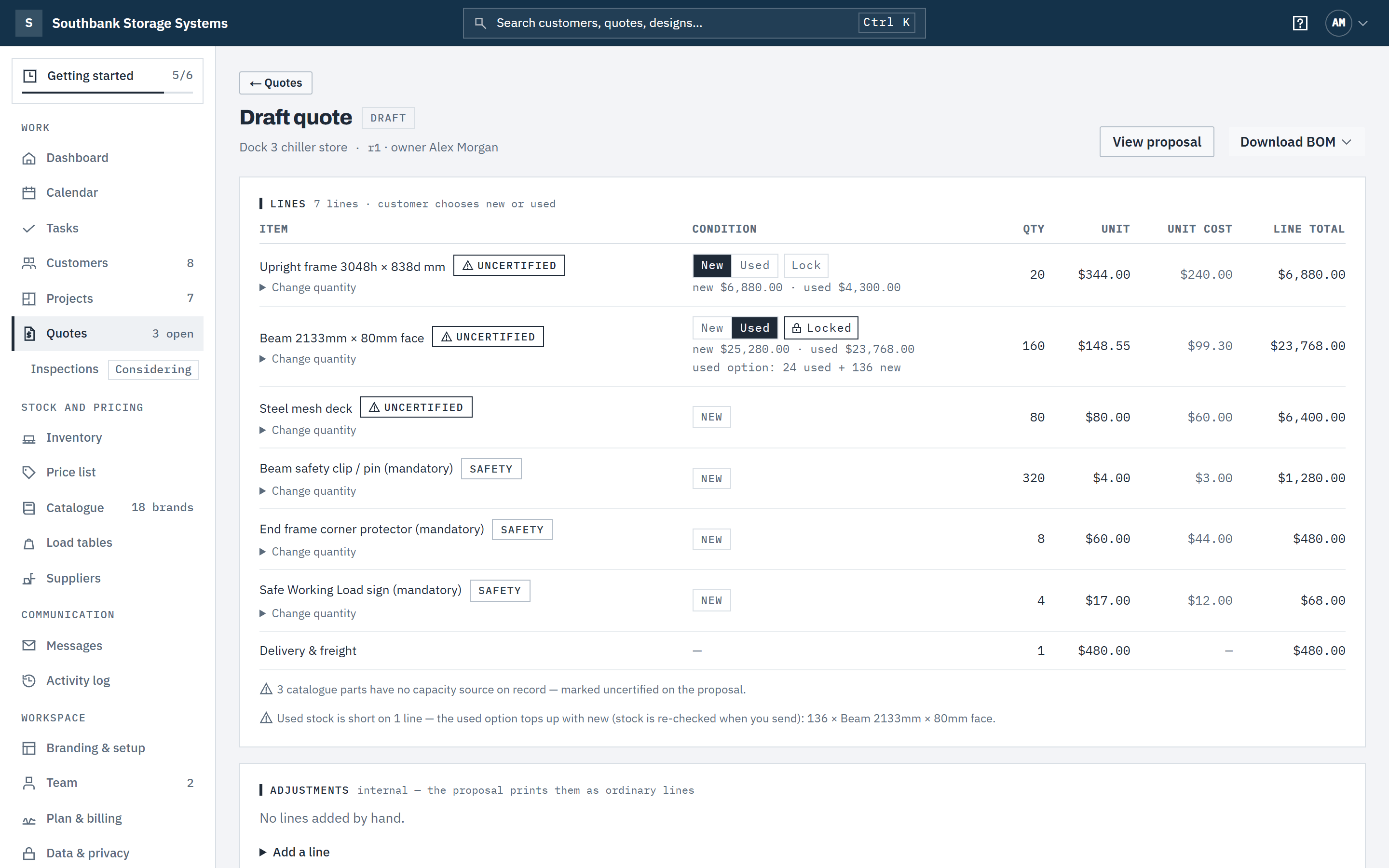
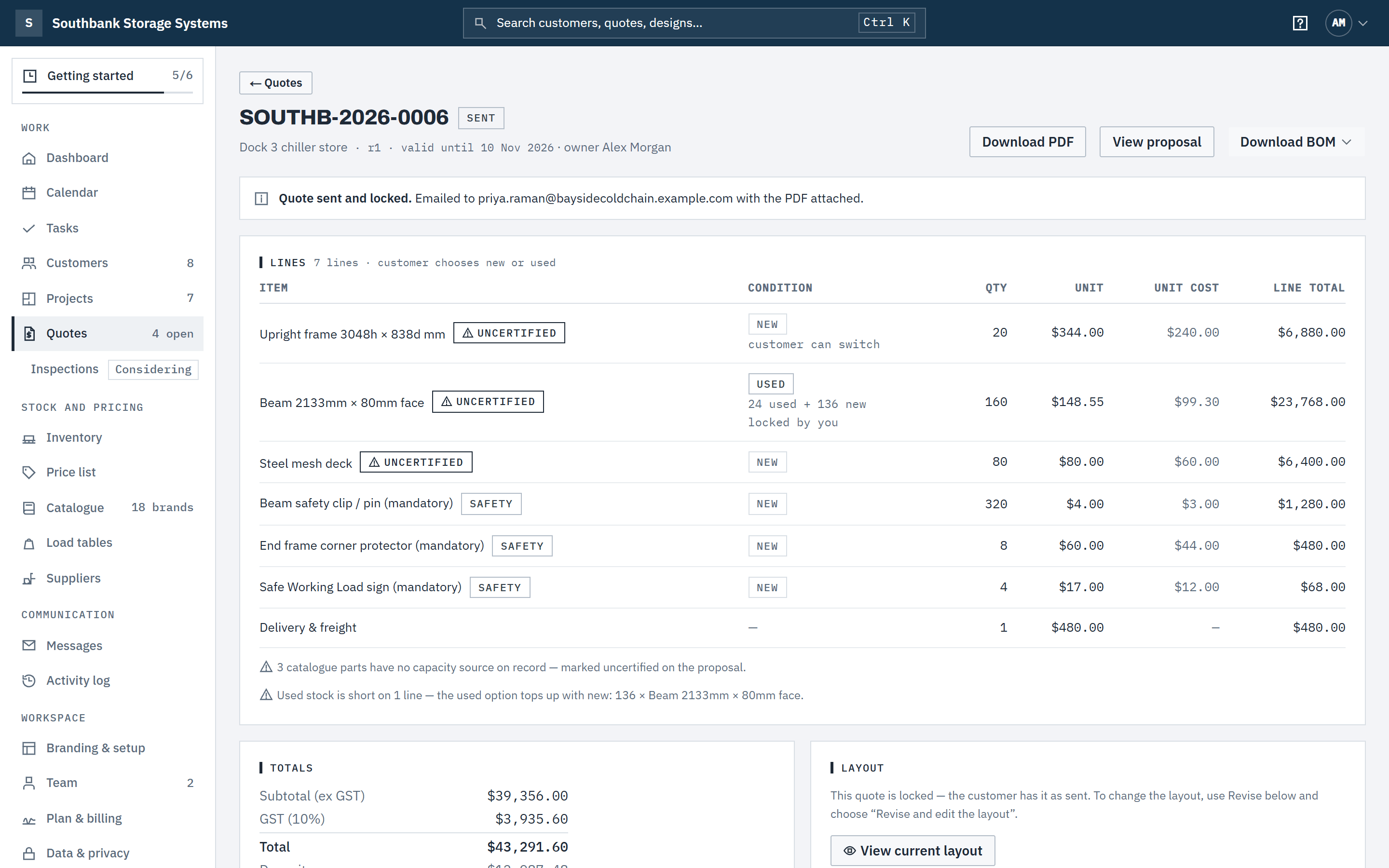
The Lines card lists every item with quantity, unit price and line total, plus unit cost if your role can see costs. Mandatory safety items such as beam clips are added automatically and marked safety. Parts without a capacity source are marked uncertified, and the proposal says so.
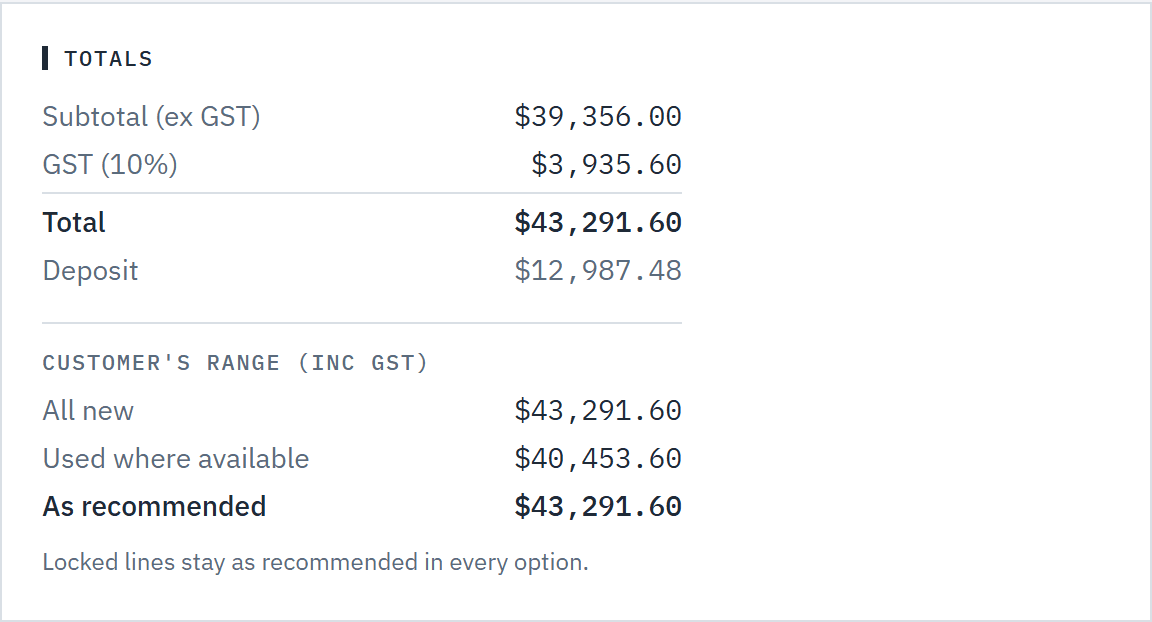
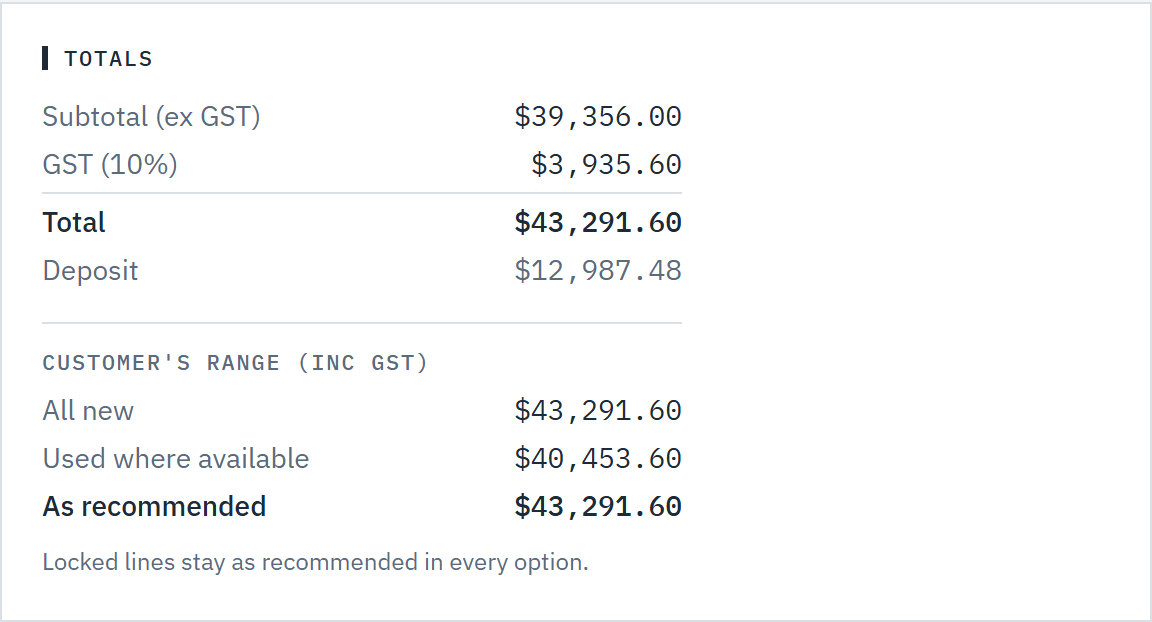
Totals shows Subtotal (ex GST), GST (10%), Total and Deposit — with your own tax and rate if your workspace isn't in Australia (see Tax and currency). Choose View proposal to see exactly what the customer will get. Nothing is numbered or emailed yet.
 (opens full size in a new tab)
Review the priced lines and totals before you send; nothing is numbered or emailed until then. Step 5: Add a line or change a quantity
On a draft, the Adjustments block holds what the layout doesn't count. Add a line adds a service or a part, optionally picked from your catalogue, with a quantity and a rate; the server prices it from your price list when the part has a sell price. Change quantity on a line sets a different quantity and asks for an internal reason.
Your team sees Manual line and Quantity changed (was 24); the customer sees ordinary lines. A manual line carries no capacity, so a manual part is asterisked as not certified on the proposal (a service isn't). A changed quantity keeps the line's rating — more or fewer of a rated part is still rated. A mandatory safety item can only go up. If a layout change makes a changed quantity stale, it's listed and the quote can't be sent until you choose Keep or Remove; it's never dropped silently. Once sent, adjustments are read-only; a revision copies them.
Safety items counted per beam or per frame, such as beam clips, follow the beams and frames actually quoted after any quantity change, but never fewer than the layout needs. Items you add to every quote keep the layout's count.
Step 6: Check the customer's range
On a new and used quote, Customer's range (inc GST) shows the totals the customer can reach: All new, Used where available and As recommended. Locked lines stay as recommended in every option.
 (opens full size in a new tab)
The customer's range shows the lowest and highest totals their choices can reach. Step 7: Check anything that has to be ordered in
If your workspace tracks new stock, a line that needs more than is available is marked to order, and New stock to order lists the quantity and lead time for each, for example order 6 · 15 business days. The customer is told only how long to allow. See New stock and lead times.
Step 8: Change the layout of a draft
In the Layout card, choose Edit layout. The designer opens on the project's layout; make the change, then choose Save and return to quote.
Back on the draft, the top of the page reads The layout changed since this draft was priced. Choose Regenerate to reprice the draft from the new layout; the 3D views on the proposal are captured again, so they show the new layout. Until you do, the draft keeps the prices and layout it was generated with. Discard draft (owners, admins and finance) deletes a draft you no longer need.
 (opens full size in a new tab)
Back from the designer, a draft offers to reprice from the new layout. Step 9: When prices change
Each line remembers the price-list row it was priced from. When your price list moves under a draft — you edited a price, imported a supplier file or applied a supplier's costs — the top of the draft reads, for example, 3 prices changed since this draft was priced, with the difference ex tax. Choose Get latest prices to reprice the draft from today's price list. Sending reprices it anyway, so the notice is your chance to check first.
A sent, viewed or expired quote shows Prices have changed since this was sent instead. The customer still sees the prices as sent; choose Revise to quote today's prices. Undoing an import puts the earlier prices back, and the notice follows the price list.
Step 10: Give a discount
The Discount card, above Send, takes a percentage and an optional end date. Saving reprices the draft. See Discounts and end dates.
Step 11: Send it
In the Send card, check the discount line (No discount. or what will be sent) and the email address shown, and choose Send quote.
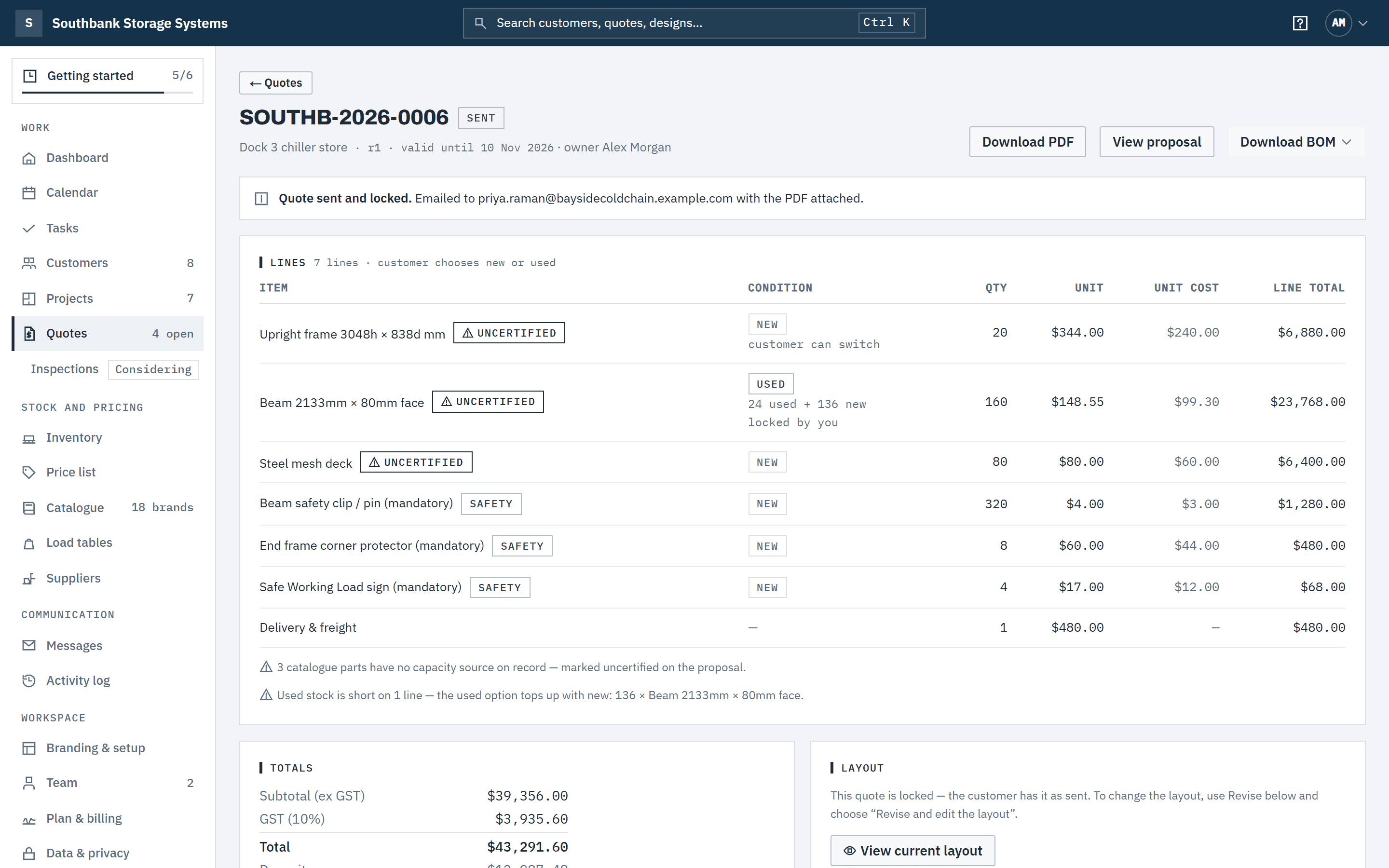
Sending reprices from today's price list and stock, re-checks new stock, assigns the quote number (for example SOUTHB-2026-0006), sets the valid-until date, locks the quote, and emails the primary contact a link to their online proposal with the PDF attached. The quote moves to Sent on your pipeline.
A line with no price in your price list and no manual rate reads Not priced, and the quote can't be sent until every line has a price (a line you've priced at $0 on purpose sends as usual). Sample quotes can't be sent at all — duplicate the job as a real one first.
 (opens full size in a new tab)
Sending numbers the quote, emails the customer a link to their online proposal and a PDF.

After it's sent
Step 12: Revise to change a sent quote
A sent quote is locked: the customer has it as sent. To change prices, supply or the layout, choose Revise in the Change this quote card (Expired on an expired quote) and pick what the revision is for:
- Revise prices or supply only: the new draft opens, repriced from today's price list.
- Revise and edit the layout: the 3D views are captured again first, then the designer opens. Save and return to the draft, then regenerate it.
Choose Create revision. The quote is marked superseded and its link tells the customer a newer version is coming. The revision gets a new number when you send it.
Step 13: Extend the validity
Owners, admins and finance can pick a later date under Extend validity to and choose Extend validity. Tick Email … the updated quote to send the customer the new date. Validity only moves later, up to a year from today; to shorten it, revise the quote. Extending an expired quote reopens it, and the PDF is made again with the new date.
Step 14: See and restore earlier versions
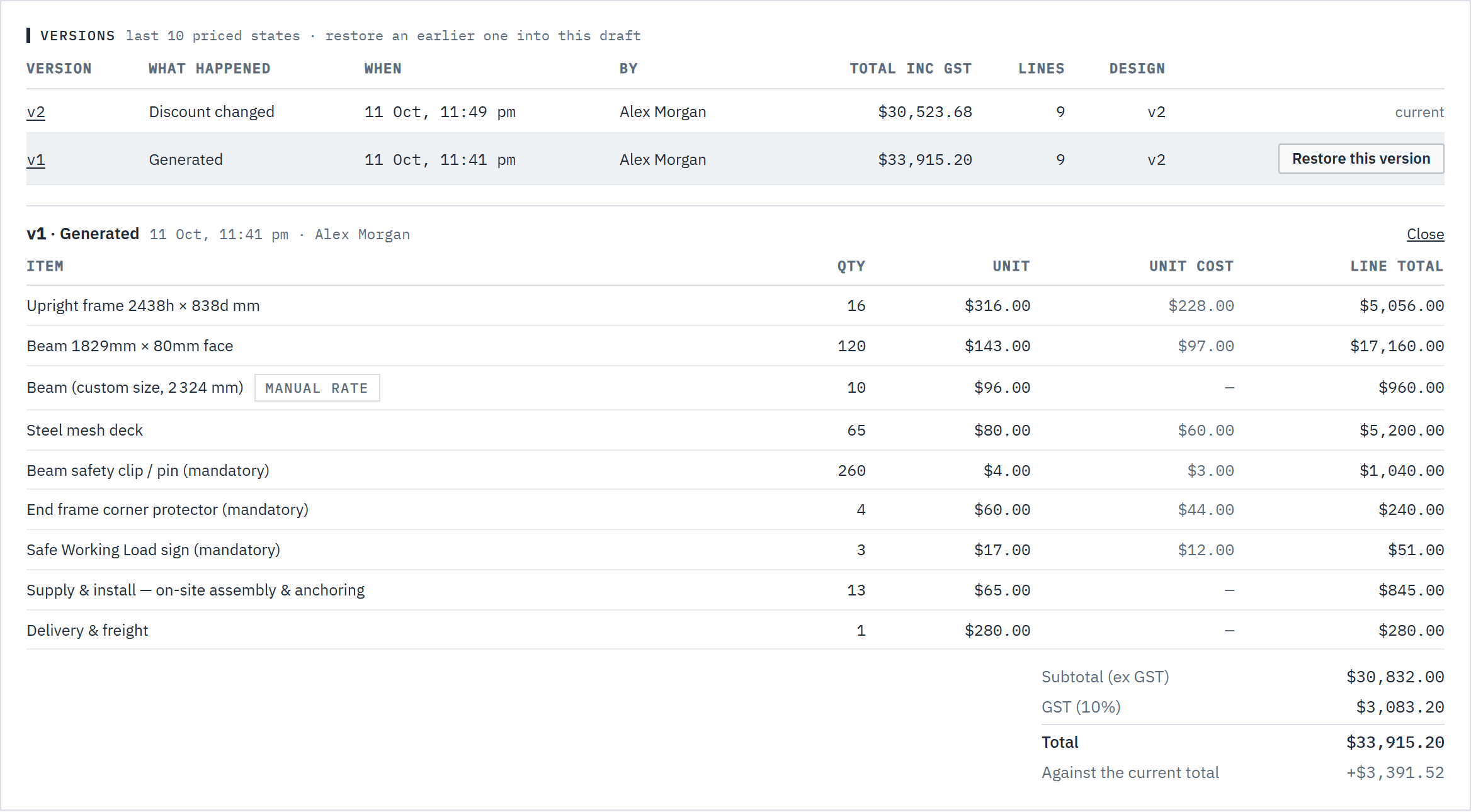
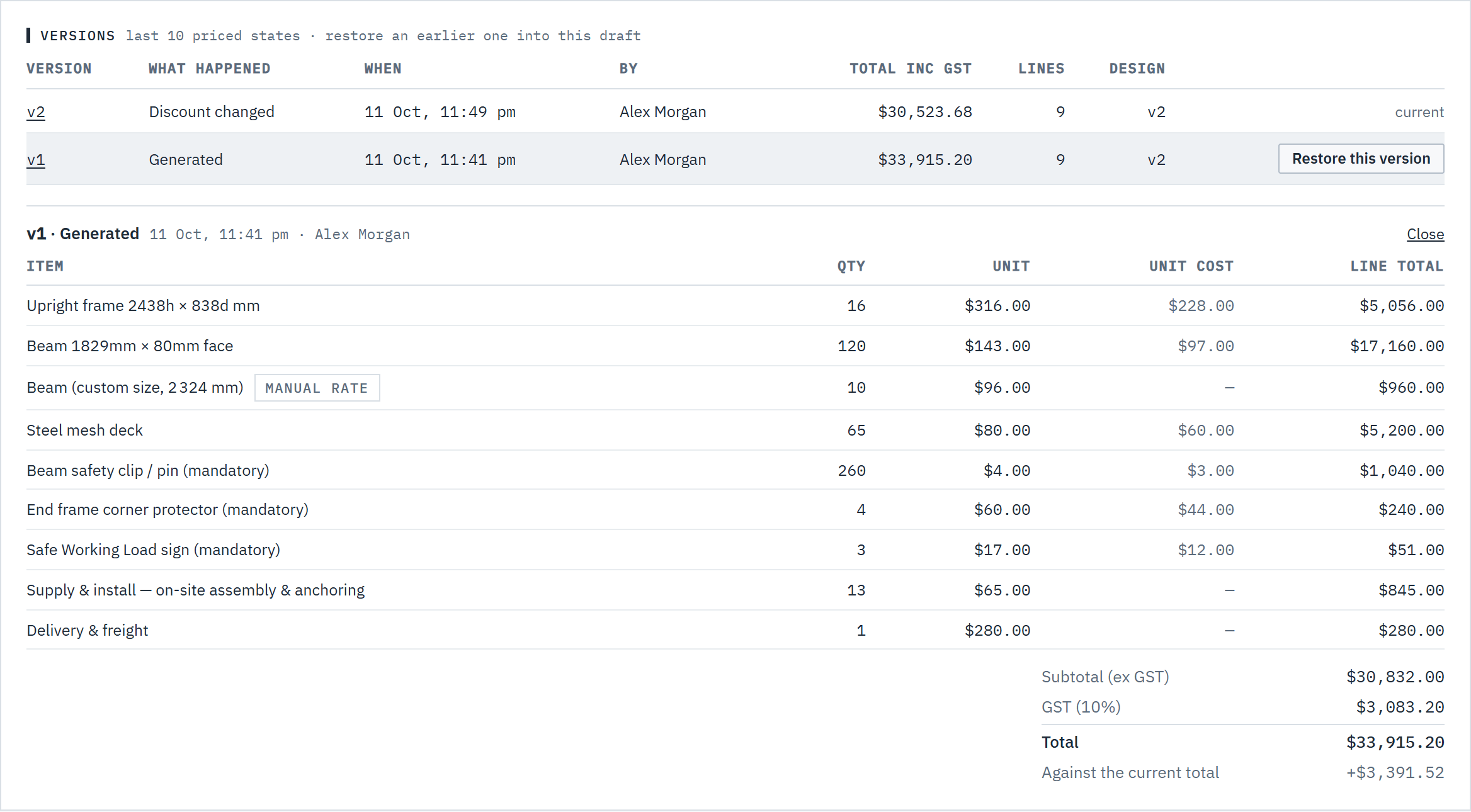
Versions keeps the last 10 priced states of the quote, newest first: what happened (Generated, Regenerated from the design, Repriced, Discount changed, Restored from an earlier version, Revised from an earlier quote or Sent), when and by whom, the total inc GST, the number of lines and the design version. Choose a version number to read its lines and totals below, with the difference Against the current total.
On a draft, choose Restore this version beside an earlier one, then Restore v1 to confirm. The draft gets that version's lines and totals exactly as they were, including its discount and the layout it was priced from. A note says when those prices date from; choose Reprice to apply today's price list.
 (opens full size in a new tab)
Versions keeps the last 10 priced states; on a draft you can restore an earlier one. Step 15: Change who owns a quote
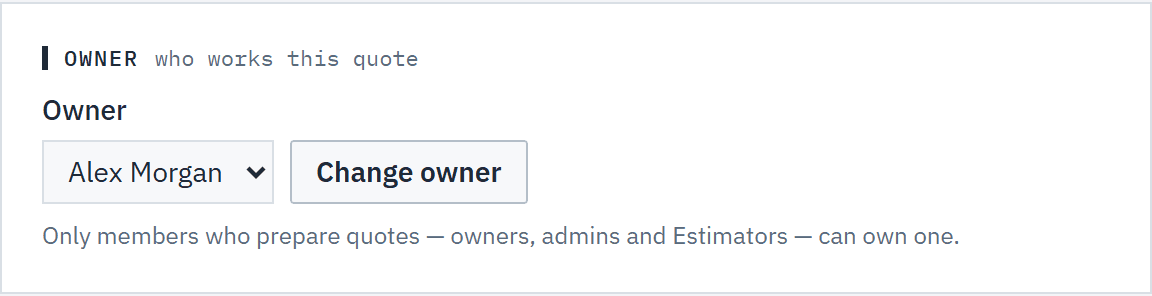
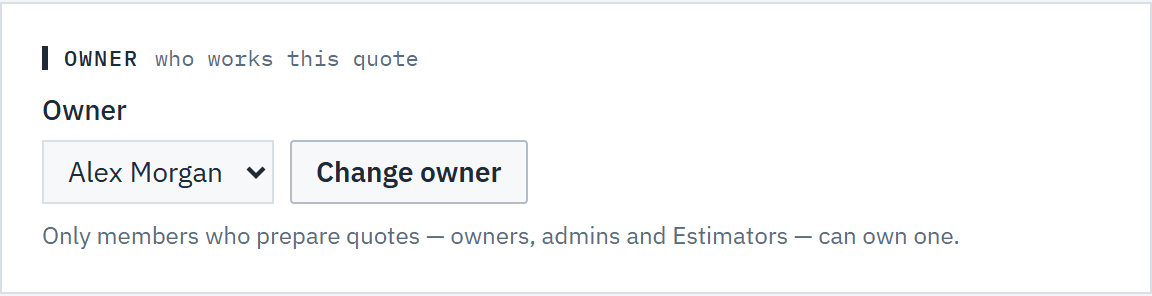
The Owner card shows who works the quote. Owners and admins pick someone from Owner and choose Change owner. Only members who prepare quotes can own one: owners, admins and estimators. A quote whose owner has left reads Former member until you hand it on.
 (opens full size in a new tab)
Owners and admins hand a quote to whoever will work it. Step 16: Schedule delivery and installation
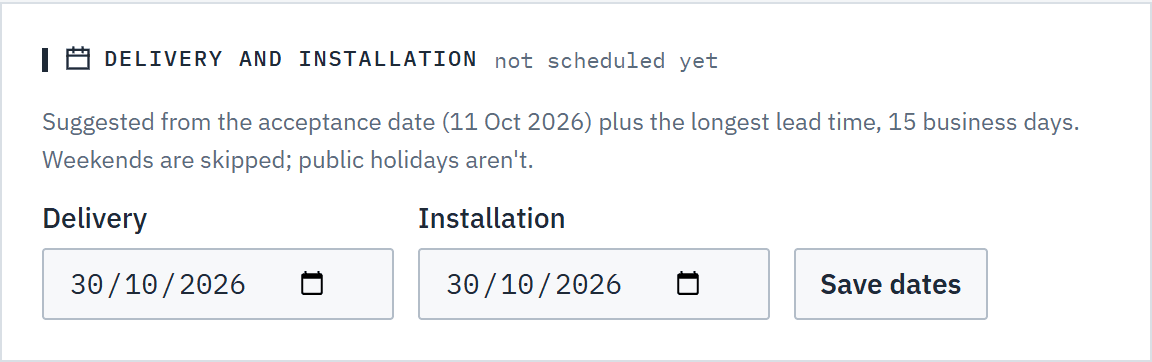
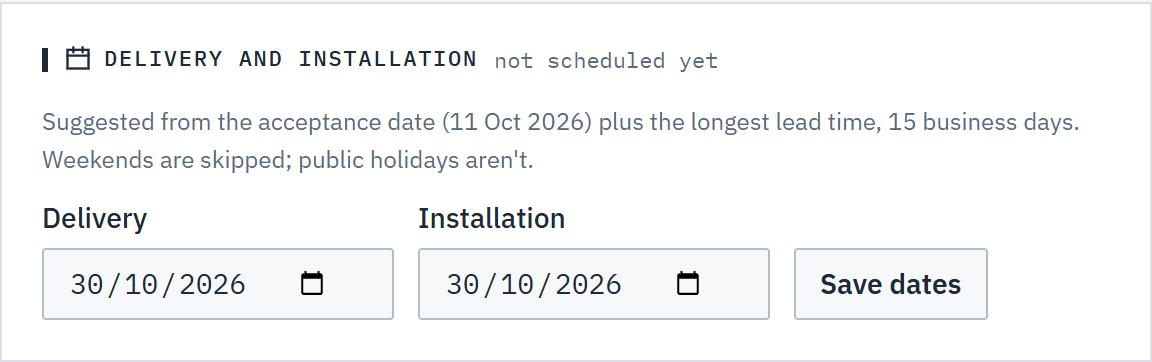
Once a quote is accepted, Delivery and installation suggests a date: the acceptance date plus the longest lead time on the quote, in business days. Weekends are skipped; public holidays aren't, so check the date around them.
Change either date, or clear one, and choose Save dates. The dates show in the quote's header, on the calendar and on the dashboard. Owners, admins, finance and warehouse can set them; everyone else sees them read-only. See The calendar.
 (opens full size in a new tab)
Once a quote is accepted, Baylogik suggests delivery and installation dates from the lead time. Step 17: Download the bill of materials
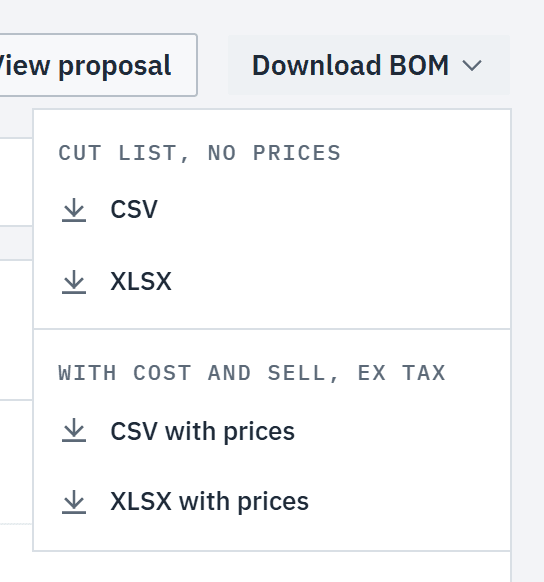
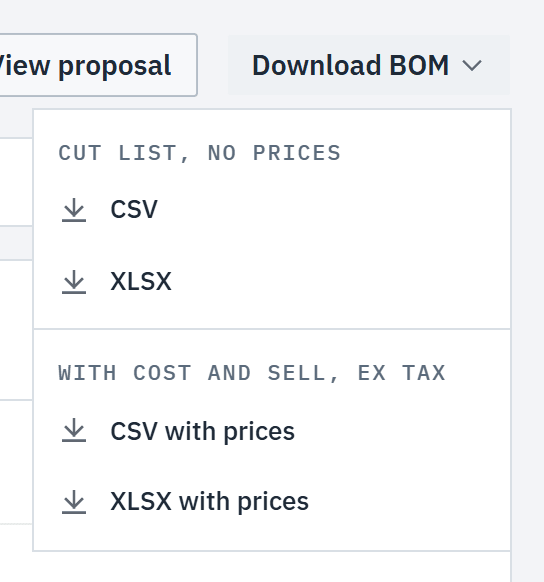
Download BOM at the top of any quote gives the parts list as CSV or XLSX: part number, brand, description, quantity, unit and supply (new or used), under a header with the quote number, customer, site, project and date. A draft lists its current lines; a sent quote lists the lines as sent. Once the customer accepts, supply shows what they chose, and where stock was taken from a location, a Stock location column says which.
The plain download is a cut list you can send to a supplier: it has no prices, and descriptions carry dimensions only, never load ratings. Owners, admins and finance also get CSV with prices and XLSX with prices, which add unit and line cost and sell, excluding tax. Sell is the line price before any quote discount: with a discount, the columns say so and the header gives the discount and the sell total after it. Every download is recorded in the activity log.
 (opens full size in a new tab)
Download BOM gives a supplier cut list with no prices, or the priced version for owners, admins and finance.
Work on many quotes at once
Owners, admins and finance get a checkbox on each row of the quotes list. Estimators work quotes one at a time. The bar offers only the actions your role can take.
Step 18: Select the quotes
Tick the quotes, or the box in the heading for every quote on the page. With the whole page ticked and more quotes matching your filters, Select all 42 matching quotes takes them all, up to 500 at a time. The bar shows how many are selected; Clear starts again.
 (opens full size in a new tab)
Tick quotes to act on them together; the bar offers only what your role can do. Step 19: Reassign the owner
Owners and admins: choose Reassign owner, pick the new owner, and choose Reassign. As on a single quote, only owners, admins and estimators are listed.
Step 20: Extend validity or mark lost
Extend validity: pick the Valid until date and choose Extend. Mark lost: give the reason (it's required) and choose Mark lost. Both ask once more, for example Mark 3 quotes lost? This can't be undone., before Confirm mark 3 lost or Confirm extend 3.
Only sent, viewed and expired quotes change. A bulk extension doesn't email customers or make new PDFs; until a quote's PDF is made again, its download is hidden and Resend quote makes a new one.
Step 21: Discard drafts
Owners, admins and finance: choose Discard drafts. The bar asks once more and counts only the drafts it will discard, for example Discard 3 drafts? The other 2 selected quotes are skipped., before Discard 3 drafts. With all matching selected it counts the drafts across every page first. Discarded drafts are deleted for good, with their notes, as with Discard draft on a single quote.
Only drafts go. Sent, accepted, lost and other quotes that aren't drafts, and drafts on a sample job, are skipped and listed, for example 3 drafts discarded; 2 skipped — sent and accepted quotes can't be discarded. When a discarded draft was a revision, the quote it revised is live again, as it was before the revision.
Step 22: Export to a spreadsheet
Export CSV downloads the selected quotes: number, revision, status, project, customer, owner, dates, total and accepted total inc GST, and the lost reason. It carries sell values only, never costs.
Step 23: Read the result
Above the list, a line such as 2 of 3 quotes extended · 1 skipped lists each skipped quote and why: Not sent yet, Already accepted, Already lost, Superseded by a revision, Already owned by them, Already valid until that date or, for Discard drafts, Sent — only drafts can be discarded. Every change is recorded in the activity log, as if made one at a time.
Good to know
- When a quote has notes or follow-ups waiting, a line at the top says so, for example 2 notes · 1 follow-up overdue — see below. It counts the quote's own follow-ups, the ones listed in its notes card. See Tasks and follow-ups.
- If the PDF couldn't be made when the quote was sent, owners, admins and finance see PDF couldn't be attached: and the reason. The customer got the link to their online proposal without the PDF. Resend quote tries the PDF again.
- Download PDF is offered, on the quote and the customer's proposal, only while the PDF matches the proposal. After a discount ends, or its end date or the valid-until date changes without a new PDF, the button is hidden; Resend quote makes a new one.
- Resend quote emails the same quote again — same number, same prices — to the customer or another address, up to 5 times an hour.
- Quotes are valid for the days set in Branding & setup (default 30). The owner gets a reminder 3 days before expiry.
- Right after you mark a quote accepted or lost, its page says so for two minutes — Quote marked accepted. or Quote marked lost. — with anything to act on, such as lines short of used stock or new stock to order.
- If stock couldn't be drawn down when a quote was accepted, owners, admins and warehouse members see Stock wasn't drawn down when this quote was accepted on the quote. It's retried automatically overnight; until then, stock on hand still counts the quote's items. See Used pricing and stock.
- Restoring is for drafts only, and never the newest version, which is the draft as it stands. A version priced from a layout that's no longer kept reads layout gone: regenerate instead. Restoring needs a role that prepares quotes.
- Estimators and finance can discount up to the workspace cap; more needs an owner or admin. Tax is worked out on the subtotal after discount. See Discounts and end dates and Tax and currency.
- Owners, admins and finance can Revoke link to stop the customer's link working, or Regenerate link to issue a new one.
Related articles
- Discounts and end datesGive a quote a discount, set the day it ends, and what happens after that.
- Quote new, used or bothLet the customer choose new or used line by line.
- ProjectsFind a job, see its layout and quotes, and open it in the designer.
- What your customer seesThe online proposal, chat, and accepting with a confirmation code.
- Pipeline and win rateTrack every quote from draft to won or lost.