
Import a supplier price file
Update prices and supplier costs from a supplier's CSV or Excel file, with a preview and undo.
When a supplier sends a new price file, you don't retype it. Choose the supplier, drop the file in, and Baylogik matches each row to your catalogue, shows every change against your current prices and margins, and applies only what you tick. The columns you map are remembered for that supplier, so next month's file maps itself.
Price rises often come with notice. Date the import for the first of next month and the new prices take over on that day, while quotes until then use the current ones.
Step 1: Choose the supplier and upload the file
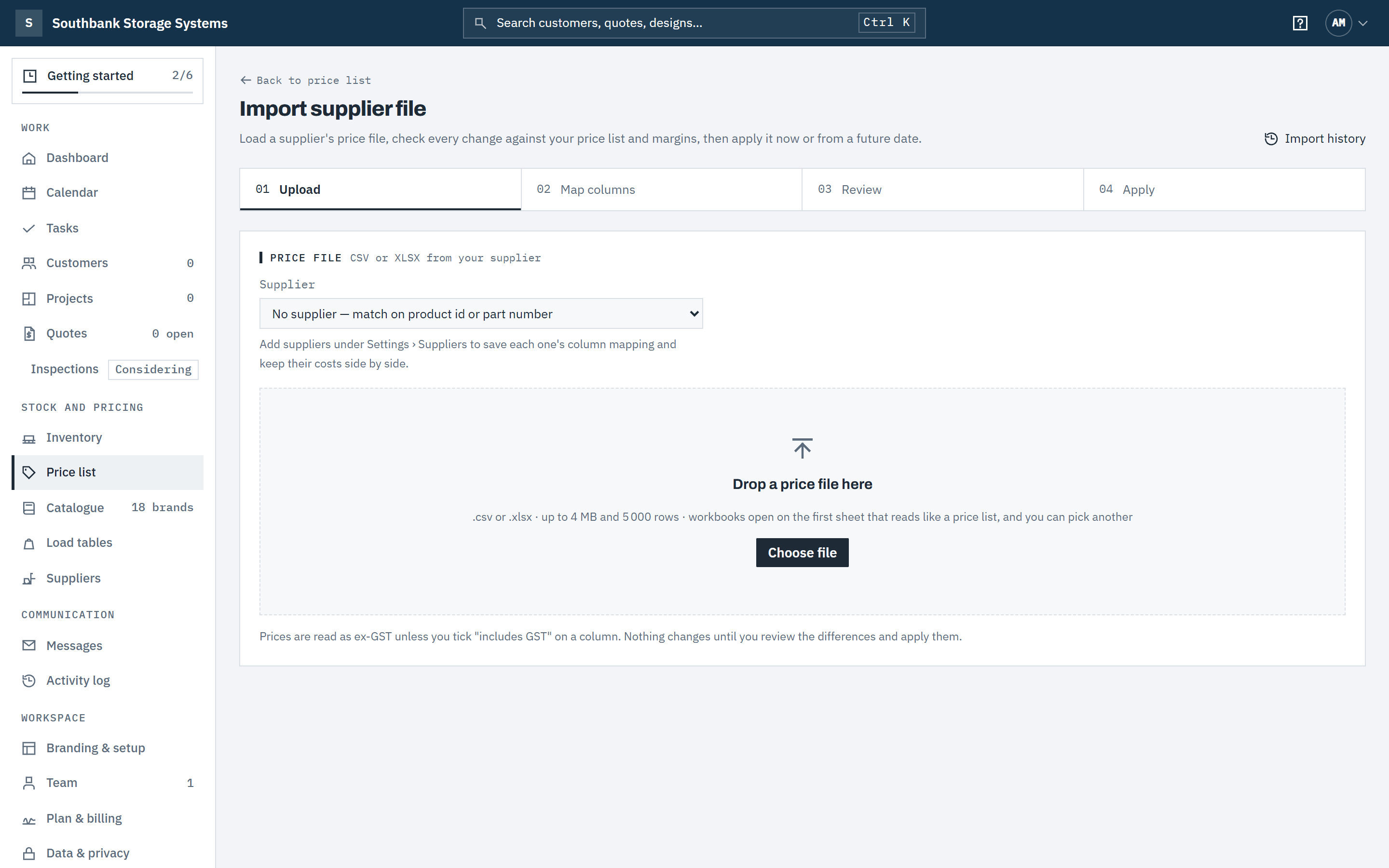
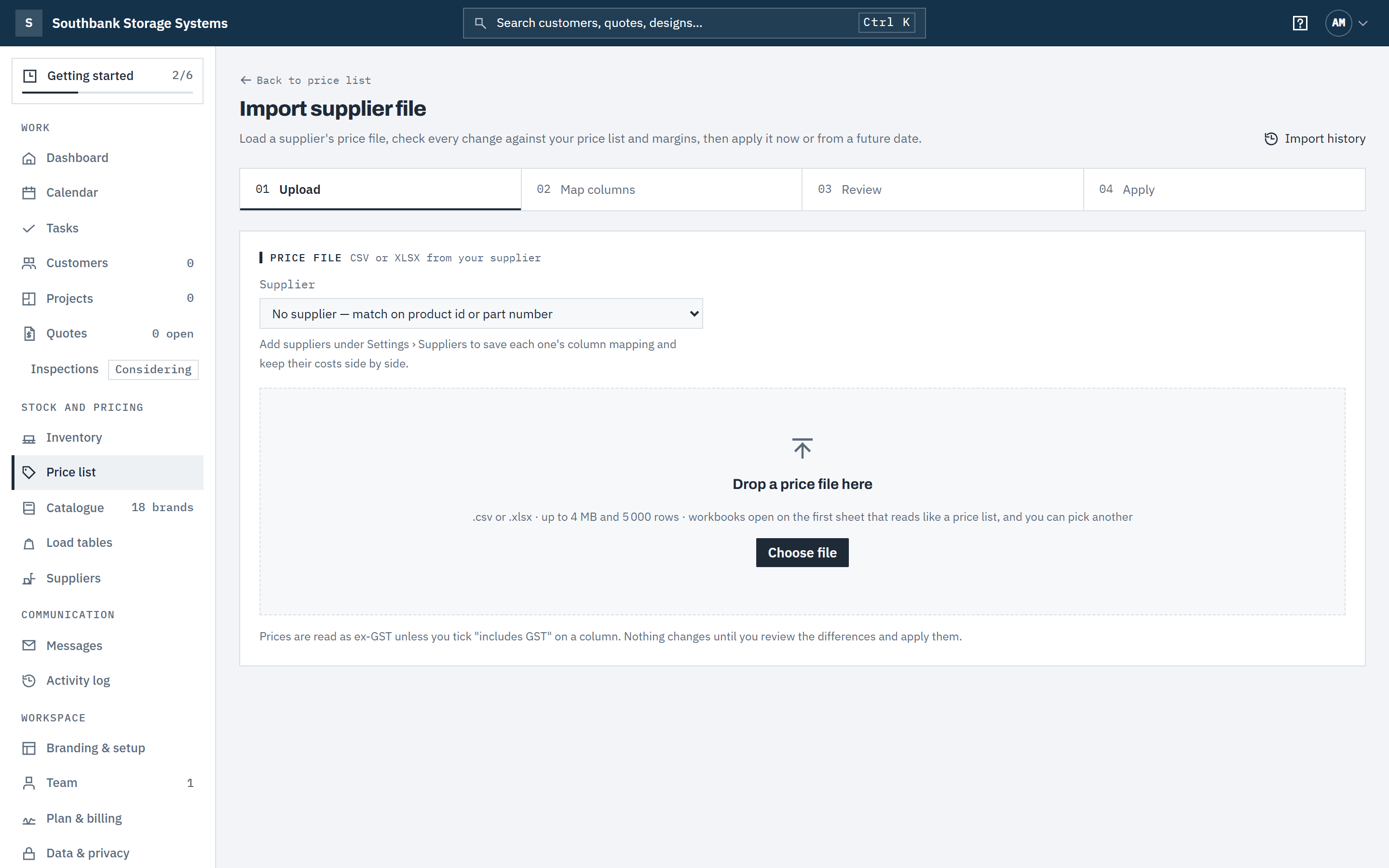
Open Price list and choose Import supplier file (or Import a supplier price file in the Price your racking panel, shown while frames or beams still have no price). Pick the Supplier the file came from, then drop the file on Drop a price file here or use Choose file. CSV and Excel .xlsx files up to 4 MB and 5 000 rows work. For a workbook, Baylogik opens the first sheet that looks like a price list.
No supplier set up yet? Choose No supplier: rows then match your product ids and part numbers and every match updates the price list, as before. Add suppliers under Suppliers to get saved mappings and supplier costs.
 (opens full size in a new tab)
Start by uploading the price file exactly as your distributor sent it. Step 2: Map the columns
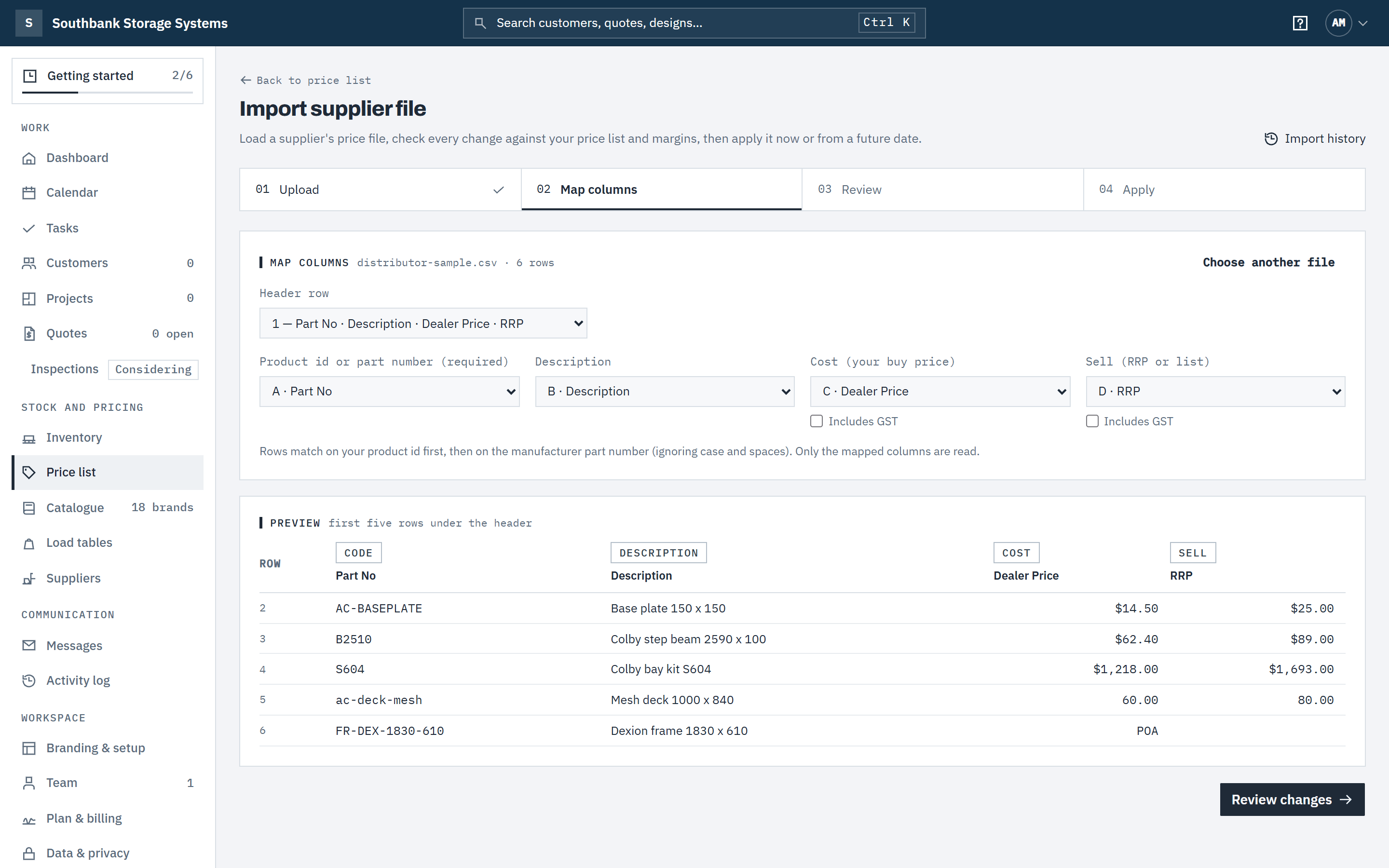
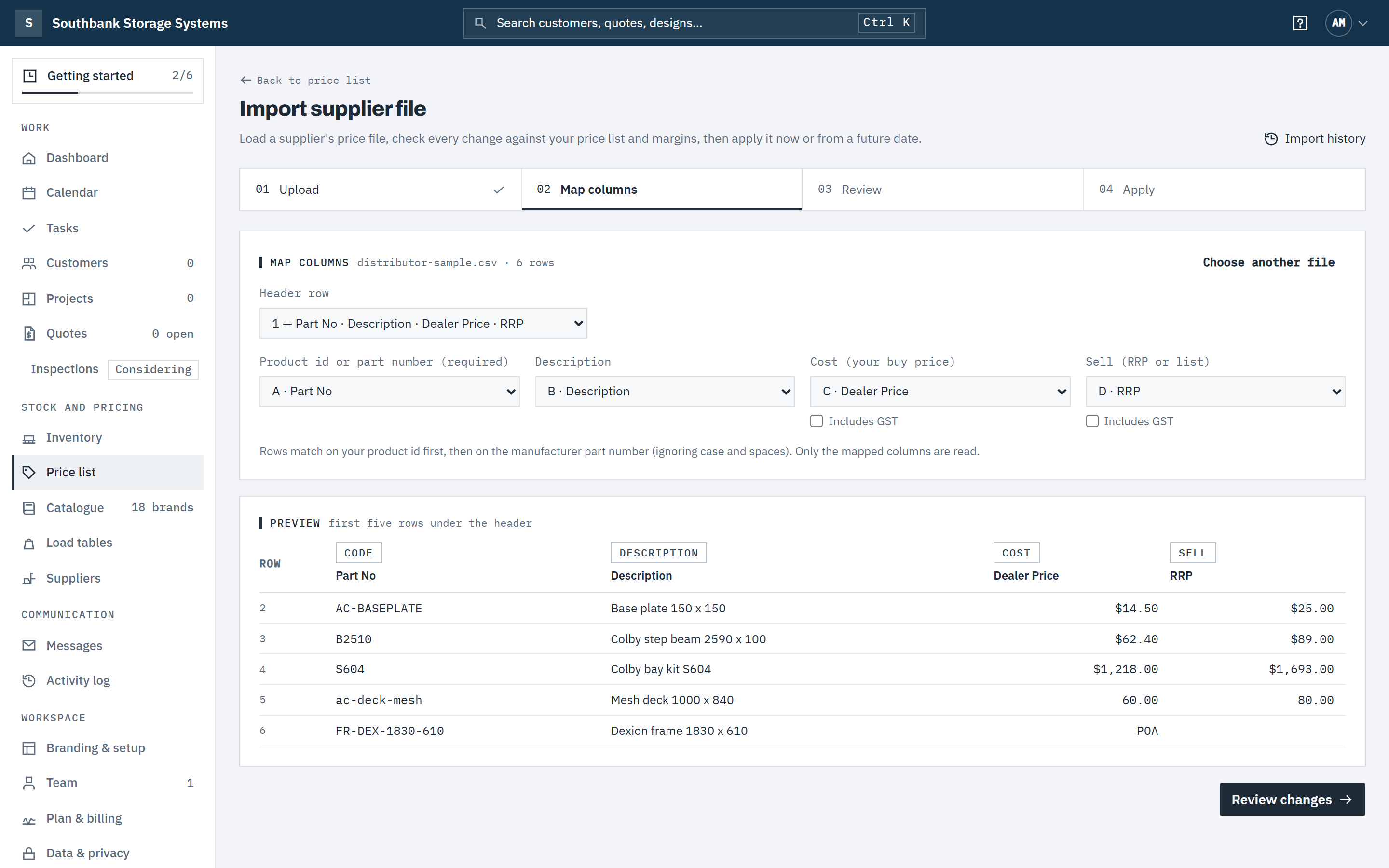
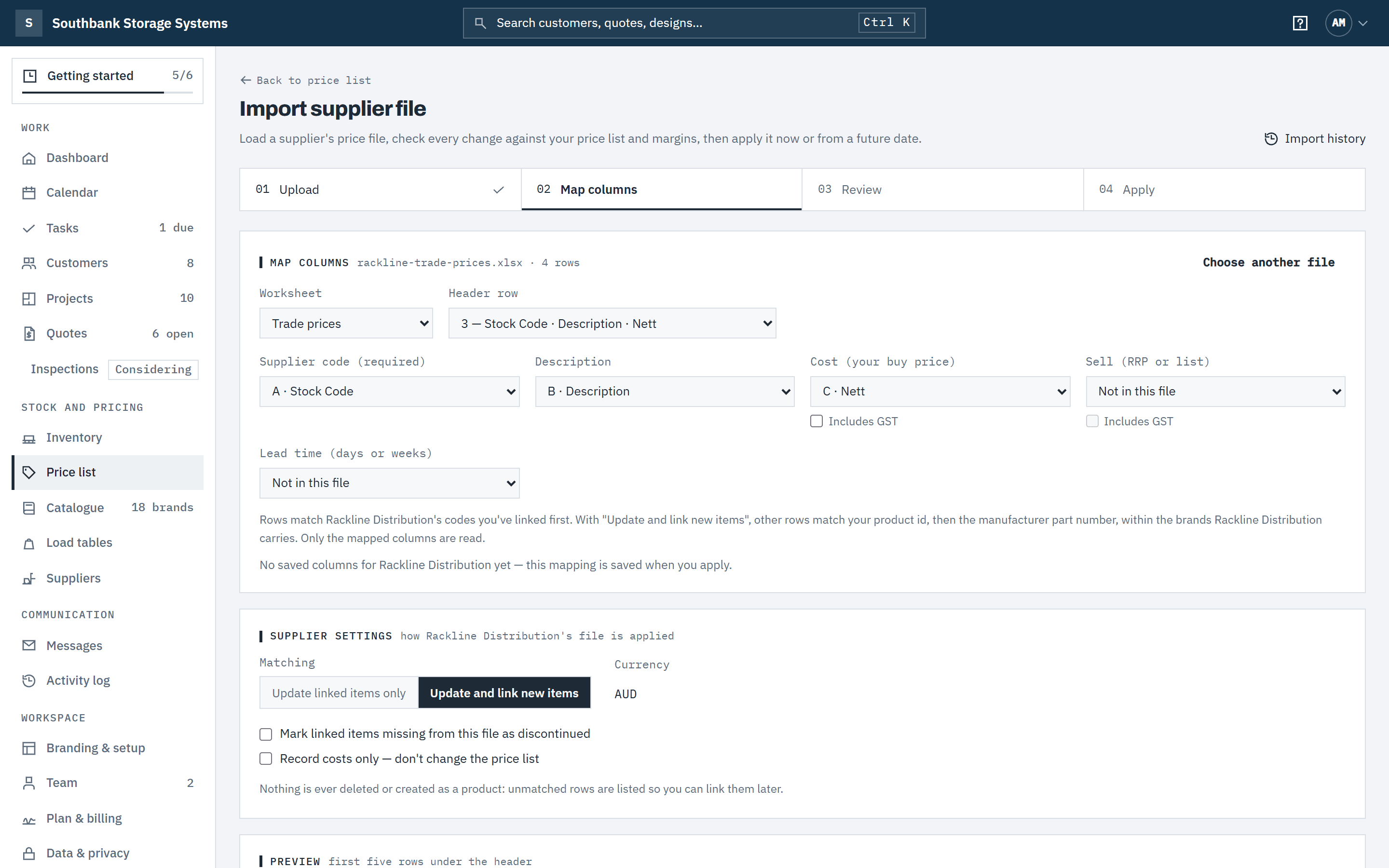
Check the Header row, then match the file's columns to the supplier's code (required), Description, Cost (your buy price), Sell (RRP or list) and, if the file has one, Lead time. Common headings such as Part No, Item Code, SKU, Dealer Price, Trade, Nett, RRP and List are recognised for you, and a heading split over two rows (for example "Part" above "No.") is read as one.
For a supplier you've imported from before, the columns are filled from the mapping you saved — by heading, so a file with its columns in a different order still maps. If a heading you saved is gone, Baylogik says which and leaves that column for you to choose; it never guesses.
If a price column includes GST, tick Includes GST under it; those prices are divided by 1.1 (or your country's rate). If your workspace isn't registered for the tax, inc-tax amounts are kept as they are: that amount is your real cost.
 (opens full size in a new tab)
Baylogik recognises common headings; check the mapping against the preview before you continue. Step 3: Set how the supplier's file is applied
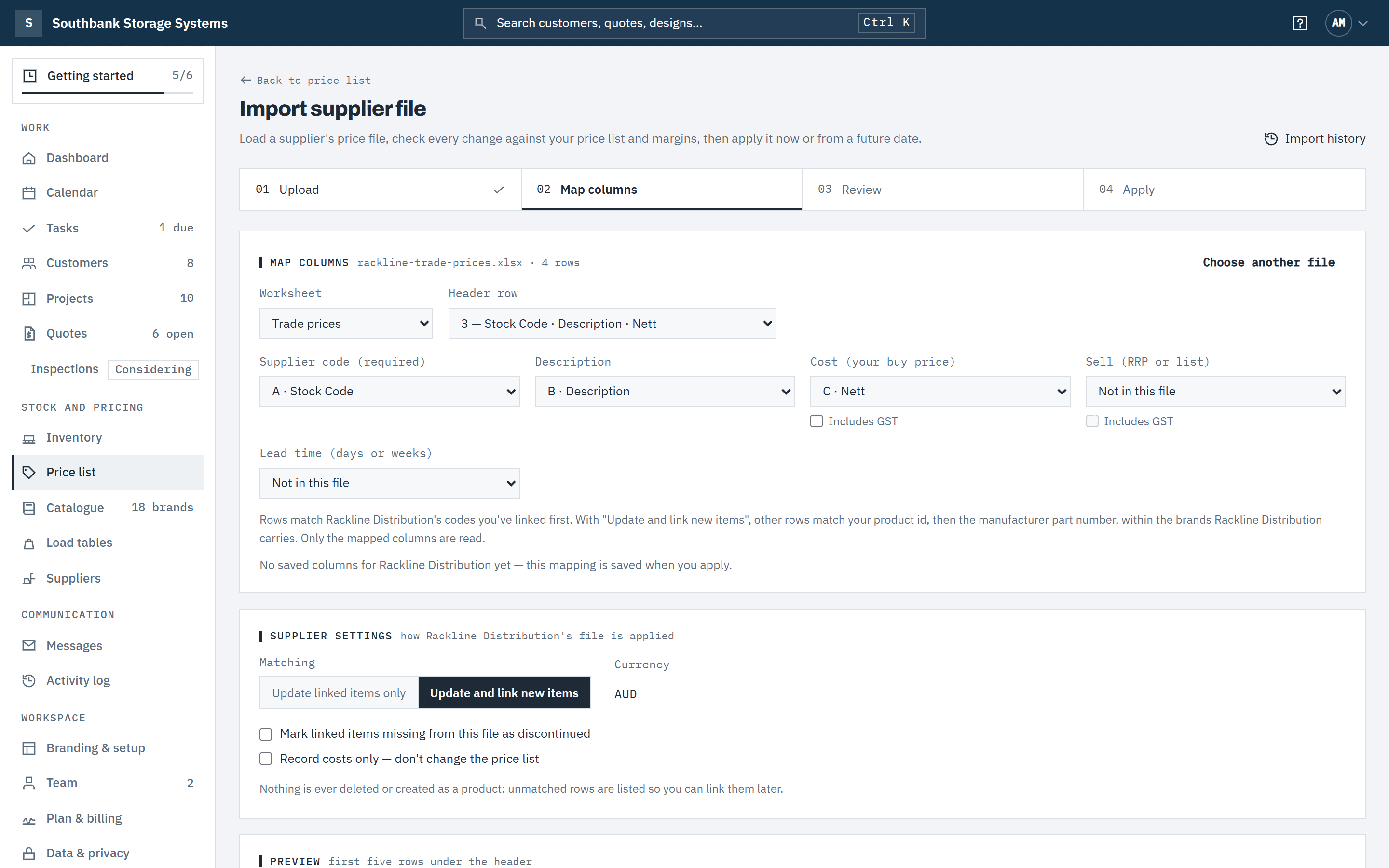
Under Supplier settings, choose Update linked items only to touch only the codes you've already linked to your products, or Update and link new items to also match other rows on your product id, then the manufacturer part number — only within the brands that supplier carries. New matches become that supplier's codes. A part number that fits two products is shown as invalid rather than guessed.
If the supplier invoices in another currency, type the exchange rate (how many of your currency one of theirs buys). Costs are kept in their currency with that rate, and the price list gets them converted. Rates are never fetched or changed for you.
 (opens full size in a new tab)
With a supplier chosen, its linked codes match first; Supplier settings decide whether new items are linked too. Step 4: Review every difference and its margin
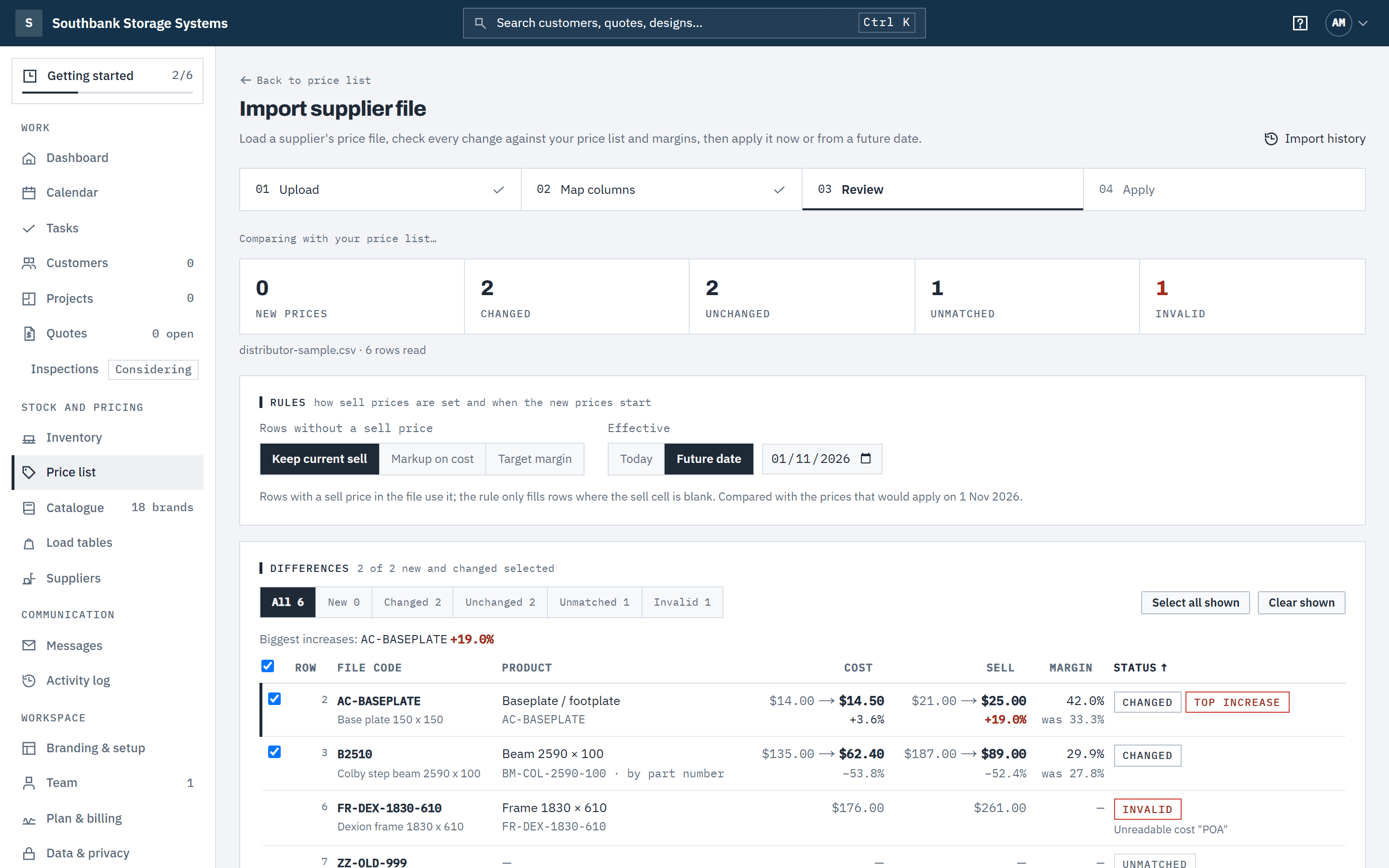
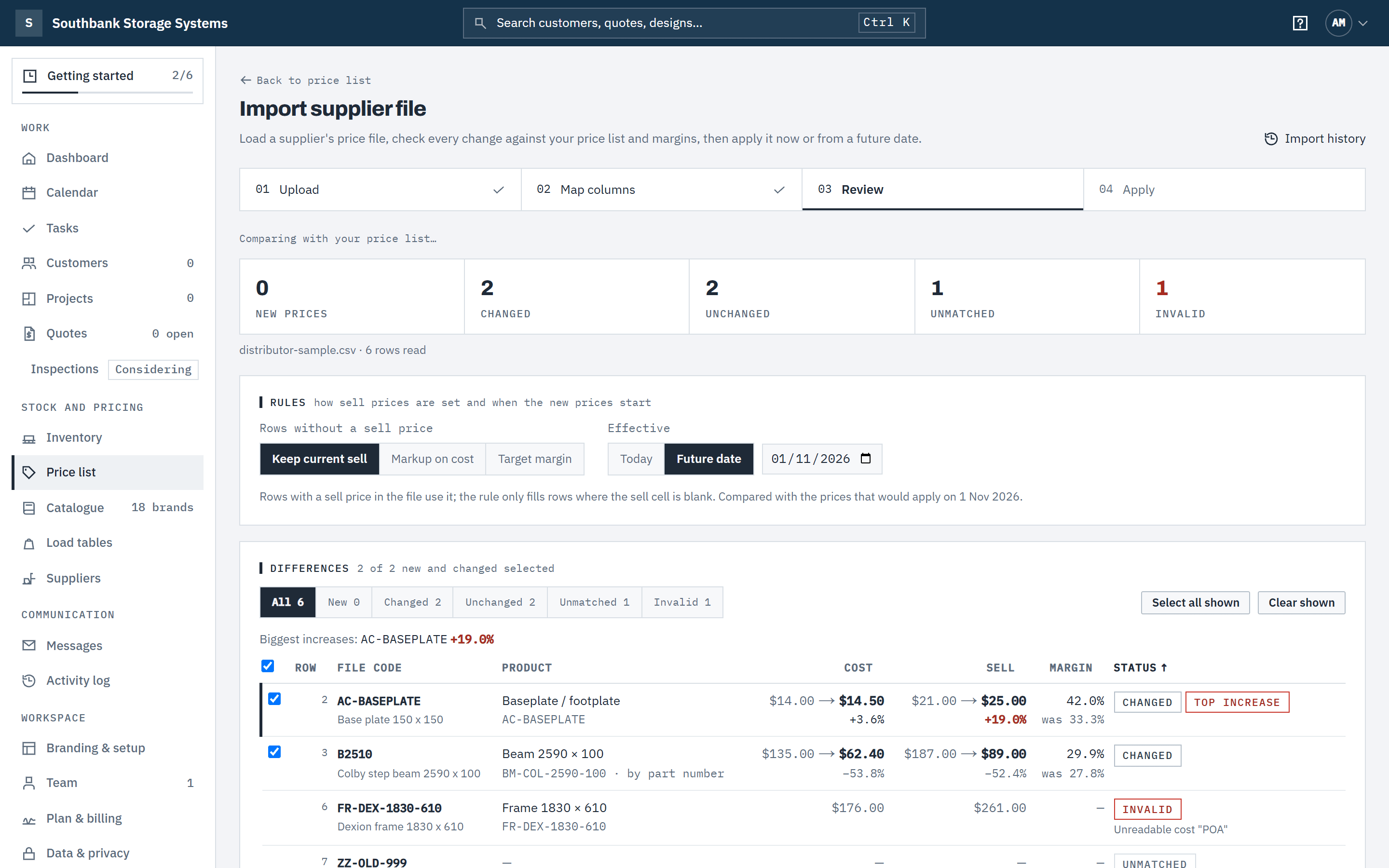
The tiles count new, up, down, unchanged, missing, unmatched and invalid rows, and how many fall below minimum margin. Each row shows cost and sell before → after and the margin before → after. The line under the tiles says how many open quotes include a changed product.
Untick anything you don't want. Unmatched and invalid rows say why — for example No cost price ("POA") or Marked discontinued in the file — not applied — and are never applied. Under Rules, choose what fills a blank sell price and the Effective date.
 (opens full size in a new tab)
Review every change and choose when it takes effect; unmatched and unreadable rows are listed separately. Step 5: Apply
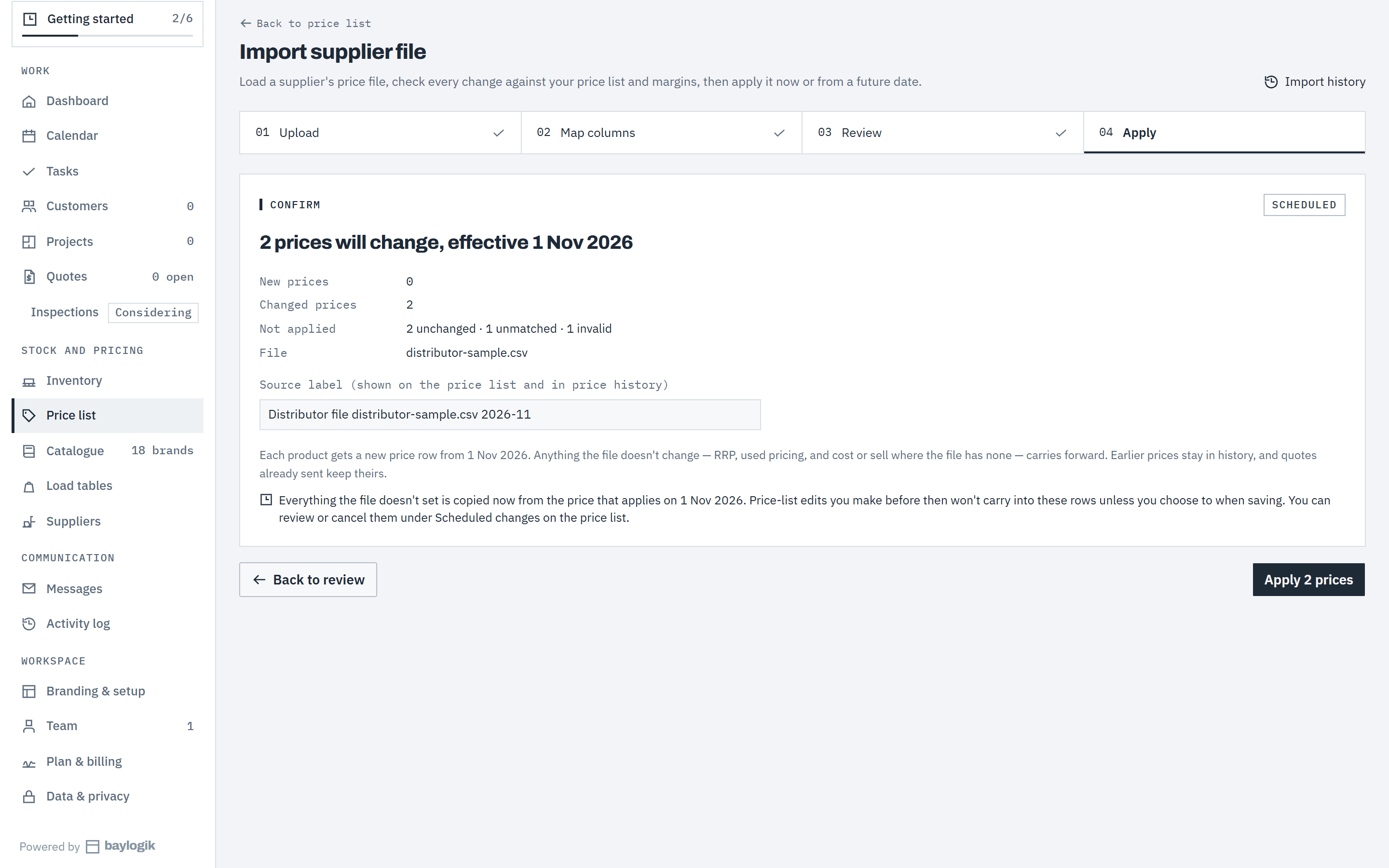
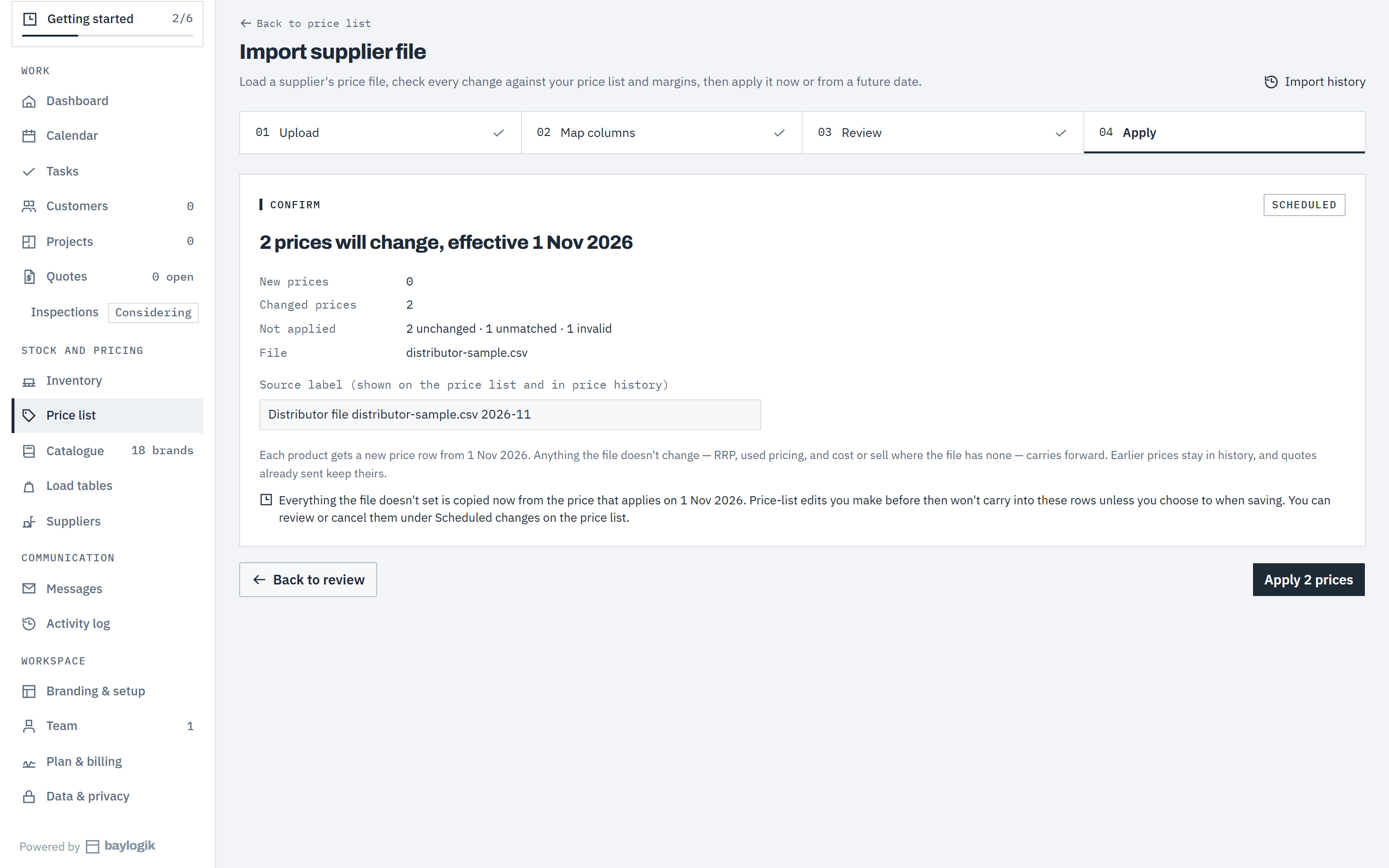
The Apply step sums it up. Choose Apply (the button carries the count). The supplier's costs are recorded for every row you kept. The price list moves only for products where this supplier is the preferred supplier, or where no supplier is preferred yet — for other products the cost is kept for comparison on the supplier's Items tab. The column mapping is saved for next time.
 (opens full size in a new tab)
Confirm to write the new prices, effective on the date you chose. Step 6: Check the result, or undo it
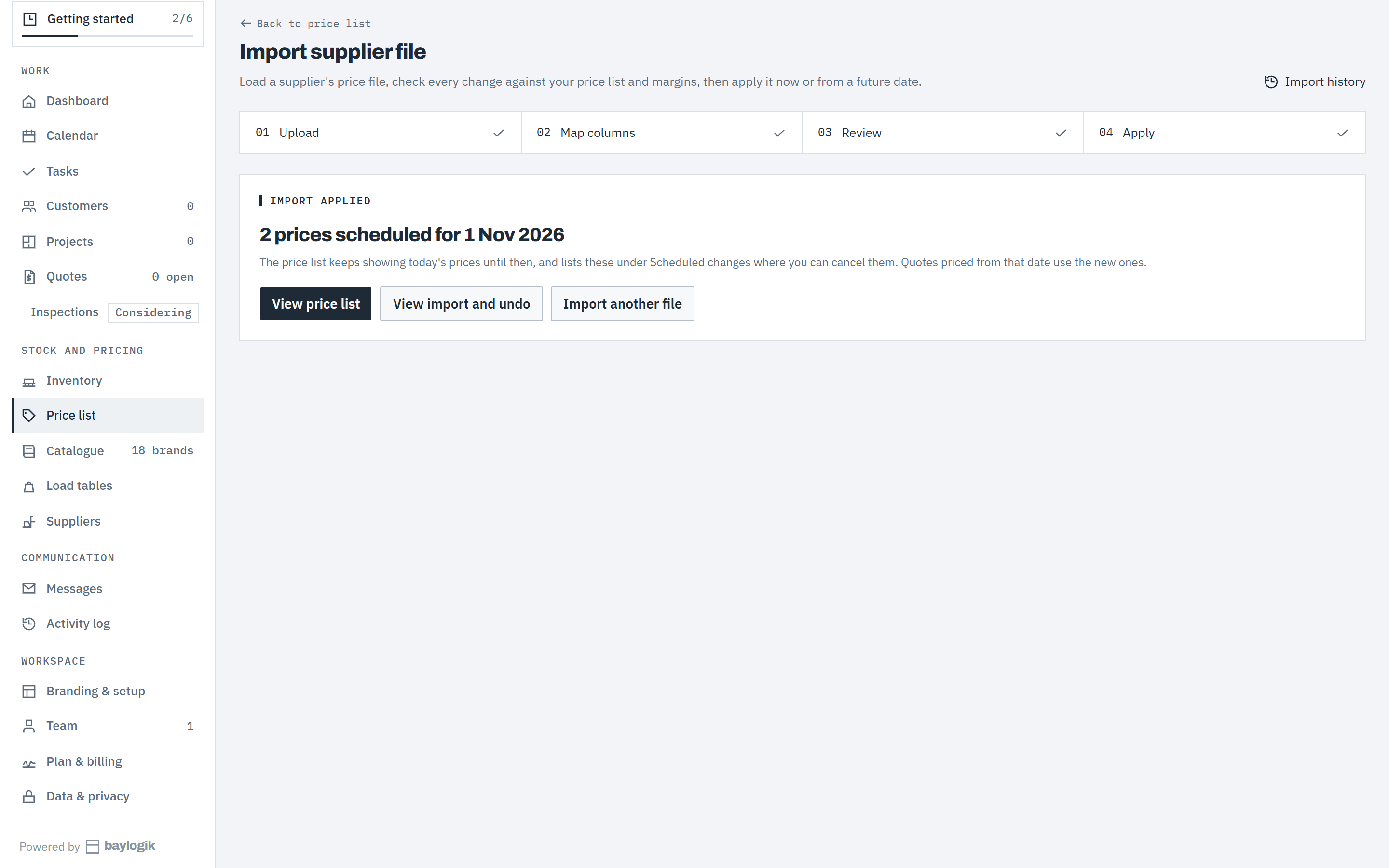
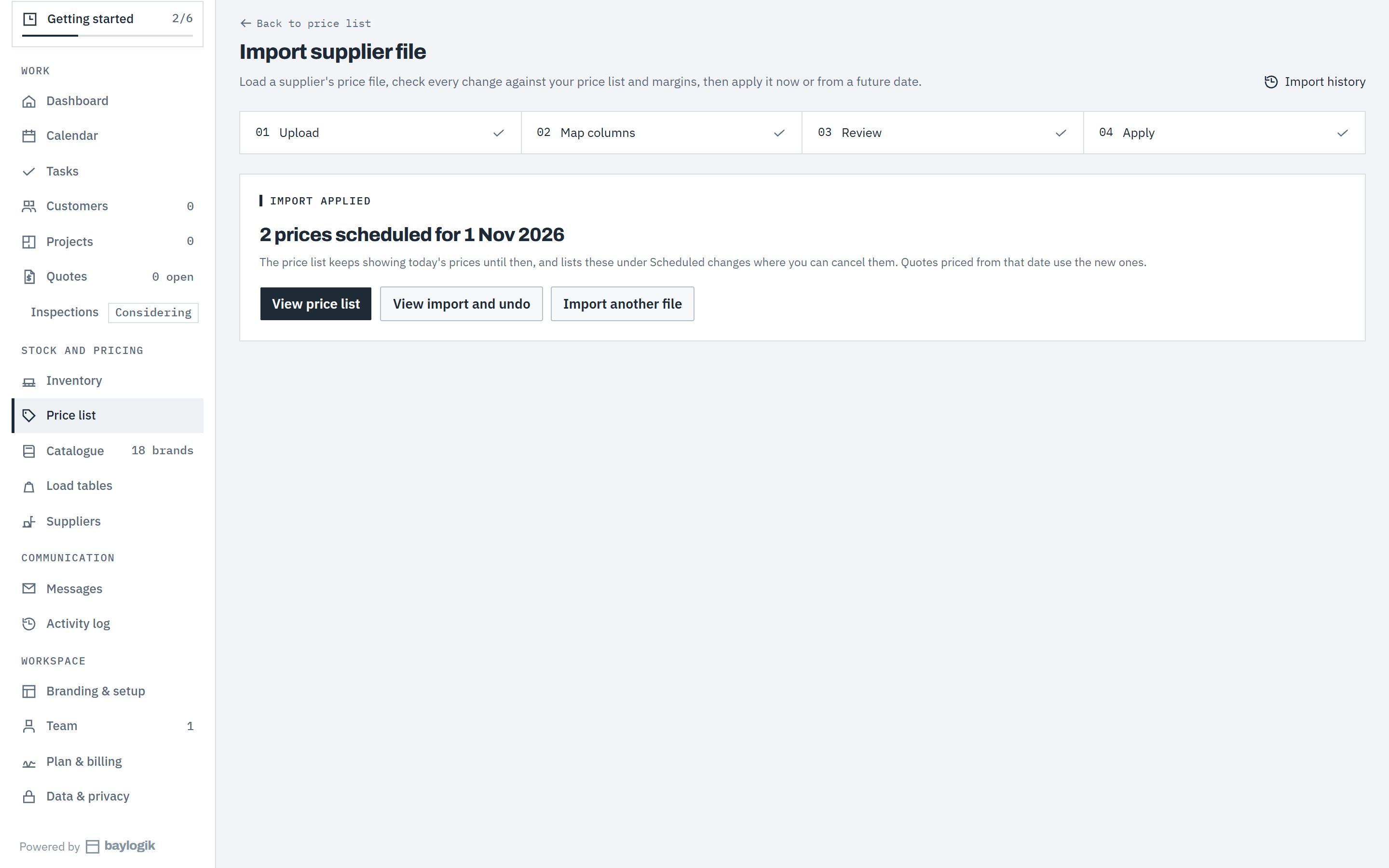
Prices effective today apply straight away; future-dated ones appear under Scheduled changes on the price list. Choose View import to see the import's page, download the original file or the differences, and link any unmatched code to one of your products for next time.
Undo this import on that page shows what it will do first: prices in force go back to what they were before the import, prices it scheduled are cancelled, and a product you've changed by hand since is left alone. Undoing Apply this supplier's costs also puts each product's preferred supplier back, unless someone has changed it since. Every import is listed under Import history.
Undo doesn't reverse everything. Supplier codes the import linked stay linked, the column mapping it saved stays saved, and items it marked discontinued stay discontinued — change any of those on the supplier's Items tab.
 (opens full size in a new tab)
Future-dated prices wait in the price list until their day comes.
Good to know
- Matching ignores case and spaces but not punctuation: F-36 and F36 are different codes. An import never creates a product, deletes anything or changes which brands you sell.
- A distributor's RRP or list column goes into your sell price. The import never changes the catalogue's guidance RRP, and a blank cost keeps your current cost.
- Prices written as text work: $1,234.50, AUD 1 234.50, 1.234,50. A dash or N/A means no price. Section headings and notes inside the file are passed over.
- "Below minimum" uses your workspace's minimum margin (Branding & setup › Defaults & clearances); until you set one it flags anything under 25%.
- If prices change between your review and applying, Baylogik refreshes the review and asks you to check it again. A preview you never apply is cleared after 14 days.
- Old .xls files aren't supported: save as .xlsx or CSV in Excel first. Only the columns you map are kept with the import; the original file is stored encrypted and only people who can see costs can download it.
- Owners, admins and finance can import. Supplier price files come with the Team plan and the trial; on Starter, update prices on the price list or with its CSV import. Undo works on every plan. See Plans, trial and billing.
Related articles
- SuppliersYour vendors and distributors: their codes for your products, their costs, and which one sets your prices.
- Price your rackingCost, sell and margin, lead times, and editing prices in Excel.
- Used pricing and stockOffer used equipment alongside new, and count the stock you hold.
- Choose your catalogueEnable the brands you sell, and add your own frames, beams and services.
- Create and send a quoteGenerate, review and send a priced, branded proposal.