
Two-factor authentication
Protect your account with an authenticator app.
Your workspace holds your customers, prices and margins. Two-factor authentication means a stolen password alone can't open it: signing in also needs a six-digit code from an app on your phone.
It takes about two minutes. You'll need your password and an authenticator app such as Google Authenticator, 1Password or Authy.
Step 1: Open your account
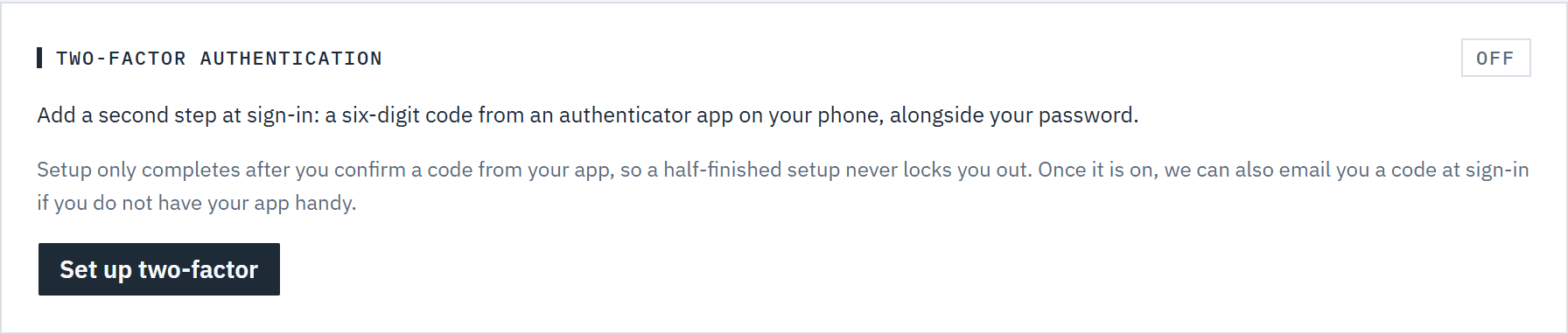
Open the account menu (your initials, top right) and choose Account settings (or Set up two-factor on the Getting started checklist). The Two-factor authentication card shows Off. Choose Set up two-factor.
 (opens full size in a new tab)
Turn on two-factor from your account page. Step 2: Confirm your password
Enter your Password and choose Continue.
Step 3: Scan the QR code
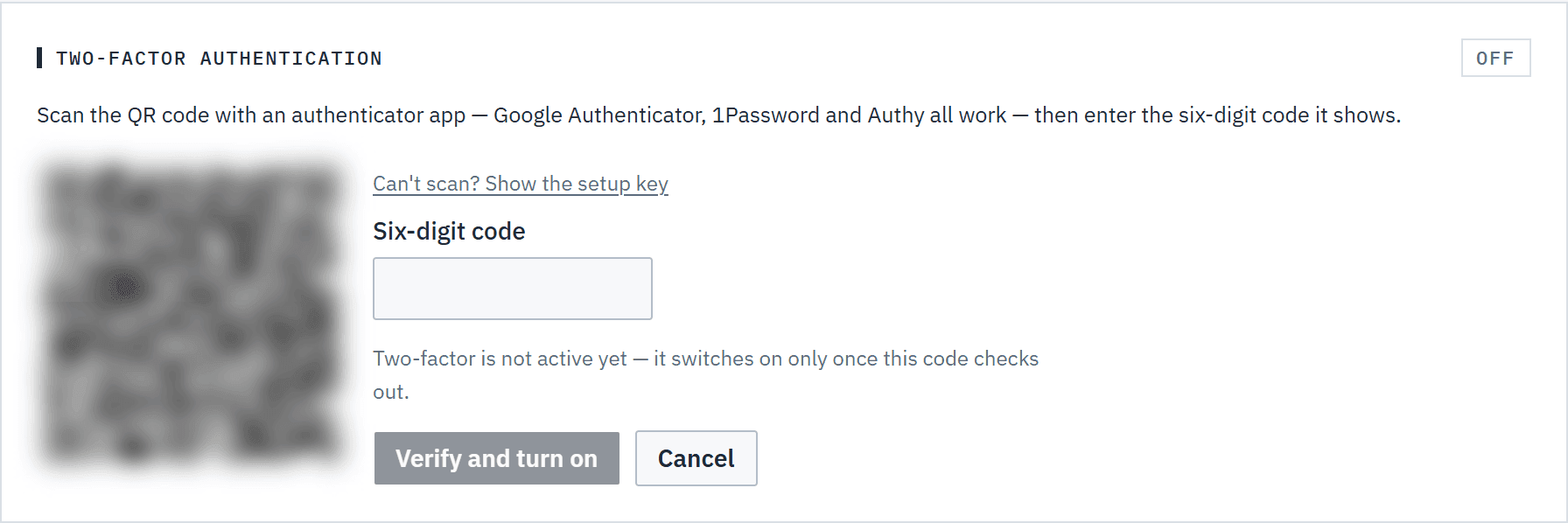
Open your authenticator app, add an account and scan the QR code. It appears as Baylogik. If you can't scan, choose Can't scan? Show the setup key and type the key in instead.
 (opens full size in a new tab)
Scan the QR code with your authenticator app and enter the code it shows to finish. Step 4: Enter the code to turn it on
Type the Six-digit code the app shows and choose Verify and turn on. Two-factor isn't on until this code checks out.
Step 5: Store your backup codes
Baylogik shows 10 backup codes, once. Choose Copy all codes, keep them in your password manager or somewhere safe offline, then choose I've stored these codes. Each code works once.
Step 6: Sign in with a code from now on
After your password, enter the Verification code from your app. Tick Trust this device for 30 days on your own computer to be asked less often.
Good to know
- Without your phone, choose Email me a code instead (valid for three minutes) or Use a backup code.
- Generate new backup codes on your account page replaces the old set; you'll need your password.
- Turn off two-factor also needs your password, and your backup codes stop working.
- If your workspace requires two-factor, you'll be asked to set it up before you can open the workspace. See Invite your team.
- With two-factor on, email sign-in links are refused: sign in with your password and code.